
🛠️ More Free Webmaster & SEO Tools on TechMitra
Building and optimizing your site? Check out our other privacy-friendly, browser-based tools:
If you run a WordPress site, there’s a good chance your robots.txt file is either the default WordPress output or something copied from a random blog post years ago. Neither is doing your website any favors.
I went through TechMitra’s own robots.txt line by line — what to block, what to explicitly allow, and why — and turned that into an interactive generator so you don’t have to start from scratch or guess.
Note: Every WordPress website is different. The generated file is a starting point based on SEO best practices. Always review the rules before publishing, especially if your site uses custom plugins, WooCommerce extensions, or unique URL structures.
Try the Robots txt Generator
Pick a preset that matches your website, adjust the rules if needed, then copy or download your finished robots.txt.
WordPress robots.txt generator
Pick a site type to start from sensible defaults, fine-tune the rules, then check it against what you already have before you publish.
Rules
Everything here targets WordPress specifically. A preset above just sets starting checkboxes — edit anything freely.
Core (recommended for every WordPress site)
Reduce duplicate and low-value URLs
WooCommerce
AI training crawlers separate from SEO
These bots don’t affect search rankings — blocking or allowing them here has nothing to do with Google, Bing, or crawl budget. This is purely about whether you want your content used to train AI models. Left unchecked, all of these are allowed by default (no rule = no block). Note: robots.txt is voluntary — well-behaved crawlers honor it, but it’s not enforced. For actual network-level blocking, Cloudflare’s free plan has an AI Bots toggle.
Validation
Built-in Robots txt Validator
Unlike many basic robots.txt generators, this tool also performs validation before you download your file.
It checks for:
- Missing User-agent directive
- Missing XML Sitemap
- Malformed custom rules
- Missing crawl rules
- Conflicting Allow and Disallow directives
This helps catch common mistakes before you upload the file to your website.
Why a Generic robots.txt Isn’t Enough
Most WordPress tutorials stop at this:
User-agent: *
Disallow: /wp-admin/
Allow: /wp-admin/admin-ajax.php
That’s not wrong — but it’s also not doing much.
WordPress creates plenty of URLs that don’t deserve crawl resources:
- Internal search pages
- Preview URLs
- Feed URLs
- Trackbacks
- Various query parameters
- WooCommerce cart and checkout pages
The goal isn’t to block everything. It’s to stop search engines wasting time crawling pages that provide no SEO value.
That’s the thinking behind this generator. It’s built from the same principles I use on TechMitra rather than a generic template copied from another tutorial.
Also Read : On-Page SEO and Off-Page SEO: What’s the Difference and Why Both Matter (2026)
Techmitra’s robots.txt vs. a Default Setup
| Feature | Default WordPress / Basic Plugin Output | TechMitra’s robots.txt |
|---|---|---|
Blocks wp-admin | ✅ | ✅ |
Allows admin-ajax.php | ✅ | ✅ |
Blocks internal search (/?s=) | ❌ Usually not | ✅ |
| Blocks preview URLs | ❌ | ✅ |
| Blocks duplicate query parameters | ❌ | ✅ |
| Includes sitemap | Sometimes | ✅ |
| Verified in Google Search Console | Depends on the user | ✅ Yes |
| Verified in Bing Webmaster Tools | Depends on the user | ✅ Yes |
Why Use This Generator Instead of a Generic Template?
| Generic robots.txt Template | TechMitra Robots.txt Generator |
|---|---|
| Static template | Interactive generator |
| No explanations | Every rule is explained |
| No validation | Built-in validation checks |
| No WooCommerce support | WooCommerce preset |
| No AI crawler controls | Separate AI training crawler section |
| No comparison tool | Compare with your current robots.txt |
| Copy manually | Copy or download instantly |
To check more information on robots.tct file check this article on Google Search Central
What the Generator Covers ?
Core WordPress Rules
These are recommended for almost every WordPress website. The generator can automatically add rules such as:
- Block
/wp-admin/ - Allow
admin-ajax.php - Block
wp-login.php - Block
xmlrpc.php - Block internal search pages
- Block preview URLs
These rules help reduce unnecessary crawling while keeping important WordPress functionality working correctly.
Duplicate and Low-Value URLs
WordPress and plugins often generate multiple URLs for the same content. The generator lets you optionally block:
- Feed URLs
- Trackbacks and comment endpoints
- Category parameters
- Share and tracking parameters
- Sort parameters
- AMP parameters
These are optional because every site is different — enable what actually applies to your setup.
WooCommerce Support
If you choose the WooCommerce Store preset, the generator recommends additional rules for pages that don’t belong in search results, including:
- Cart, checkout, and my-account pages
- Add-to-cart parameters
- Wishlist and compare pages (only relevant if your theme or a plugin like YITH generates them)
Product filter parameters are also available but remain optional, since URL structures for filters vary between themes and filtering plugins — check your own site’s filtered URLs before turning this on.
AI Training Crawlers (Separate From SEO)
This is a newer category, and it’s worth being precise about it: it has nothing to do with search rankings.
Search engine crawling and AI training crawling are two different jobs. GPTBot (OpenAI), ClaudeBot (Anthropic), Google-Extended (Gemini/Vertex training), CCBot (Common Crawl), and PerplexityBot all respect robots.txt as an opt-out for using your content in AI training data. Blocking them doesn’t touch your Google or Bing rankings, and blocking Google-Extended is a separate directive from blocking Googlebot itself — Google can still crawl you for Search either way.
The generator keeps this in its own clearly marked, off-by-default section. Whether to enable it is a content-licensing decision, not an SEO one — turn it on if you don’t want your content used for AI training, leave it off if you don’t mind, or if you’d rather have the visibility from being cited in AI answers.
One limitation worth knowing: robots.txt is voluntary. Well-behaved crawlers from OpenAI, Anthropic, and Google honor it, but nothing stops a less scrupulous bot from ignoring it outright. If you want actual enforcement instead of a polite request, Cloudflare’s free plan includes an AI Bots blocking toggle that works at the network level, stopping known AI crawlers before they reach your server regardless of whether they’d have respected robots.txt.
Site-Type Presets
Instead of pretending every WordPress website is the same, the generator includes presets for:
- 📰 Blog
- 🛒 WooCommerce Store
- 📡 News Website
- 📚 Documentation Site
Each preset starts with sensible defaults and explains why those rules are recommended.
Live Validation
The generator checks for common configuration issues:
- Missing User-agent line
- Invalid or malformed sitemap URL
- Malformed custom rules
- No rules selected at all
This helps catch simple mistakes before you upload the file.
Compare With Your Existing robots.txt
Already have a robots.txt file? Paste it into the comparison tool and it will highlight which selected rules are missing from your current configuration. This makes updating an existing website considerably easier than starting from scratch.
TechMitra’s Current robots.txt
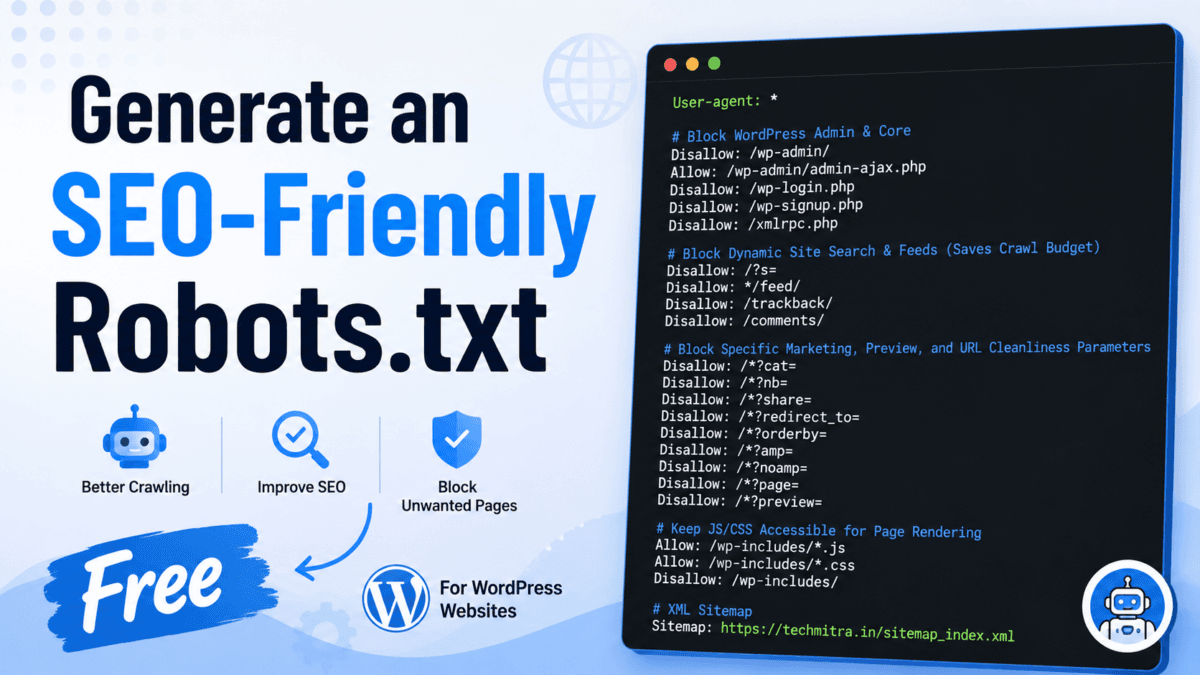
The generator is based on the file currently live on TechMitra:
User-agent: *

# Block WordPress Admin & Core
Disallow: /wp-admin/
Allow: /wp-admin/admin-ajax.php
Disallow: /wp-login.php
Disallow: /wp-signup.php
Disallow: /xmlrpc.php

# Block Dynamic Site Search & Feeds (Saves Crawl Budget)
Disallow: /?s=
Disallow: */feed/
Disallow: /trackback/
Disallow: /comments/

# Block Specific Marketing, Preview, and URL Cleanliness Parameters
Disallow: /*?cat=
Disallow: /*?nb=
Disallow: /*?share=
Disallow: /*?redirect_to=
Disallow: /*?orderby=
Disallow: /*?amp=
Disallow: /*?noamp=
Disallow: /*?page=
Disallow: /*?preview=

# Keep JS/CSS Accessible for Page Rendering
Allow: /wp-includes/*.js
Allow: /wp-includes/*.css
Disallow: /wp-includes/

# XML Sitemap
Sitemap: https://techmitra.in/sitemap_index.xml
A few notes on the choices in this specific file: TechMitra doesn’t run WooCommerce or AMP, so those rule groups aren’t present. The ?page= block is used here because I’ve confirmed how that parameter behaves on this specific site — the generator keeps that same rule under Advanced by default for everyone else, since it can hide legitimate paginated post content on sites where the parameter is used differently. This file has been checked in both Google Search Console and Bing Webmaster Tools with no crawl or indexing issues flagged.
Treat this as a real-world example to learn from, not something every WordPress site should copy exactly — your plugins, theme, and URL structure will differ.
What I Left Out on Purpose
Some generators include features that sound impressive but aren’t actually useful.
You won’t find a “crawl budget saved” counter here. Google doesn’t expose crawl budget in a way that lets anyone accurately calculate savings from individual rules, so a number like that would just be fiction dressed up as a feature.
You’ll also notice the older
Allow: /wp-includes/*.js
Allow: /wp-includes/*.css
rules are tucked under Advanced / Legacy Rules, off by default. Years ago this was commonly recommended to help Google render pages correctly. Modern WordPress and modern Google generally don’t need it, so it’s available if a rendering check specifically flags missing assets — not turned on for everyone by default.
Common robots.txt Mistakes
Blocking CSS or JavaScript. Modern search engines need access to these to render your pages correctly. Blocking them can hurt how Google evaluates your page, not help it.
Blocking /wp-content/. Many themes, images, and stylesheet files live here. Blocking the whole directory usually breaks more than it fixes.
Using robots.txt instead of noindex. robots.txt prevents crawling. It does not prevent indexing if the URL is discovered some other way — a link from another site, for example. If you actually want a page kept out of search results, use a noindex tag, not a Disallow rule.
Forgetting the sitemap. Always include it:
Sitemap: https://example.com/sitemap_index.xmlCopying another website’s robots.txt wholesale. Every WordPress site has different plugins, themes, and URL structures. Use examples — including TechMitra’s above — to learn from, not to copy blindly.
Uploading Your robots.txt
Once you’ve generated your file:
- Upload it to
https://yourdomain.com/robots.txt. It has to live at your domain root, not a subfolder. Most SEO plugins (Yoast, Rank Math) let you paste it directly into their settings; otherwise it goes into your site’s root directory via FTP or your host’s file manager. - Confirm it’s live by opening that URL in a browser and checking it matches what you generated.
- Check it in Search Console using the URL Inspection tool if you want to verify whether a specific page is being blocked — the standalone robots.txt tester from the old Search Console is gone, but URL Inspection covers the same need per-page.
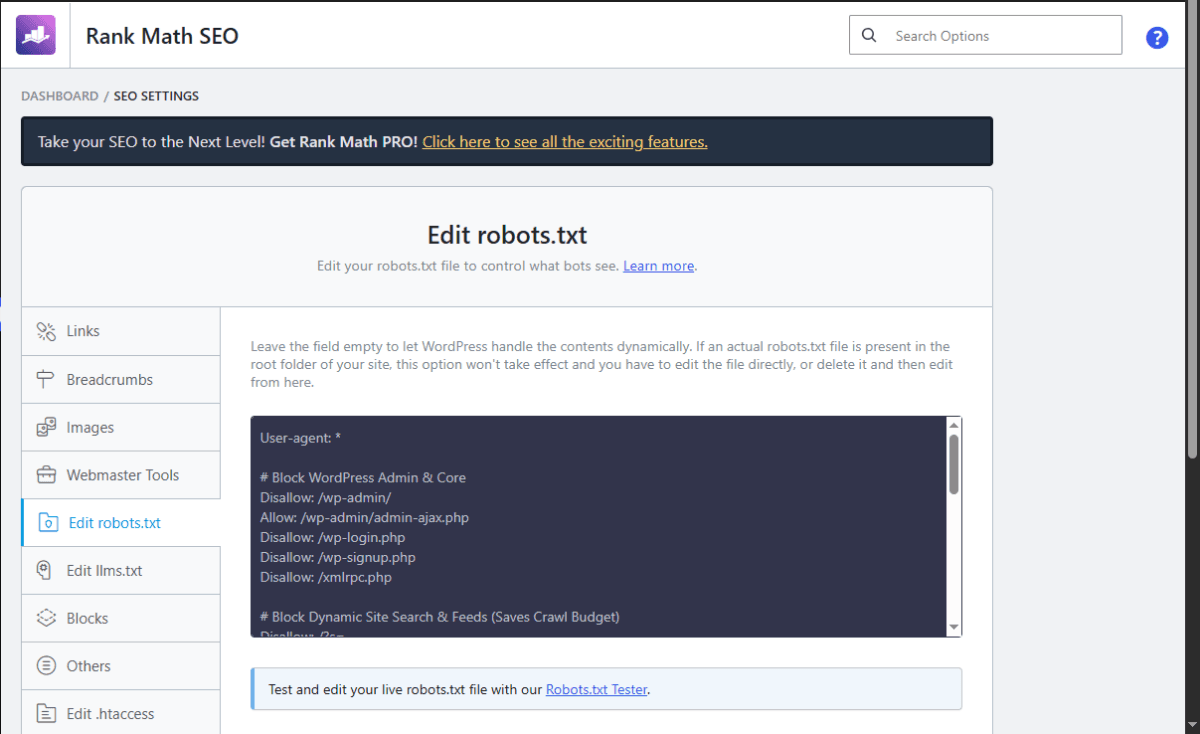
How to Edit robots.txt in Rank Math
If you use Rank Math SEO, you don’t need to edit files through FTP or your hosting file manager.
- Log in to your WordPress dashboard.
- Go to Rank Math → General Settings → Edit robots.txt.
- If prompted, enable the robots.txt editor.
- Copy the generated robots.txt from this tool.
- Paste it into the editor.
- Click Save Changes.
- Visit:
https://yourdomain.com/robots.txtto confirm your changes are live.
Note: If your website already has a physical
robots.txtfile in the root directory, Rank Math may not be able to edit it. In that case, update the file using your hosting File Manager or FTP client.
How to Edit robots.txt in Yoast SEO
If you use Yoast SEO:
- Open Yoast SEO → Tools → File Editor.
- Select robots.txt.
- Replace the contents with your generated file.
- Save the changes.
- Verify the file by opening:
https://yourdomain.com/robots.txtCheck my article on “What is SEO, What Are Its Different Types And Its Benefits? (2026 Guide)”
Frequently Asked Questions
Does robots.txt improve SEO?
Not directly — it doesn’t influence rankings on its own. What it does is help search engines spend their crawl time on your important pages instead of low-value or duplicate URLs, which is a crawl-efficiency benefit rather than a ranking boost.
Does robots.txt stop indexing?
No. It controls crawling, not indexing. A page can still get indexed if search engines find it linked elsewhere, even if robots.txt blocks crawling it. To prevent indexing specifically, use a noindex tag.
Should every WordPress site have a robots.txt?
Yes. Even a simple file with just a sitemap reference is better than giving crawlers no guidance at all
Can I edit robots.txt later?
Yes. Search engines periodically re-fetch it, so update it whenever your site’s structure or plugins change.
Does blocking AI crawlers affect my SEO?
No. AI training crawlers (GPTBot, ClaudeBot, Google-Extended, CCBot, PerplexityBot) are separate from search engine crawlers. Blocking them affects whether your content is used for AI training, not whether Google or Bing can crawl and rank your site.
Final Thoughts
A good robots.txt file isn’t about blocking as much as possible — it’s about helping search engines spend more time crawling the pages that actually matter, while giving you a clear, separate way to control AI training crawler access if that matters to you.
This generator is based on real-world WordPress experience, includes sensible presets for different website types, explains every rule, validates your output, and lets you compare it against your existing robots.txt before publishing.
If you’re running a WordPress website and want a cleaner, easier way to build and maintain your robots.txt, this tool should save you both time and guesswork.

Ayush Singhal is the founder and chief editor of TechMitra.in — a tech hub dedicated to simplifying gadgets, AI tools, and smart innovations for everyday users. With over 15 years of business experience, a Bachelor of Computer Applications (BCA) degree, and 5 years of hands-on experience running an electronics retail shop, Ayush brings real-world gadget knowledge and a genuine passion for emerging technology.
At TechMitra, he covers everything from AI breakthroughs and gadget reviews to app guides, mobile tips, and digital how-tos. His goal is simple — to make tech easy, useful, and enjoyable for everyone. When he’s not testing the latest devices or exploring AI trends, Ayush spends his time crafting tutorials that help readers make smarter digital choices.
📍 Based in Lucknow, India
💡 Focus Areas: Tech News • AI Tools • Gadgets • Digital How-Tos
📧 Contact: Get in touch →
🔗 Full Bio: https://techmitra.in/about-us/