

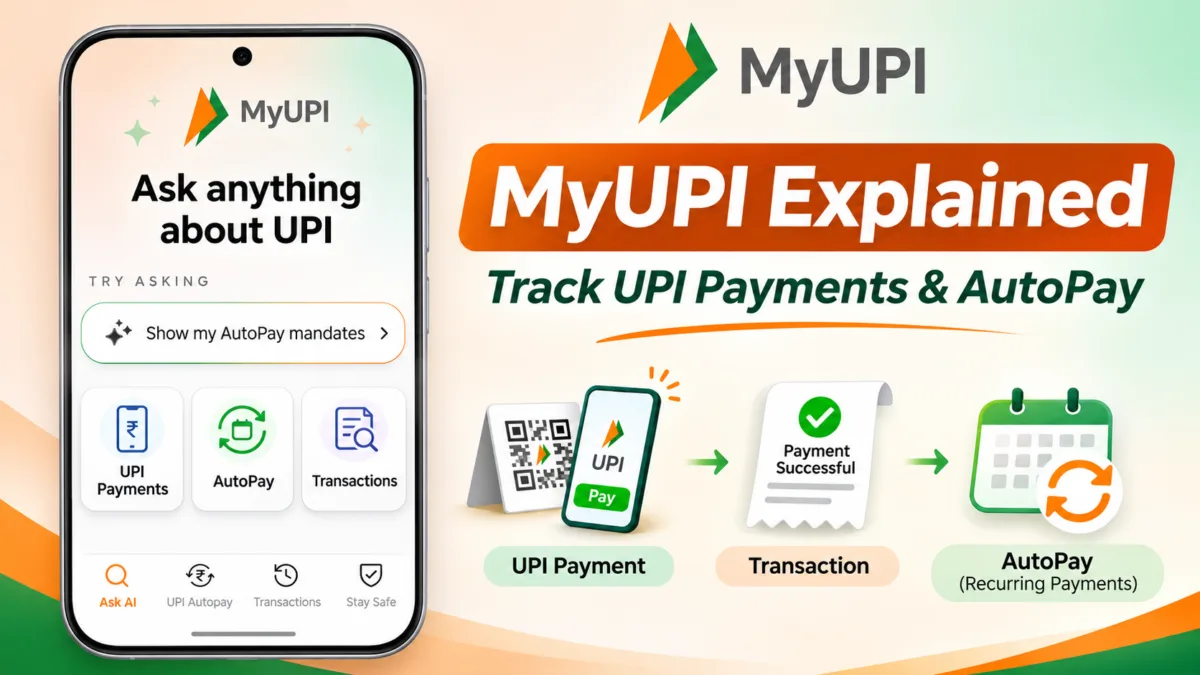
MyUPI AI assistant interface illustrating UPI payment tracking, transaction history, and AutoPay management. – Image
If you pay through more than one UPI app, you know the problem. A payment sits in one app, an EMI runs through another, and a forgotten subscription keeps debiting your bank account.
MyUPI, NPCI’s new AI assistant, is built to fix exactly that. It shows your UPI activity from every app in one place.
You may have seen its newspaper ad with a QR code. This guide explains what MyUPI is, how it works and how to use it, based on hands-on testing on both phone and computer.
MyUPI works on your computer as well as your phone. You just open it in a browser.
Table of Contents
Also Read : How to Download CKYC Number Online – Understanding India’s Central KYC System
What Is MyUPI? MyUPI Explained
MyUPI is an AI-powered support and control platform for UPI. NPCI launched it on 10 September 2026 at Global Fintech Fest, where the RBI Governor unveiled it.
It runs on FiMI, NPCI’s own small language model, and is part of the UPI Help service. You use it at upihelp.npci.org.in.
MyUPI is also described as UPI Help 2.0. It sits across banks and UPI apps, so it is not tied to any single payment app.
MyUPI Is a Web App, Not a Separate App
MyUPI is not an app you download from the Play Store or App Store. It is a web app that opens in your browser at upihelp.npci.org.in.
It works on both mobile and desktop, and the layout adjusts to your screen. Scanning the QR code from the ad simply opens this website.
There is nothing to install. Be careful of any app or link that claims to be a separate “MyUPI app”.
Some UPI apps, such as BHIM, also let you open MyUPI from inside the app. The ad lists the participating apps. Either way, the service is the same.
What Can MyUPI Do?
The login page sums it up as “Simplify, Resolve, Inform”. In practice, it covers these things:
- View all your UPI transactions from every app in one list
- See every active AutoPay mandate and pause or cancel it
- Raise a complaint about a UPI payment and track it
- Verify who you are paying before you send money
- Learn about the latest UPI scams
How to Log In to MyUPI ?
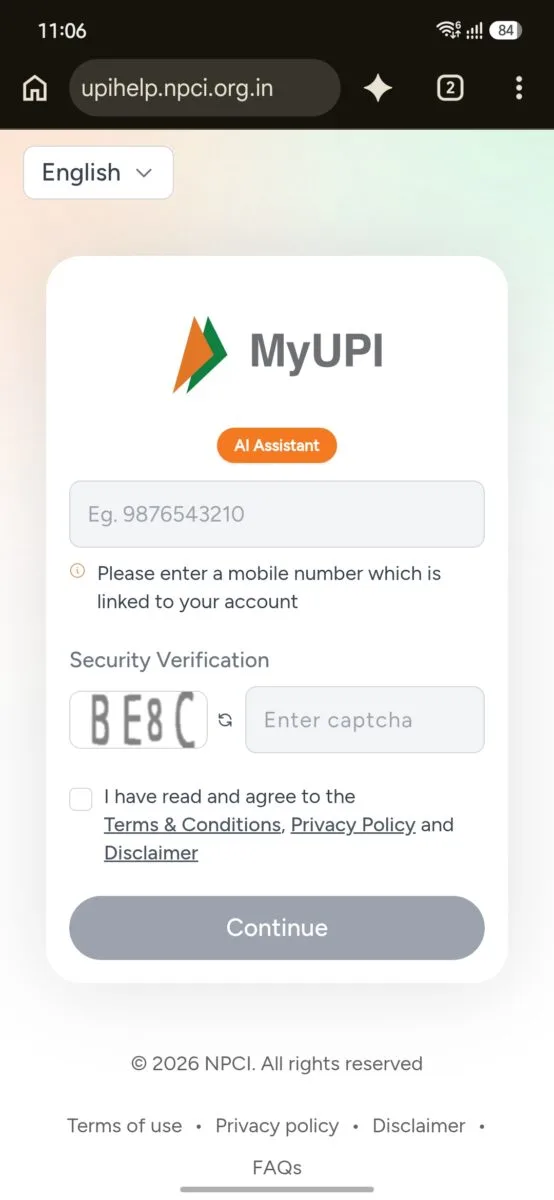
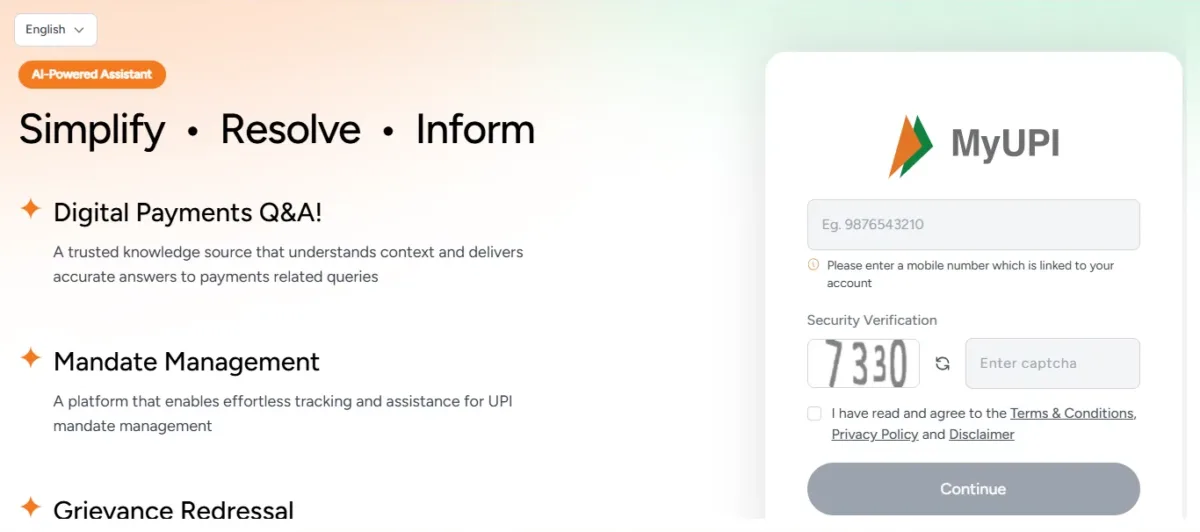
Logging in takes about a minute. Here is the process step by step.
- Scan the QR code from the ad, or open upihelp.npci.org.in in your browser. On a laptop or PC, simply type the address in Chrome, Edge or any other browser.
- Choose your language from the menu at the top.
- Enter the mobile number linked to your bank account.
- Type the captcha shown on the screen.
- Tick the box to agree to the terms, privacy policy and disclaimer, then tap Continue.
- Enter the 6-digit OTP sent to your number. It expires in 5 minutes.
Never share this OTP with anyone. MyUPI itself reminds you of this on the verification screen.
Important: MyUPI never asks for your UPI PIN. If any page that claims to be UPI help asks for your PIN, close it immediately.
The MyUPI Home Screen
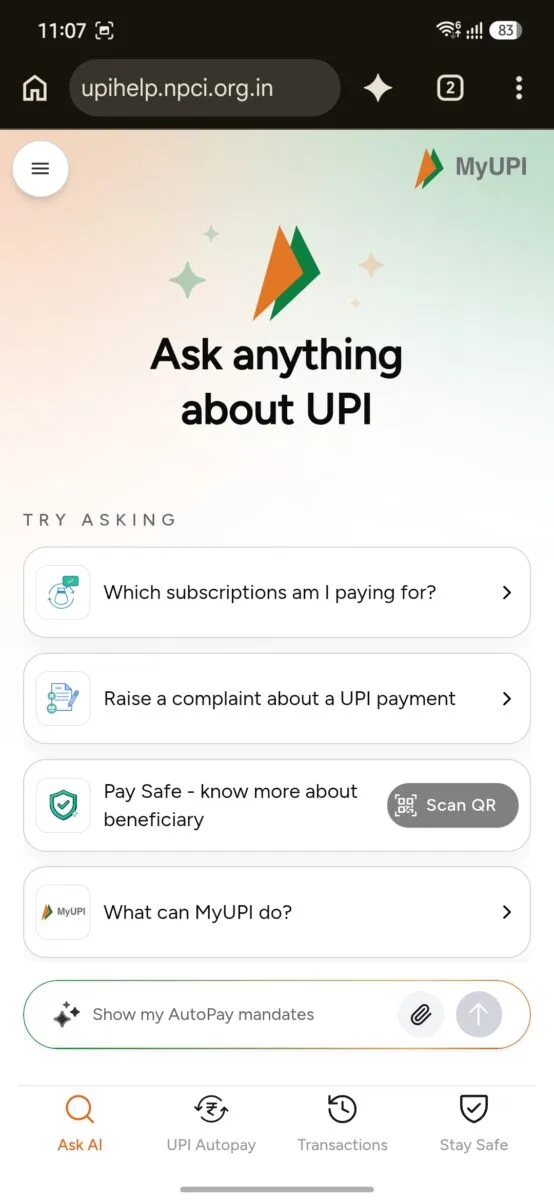
After login, you land on a chat screen titled “Ask anything about UPI”. This is the AI assistant.
It suggests a few questions to get you started. Examples include “Which subscriptions am I paying for?” and “Raise a complaint about a UPI payment”.
You can also type your own question in the box at the bottom. There is also a “What can MyUPI do?” prompt if you want a quick overview.
On mobile, four tabs sit at the bottom: Ask AI, UPI Autopay, Transactions and Stay Safe. On desktop, the same options appear in a sidebar, along with My Complaints, Profile, About MyUPI and Rate MyUPI.
How to Check Your AutoPay Mandates
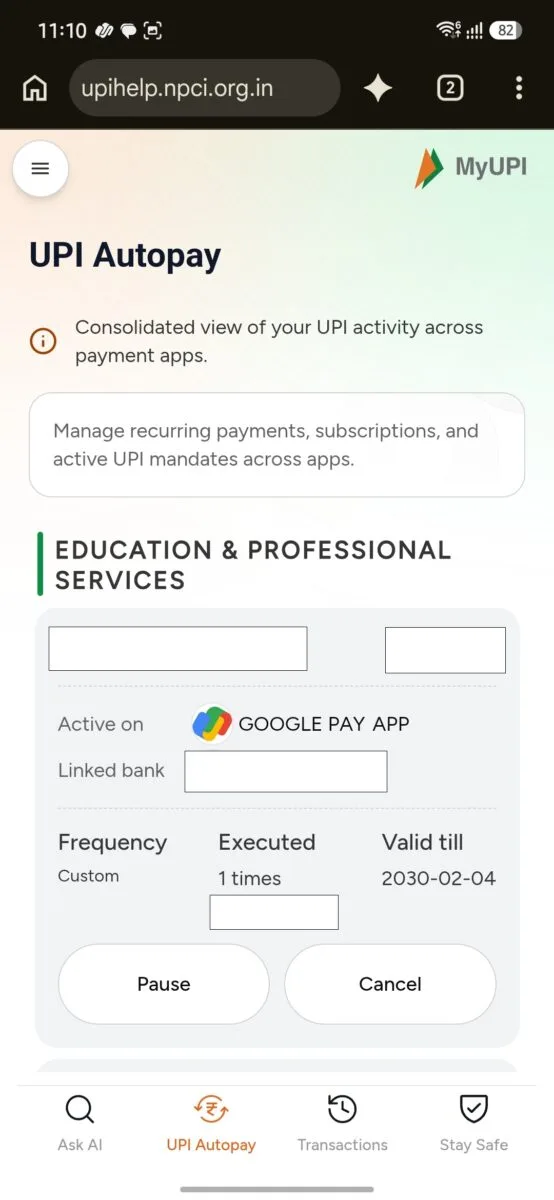
Open the UPI Autopay tab to see every active mandate linked to your number. They are grouped by category, such as education, loans or entertainment.
Each card shows the payee name, the amount and the app where the mandate is active. It also shows the linked bank, the frequency, how many times it has run and the date it is valid till.
This is the most useful part of MyUPI. You can spot forgotten subscriptions and old mandates in seconds, even ones created in an app you rarely open.
How to Pause an AutoPay Mandate
Every mandate card has a Pause button. Tap it and MyUPI asks until which date you want to pause the mandate.
It offers a few quick dates, such as the 15th or 30th of the coming months. You can also choose a custom date.
Pausing is useful when you want to skip payments for a while without deleting the mandate completely.
How to Cancel an AutoPay Mandate
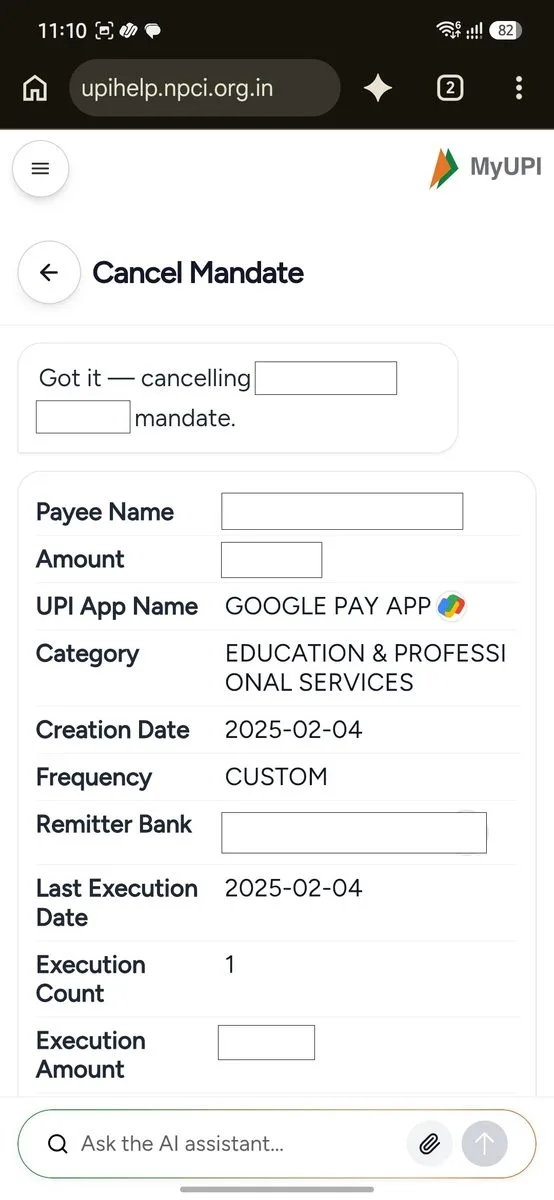
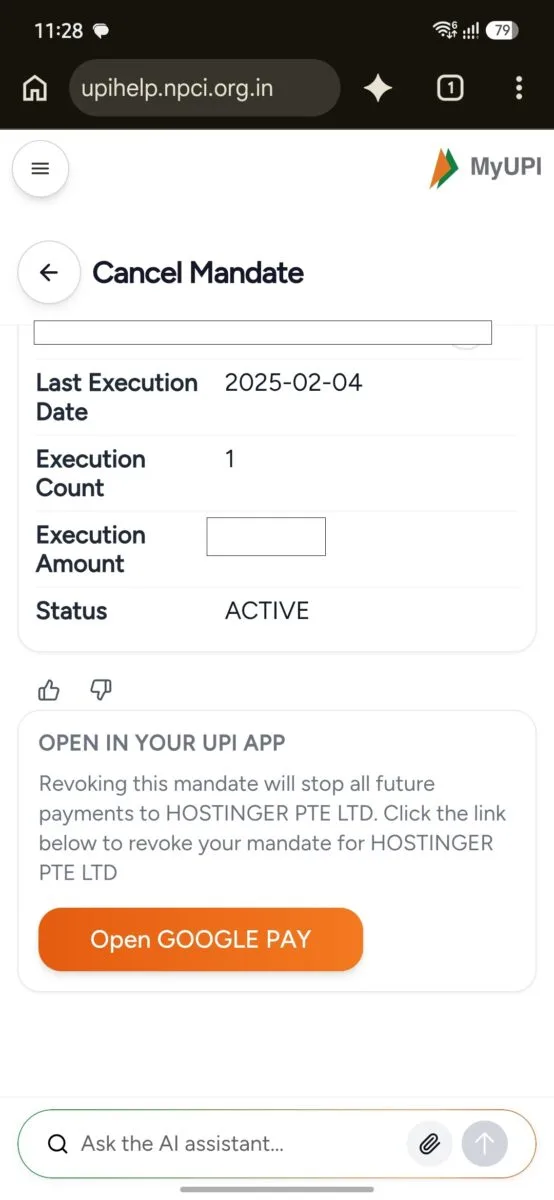
The Cancel button opens a Cancel Mandate screen. It shows the full mandate details, with the status still marked Active.
Below that, MyUPI explains that revoking the mandate will stop all future payments to that payee.
MyUPI does not cancel the mandate by itself. You finish the job in your own UPI app.
- On mobile: tap the button, such as “Open Google Pay”, and the app that holds the mandate opens.
- On desktop: scan the QR code shown on the screen with your phone.
The mandate stays Active until you confirm in the app. Check the payee and amount before you confirm.
Stopping an EMI or insurance payment by mistake can lead to late fees or penalties.
How to Check All Your UPI Transactions
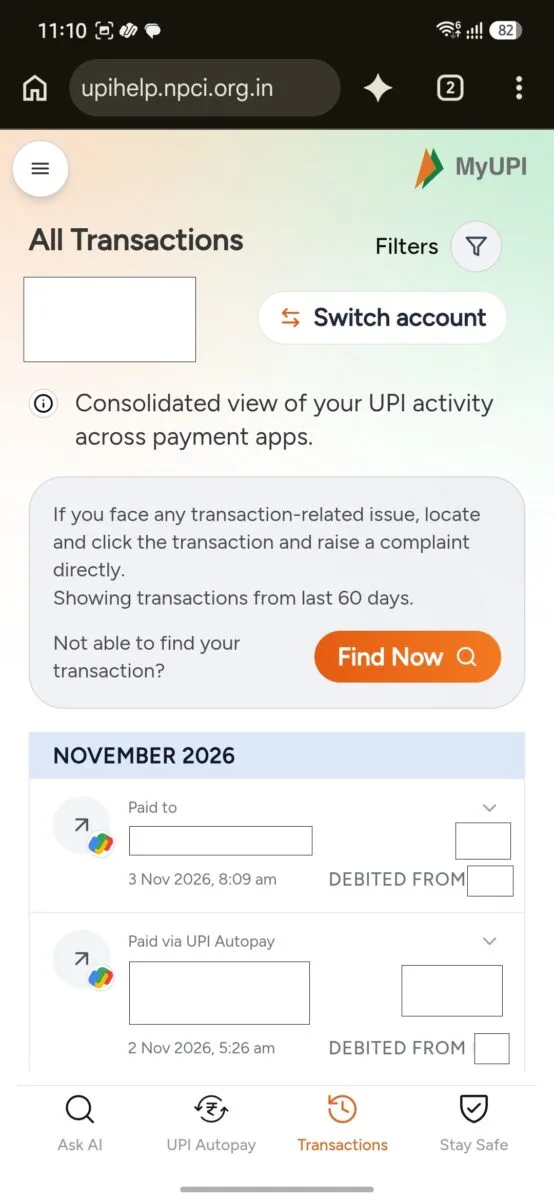
The Transactions tab shows your recent UPI activity from every app in one list. It covers up to the last 60 days.
Each entry shows who you paid or who paid you, the amount, the date and time, and the app used. It also shows which bank account was debited.
If you have several bank accounts, use the Switch account button to move between them.
Last 4 Digits of Your Bank Account
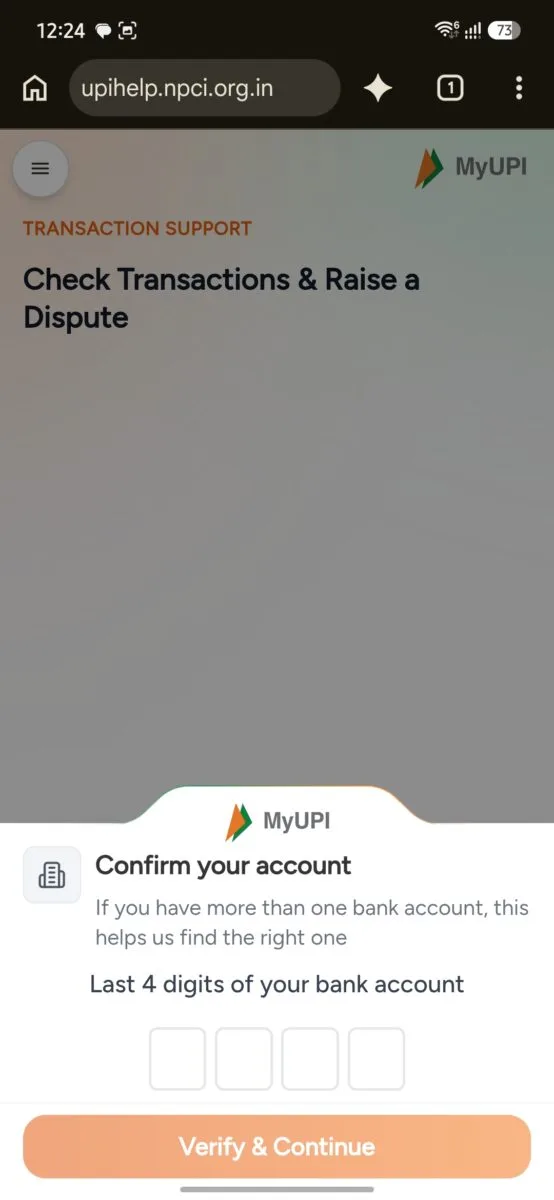
When you open the transaction support page, MyUPI asks for the last 4 digits of your bank account. This helps it find the right account if you have more than one.
Filters
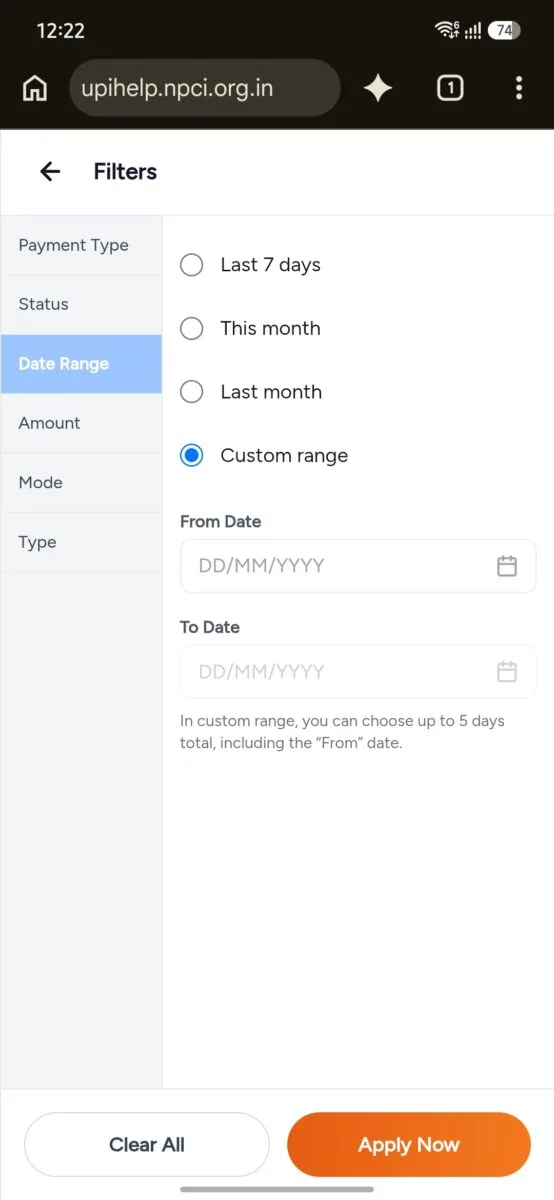
The Filters button lets you narrow down the list. You can filter by:
- Payment Type
- Status
- Date Range (last 7 days, this month, last month, or a custom range of up to 5 days)
- Amount
- Mode
- Type
Raising a Complaint
If a payment went wrong, tap the transaction and raise a complaint directly. If you cannot find the payment, use the Find Now button.
On the desktop site, the My Complaints page lets you track your complaints under All, Under Review and Actioned.
Stay Safe: Verify Payees and Learn About Scams
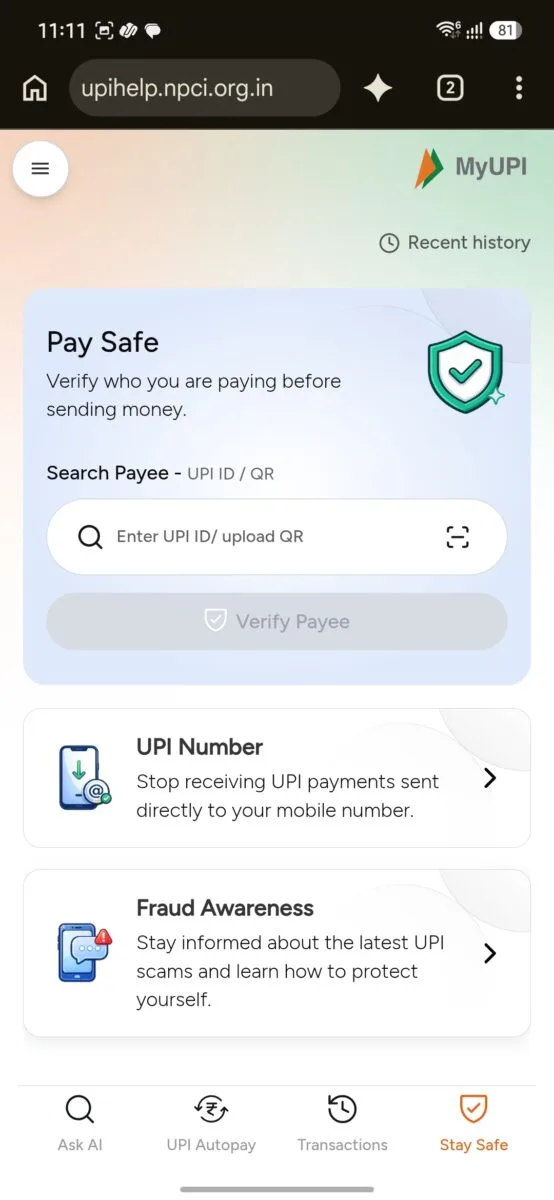
The Stay Safe tab has three tools.
Pay Safe lets you enter a UPI ID or upload a QR code to verify who you are paying before you send money.
UPI Number lets you stop receiving UPI payments sent directly to your mobile number.
Fraud Awareness keeps you informed about the latest UPI scams and how to protect yourself.
Is MyUPI Safe to Use?
MyUPI is run by NPCI, the organisation behind UPI. The ad itself says it never asks for your UPI PIN.
Still, a few habits will keep you safe:
- Always check that the address is upihelp.npci.org.in before entering your number.
- Never share your OTP or UPI PIN with anyone.
- Be careful with fake “UPI support” numbers and lookalike websites.
- Scan the QR only from official ads or sources you trust.
My Verdict
In my experience, MyUPI is an excellent feature from NPCI. Seeing every transaction and every AutoPay mandate in one place, whichever app you used, saves real time.
It also makes it much easier to catch a forgotten subscription or an unexpected debit.
There are a few limits to keep in mind:
- Transactions are limited to a recent window of up to 60 days.
- Cancelling a mandate still ends in your payment app, so it is a guide rather than a one-tap cancel.
- The service is new, so features may change as it rolls out.
Even with these limits, it is worth a visit if you use more than one UPI app.
Frequently Asked Questions
What is MyUPI?
MyUPI is NPCI’s AI-powered assistant for UPI. It shows your transactions and AutoPay mandates from all apps in one place and helps you raise complaints.
Is MyUPI an app or a website?
MyUPI is a web app. You open it in your browser at upihelp.npci.org.in on phone or desktop, and there is nothing to download or install.
Can I use MyUPI on a computer?
Yes. MyUPI opens in any browser on a laptop or PC, with a sidebar menu instead of the bottom tabs. Login and features are the same as on mobile.
Is MyUPI free to use?
Early coverage describes MyUPI as a free service from NPCI. You only need a mobile number linked to your bank account.
Does MyUPI ask for my UPI PIN?
No. MyUPI never asks for your UPI PIN. If a page asks for it, do not enter it.
Can I cancel an AutoPay mandate directly from MyUPI?
MyUPI starts the process and shows the mandate details. You complete the cancellation in your UPI app, using a button on mobile or a QR code on desktop.
How far back can I see transactions?
The Transactions tab covers up to the last 60 days. You can narrow the list with filters.
Which apps does MyUPI work with?
MyUPI shows activity across UPI apps and banks. The ad lists participating apps such as BHIM, Gpay, PhonePe, Paytm, super.money and Navi.
Disclaimer: The image is created for illustrative and educational purposes only. It is not an official image released by the National Payments Corporation of India (NPCI), nor is it endorsed by or affiliated with NPCI. The MyUPI interface shown is used solely to explain the features discussed in this article.

Ayush Singhal is the founder and chief editor of TechMitra.in — a tech hub dedicated to simplifying gadgets, AI tools, and smart innovations for everyday users. With over 15 years of business experience, a Bachelor of Computer Applications (BCA) degree, and 5 years of hands-on experience running an electronics retail shop, Ayush brings real-world gadget knowledge and a genuine passion for emerging technology.
At TechMitra, he covers everything from AI breakthroughs and gadget reviews to app guides, mobile tips, and digital how-tos. His goal is simple — to make tech easy, useful, and enjoyable for everyone. When he’s not testing the latest devices or exploring AI trends, Ayush spends his time crafting tutorials that help readers make smarter digital choices.
📍 Based in Lucknow, India
💡 Focus Areas: Tech News • AI Tools • Gadgets • Digital How-Tos
📧 Contact: Get in touch →
🔗 Full Bio: https://techmitra.in/about-us/