
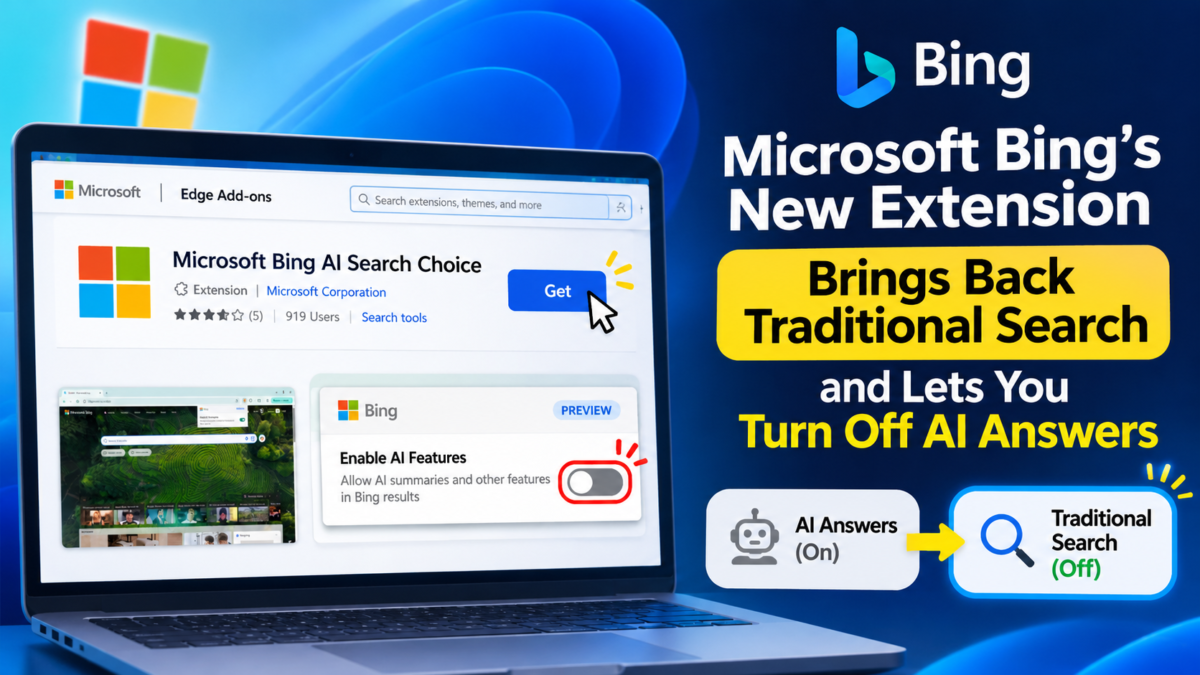
For the past couple of years, search engines have been pushing generated answers to the top of the page whether users asked for them or not. Bing is now taking a small step in the other direction. On November 11, 2026, Microsoft published a post on its Bing Search Blog describing two official ways to search Bing without AI-generated answers: a browser extension for Chrome and Edge with a single on-off toggle, and a “-ai” operator that you can add to any search query.
I installed the extension and tried it myself, so this article covers both what Microsoft says and what actually happens on screen.
Table of Contents
What the Bing AI Search Choice extension does
The tool is called Microsoft Bing AI Search Choice, and it is still marked as a preview. Once installed, it adds a small icon to your browser toolbar. Clicking it opens a compact Bing panel with one switch labelled “Enable AI Features”, described as allowing AI summaries and other features in Bing results. Leave it on and you get the quick summaries. Turn it off and Bing falls back to the familiar page of links, and your choice applies automatically to all your Bing searches.
Edge Add-ons store listing for Microsoft Bing AI Search Choice
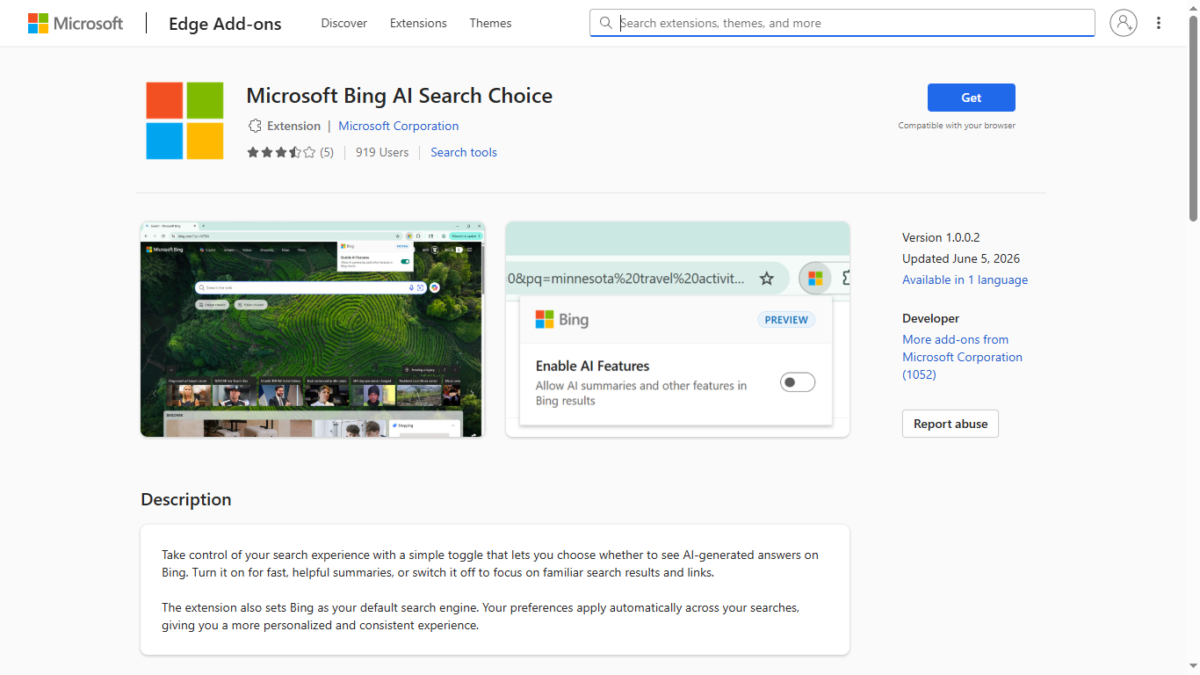
The store listing shows version 1.0.0.2, last updated on June 5, 2026. That detail matters, because it means the extension itself is not brand new. Industry site PPC Land reported on it in early June, and the November blog post is best understood as Microsoft’s official re-announcement and how-to guide rather than a fresh launch.
Bing AI Search Choice extension popup with the Enable AI Features toggle switched on
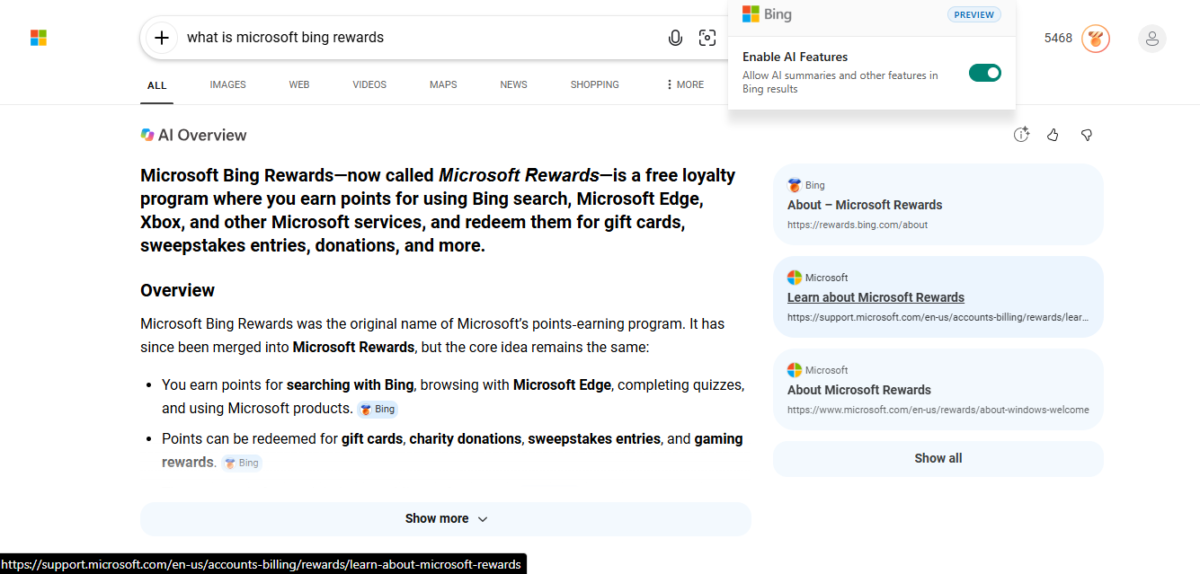
Screenshot – The extension’s popup in the browser toolbar. The “Enable AI Features” switch is on, so Bing shows its AI Overview.
What I saw when I tested it
To see the difference myself, I searched for “what is microsoft bing rewards” with the switch on and then off.
With AI Features on, Bing opened with a long AI Overview that filled most of the first screen. It had a bold summary, a bulleted overview, a “Show more” button, thumbs up and down buttons, and a column of source cards on the right. The ordinary search results were pushed so far down that only the top edge of the first one was visible without scrolling.
After I switched the toggle off and searched again, the AI Overview disappeared completely. The page started with a result count and went straight to traditional results from Microsoft’s Rewards pages, Microsoft Support and other sites (my own TechMitra guide on Microsoft Rewards showed up in the list too). The change was immediate and needed no trip through a settings menu.
Bing results with AI Overview shown for the query “what is microsoft bing rewards“
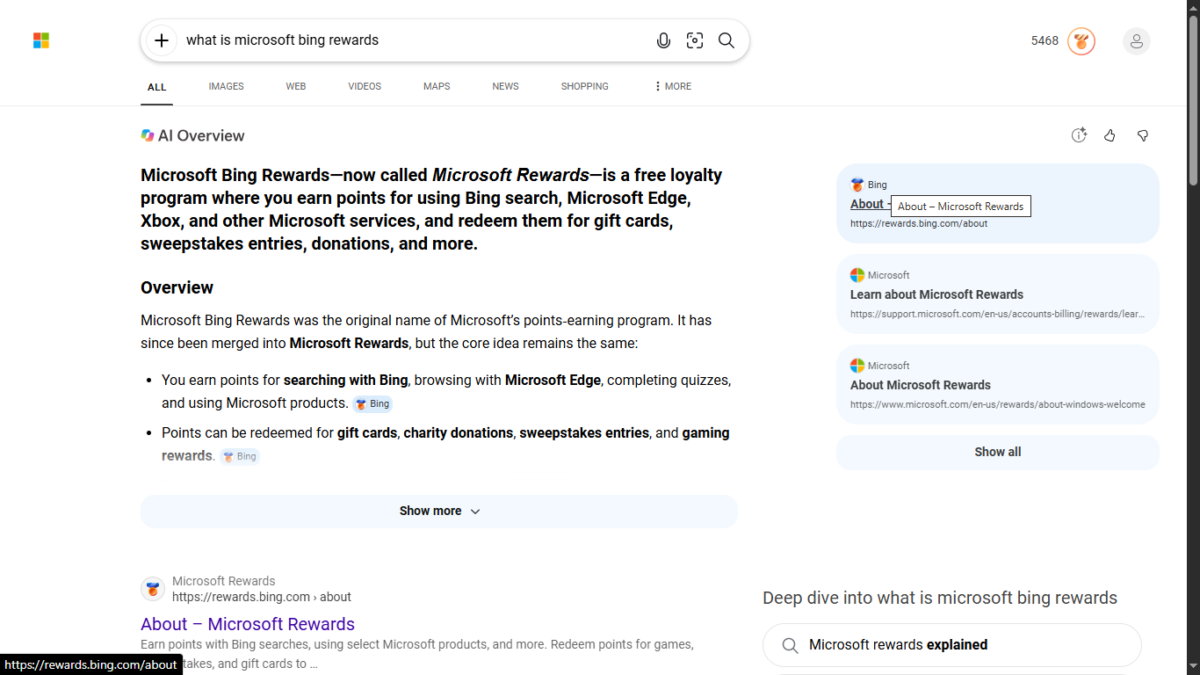
Screenshot : Bing with AI Features on: an AI Overview takes over the top of the page.
Bing results with only traditional links after turning AI Features off
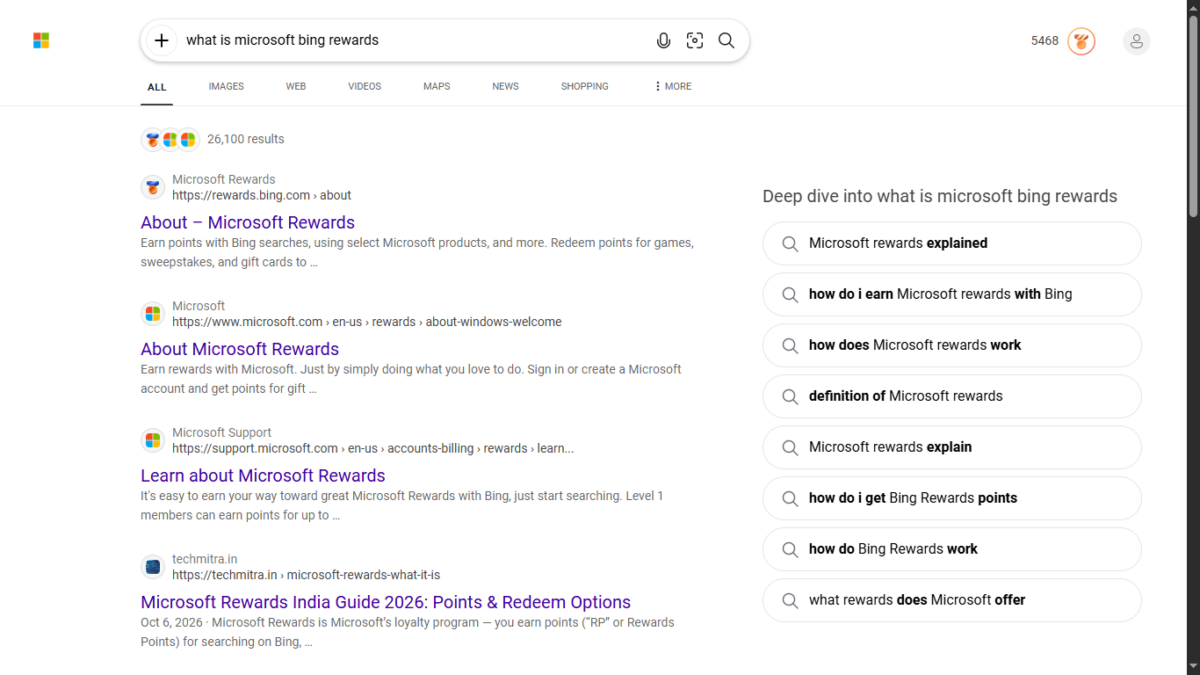
One thing the toggle left alone was the “Deep dive” related-searches panel on the right side of the page, so you still get suggested searches in both modes. This was a single test on one query while signed in to a Microsoft account, so your results may vary by location, account and time.
The shortcut: add “-ai” to your search
If you would rather not install anything, Microsoft also supports a lighter option. Adding the parameter -ai to the end of a query suppresses AI answers for that particular search. It works one search at a time, which suits people who like AI summaries most days but want clean results for certain queries.
Why Microsoft is doing this
Microsoft’s head of search, Jordi Ribas, has said the company’s own research found that not everyone wants to use AI for everything all the time. The blog post goes out of its way to say that offering this choice is not a step back from AI but a step toward letting people decide how they use it.
That framing makes sense in context. Microsoft launched Copilot Search in Bing in April 2025, blending traditional results with generative summaries, and the extension is widely seen as a response to the feedback that followed. Meanwhile, Google keeps leaning harder into AI Overviews and AI Mode, so Bing is positioning itself as the engine that lets you opt out.
The catch: Bing becomes your default search engine
This is the part many news summaries gloss over, and readers should know it before they click install. The Edge Add-ons listing states plainly that the extension also sets Bing as your default search engine. The Chrome Web Store listing says the same, according to PPC Land’s reporting.
So the extension is partly a control for users and partly a way of bringing people over to Bing. If you already prefer Bing, that is a fair trade. If you only wanted a quick AI switch while keeping Google as your main search engine, check your default search engine after installing and change it back if needed.
Questions that remain
Search Engine Roundtable raised an awkward point: Bing used to have a built-in setting for turning off AI features in search, and it was removed. Given that history, asking people to install an extension or remember a special operator feels like a roundabout way to offer a control that could simply live in Bing’s own settings.
There are also open questions for advertisers and publishers. Microsoft’s post says nothing about what happens to ads, Copilot or publisher links when AI answers are switched off. For site owners, the toggle could mean more clicks to traditional results, but nobody knows yet how many people will actually use it. When I checked the Edge listing, the extension had only a little over 900 users and a rating of about 3.5 stars from five reviews, so adoption looks modest so far. Those numbers will change over time.
How to try it yourself
Search for “Microsoft Bing AI Search Choice” in the Edge Add-ons store or the Chrome Web Store and install it. After installing, click the Microsoft icon in your toolbar, and use the “Enable AI Features” switch to turn AI answers on or off. Run the same search in both states to see the difference, and check your default search engine afterwards, since the extension changes it to Bing.
Frequently asked questions
Does the extension work in Chrome and Edge? Yes. Microsoft offers it for both browsers through their respective extension stores.
Does it turn off every AI feature in Bing? It turns off AI summaries and other AI features in Bing results. In my test, the related “Deep dive” suggestions panel stayed visible.
Can I turn off AI for just one search? Yes. Add -ai to the end of your query.
Will it change my default search engine? Yes. The store listing says the extension sets Bing as your default search engine.
Is the extension free? It is listed as a free extension from Microsoft Corporation, though you should confirm the current listing before installing.
The bottom line
It is good to see a major search engine admit that people want a choice, and the toggle works simply and as advertised. Still, it is a preview extension that also changes your default search engine, and the cleaner fix would be a plain on-off setting inside Bing itself. Until that happens, this is the best official option available for anyone who wants traditional search results back.

Ayush Singhal is the founder and chief editor of TechMitra.in — a tech hub dedicated to simplifying gadgets, AI tools, and smart innovations for everyday users. With over 15 years of business experience, a Bachelor of Computer Applications (BCA) degree, and 5 years of hands-on experience running an electronics retail shop, Ayush brings real-world gadget knowledge and a genuine passion for emerging technology.
At TechMitra, he covers everything from AI breakthroughs and gadget reviews to app guides, mobile tips, and digital how-tos. His goal is simple — to make tech easy, useful, and enjoyable for everyone. When he’s not testing the latest devices or exploring AI trends, Ayush spends his time crafting tutorials that help readers make smarter digital choices.
📍 Based in Lucknow, India
💡 Focus Areas: Tech News • AI Tools • Gadgets • Digital How-Tos
📧 Contact: Get in touch →
🔗 Full Bio: https://techmitra.in/about-us/