
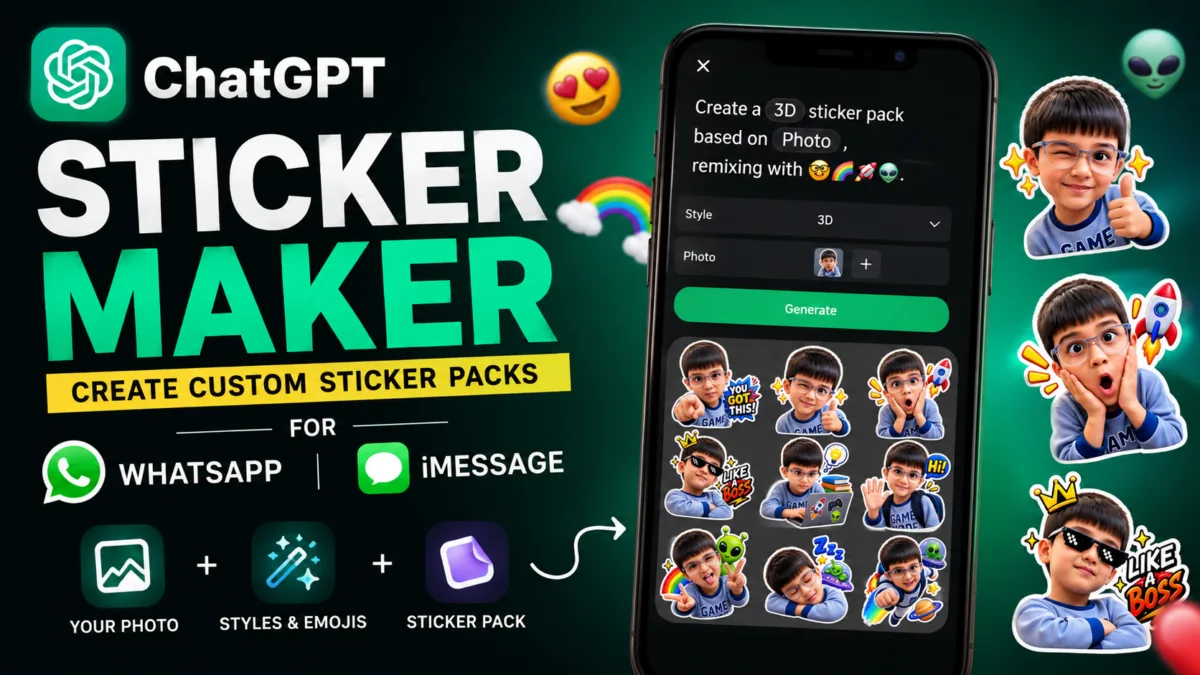
OpenAI has rolled out a native Sticker Maker inside ChatGPT that turns any photo, idea, or inside joke into a custom sticker pack — complete with transparent backgrounds and direct sharing to WhatsApp and iMessage. It started rolling out globally on the ChatGPT mobile app in the last week of August 2026.
I tested this over the past couple of days on both the ChatGPT Android app and the desktop web version — using my own photos, including a product shot from CrochetMagic. Here’s exactly how it works, and an important limitation: the dedicated Sticker Maker only works properly on the mobile app.
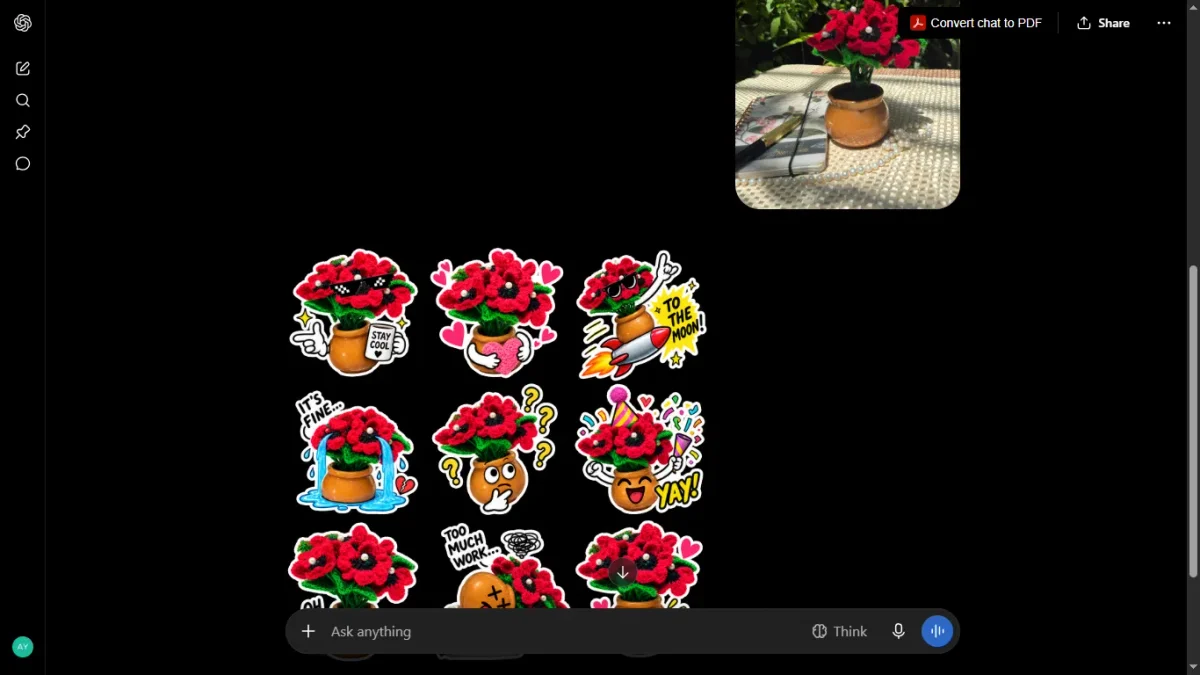
Table of Contents
Also Read : ChatGPT Ads Come to India: Who Will See Them, How They Work and How to Turn Them Off
What is ChatGPT’s new Sticker Maker?
Sticker Maker is a dedicated mode inside ChatGPT’s Images tool. Instead of generating a single image from a text prompt, it’s built specifically for producing sticker-style output — cutout art with transparent backgrounds, bold outlines, and expressive poses — and for handing that output straight to your chat apps instead of just saving it to your camera roll.
It generates a sticker pack — up to nine stickers in one go, arranged in a 3×3 sheet, each with a different expression, pose, or reaction — using the pre-filled prompt template ChatGPT shows you when you open the Stickers screen.
Sticker Maker doesn’t fully work on desktop web
Before getting into the mobile workflow, it’s worth flagging this clearly: I tried the Sticker Maker on ChatGPT’s desktop website first, and it’s a noticeably stripped-down experience.
On desktop web, you can open Images → Stickers and generate a sticker sheet from a prompt — but:
- There’s no style picker. The mobile app’s tappable style chip (3D, Meme, Anime, etc.) simply isn’t there on desktop.
- There’s no “Add to chat apps” option. After generating a sheet on desktop, your only options are Comment, Remove BG, Erase, Resize, download, and a generic share icon — no direct WhatsApp or iMessage export.
So if you’re testing this on a laptop or PC, you’ll be able to generate a sticker-style image, but you won’t get the guided style selection or the one-tap WhatsApp/iMessage export that make this feature genuinely useful. For the full experience, use the ChatGPT mobile app.
What can it actually do?
- Turn an uploaded photo into a sticker (yours, a pet, a product photo — anything)
- Generate stickers from a text prompt alone, no photo needed
- Apply one of 18 visual styles — I scrolled through the full list myself: 3D, Hand-drawn, Chibi, Meme, Holographic, Chrome, Comic Book, Anime, Clay, Pixel Art, Kawaii, Retro, Watercolor, Minimal, Riso Print, Paper Cut, Embroidered, and Graffiti
- Remix a generated sticker using emojis to add elements (a rocket, a crown, hearts, etc.)
- Generate transparent backgrounds — this also works for regular ChatGPT images now, not just stickers
- Export directly into WhatsApp or iMessage as a proper sticker pack
How to create a sticker pack in ChatGPT
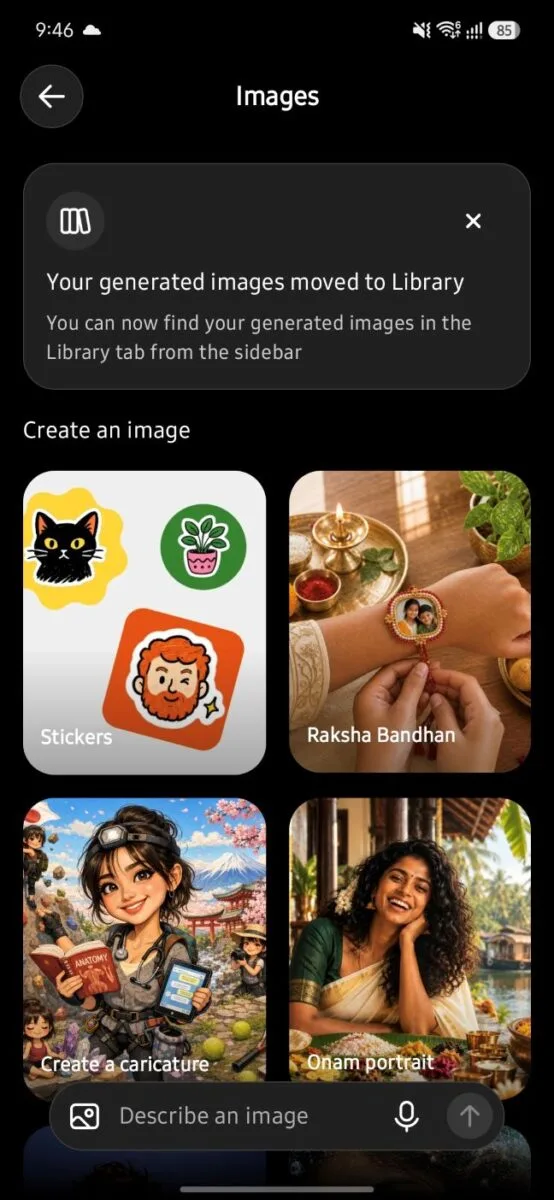
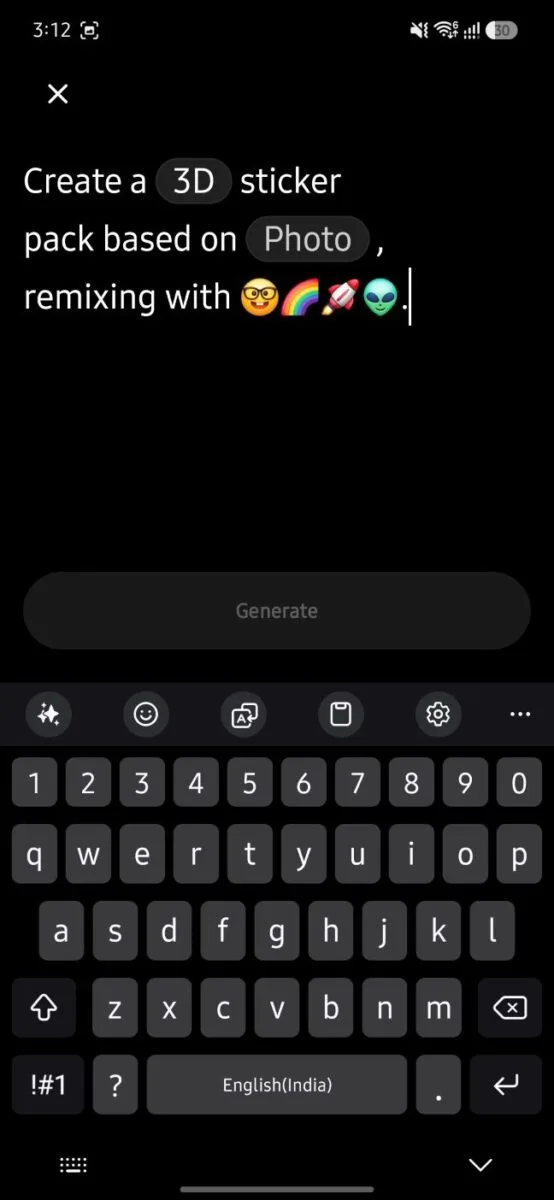
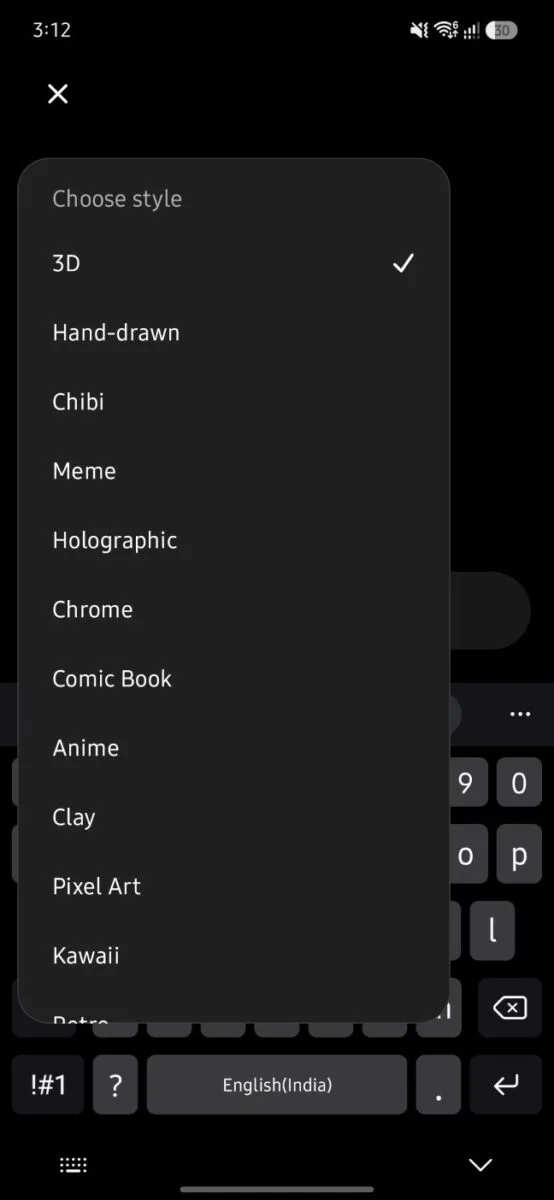
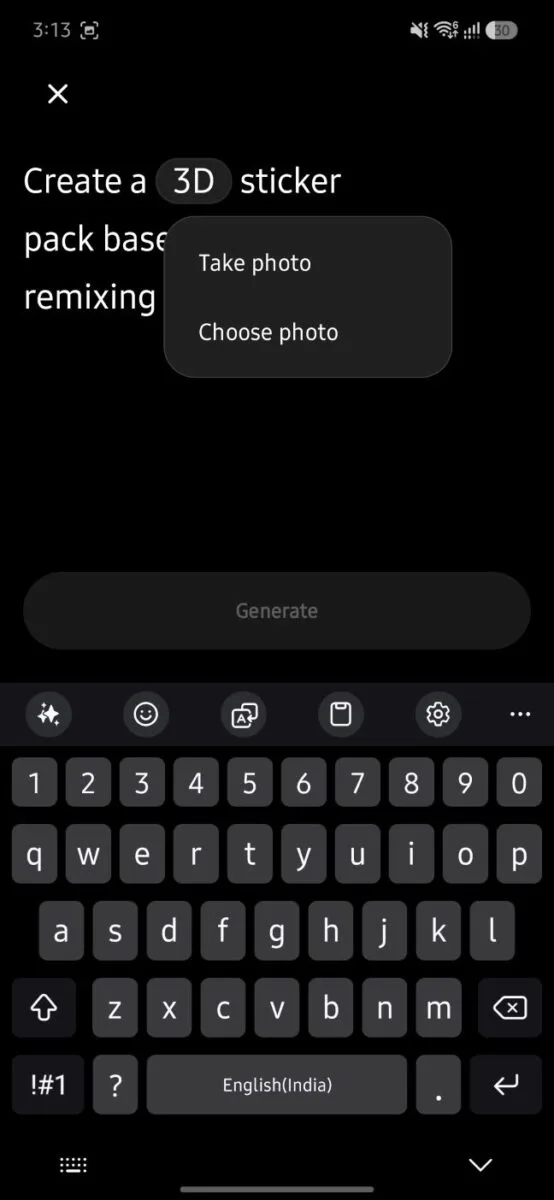
- Open the ChatGPT app (this is the smoothest experience on mobile)
- Go to Images in the sidebar
- Tap Stickers
- ChatGPT pre-fills a prompt template with two tappable chips: a style chip (tap to choose 3D, Meme, Anime, etc.) and a Photo chip
- Tap the Photo chip → Take photo or Choose photo from your gallery
- Optionally edit the prompt to describe the expressions or reactions you want
- Tap Generate
- ChatGPT produces a 3×3 sheet with nine distinct stickers based on your photo
In my test, this took roughly 2–3 minutes from prompt to finished sheet.
How to export your stickers to WhatsApp
This is the part that isn’t obvious from the interface, and it’s where I initially got a different result than what other coverage described.
Once your sticker pack is ready:
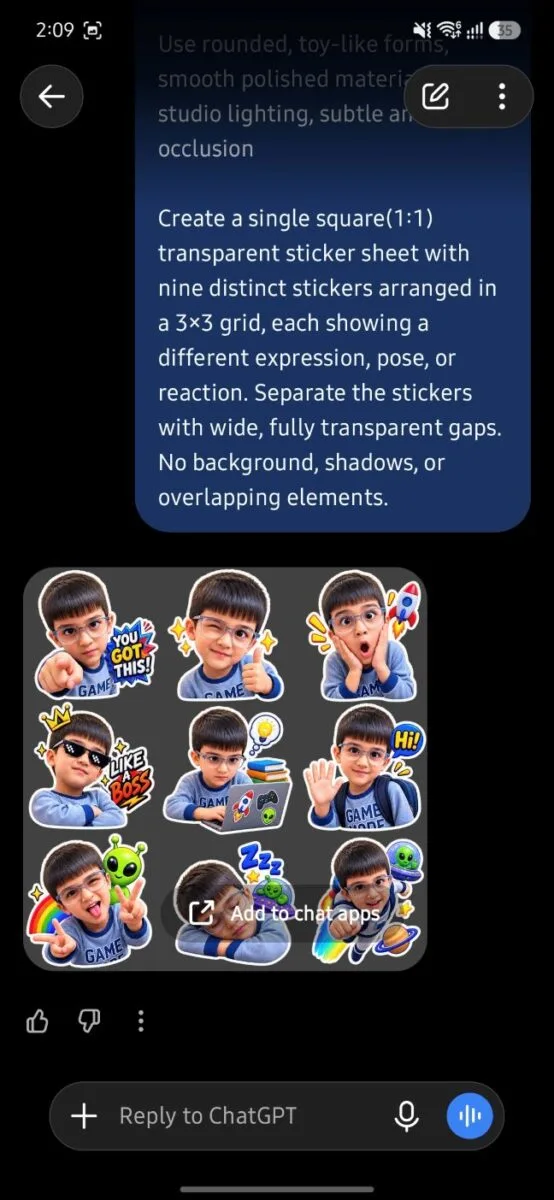
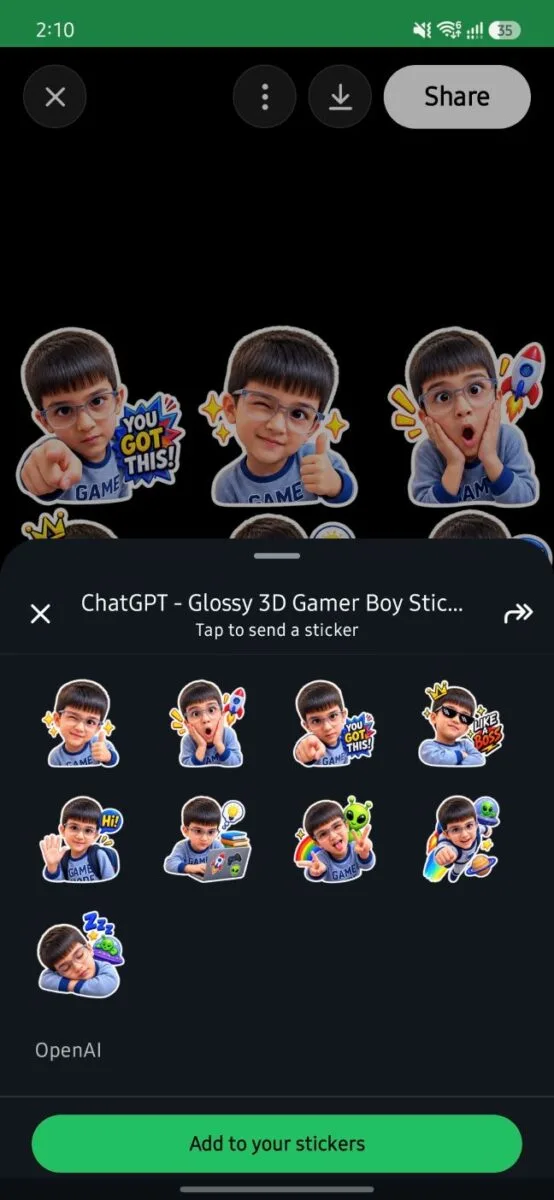
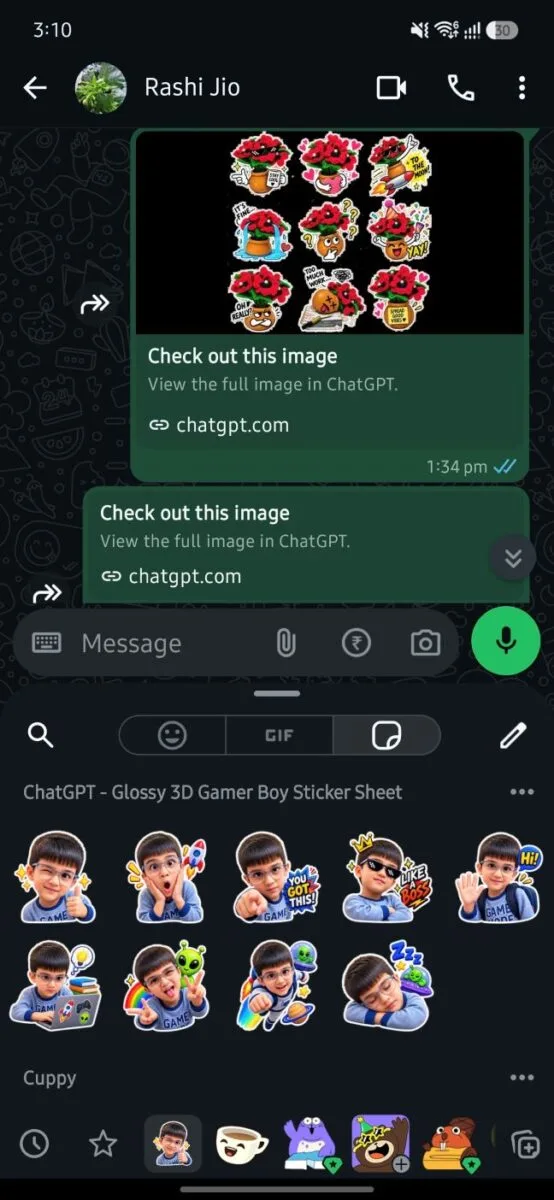
- Tap Add to chat apps below the generated sheet
- Choose WhatsApp or WhatsApp Business
- This opens WhatsApp’s own “Complete action using” sheet
- WhatsApp shows the pack as a proper named sticker set (mine came through as “ChatGPT – Glossy 3D Gamer Boy Sticker Sheet”) with an Add to your stickers button
- Tap it — all nine stickers are added individually to your WhatsApp sticker tray
- To find them, open any WhatsApp chat and tap the sticker icon next to the message box (to the left of the emoji/GIF row) — your new ChatGPT pack will be there
- From there, each sticker can be tapped and sent on its own, to anyone, like any other WhatsApp sticker
WhatsApp needs at least 3 stickers
One limitation worth knowing: WhatsApp requires a minimum of three stickers to add a pack to its sticker gallery. I confirmed this myself — trying to add a smaller set didn’t work, while the full 9-sticker pack imported without issue. This is a WhatsApp/Meta requirement, not something ChatGPT is restricting.
Does it work with iMessage?
Yes — Add to chat apps also lists iMessage as an export option. I don’t use an iPhone day-to-day, so I verified this through a demo video rather than testing it on a device myself, but the export flow is the same idea: the sticker pack gets added directly into Messages’ sticker tray rather than sent as a flat image.
Is it free?
I tested this on ChatGPT Go, not the free tier — Go is currently free for me until November 7 as part of a promotional offer, so I can’t personally confirm whether the Sticker Maker works the same way on the standard free plan. If you’re on the free tier, it’s worth checking that the feature is available to you before planning around it.
ChatGPT Sticker Generator vs WhatsApp’s own sticker tools
WhatsApp has had a native “Create” sticker option for a while, letting you crop a photo and add basic text/stickers on top. ChatGPT’s version is a different category of tool — it generates entirely new stylized artwork (3D, anime, chibi, etc.) from your photo rather than just cropping it, and it can produce a whole themed pack in one step instead of one sticker at a time.
If you’ve used our earlier guide on manually creating AI stickers for WhatsApp, this new Sticker Maker replaces most of that manual process — you no longer need to generate an image, download it, and add it to WhatsApp separately. It’s now a single, native flow inside ChatGPT itself.
My own test prompt for a full pack
This is the prompt I used to generate a full meme-style pack from a single product photo shown on desktop version:
“Create a Meme sticker pack based on the images attached, remixing with 😎🤪❤️🚀🥳. Use exaggerated internet-reaction expressions, including crying, confusion, shock, smugness, side-eye, and deadpan disbelief, with awkward poses, low-fi cutout textures, and absurd humor.
Create a single square (1:1) transparent sticker sheet with nine distinct stickers arranged in a 3×3 grid, each showing a different expression, pose, or reaction. Separate the stickers with wide, fully transparent gaps. No background, shadows, or overlapping elements.”
Specifying the grid layout, transparency, and spacing explicitly like this keeps ChatGPT from producing overlapping or inconsistently styled stickers — a problem I ran into with vaguer prompts.
Also Read : ChatGPT’s Canva Plugin: What Works, What Doesn’t (Real Test)
My experience with ChatGPT Sticker Maker
The biggest advantage of the new feature isn’t simply that ChatGPT can generate attractive stickers — AI image generators have been capable of producing sticker-style artwork for some time. The real improvement is the end-to-end workflow.
I was able to go from:
Photo → Sticker style → Emoji remix → 3×3 sticker pack → Add to chat apps → WhatsApp → Add to your stickers
without manually cropping the nine designs or creating a separate WhatsApp sticker pack myself.
The WhatsApp integration is particularly useful because the generated 3×3 sheet isn’t what ultimately appears in the sticker tray. WhatsApp imports the individual sticker designs, allowing them to be sent separately.
ChatGPT Sticker Maker: What you need to know
- The dedicated Sticker Maker is available through the ChatGPT mobile app
- It’s found under Images → Stickers
- You can start with a photo or an idea
- The interface provides selectable visual styles — 18 in my count
- You can remix sticker designs using emojis
- The feature creates a multi-sticker pack; my test produced nine stickers in a 3×3 layout
- Generated stickers use transparent backgrounds
- You can use Add to chat apps to export them
- WhatsApp requires at least three stickers for direct pack export
- WhatsApp imports the stickers individually into its sticker interface
- iMessage is also supported
- You can save the generated stickers to your device
- The full experience — style picker and direct export — didn’t work for me on desktop web; use the mobile app
Also read : I Tested ChatGPT Plugins with Zomato and Spotify — Here’s What They Can Actually Do
FAQs
What is ChatGPT Sticker Maker?
A dedicated sticker-generation mode inside ChatGPT’s Images tool that turns a photo or idea into a themed sticker pack, with a built-in style picker and direct export to WhatsApp and iMessage.
Where do I find ChatGPT Sticker Maker?
On the ChatGPT mobile app: Images → Stickers. It doesn’t work fully on desktop web — no style picker, no “Add to chat apps” option.
How many stickers does ChatGPT create?
In my test, it generated nine stickers arranged in a 3×3 sheet from a single photo.
Can ChatGPT stickers be added directly to WhatsApp?
Yes. Generate a pack, tap Add to chat apps, choose WhatsApp, then tap Add to your stickers on the sheet WhatsApp shows you. The nine stickers land individually in your WhatsApp sticker tray, ready to send one at a time.
Why can’t I export fewer than three stickers to WhatsApp?
I tested this myself — WhatsApp requires a minimum of three stickers to add a pack to its sticker gallery. This is a WhatsApp requirement, not a ChatGPT limitation.
Does it work with iMessage?
Add to chat apps lists iMessage as an export option too. I verified this through a demo video rather than testing it on a device myself, since I don’t use an iPhone.
Can I use my own photos?
Yes — tap the Photo chip in the Stickers screen, then Take photo or Choose photo from your gallery.
Is it free?
I tested this on ChatGPT Go, which is free for me until November 7 as a promotional offer — I haven’t verified whether the feature works the same way on the standard free tier.
Also Read : Smartphones Launched in India in August 2026: Complete List
Bottom line
ChatGPT’s Sticker Maker is a genuine upgrade over the old manual workaround of generating an image and adding it to WhatsApp by hand. The one thing worth knowing before you try it: don’t judge the export by forwarding the sheet as a regular image — use Add to chat apps to get individually usable stickers in WhatsApp or iMessage.

Ayush Singhal is the founder and chief editor of TechMitra.in — a tech hub dedicated to simplifying gadgets, AI tools, and smart innovations for everyday users. With over 15 years of business experience, a Bachelor of Computer Applications (BCA) degree, and 5 years of hands-on experience running an electronics retail shop, Ayush brings real-world gadget knowledge and a genuine passion for emerging technology.
At TechMitra, he covers everything from AI breakthroughs and gadget reviews to app guides, mobile tips, and digital how-tos. His goal is simple — to make tech easy, useful, and enjoyable for everyone. When he’s not testing the latest devices or exploring AI trends, Ayush spends his time crafting tutorials that help readers make smarter digital choices.
📍 Based in Lucknow, India
💡 Focus Areas: Tech News • AI Tools • Gadgets • Digital How-Tos
📧 Contact: Get in touch →
🔗 Full Bio: https://techmitra.in/about-us/