


Image : ChatGPT Plugins 2026 Guide: Real Zomato & Spotify Test
If you’ve opened ChatGPT recently and noticed a new “Plugins” option in the sidebar, you’re not imagining things — it’s a real, fairly major change to how ChatGPT connects to the outside world.
I connected a couple of these myself — Zomato and Spotify — to see what actually happens when you let ChatGPT talk to a real app on your behalf. Here’s what changed, how to set it up, and exactly what happened when I tried ordering pizza and pulling up a playlist without leaving the chat window.
(This isn’t my first look at ChatGPT’s app connections — I covered the mechanics of connecting a mailbox in Connect Hostinger Mailbox to ChatGPT, which is worth a look if you want the full walkthrough of OAuth-style permissions and login screens.)
Table of Contents
Also Read : ChatGPT’s Canva Plugin: What Works, What Doesn’t (Real Test)
What Are ChatGPT Plugins?
ChatGPT plugins are official connections between ChatGPT and outside apps and services — Zomato, Spotify, Gmail, Notion, and hundreds of others. Once you connect one, you can ask ChatGPT to do things inside that app directly from the chat: search restaurants on Zomato, pull up playlists on Spotify, check your Gmail inbox, and so on — instead of switching to a browser tab or a separate app.
Under the hood, plugins run on MCP (Model Context Protocol), an open standard that lets ChatGPT securely call an app’s own tools with your permission. You stay in control throughout — each plugin shows you exactly what it’s asking to access before you connect it, and sensitive actions (like placing an order) typically need your approval each time.
What Changed: From “Apps” to “Plugins”
On July 9, 2026, OpenAI migrated ChatGPT’s old App Directory into a new Plugin Directory. It’s not a name change for the sake of it — plugins are now the primary way to discover any workflow capability inside ChatGPT and Codex, and a single plugin can bundle together:
- Skills — reusable instructions for a specific task
- Apps — the actual connections to external services (Zomato, Spotify, Gmail, and so on)
- App templates — setup blueprints, mostly relevant for business/workspace accounts
For an individual user, the practical difference is small: you still browse a directory, connect an app, and use it in chat. But the directory itself is much bigger and better organized now, spanning categories like Productivity, Creativity, Business & Operations, Entertainment, Travel, Food Delivery, and dozens more — including a long tail of India-specific and even fairly niche plugins (astrology, tarot readings, and government auction sites all sit in there alongside Gmail and Notion).
How to Install ChatGPT Plugins?
The general flow is the same across every plugin I tried:
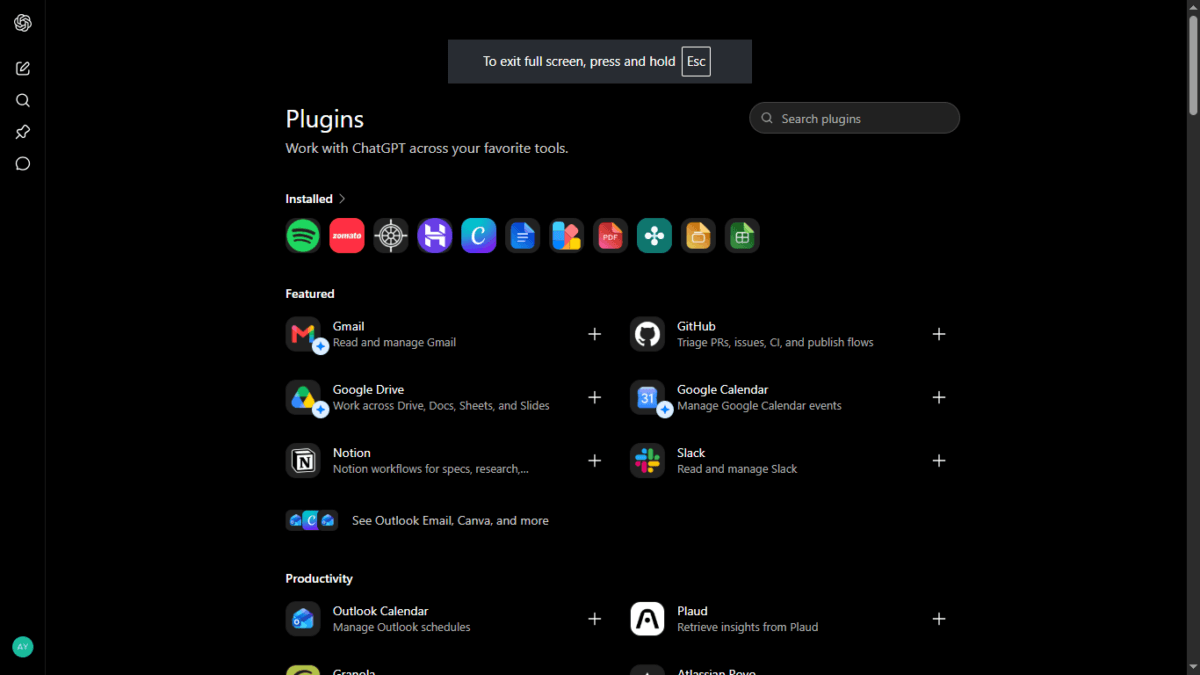
- Go to chatgpt.com/plugins, or open Plugins from the sidebar / Settings.
- Search for or browse to the app you want (e.g., Zomato).
- Open its listing page. You’ll usually see a short description, its category, and a couple of example prompts showing what it can do.
- Click Install plugin (or Connect).
- If the app needs your account, you’ll be asked to log in and then approve a permissions screen — this is where the app tells you exactly what it’s asking to access.
- Once connected, invoke it in a chat by typing @ followed by the plugin’s name, or tap the + button and choose it from the menu.
That’s the theory. Here’s what actually happened when I tried it.
Real Test #1: Zomato — From Search to Cart
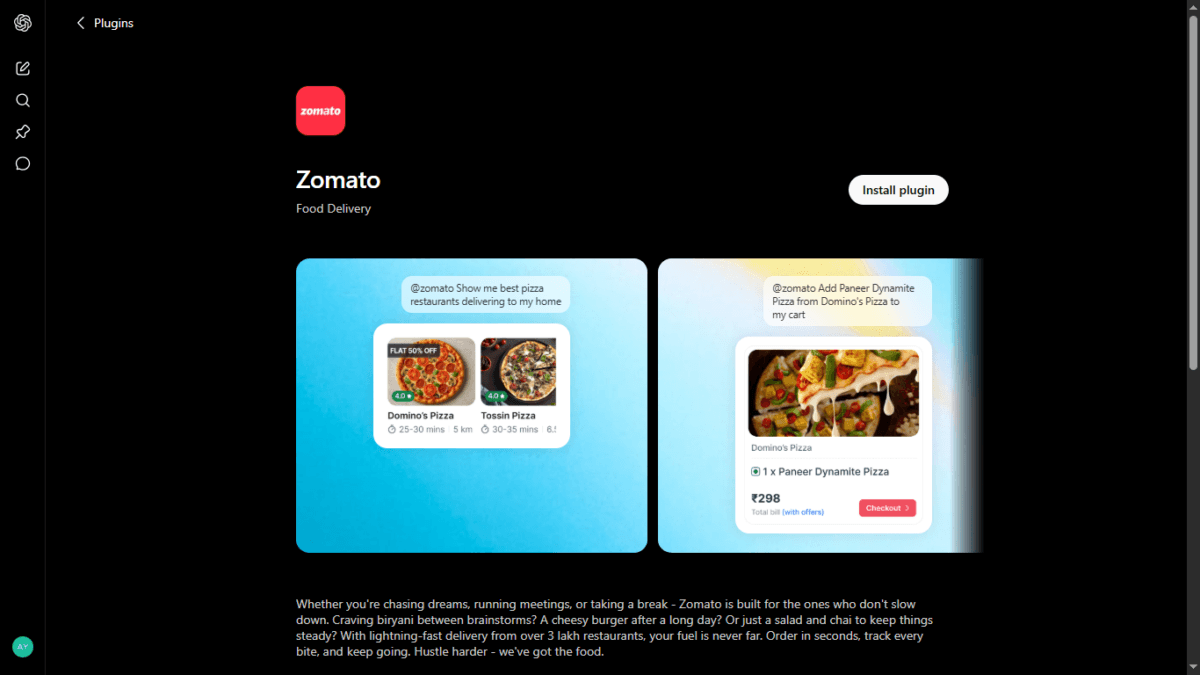
Zomato’s plugin listing describes itself simply: Food Delivery, with two example prompt cards shown right on the page — one for finding restaurants, one for adding an item to your cart. The description leans into speed and scale, mentioning delivery from “over 3 lakh restaurants.”
Installing and connecting
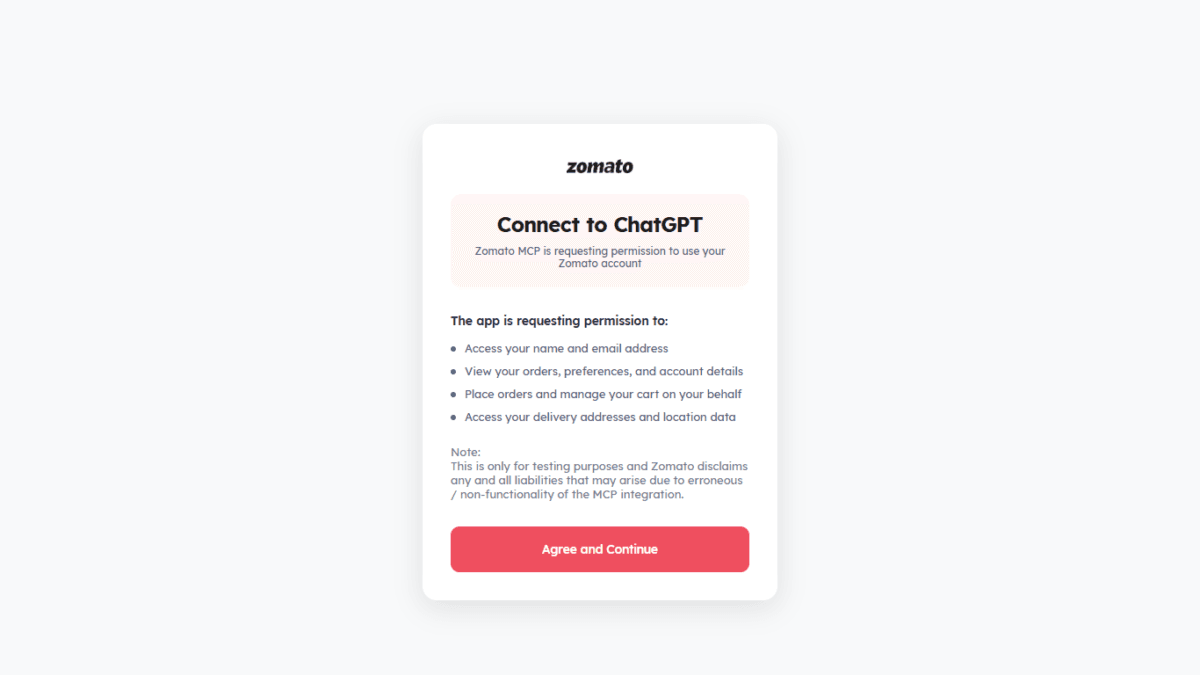
After hitting Install, Zomato showed its own consent screen — not an embedded ChatGPT form, but Zomato’s actual branded page. It asked for four specific permissions:
- Access your name and email address
- View your orders, preferences, and account details
- Place orders and manage your cart on your behalf
- Access your delivery addresses and location data
Right below that was a line worth noting: “This is only for testing purposes and Zomato disclaims any and all liabilities that may arise due to erroneous / non-functionality of the MCP integration.” In other words, Zomato itself is flagging this as an early-stage integration, not a fully mature, guaranteed-to-work feature — a useful thing to know before you rely on it for anything time-sensitive.
After agreeing, I was taken to a login screen identical to Zomato’s own app — enter your phone number, get an OTP, done. Nothing about the login itself goes through ChatGPT; you’re authenticating directly with Zomato.
What it can actually do
Once connected, the plugin exposes a specific set of tools, split into two groups:
Read actions (generally used automatically, no confirmation needed):
- Search restaurants by keyword — and it understands fairly sophisticated natural-language filters: price ranges, minimum ratings, distance, delivery speed, and even specific offer types like “GOLD” or “BOGO” deals
- Get a restaurant’s menu, by category
- Get your saved addresses
- Get your order history
Write actions (the ones that change something, so they’re more likely to need your approval):
- Create a cart
- Search for a new address if none is saved
The actual test
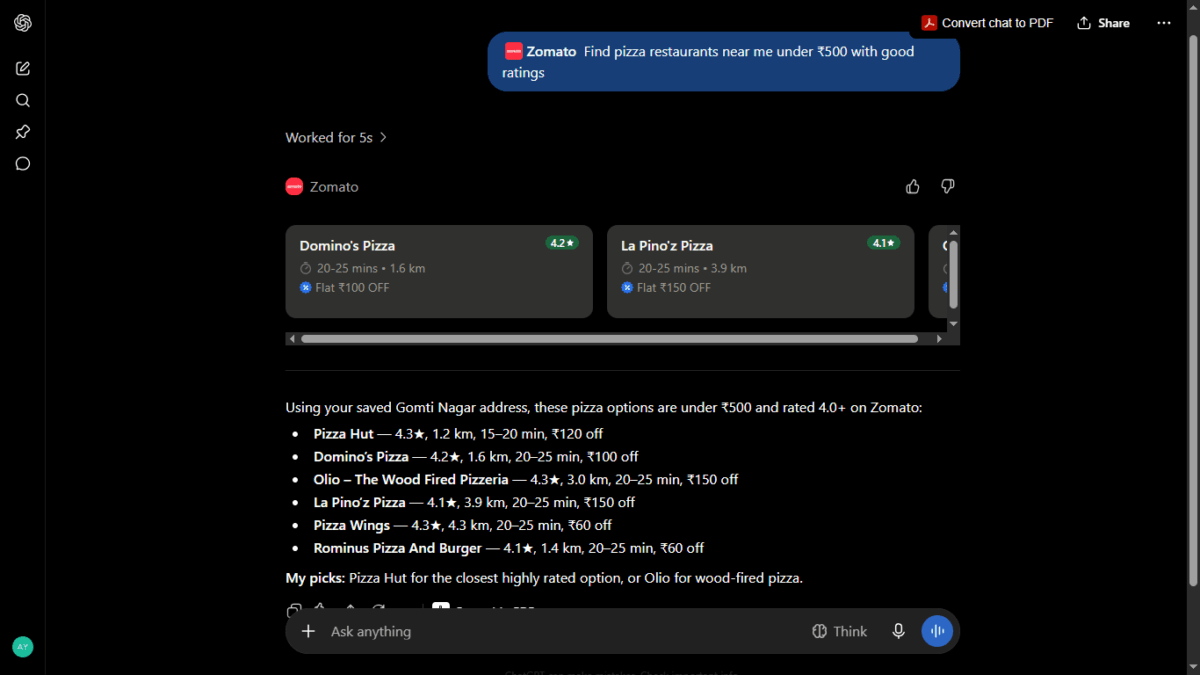
I asked: “Find pizza restaurants near me under ₹500 with good ratings.”
ChatGPT resolved my saved Gomti Nagar address automatically — no need to type it in — and responded in 5 seconds with a restaurant carousel (Domino’s, La Pino’z, and others, each showing rating, distance, ETA, and live offers) plus a written list of six pizza options, all under ₹500 and rated 4.0 or higher. It even added its own recommendation: Pizza Hut for the closest highly-rated option, or Olio for wood-fired pizza.
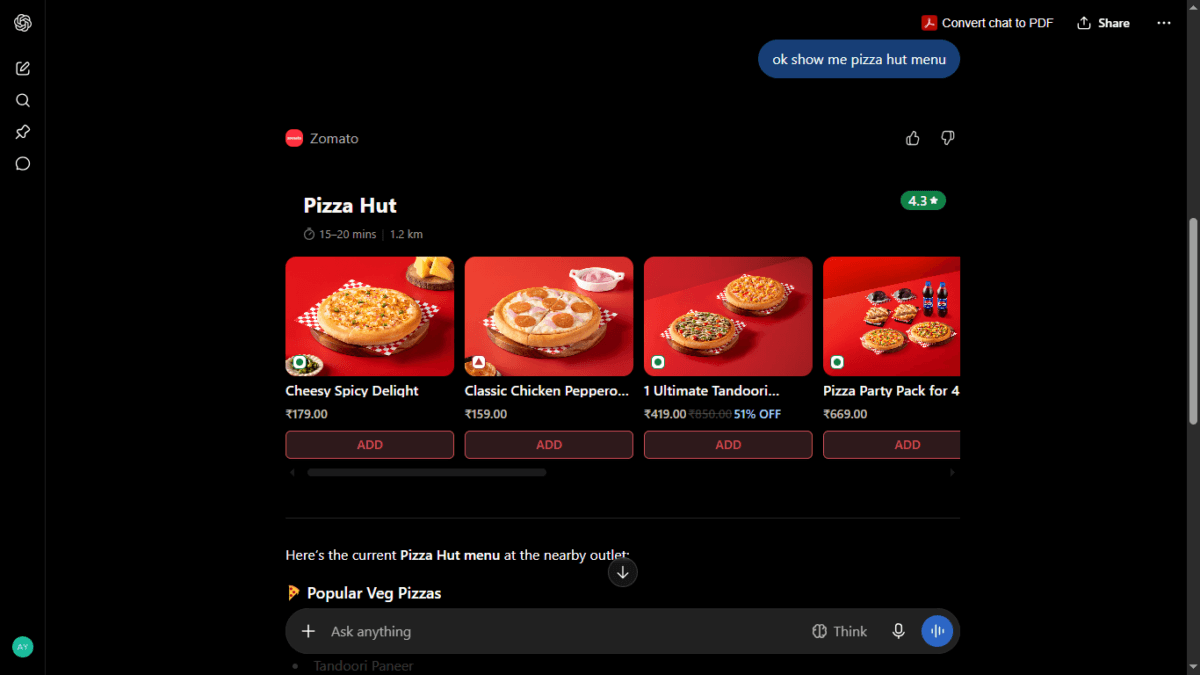
I followed up: “Show me Pizza Hut menu.” It returned the real, current menu — organized into Popular Veg Pizzas, Popular Non-Veg Pizzas, a New Triple Spice Range, and combo Deals — complete with actual prices and a couple of active discounts (one combo at 51% off).
Then I asked it to add an item to my cart. It added 1 Personal Cheesy Spicy Delight (Pan) and returned a real breakdown:
- Pizza price: ₹179
- Discounted price: ₹107.40
- Final cart total: ₹210
- Estimated delivery: 15–20 minutes
- Payment method: Cash on Delivery
Where the automation stops
Here’s the part that matters most if you’re wondering “can ChatGPT actually order my food?” — the answer is: almost, but not quite.
Instead of placing the order directly, ChatGPT generated a QR code. Scanning it opened the Zomato app itself, straight to the cart page, with everything I’d built in the chat already loaded — ready for me to review and pay.
So the honest way to describe this: ChatGPT acts as a fast, conversational front-end for discovery, filtering, and cart-building. The actual payment and order confirmation still happens in Zomato’s own app. Given that Zomato’s own consent screen calls this a testing-stage integration, that handoff is probably a deliberate, sensible safety boundary rather than a limitation — you’re never one AI misunderstanding away from an accidental order going through.
Real Test #2: Spotify — A Different Kind of Plugin
Spotify’s plugin behaves quite differently, and comparing the two is genuinely useful for understanding how varied these plugins can be.
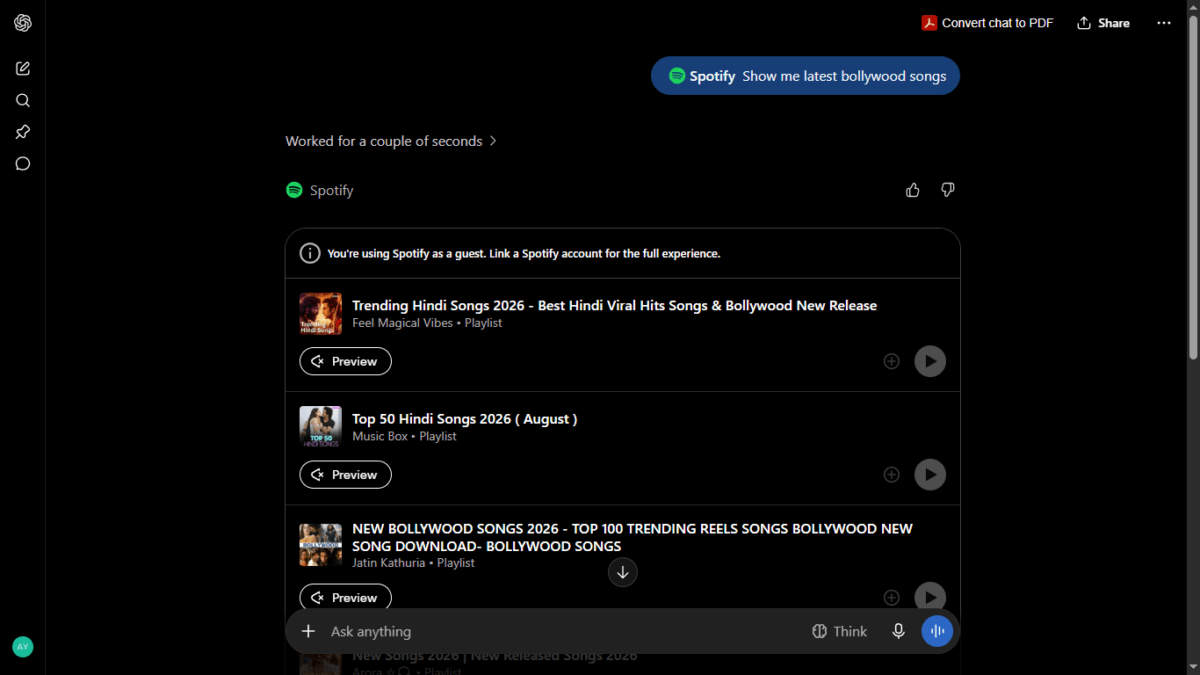
I asked: “Show me latest Bollywood songs.” No login, no connection step — it worked immediately as a guest, with a small note: “You’re using Spotify as a guest. Link a Spotify account for the full experience.”
The result was a set of real, current playlists — Trending Hindi Songs 2026 – Best Hindi Viral Hits & Bollywood New Release, Top 50 Hindi Songs 2026 (August), and a few more — each with Preview and Play buttons.
Here’s the detail worth getting right: tapping Play doesn’t play the song inside ChatGPT. It opens Spotify’s own web player (open.spotify.com) in a new tab. So Spotify’s plugin, like Zomato’s, is ultimately a discovery layer that hands off to the real service — it’s just a lower-friction handoff, since there’s no login barrier to try it in the first place.
The Pattern Worth Understanding
Across both tests, one thing became clear: ChatGPT plugins are best thought of as smart assistants that prepare something for you, not full replacements for the app itself. They’re genuinely good at the parts that used to take multiple screens and taps — searching, filtering, comparing, building a cart, finding a playlist — but the final step (paying, streaming) usually still happens in the real service, whether that’s a QR-code handoff to an app or a link to a website.
That’s not a flaw so much as a sensible design choice, especially for anything involving real money.
We tested ChatGPT’s new Sticker Generator firsthand — here’s how to turn your photos into custom WhatsApp and iMessage stickers.
Before You Connect a Plugin
A few practical things I’d flag from testing this myself:
- Read the permissions screen. Zomato’s was specific and reasonably clear about what it could access (your address, order history, and the ability to place orders on your behalf). Not every plugin will be this transparent — check before you agree.
- Some plugins need login, some don’t. Zomato required a full OTP-based account connection before doing anything useful. Spotify worked instantly as a guest, with login only needed to unlock full personalization.
- The directory is enormous. Beyond the well-known productivity and entertainment names, there are hundreds of niche plugins — real estate search, car listings, grocery delivery, even astrology and tarot readers. If there’s a service you use regularly, it’s worth checking whether it already has a plugin before assuming it doesn’t.
- Permissions can go deeper than you’d expect. This isn’t hypothetical — A current example is OpenAI’s new Apple Messages plugin for ChatGPT on Mac. Introduced on August 20, 2026, it can search, read, analyze, draft, and send messages through Apple’s Messages app, including iMessage, SMS, and RCS. Setup requires several macOS permissions, including Full Disk Access, contacts access, and automation permissions. The integration works locally on the Mac using Apple’s existing AppleScript and Accessibility tools, and is currently available through ChatGPT Work and Codex on desktop rather than regular ChatGPT chats.
- Bloomberg’s Mark Gurman reported on the feature and highlighted potential privacy concerns for Apple. The timing is notable because Apple and OpenAI are currently involved in a separate legal dispute, although Apple has not publicly commented on the Messages integration itself.
Also Read : ChatGPT Ads Come to India: Who Will See Them, How They Work and How to Turn Them Off
What About Claude?
If you use Claude instead of (or alongside) ChatGPT, it has a broadly similar system called Connectors, also built on MCP — the same open protocol (Model Context Protocol) that Anthropic originally created and that ChatGPT’s plugins now use as well. Claude’s directory includes Spotify too, along with consumer apps like Uber, Uber Eats, Instacart, and Tripadvisor, though the exact lineup of available apps differs from ChatGPT’s — so if a specific service matters to you, it’s worth checking each platform’s own directory rather than assuming parity.
Have you tried connecting a plugin in ChatGPT? Let me know in the comments which one you tested and how it went.

Ayush Singhal is the founder and chief editor of TechMitra.in — a tech hub dedicated to simplifying gadgets, AI tools, and smart innovations for everyday users. With over 15 years of business experience, a Bachelor of Computer Applications (BCA) degree, and 5 years of hands-on experience running an electronics retail shop, Ayush brings real-world gadget knowledge and a genuine passion for emerging technology.
At TechMitra, he covers everything from AI breakthroughs and gadget reviews to app guides, mobile tips, and digital how-tos. His goal is simple — to make tech easy, useful, and enjoyable for everyone. When he’s not testing the latest devices or exploring AI trends, Ayush spends his time crafting tutorials that help readers make smarter digital choices.
📍 Based in Lucknow, India
💡 Focus Areas: Tech News • AI Tools • Gadgets • Digital How-Tos
📧 Contact: Get in touch →
🔗 Full Bio: https://techmitra.in/about-us/