

If you’ve read our 50 ChatGPT photo editing prompts guide, you already know that the right prompt can be the difference between a natural-looking edit and a result that looks obviously AI-generated.
But copying a ready-made prompt only gets you so far. What if you want portrait retouching but with golden hour lighting instead of studio lighting? Or a background swap with a specific style that isn’t in the list?
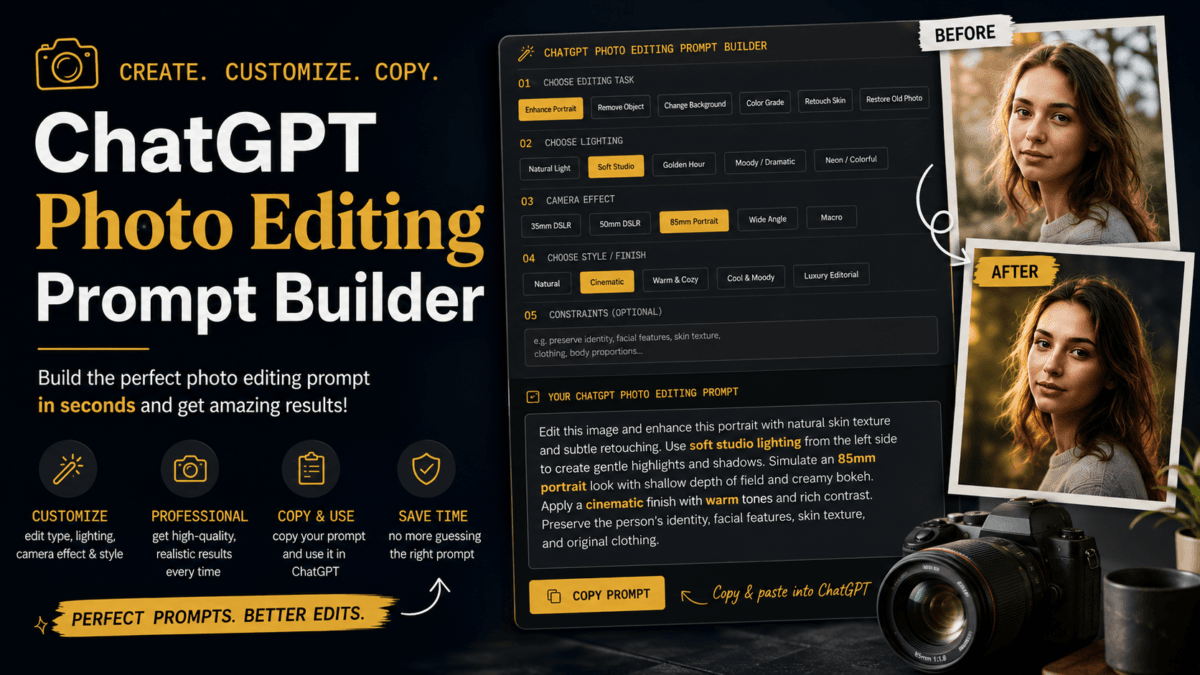
That’s why we built the ChatGPT Photo Editing Prompt Generator below — a free interactive tool that lets you mix and match the exact same building blocks our 50 prompts are made from, and generates a ready-to-paste ChatGPT photo editor prompt in seconds.
Use Our ChatGPT Photo Editing Prompt Generator
Pick your edit, lighting, camera effect, and style below. Your prompt updates live as you go — just tap Copy prompt when you’re done.
Build your own ChatGPT photo editing prompt
Pick your edit, lighting, camera effect and style below — assembled live using the same formula from our 50-prompt guide. Copy it straight into ChatGPT.
Why We Built This
Our original prompts article does the job well if one of the 50 prompts matches exactly what you need. But most real edits are combinations: you want the task from prompt #3, the lighting from prompt #11, and the style from prompt #27.
Instead of asking you to manually stitch pieces together, the ChatGPT Image editing Prompt Builder does it for you — and it’s built directly on the same prompt formula from our original guide:
Edit this image and + [Specific Task] + [Lighting] + [Camera Effect] + [Style] + [Constraints]You pick each part from simple option buttons, and the tool assembles a clean, structured prompt you can copy straight into ChatGPT.
What You Can Build
The tool covers five parts of a prompt:
1. What you’re editing — portrait retouching, background swap, object removal, exposure and color correction, studio headshot, cinematic grading, outfit change, hairstyle change, aspect ratio change, old photo restoration, or product photography.
2. Lighting — cinematic side lighting, natural daylight, studio diffused lighting, dramatic high contrast, or golden hour.
3. Camera effect — 85mm portrait-lens bokeh, subtle background blur, HDR sharpness, or no blur at all.
4. Style and mood — luxury editorial, clean and minimal, moody film tones, bright and vibrant, or fashion editorial.
5. Constraints (what to keep unchanged) — this is the part people skip most often, and it’s usually the reason an AI edit changes someone’s face or body more than expected. There’s a one-tap “Preserve identity” button that fills this in automatically with instructions to keep the person’s identity, facial features, skin texture, and body proportions untouched.
As you select options, the prompt builds live in a structured, easy-to-read format — not a single run-on sentence, but clear step-by-step instructions, the way ChatGPT parses them best:
Edit the provided image according to these instructions:

- Enhance this portrait with ultra-realistic skin texture and natural retouching.
- Use golden hour lighting with a warm glow.
- Create the look of an 85mm portrait lens with shallow depth of field and creamy bokeh.
- Apply a warm, luxury editorial finish.
- Preserve: the person's identity, facial features, skin texture and body proportions.
One tap copies it. Paste it into ChatGPT right after uploading your photo, and you’re done.
Why Structured Prompts Work Better
If you’ve tried writing your own ChatGPT editing prompts before, you’ve probably written something like:
“make it look more professional and add some nice lighting and maybe blur the background a bit”
This kind of vague, single-sentence prompt is exactly what leads to inconsistent results. ChatGPT’s image system responds far better to specific, separated instructions — which is why the Prompt Builder outputs a bulleted instruction list instead of a single sentence. Each line does one clear job: what to change, and what to leave alone.
This also solves a problem we see a lot in the comments on our original guide — people asking why an edit changed their face shape or skin tone even though they didn’t ask for it. The fix is almost always a missing constraint. The Preserve identity preset exists specifically for this.
A Quick Note on Camera Terms
You’ll notice the tool says things like “create the look of an 85mm portrait lens” rather than “simulate an 85mm DSLR lens.” This is intentional — ChatGPT’s image model doesn’t literally replicate physical camera hardware, it recreates the visual characteristics associated with one. Describing the look rather than claiming a hardware simulation gives you more predictable, accurate results.
This Tool Is Built for ChatGPT
Just like our original guide, this Prompt Builder is written specifically for ChatGPT’s image editing feature — upload a photo, paste the prompt, and ChatGPT edits it directly. It isn’t a universal AI prompt tool, and the phrasing won’t necessarily translate well to other AI image tools like Gemini, which use a different prompt style.
If you’re looking for Gemini-specific prompts instead, check out our Gemini AI saree prompts guide.
How to Use It
- Upload your photo to ChatGPT first.
- Select your task, lighting, camera effect, and style using the tool above.
- Tap Preserve identity if you want your face, skin texture, and proportions left untouched (recommended for most portrait edits).
- Add any extra constraints in the text field if needed.
- Tap Copy prompt and paste it into your ChatGPT conversation, right after your uploaded photo.
That’s it — no need to memorize or scroll through all 50 prompts every time you want a slightly different result.
Frequently Asked Questions
What to write in ChatGPT photo editing prompts?
Upload your photo first, then describe the edit as a clear instruction rather than a vague request — specify what to change (lighting, background, skin, style), what camera look you want, and what to keep unchanged (like the person’s face or proportions). The Prompt Builder above generates this automatically so you don’t have to write it from scratch.
How to use ChatGPT for photo editing?
ChatGPT’s image editing works through its built-in image generation system, which is available on paid ChatGPT plans (Plus, Pro, Team, and Enterprise) and to free users with limited daily use. You don’t need to pick a specific model manually — just upload your image and describe the edit in the same chat.
Which ChatGPT model is best for photo editing?
ChatGPT’s image editing works through its built-in image generation system, which is available on paid ChatGPT plans (Plus, Pro, Team, and Enterprise) and to free users with limited daily use. You don’t need to pick a specific model manually — just upload your image and describe the edit in the same chat.
What to ask ChatGPT for photo editing?
Ask for one clear outcome at a time: a specific lighting style, a background change, a color grade, or a retouch — along with what should stay untouched, like facial features or original composition. Combining too many unrelated changes in one prompt tends to produce less predictable results
If you’d rather browse ready-made prompts instead of building your own, check out the original 50 ChatGPT photo editing prompts free guide for prompts across portraits, lighting, color correction, and more.

Ayush Singhal is the founder and chief editor of TechMitra.in — a tech hub dedicated to simplifying gadgets, AI tools, and smart innovations for everyday users. With over 15 years of business experience, a Bachelor of Computer Applications (BCA) degree, and 5 years of hands-on experience running an electronics retail shop, Ayush brings real-world gadget knowledge and a genuine passion for emerging technology.
At TechMitra, he covers everything from AI breakthroughs and gadget reviews to app guides, mobile tips, and digital how-tos. His goal is simple — to make tech easy, useful, and enjoyable for everyone. When he’s not testing the latest devices or exploring AI trends, Ayush spends his time crafting tutorials that help readers make smarter digital choices.
📍 Based in Lucknow, India
💡 Focus Areas: Tech News • AI Tools • Gadgets • Digital How-Tos
📧 Contact: Get in touch →
🔗 Full Bio: https://techmitra.in/about-us/