

If you’ve spent any time online in the last few years, you’ve almost certainly touched something made in Canva — an Instagram post, a resume, a wedding invite, a small business’s Google review request card. It’s one of those tools that’s become so common that most people use it without ever really knowing what it actually is or what they’re paying for.
I’ve been using Canva Pro for to design featured images, social graphics, and product mockups for TechMitra and CrochetMagic, it’s what I’ve actually found useful, what I skip, and whether the Pro subscription is worth it in 2026.
Table of Contents
Also Read : ChatGPT’s Canva Plugin: What Works, What Doesn’t (Real Test)
What Is Canva?
Canva is a browser-based (and app-based) design platform that started as a simplified alternative to tools like Photoshop and InDesign, aimed at people with no design background. Over the last few years, it’s expanded well beyond graphic design into what Canva now calls its Visual Suite — a set of connected tools for documents, spreadsheets, whiteboards, presentations, and even basic websites, all built around the same drag-and-drop visual editor.
In practice, that means the same account you use to design an Instagram post can also build a resume (Canva Docs), a simple business spreadsheet with AI-generated charts (Canva Sheets), a team brainstorming board (Canva Whiteboards), and a one-page website — without leaving Canva or paying for four different tools.
Canva is used by more than 6 million teams worldwide, including recognisable names like Airbnb, Salesforce, and Expedia, alongside millions of individual creators, students, and small businesses.
Core Canva Features (What You Actually Get)
The Design Editor
This is still the heart of Canva — a drag-and-drop canvas with layers, grids, and alignment tools. You don’t need any design training to use it; you pick a template, swap the text and images, and export. Free users get access to 1.6M+ templates and 4.7M+ stock photos/graphics; paid plans unlock the full library of 3.6M+ templates and 141M+ premium assets.
Canva Docs, Sheets, and Whiteboards
These are Canva’s answer to Google Docs/Sheets and Miro. Docs supports full-page visual layouts (not just plain text), Sheets can turn raw data into AI-generated charts with Magic Charts, and Whiteboards is a real-time collaborative canvas with a Follow Collaborators feature that lets you jump to wherever a teammate is working.
Presentations
Canva Presentations replaces the need for PowerPoint for a lot of casual and small-business use cases. Recent additions include a built-in presenting timer, one-click live presenting, and auto-generated presenter notes — genuinely useful if you’re the one running the meeting.
Magic Studio (Canva’s AI Suite)
This is the umbrella name for Canva’s AI tools, and it’s the biggest differentiator on paid plans. It includes:
- Background Remover — removes photo backgrounds in one click; this alone is worth the Pro subscription if you regularly need clean product shots or headshots.
- Magic Resize — instantly resizes one design into multiple formats (Instagram post, story, banner, etc.) without rebuilding it.
- Magic Write — an AI writing assistant built into Docs and captions.
- Magic Eraser / Magic Edit / Magic Expand — AI photo editing tools to remove objects, edit parts of an image with a prompt, or extend a photo’s canvas.
- Magic Layers — a newer addition (rolled out with Canva AI 2.0) for more advanced generative layout control.
Curious how these AI tools actually perform? I tested Canva’s AI photo editing tools hands-on — real prompts, real results.
What Is Canva AI?
“Canva AI” is the umbrella brand for every AI feature across the platform — Magic Studio tools like Background Remover and Magic Write sit under this same banner, alongside a few things that go further than simple one-click edits.
Canva AI (chat) is a conversational assistant inside the editor — you can type what you want (“make this poster more festive,” “summarise this doc”) and it acts on your design directly, similar to how Copilot works inside Microsoft apps. The newer Canva AI 2.0 takes this further: it’s described as a conversational design partner that can take multiple editing and design actions autonomously from a single prompt, rather than one action at a time. It’s an Ultra-tier tool, so it draws more heavily from your AI allowance — Canva’s own documentation notes that a 40-slide presentation uses more allowance than a 5-slide one, since usage scales with the size and complexity of what you’re asking it to do.
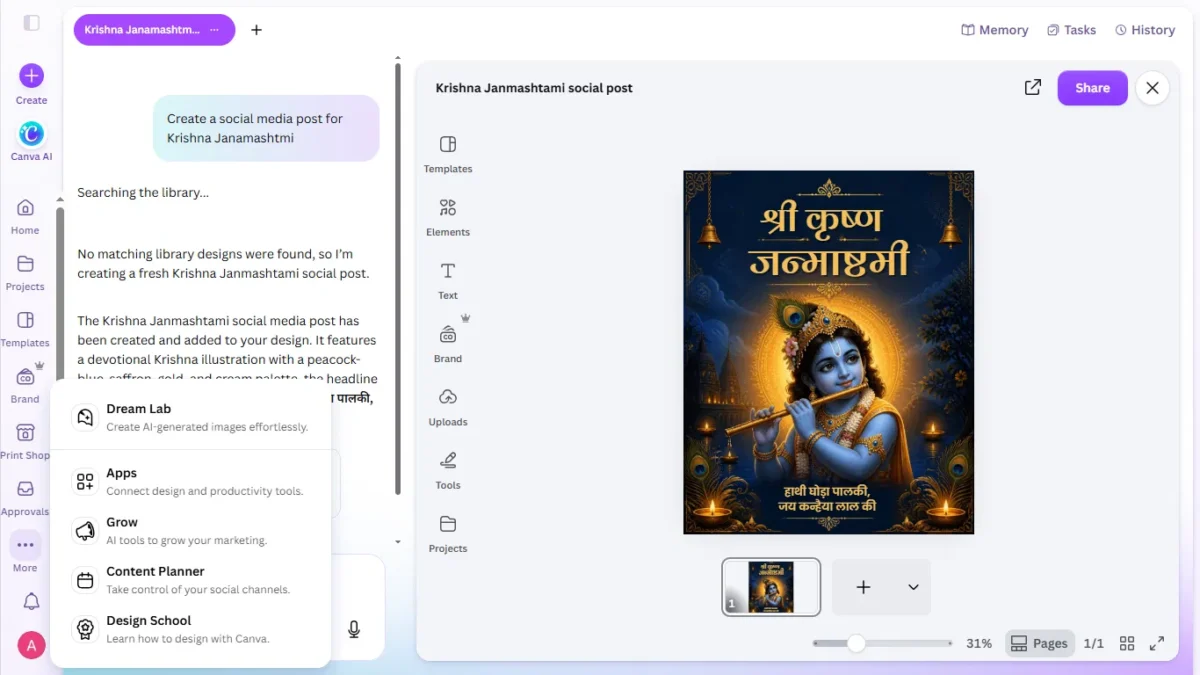
I tested this myself with a simple prompt — “Create a social media post for Krishna Janamashtmi” — and it’s a good example of how this actually plays out in practice. Canva AI first searched my existing template library, found nothing matching, said so explicitly (“No matching library designs were found, so I’m creating a fresh Krishna Janamashtami social post”), and then generated a complete festival post from scratch: a devotional Krishna illustration in a peacock-blue, saffron, and gold palette, with a Hindi headline (“श्री कृष्ण जन्माष्टमी”) and a devotional tagline underneath.
The result dropped straight into the editor as a fully editable design — I could still adjust text, swap elements, apply my Brand Kit, or pull in a different template from the side panel, rather than getting a flattened image I’d have to redo from scratch. For India-specific content like festival posts, where stock template libraries are often thin, this ended up being genuinely faster than manually searching for a usable template.
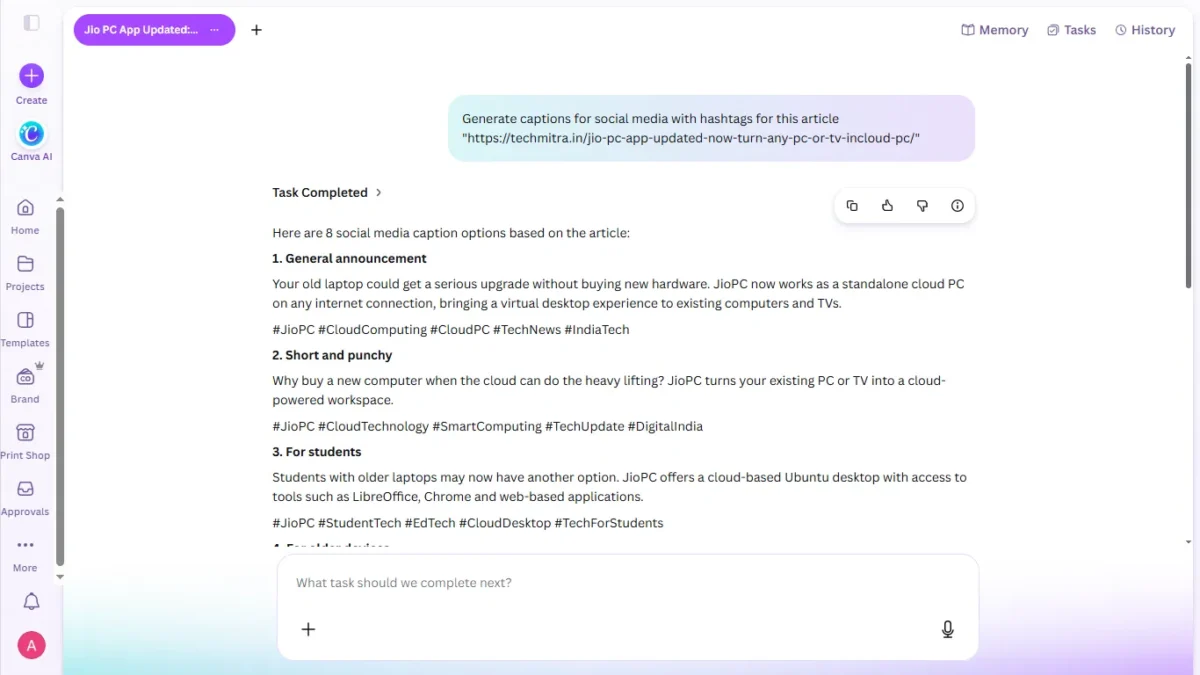
Canva AI isn’t limited to generating designs, either — it can also work directly from a URL. I pointed it at one of my own TechMitra articles and asked it to “Generate captions for social media with hashtags for this article,” pasting in the article link directly. It read the page and returned eight distinct caption options, each written for a different angle and audience: a general announcement version, a short and punchy version, one aimed specifically at students, one for people on older devices, and so on — each with its own tailored hashtag set rather than reusing the same tags across all eight.
For a workflow like mine, where every published article needs matching captions across Twitter/X, Facebook, LinkedIn, and Instagram/Threads, this cuts out a genuinely repetitive step — instead of writing eight variations by hand, I’m editing and picking from options that are already reasonably on-target.
Canva Code is a separate AI tool worth knowing about if you build anything web-facing — it generates interactive elements (widgets, mini-apps, embeds) from a plain text prompt, without you writing code. It’s a Premium-tier tool, available from Pro upward.
Magic Insights and Magic Formulas bring AI into Canva Sheets specifically — Magic Insights can summarise or explain what a spreadsheet’s data is showing, and Magic Formulas can write spreadsheet formulas for you from a plain-language description, similar to how Copilot works inside Excel.
One thing worth being upfront about: not every AI tool behaves the same way for billing purposes. Standard AI tools (Magic Write, Translate, Image Upscaler) don’t eat into your monthly allowance at all on any paid plan — you can use them as much as you want. Premium and Ultra tools do draw from a shared pool, and that pool is genuinely limited, so if you plan to lean heavily on Canva AI 2.0 or Canva Code for a business workflow, it’s worth tracking your usage from the Billing page rather than assuming it’s unlimited the way Magic Write is. I’ve covered exactly how that allowance math works in the pricing section below.
Brand Kit
Lets you save your brand colours, fonts, and logo so every design stays consistent. Free gives you 1 Brand Kit limited to 3 colours; Pro gives you 5 full Brand Kits; Business scales to 100.
Canva Websites
A stripped-down website builder for landing pages, portfolios, or a simple one-pager — not a replacement for WordPress if you need blogging, SEO depth, or e-commerce, but genuinely useful for a quick single-page site.
Apps Marketplace
Canva integrates with third-party and Canva-made apps (QR code generators, Google Drive/Photos import, print-on-demand tools, and now AI connectors), so you can pull content in or push designs out without leaving the editor.
How Much Does Canva Cost in India?
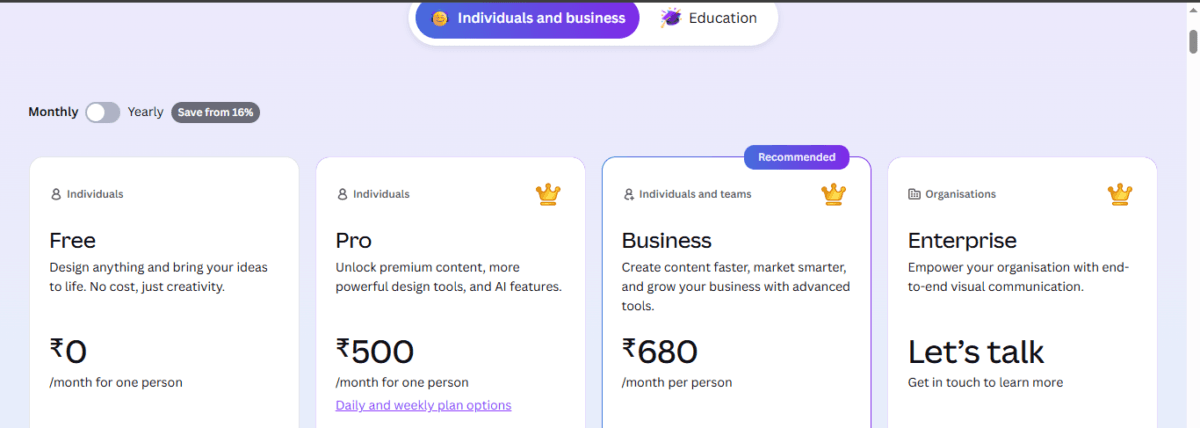
(Canva Plans and pricing In India Verified September 2026)
| Plan | Price in India | Best for | Templates | Premium Assets | AI Access | Storage | Key Features |
|---|---|---|---|---|---|---|---|
| Free |
₹0 /month | Casual users, students & beginners | 1.6M+ | 4.7M+ |
Up to 200 Standard AI uses or 20 Premium AI uses* | 5GB |
Design editor 1 Brand Kit Canva Docs, Sheets & Whiteboards Presentations Canva Websites Canva Offline |
|
Pro Recommended for individuals |
₹500 /month ₹4,000/year | Regular creators, bloggers & freelancers | 3.6M+ | 141M+ | 10× Free plan allowance* | 100GB |
Everything in Free Background Remover Magic Resize Magic Edit & Eraser Translate Magic Layers Canva Code 5 Brand Kits Social Content Planner |
| Business |
₹680 /month per person ₹6,800/year | Small businesses & teams | 3.6M+ | 141M+ | 20× Free plan allowance* | 500GB |
Everything in Pro Team collaboration Admin controls 100 Brand Kits Brand approvals Advanced insights Canva Flourish 10% print discount |
| Enterprise | Let’s talk | Large organisations | 3.6M+ | 141M+ | 20× Free plan allowance* | 1TB |
Everything in Business SSO & SCIM Advanced security Custom apps Multi-team management Dedicated support |
*Canva describes AI usage as a shared allowance across Standard, Premium and Ultra AI tools. Actual usage can vary depending on the tool. Prices shown are Canva India prices and may change.
Annual billing saves roughly 16-20% over paying monthly, which is a real saving if you’re going to stick with it for more than a few months.
See our complete Canva Pro Lite vs Pro vs Free comparison for a full breakdown of pricing and features.
What You Actually Unlock at Each Tier
Free gets you the editor, 1.6M+ templates, 4.7M+ stock assets, 1 Brand Kit (3 colours only), 5GB cloud storage, and a limited AI allowance (up to 200 Standard AI uses or 20 Premium AI uses a month).
Pro (₹500/month) unlocks the full 3.6M+ template library, 141M+ premium photos/videos/graphics, 5 Brand Kits, Background Remover, Magic Resize, Translate, 100GB storage, social content scheduling, and a much larger AI allowance — up to 200 Premium AI uses or 20 Ultra AI uses per month, with Standard AI tools (Magic Write, Translate) essentially unlimited.
Business (₹680/month per person) adds real-time team collaboration, admin controls, 100 Brand Kits, 500GB storage, a 10% print discount, and double the AI allowance of Pro (up to 400 Premium or 40 Ultra uses).
Enterprise is aimed at large organisations with a 150+ seat minimum, adding SSO, SCIM provisioning, custom apps, 1,000 Brand Kits, 1TB storage, and dedicated support — though notably, its AI allowance is the same as Business (20x Free, up to 40 Ultra uses), not higher.
How Canva’s AI Allowance Actually Works
This part trips a lot of people up, so it’s worth explaining clearly using Canva’s own numbers rather than the conflicting estimates floating around other sites.
Canva uses a shared monthly AI allowance across three tiers of AI tools — Standard, Premium, and Ultra. The exact number of uses you get can vary depending on the specific tool and how much AI processing a given task requires, since not every action costs the same.
On Canva’s own India pricing page, the framing is relative: Pro gives you 10x more AI than Canva Free, while Business and Enterprise give you 20x more. Canva notes these are estimates and actual usage can vary by tool.
In concrete terms (from Canva’s help documentation), that works out to:
- Free — up to 200 Standard AI uses, or 20 Premium AI uses, per month. No Ultra AI access at all.
- Pro — up to 200 Premium AI uses, or 20 Ultra AI uses, per month (Standard AI tools like Magic Write and Translate are effectively unlimited). That 200 lines up neatly with the “10x Free” figure Canva advertises, since 10 x 20 = 200.
- Business / Enterprise — up to 400 Premium AI uses, or 40 Ultra AI uses, per month (Standard tools unlimited). Again, that matches the “20x Free” claim: 20 x 20 = 400.
The important part to understand is that this is genuinely one shared pool, not separate buckets for Premium and Ultra. So it’s better not to think of your allowance as a simple “X Premium generations + Y Ultra generations” quota you can add together — it’s a single balance, and different AI actions drain it at different rates.
A quick text edit with Magic Write costs you nothing (Standard tools don’t touch the allowance on paid plans), a Premium action like generating a design with Canva AI uses a moderate chunk, and an Ultra action like conversational multi-step editing with Canva AI 2.0 or AI video generation eats into it fastest — sometimes disproportionately, since Canva’s documentation notes that things like a 40-slide presentation will consume more allowance than a 5-slide one, because usage scales with the complexity of what you’re asking for.
Practically, this means two people on the exact same Pro plan can have very different experiences: someone who mostly uses Magic Write and Background Remover will barely touch their allowance, while someone leaning heavily on Canva AI 2.0 or AI video generation can burn through it much faster, even on paper “the same” 200-use quota.
Your allowance also resets monthly on your billing date — even if you’re paying annually, it’s still a recurring monthly reset, not a once-a-year top-up. If you hit the ceiling, paid plans don’t get hard-blocked on Standard tools; you’ll just see short pauses on Premium/Ultra generations until the next reset, or you can add more headroom via Canva’s AI Pass add-on if you’re a consistently heavy user.
Is Canva Free for Students?
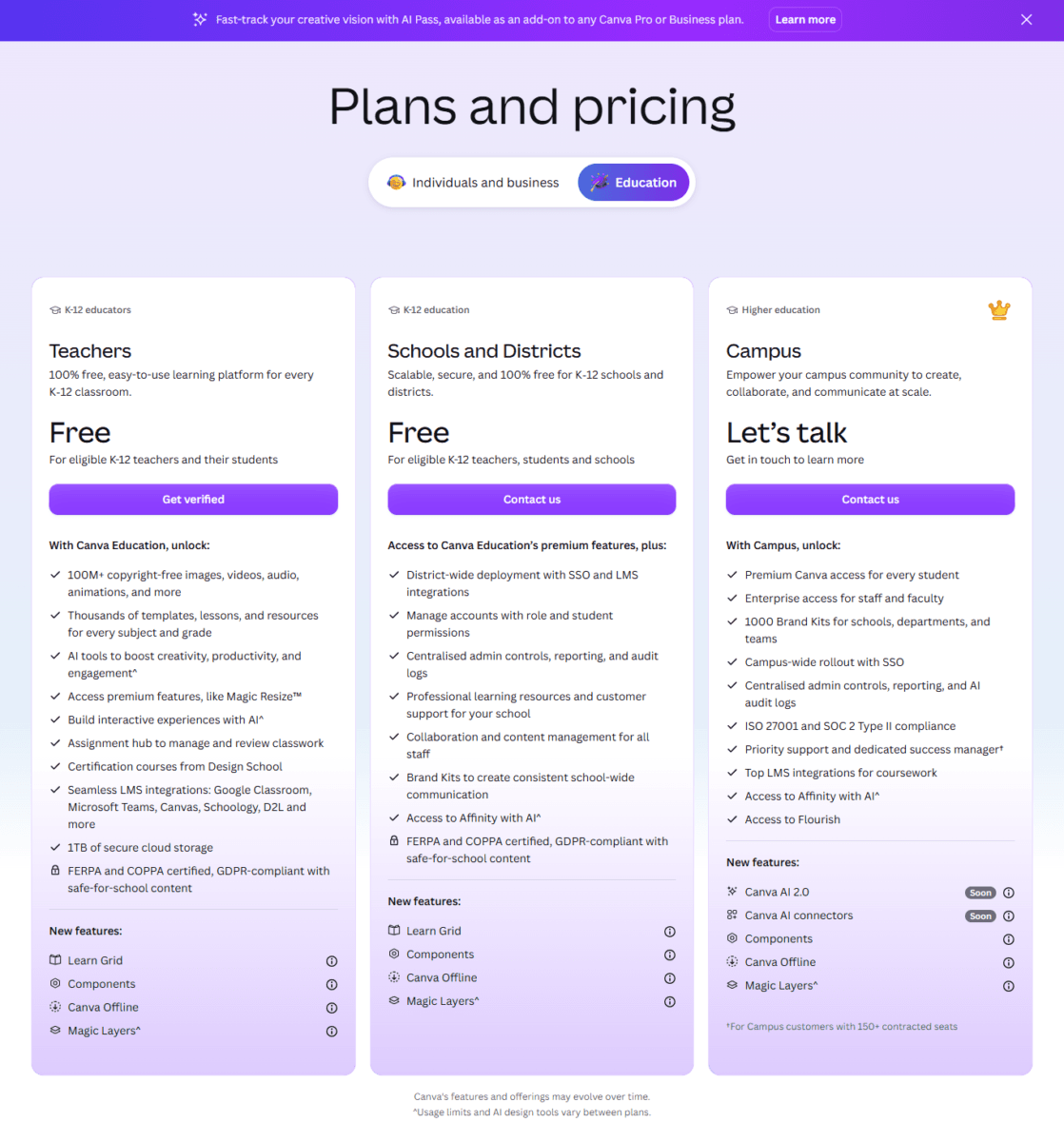
Yes — genuinely free, not a discount. Canva Education is 100% free for eligible K-12 teachers, students, and schools, and includes most premium features: 1TB of storage, Magic Resize, AI tools, LMS integrations (Google Classroom, Microsoft Teams), and FERPA/COPPA/GDPR compliance for schools. The catch is you can’t sign yourself up — a teacher or school has to invite you.
For university students, there’s no individual self-serve discount. Canva Campus is priced like Canva Enterprise, with a minimum institutional licence purchase based on student enrolment — so access comes through your university, not through your personal account. If your college hasn’t signed up, you’re on Canva Free or Pro like anyone else.
Canva vs Google Workspace vs Microsoft Office
This is the comparison most people actually want an answer to, so here’s an honest breakdown rather than a marketing one.
If your priority is visual design — social posts, presentations that need to look good, marketing materials, quick websites — Canva wins clearly. Neither Google Slides nor PowerPoint comes close to Canva’s template library or AI design tools (Background Remover, Magic Resize, Magic Write) without third-party plugins.
If your priority is serious spreadsheet work — complex formulas, pivot tables, large datasets, financial modelling — Google Sheets and Excel are still far ahead. Canva Sheets is genuinely useful for turning small datasets into visual charts quickly, but it’s not built to replace Excel for heavy analytical work, and Canva itself doesn’t position it that way.
If your priority is real-time document collaboration at scale — a whole company editing the same doc simultaneously, tracked changes, version history depth — Google Docs and Word (via Microsoft 365) are more mature. Canva Docs is newer and visually nicer, but the collaboration and revision-history tooling isn’t as deep yet.
If your priority is offline reliability — Word and Excel’s desktop apps still handle offline work more robustly than Canva, which is fundamentally a browser-first (though it does have a Canva Offline mode now) and mobile-first tool.
Pricing-wise, Canva Pro at ₹500/month is genuinely cheaper than a Microsoft 365 Personal subscription and comparable to Google Workspace’s entry tier, but you’re paying for a different thing — design capability, not deep productivity-suite depth.
My honest take, having used both sides of this for years: Canva isn’t trying to replace Google Workspace or Microsoft Office, and treating it as a 1:1 swap will disappoint you if your work is spreadsheet- or document-heavy. It’s best used alongside them — Canva for anything that needs to look good and get shared visually, Google/Microsoft for anything that needs deep collaboration or serious data work.
What’s New in Canva for 2026
Canva has been on an unusually aggressive release pace this year — the company shipped its 100th Visual Suite feature update since the start of 2026 in early September, working out to roughly one new feature every other day. The recent batch includes full-page edge-to-edge layouts in Docs, AI-powered chart generation in Sheets, smoother mobile whiteboard navigation with a new “Follow Collaborators” tool, a presenting timer and auto-generated presenter notes in Presentations, and new SEO/domain tools for Canva Websites.
Worth noting for Indian readers specifically: Canva says more than half of all Visual Suite users are now on mobile, and India has the highest mobile usage share in South Asia, with over 70% of users creating designs on their phones — which likely explains why so many of this year’s updates have focused on mobile usability rather than desktop-only features.
Is Canva Pro Worth It?
Based on actually using it day to day for TechMitra and CrochetMagic: if you regularly need to produce social graphics, blog featured images, product mockups, or presentations and don’t have dedicated design software or skills, ₹500/month (or ₹333/month billed annually) is a reasonable cost — Background Remover and Magic Resize alone save real time compared to doing either manually or paying per-use on other tools.
If you only design occasionally — a few posts a month, nothing commercial — the Free plan genuinely covers most casual needs, and it’s not artificially crippled the way some freemium tools are.
Where I’d hold off on upgrading: if your actual bottleneck is spreadsheet or document collaboration rather than visual design, Canva Pro won’t fix that — you’re better off putting that money toward Google Workspace or Microsoft 365 instead.

Ayush Singhal is the founder and chief editor of TechMitra.in — a tech hub dedicated to simplifying gadgets, AI tools, and smart innovations for everyday users. With over 15 years of business experience, a Bachelor of Computer Applications (BCA) degree, and 5 years of hands-on experience running an electronics retail shop, Ayush brings real-world gadget knowledge and a genuine passion for emerging technology.
At TechMitra, he covers everything from AI breakthroughs and gadget reviews to app guides, mobile tips, and digital how-tos. His goal is simple — to make tech easy, useful, and enjoyable for everyone. When he’s not testing the latest devices or exploring AI trends, Ayush spends his time crafting tutorials that help readers make smarter digital choices.
📍 Based in Lucknow, India
💡 Focus Areas: Tech News • AI Tools • Gadgets • Digital How-Tos
📧 Contact: Get in touch →
🔗 Full Bio: https://techmitra.in/about-us/