
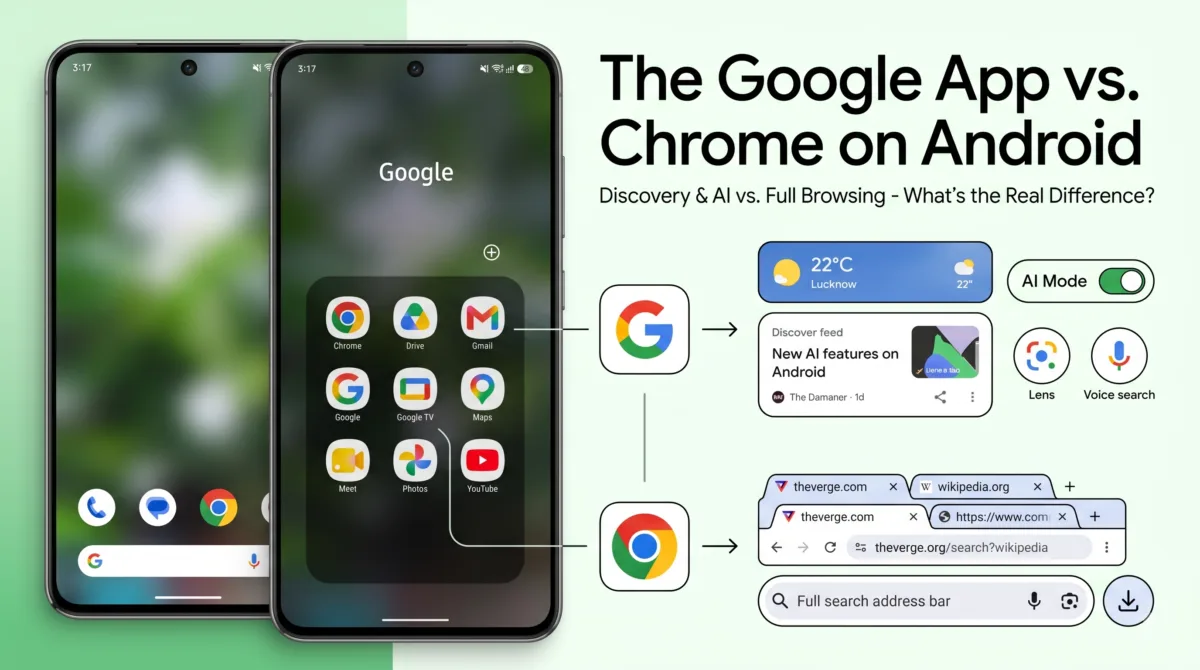
If you’ve ever opened your phone’s app drawer and seen both a “Google” icon and a “Chrome” icon sitting next to each other, you’ve probably wondered why you need both. They’re made by the same company, they both have a search bar, and on the surface they look almost identical.
They’re not the same app — and once you understand the real Google app vs Chrome difference, you’ll know exactly which one to reach for.
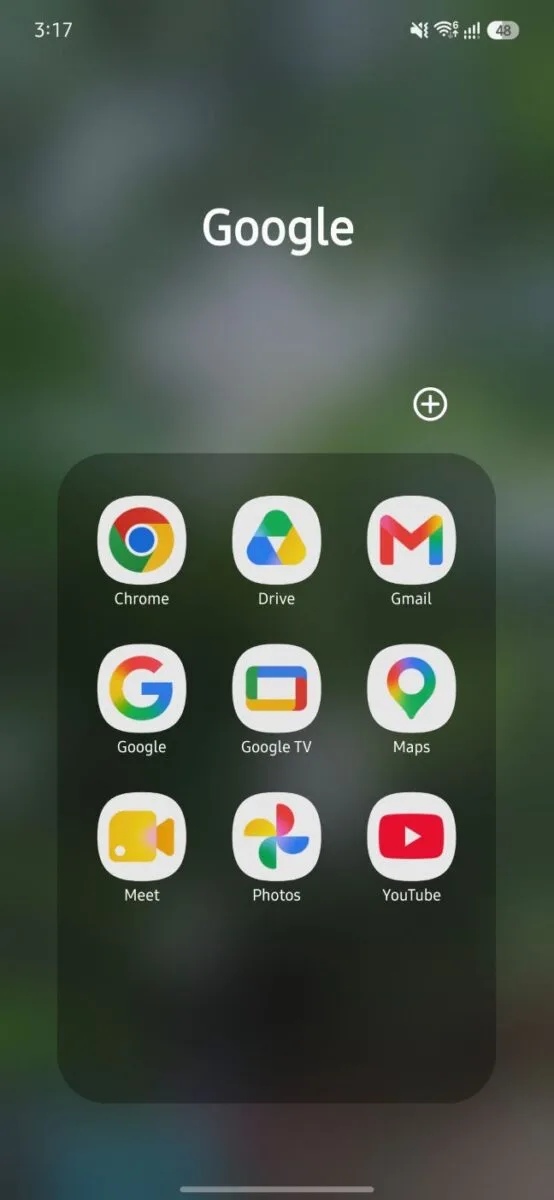
Table of Contents
Also Read : Google Photos Remix AI Tool 2026: How to Use, Features, Templates
What is Google App?
The Google app — sometimes called the “Google Search app” or just “Google” in your app drawer — is Google’s dedicated search and discovery app. It comes pre-installed on most Android smartphones, regardless of brand: Samsung, Xiaomi, OnePlus, Realme, and so on. It’s part of Google Mobile Services (GMS), the bundle of Google apps that manufacturers license and pre-install to get “Play Protect certified” — which is why you’ll find it on almost every Android phone sold in India. (One exception: due to EU Digital Markets Act rules, the Google app and Chrome aren’t required pre-installs on devices sold in the European Economic Area — users there can still download both from the Play Store.)
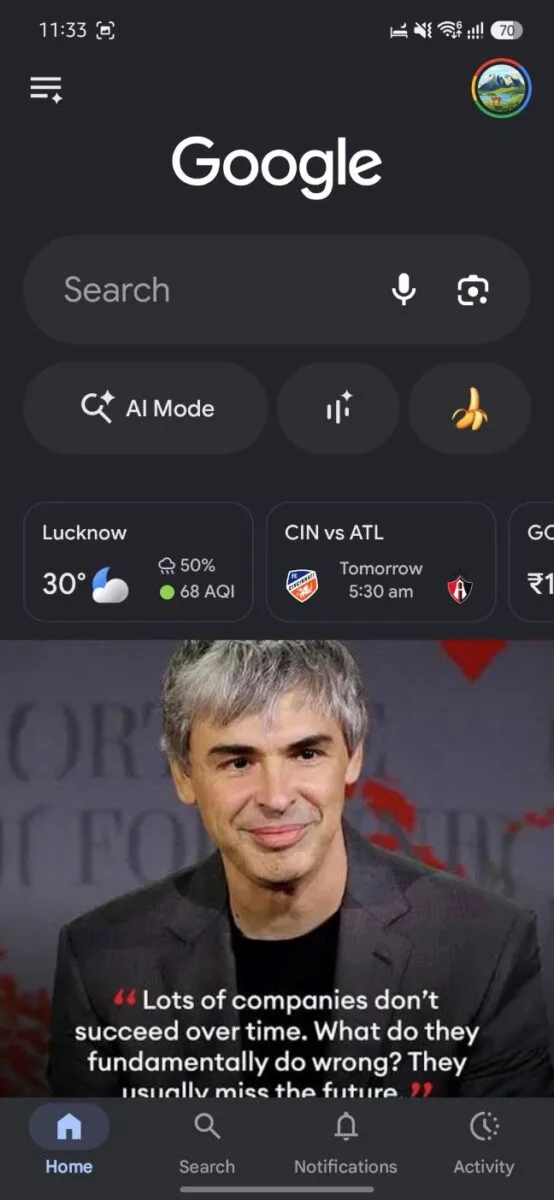
Opening it drops you onto a home feed that includes:
- A search bar at the top (with voice search and Google Lens built in)
- AI Mode — Google’s conversational AI search experience, sitting right next to the classic search bar
- Quick info cards for weather, local sports scores, and other at-a-glance info tied to your location
- The Discover feed — a scrolling feed of news and articles personalised to your interests and search history
What Chrome Is, By Comparison
Chrome is a full web browser. You use it to type or tap a URL, open multiple tabs, bookmark pages, sync your browsing across devices, install extensions on desktop, and generally navigate the open web the way you would on a laptop.
The Google app, on the other hand, isn’t built for browsing — it’s built for finding things quickly and then handing you off to a page when you need it. When you tap a result inside the Google app, it typically opens in a lightweight in-app browser view (a “Custom Tab”) rather than launching full Chrome.
Google App vs Chrome: Key Differences
| Google App | Chrome | |
|---|---|---|
| Core purpose | Search, discovery, and daily info feed | Full web browsing |
| Home screen | Search bar + AI Mode + Discover feed | Blank new tab / open tabs |
| Tabs | No real tab management | Full multi-tab browsing |
| Discover feed | Yes — personalised news feed | Only via the “Discover” shortcut/new-tab feed on some devices |
| AI Mode | Built into the home tab and Discover articles (Summarize, Ask a follow-up, Dive deeper) | Available via the address bar / a dedicated AI Mode entry point |
| Extensions/downloads | Not supported | Full support (desktop); limited on mobile |
| Google Assistant/Lens | Voice via Gemini (replacing Google Assistant from September 2026), Lens built in from the search bar | Built in via the address bar |
| Best for | “What’s the weather,” “show me news,” quick voice/visual search | Reading articles, filling forms, multi-tab research, logging into sites |
The Google App’s 4 Tabs, Explained
At the bottom of the Google app you’ll find four tabs — and each one does something distinct:
- Home — the Discover feed described above: news and articles personalised to you.
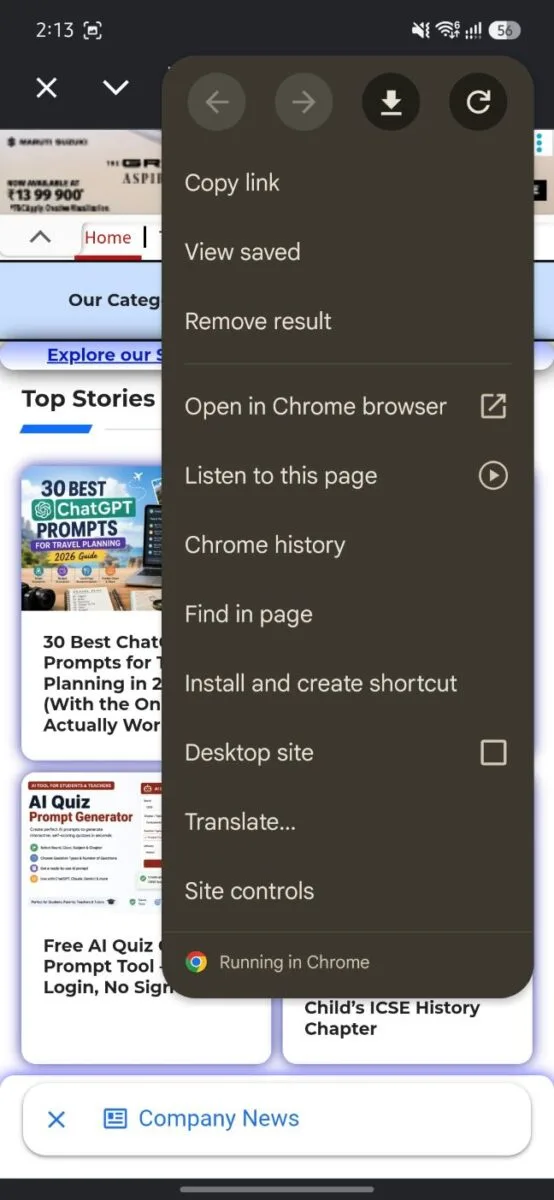
- Search — this is the plain search tab. Anything you search here opens inside the Google app itself, in a lightweight in-app view rather than a full Chrome tab. But you’re never locked in — tap the three-dot menu on any result and you’ll see “Open in Chrome browser,” which hands that exact page off to full Chrome if you want proper tabs, bookmarking, or desktop-site mode.
- Notifications — a running list of everything Google has sent you that day: breaking news alerts, sports score updates, reminders, and so on.
- Activity — this is the one people underestimate. It has two parts:
- AI Mode history — your past AI Mode conversations, so you can pick up where you left off.History — your Google search history, and this isn’t limited to what you searched on your phone. If you’re signed into the same Google account on your desktop, laptop, and smartphone, all of that search activity shows up here in one place, synced across devices.
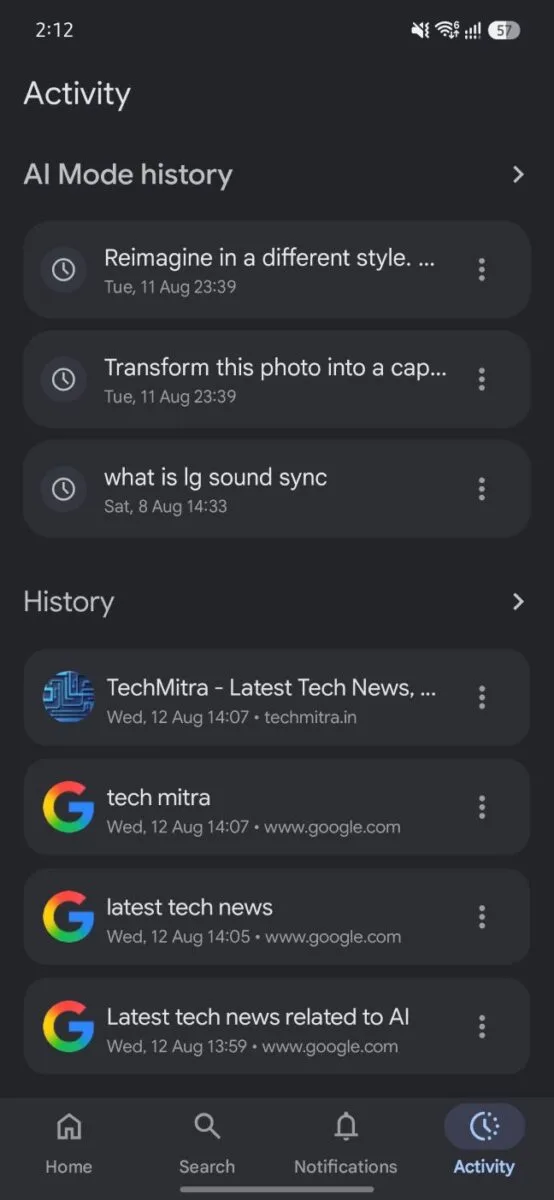
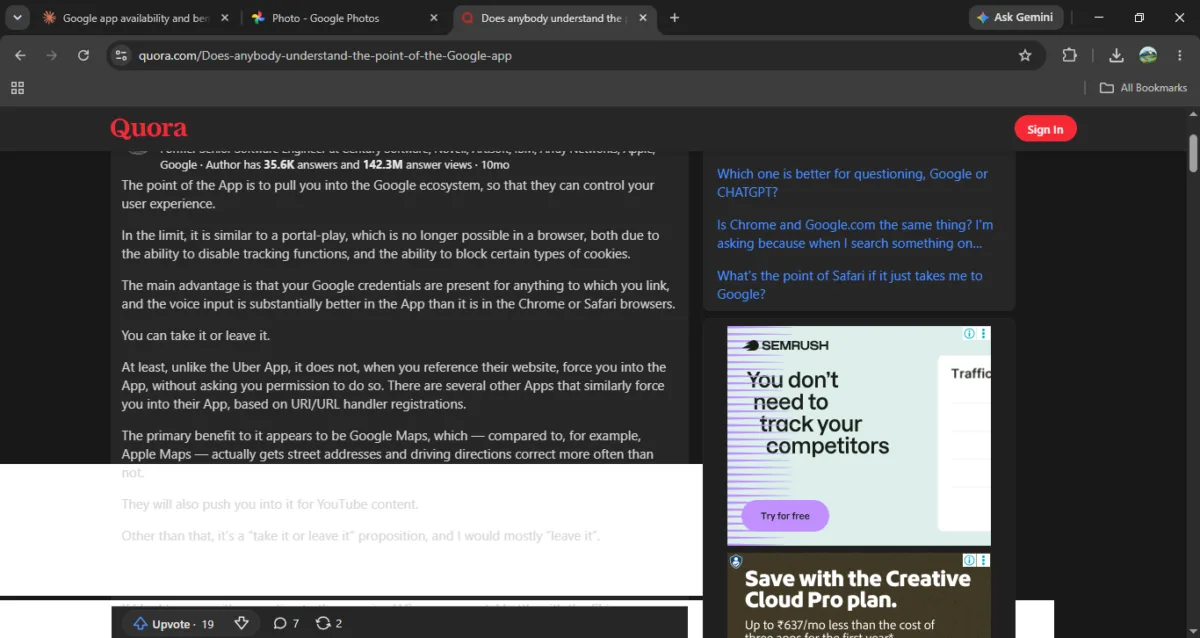
To actually verify this cross-device sync claim rather than just take Google’s word for it, I ran a live test: I searched Quora on Chrome on my Windows desktop, then checked the Activity tab on my phone’s Google app a few minutes later.
Sure enough, that exact desktop search — “what is the google app” and the Quora page I’d opened — showed up right at the top of my phone’s Activity/History tab, timestamped the same day, same time window.
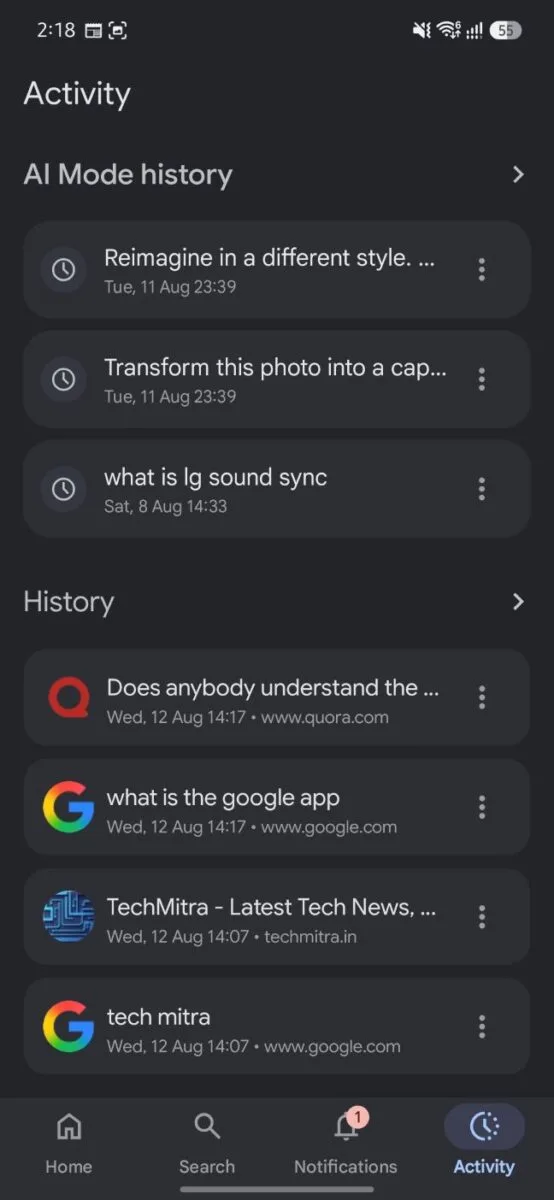
This is the practical upside of the Activity tab: if you searched something on your laptop at work and can’t remember what it was, you don’t need to dig through Chrome’s desktop history — it’s sitting right there on your phone, as long as you’re signed into the same Google account everywhere.
One setting this depends on: cross-device sync only works if Web & App Activity is turned on in your Google Account settings (myactivity.google.com), and — for Chrome history specifically — the “Include Chrome history and activity from sites, apps, and devices that use Google services” sub-setting is checked, with Chrome sync turned on for that browser. If you’ve ever paused activity tracking or turned off Chrome sync, your Activity tab won’t show synced desktop searches like it did in my test above.
Why Have Both?
Think of it this way: the Google app is your front door — a quick way to ask something, glance at news, or check the weather without deciding where on the web to go first. Chrome is what you use once you’re inside — reading the actual page, keeping multiple tabs open, or doing anything that needs a real browser.
Google has also been steadily pushing more AI features into the Google app specifically — features like tapping “Ask” on a search result to pull it into an AI Mode conversation, or getting a one-tap AI summary of a Discover article, are rolling out in the Google app first before (or in some cases instead of) Chrome. So increasingly, the Google app isn’t just a search shortcut — it’s becoming Google’s testing ground for AI-first search features on Android.
Worth noting if you’re reading this after September 2026: Google is retiring Google Assistant on Android in favour of Gemini as the default voice assistant, starting September 4, 2026. The rollout is gradual and staggered by device and region, so you may see Assistant stick around for a while yet — but the voice search built into the Google app’s search bar is transitioning to Gemini under the hood.
Practical Uses and Benefits
- Faster daily info — weather, live sports scores, and stock/market snippets show up right on the home tab without a search
- Discover feed — a low-effort way to stay updated on topics you care about, without opening a news app
- AI Mode for quick questions — better suited to conversational, multi-step questions than a plain search box
- Voice and visual search — Google Lens and voice search are one tap away from the home screen
- AI-powered image editing via Lens — Lens isn’t just for identifying objects anymore. It has a dedicated Create tab (next to Search, Translate, and Live) where you tap the camera button (Banana Icon) to snap a photo, then either pick a suggested AI edit — like “Turn it into embroidery” or “Turn it into a low-poly art piece” — or type your own prompt to transform the image.
- Widget support — the Google Search widget on your home screen is powered by this app, not Chrome
- Cross-device search history in one place — the Activity tab pulls in your search history from every device signed into the same Google account, not just your phone
The Hidden Reason You Can’t Just Delete It
Here’s the part most people miss: several features that look like separate apps are actually powered by the Google app running in the background — not standalone software of their own.
If you disable the Google app in Settings, here’s what breaks along with it:
- Google Lens — tapping the Lens icon throws a “Google app is disabled” error
- Circle to Search — stops responding entirely, since it’s powered by whichever app is set as your device’s default assist app (which has to be the Google app)
- The Discover feed — vanishes both from the Google app and from your home screen’s leftmost panel (on phones that support it)
- Home screen search widgets — several become unavailable
- Song recognition and the Saved tab — also tied to the Google app
A worthwhile clarification for 2026: Gemini itself is now a separate, downloadable app — Google spun it off from the Google app as the default Android assistant. But Gemini still isn’t fully independent: to set Gemini as your mobile assistant, the Google app has to be set as your device’s default assist app first, and Gemini borrows location permissions that are managed through the Google app. So even with its own icon, Gemini is still leaning on the same underlying plumbing.
This is why Google doesn’t retire the Google app even though most people rarely tap its icon directly — it functions as a hub. Google can patch or upgrade Lens, Circle to Search, Discover, and voice search all at once by updating this one app, since it’s pre-installed on nearly every Android device rather than needing separate app updates rolled out individually. You’re not opening it much, but you’re using it dozens of times a day without realising it.
Should You Use It?
If your phone came with both apps (which almost all Android phones do), there’s no real downside to keeping both. Use the Google app when you want to search or glance at your feed quickly; switch to Chrome when you’re actually going to spend time reading, filling out a form, or need multiple tabs open. They’re built to complement each other, not compete.
Sources & Further Reading
- The least used app on my Android phone is the Google app — Android Authority (Feb 2025) — source for the background-dependency details (Lens, Circle to Search, Discover breaking when the Google app is disabled)
- Google Assistant to be discontinued from September 4 as Gemini set to take over — India TV News (Aug 2026) — source for the Google Assistant retirement timeline
Other claims in this article (AI Mode rollout, Discover feed behaviour, Custom Tabs) were checked against current Google support documentation and 2025–2026 reporting from Android Authority, 9to5Google, and SEO Roundtable at the time of writing; individual links weren’t retained for every minor fact.

Ayush Singhal is the founder and chief editor of TechMitra.in — a tech hub dedicated to simplifying gadgets, AI tools, and smart innovations for everyday users. With over 15 years of business experience, a Bachelor of Computer Applications (BCA) degree, and 5 years of hands-on experience running an electronics retail shop, Ayush brings real-world gadget knowledge and a genuine passion for emerging technology.
At TechMitra, he covers everything from AI breakthroughs and gadget reviews to app guides, mobile tips, and digital how-tos. His goal is simple — to make tech easy, useful, and enjoyable for everyone. When he’s not testing the latest devices or exploring AI trends, Ayush spends his time crafting tutorials that help readers make smarter digital choices.
📍 Based in Lucknow, India
💡 Focus Areas: Tech News • AI Tools • Gadgets • Digital How-Tos
📧 Contact: Get in touch →
🔗 Full Bio: https://techmitra.in/about-us/