

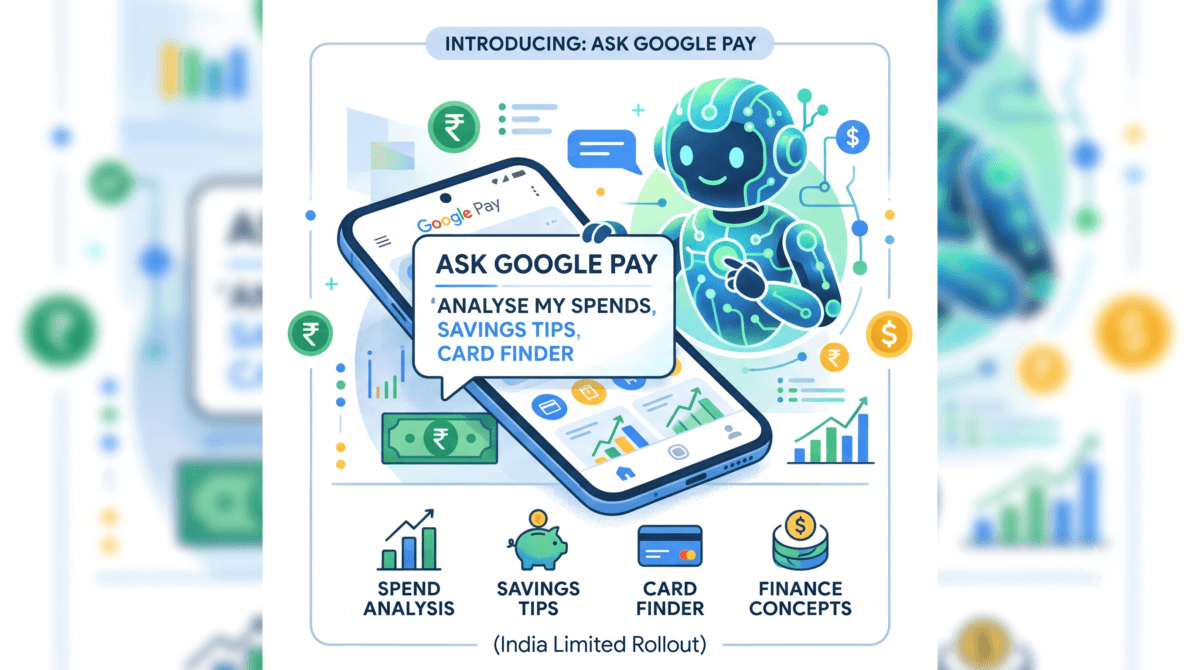
Google Pay is rolling out a new AI feature called “Ask Google Pay” — a chat-based assistant built right into the app that lets you ask questions about your own spending instead of digging through transaction history yourself. It’s currently in limited rollout in India — Google’s own help page confirms it “may not be available on your app yet,” and it hasn’t reached my account either. Here’s what it does and how to check if you have it, based on Google’s official documentation.
Table of Contents
Also Read : I Tested Google Gemini Spark AI Agent the Day It Launched in India — Here’s What Actually Happened
What Ask Google Pay actually does
Ask Google Pay is an AI assistant, powered by Google’s AI, built into Google Pay. You chat with it in plain language to:
- Understand your spending patterns (“Analyse my spends from last week”)
- Get tips on saving better
- Find the right credit card for a category of spending (“What is the best card for my spends?”)
- Learn basic finance concepts — SIPs, CIBIL score, and similar topics
It’s important to be clear about what it isn’t: Google states directly that Ask Google Pay provides information for educational purposes only, is not a registered financial advisor, and — this is worth repeating — it cannot initiate or complete payment transactions on your behalf. It’s a spending-insights tool, not an agent that acts on your money.
How to turn it on
Ask Google Pay depends on a separate setting called “Personalisation within Google Pay,” which is off by default. You have to turn it on before Ask Google Pay will work at all.
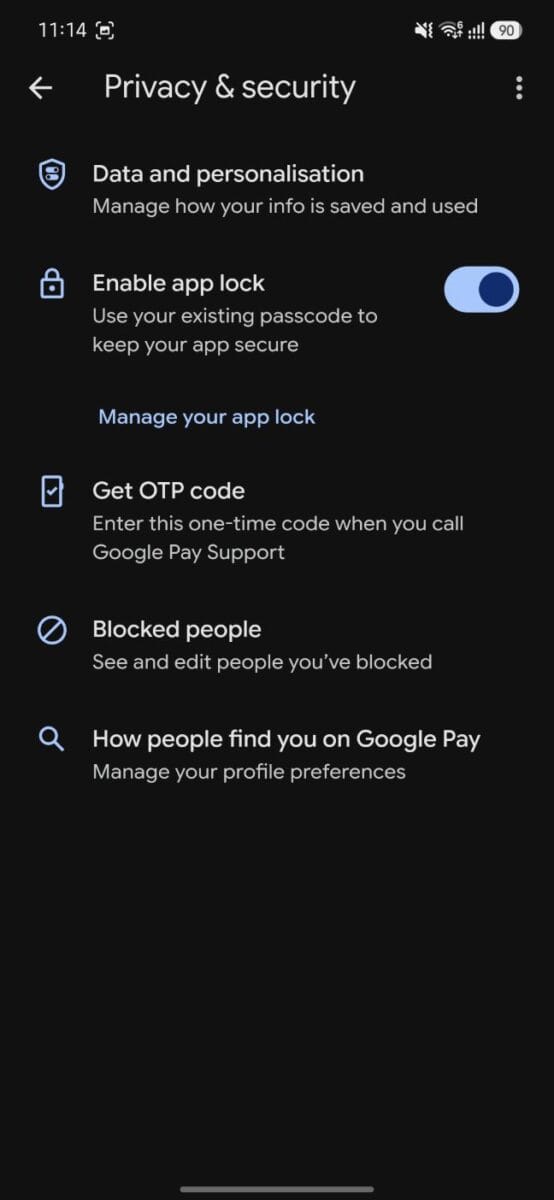
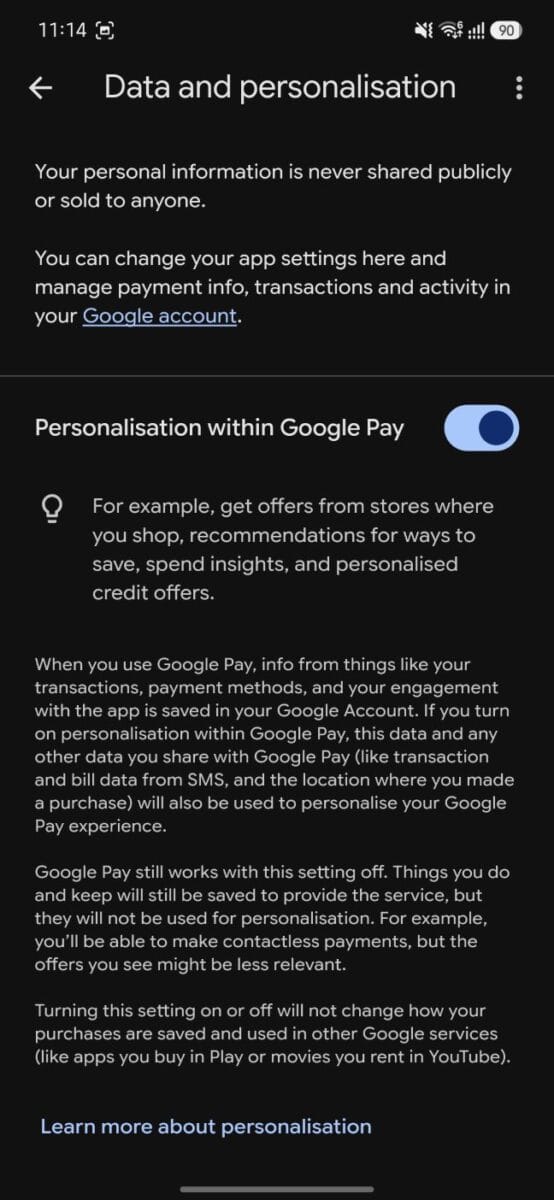
Here’s the exact path, based on the current app:
- Open Google Pay, tap You (bottom right)
- Tap Settings
- Tap Privacy & security
- Tap Data and personalisation
- Turn on Personalisation within Google Pay
Once that’s on, go to the Money tab at the bottom of the home screen — that’s where Ask Google Pay lives, under “Ask about your finances.” You can type a question directly or tap one of the suggested prompt chips to get started.
Worth knowing: this isn’t a separate opt-in specific to the AI feature — it’s the same general personalisation toggle that also powers things like store offers and spend-based recommendations elsewhere in the app. Turning it on affects more than just Ask Google Pay.
Also Read : Google Gemini Windows Desktop App : I Installed It and Tested Everything — Here’s What I Found
What data it actually uses
Based on Google’s own support documentation, Ask Google Pay draws on:
- Your past Google Pay transactions
- Your saved payment methods
- Your Google account info, if you’ve consented
- Your CIBIL report, if you’ve shared and consented to it
And specifically excluded from all AI interactions: full credit/debit card numbers, complete bank account numbers, and government-issued financial IDs.
The privacy details that actually matter (and are more nuanced than the headline version)
A lot of the coverage of this feature has simplified the privacy story to “your data stays private and isn’t shared.” The reality, per Google’s own documentation, is a bit more specific and worth knowing:
- Your data stays within the Google Pay ecosystem and isn’t shared with third-party apps
- It is not used to train Google’s broader AI models
- However — human reviewers (including trained reviewers from Google’s service providers) do review some of the collected data for quality evaluation. Your personal and sensitive information is redacted before it reaches them, but it’s not accurate to say no human ever sees any of your data.
- Your chat history with Ask Google Pay is retained and viewable for 42 days.
- Feedback and AI interactions may be used for product improvement, with what Google describes as “privacy-preserving controls and anonymisation techniques.”
None of this is alarming by AI-assistant standards — this is fairly standard practice — but it’s a more accurate picture than “your data never leaves the app,” which is the version most outlets have run with.
Should you turn it on?
If you’re comfortable with the personalisation trade-off (which affects more than just this one feature) and want a faster way to understand your own spending, it’s genuinely useful and low-friction to try — no subscription needed, works on both Android and iOS, and you can switch personalisation back off any time from the same settings screen.
If you’d rather keep your transaction data as siloed as possible even within an app you already trust with your money, it’s easy to just leave personalisation off — Google Pay works exactly the same for actual payments either way.
Since this is a limited rollout, if you don’t see “Ask about your finances” under the Money tab yet, that’s expected — Google’s own help page notes it “may not be available on your app yet.” It’ll likely widen over the coming weeks.
This article is based on Google’s official Ask Google Pay support documentation, current as of August 2026. The feature is in limited rollout and hadn’t reached our account at the time of writing — we’ll update this piece with hands-on testing once it does. Feature details may change as the rollout continues.

Ayush Singhal is the founder and chief editor of TechMitra.in — a tech hub dedicated to simplifying gadgets, AI tools, and smart innovations for everyday users. With over 15 years of business experience, a Bachelor of Computer Applications (BCA) degree, and 5 years of hands-on experience running an electronics retail shop, Ayush brings real-world gadget knowledge and a genuine passion for emerging technology.
At TechMitra, he covers everything from AI breakthroughs and gadget reviews to app guides, mobile tips, and digital how-tos. His goal is simple — to make tech easy, useful, and enjoyable for everyone. When he’s not testing the latest devices or exploring AI trends, Ayush spends his time crafting tutorials that help readers make smarter digital choices.
📍 Based in Lucknow, India
💡 Focus Areas: Tech News • AI Tools • Gadgets • Digital How-Tos
📧 Contact: Get in touch →
🔗 Full Bio: https://techmitra.in/about-us/