
Google just launched a dedicated Gemini app for Windows, and I decided to install it myself and test it properly instead of just reporting what the press releases say. Here is my full hands-on experience, with real screenshots from my own PC.
What Is This New Gemini Windows Desktop App?
On September 10, 2026, Google rolled out a native Gemini app for Windows 10 and Windows 11 computers. Until now, if you wanted to use Gemini on your PC, you had to open a browser tab and go to gemini.google.com every time. Now Google has given Windows users a proper desktop app, just like the one Gemini already had for Mac since April 2026.
The pitch from Google is simple: instead of switching between browser tabs, Gemini now sits on your desktop and opens instantly whenever you need it — without breaking whatever you are working on.
The app brings some big features with it:
- A system-wide keyboard shortcut (Alt + Space) to open Gemini instantly from anywhere
- Video generation using Gemini Omni
- Image generation using Nano Banana 2
- Multi-step task handling through a new agent feature called Gemini Spark
- Connection to your Gmail and Google Drive for context
- Notebooks feature for organizing your work
This is clearly Google’s move to compete directly with Microsoft Copilot, which already lives inside Windows. I wanted to see for myself if this new app actually works as smoothly as it sounds, so I installed it on my own system.
Also Read : Gemini 4 Argon Launched, But It Isn’t Publicly Available Yet : Gemini Updates This Week
How to Install Gemini Desktop App for Windows
Installing it was straightforward. Here is exactly how I did it:
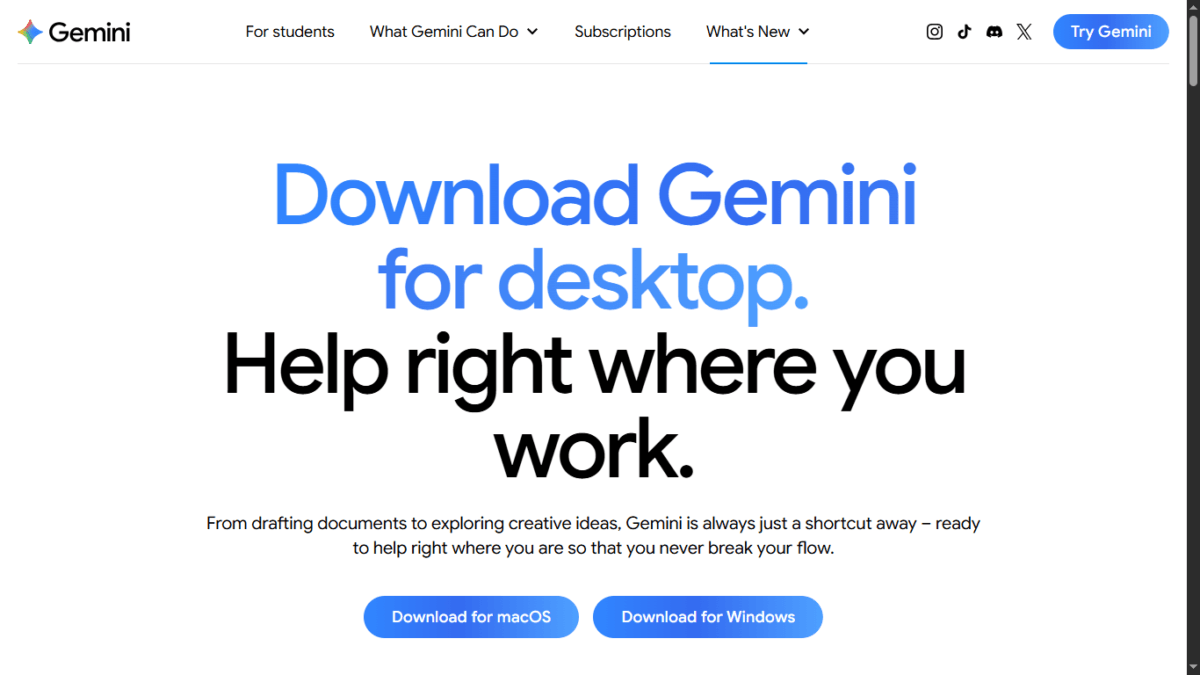
Step 1: I went to the official download page at gemini.google/desktop
Step 2: The page showed two clear buttons — “Download for macOS” and “Download for Windows.” I clicked the Windows one.
Step 3: This downloaded a file called GeminiSetup.exe
Step 4: I ran the file, and the installation started automatically. It took only a couple of minutes.
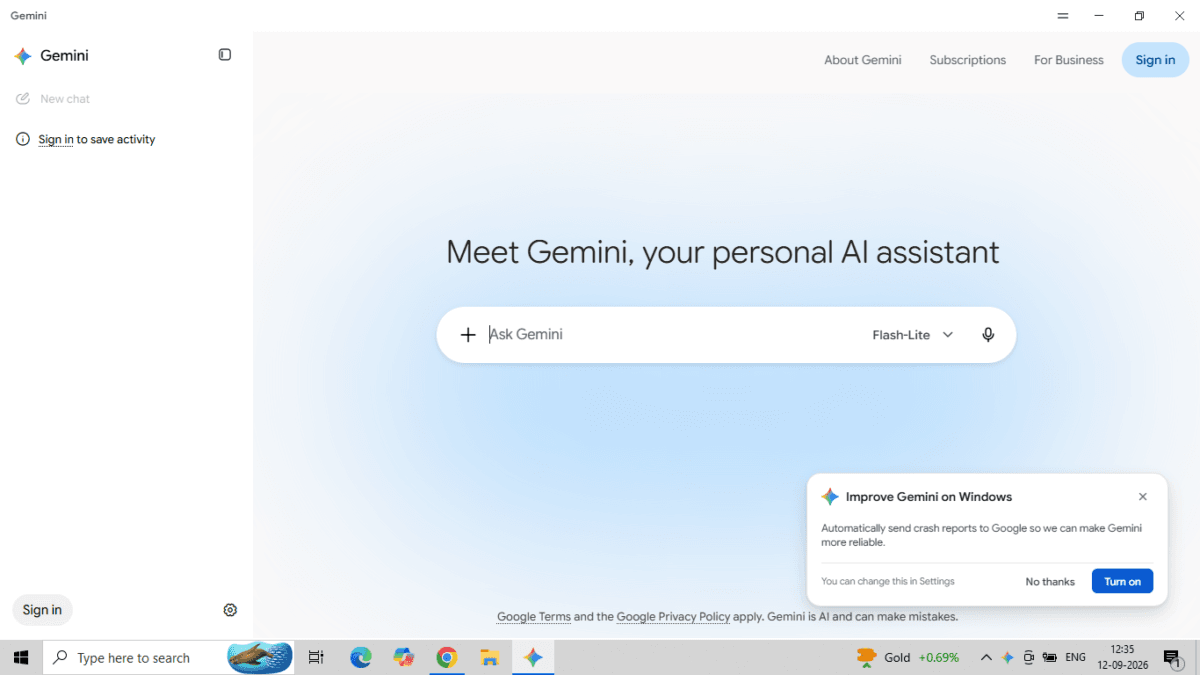
Step 5: Once installed, I opened the app and it asked me to sign in with my registered Google account.
One important tip: only download this from Google’s official page. Since this is a brand new, trending app, there is a real chance of fake installers floating around on other websites. Do not click random download links from blogs or third-party sites for something like this.
First Look at the Dashboard
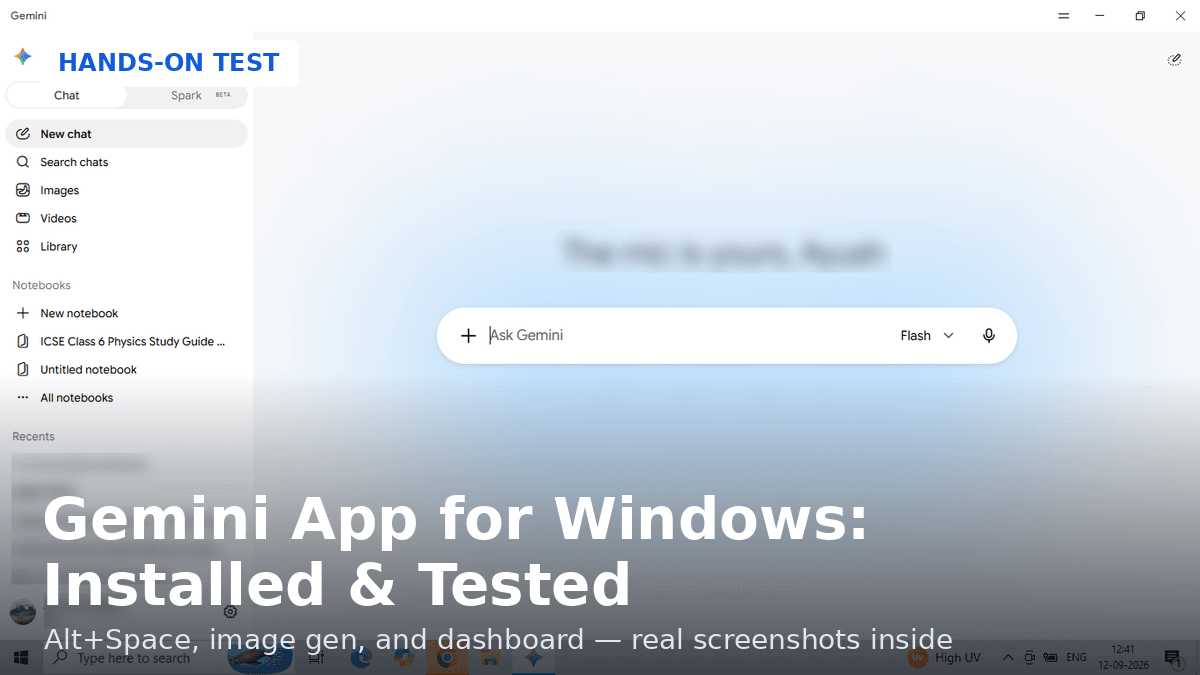
Once I signed in, the app opened as a clean, floating window — not a full-screen browser-style layout. Here is what the sidebar has:
- Chat / Spark (Beta) toggle at the top — so you can switch between normal chat and the new agent mode (Spark Tested)
- New chat, Search chats, Images, Videos, Library — all as separate, dedicated sections instead of being buried inside chat
- Notebooks section — you can create new notebooks and see all your saved ones
- Recents — shows your recent chat history, and yes, it works in Hindi too
- My account was shown at the bottom as “Ayush Singhal — Pro,” confirming my subscription tier
- A model selector showing “Flash” at the top of the chat box
Overall the dashboard felt clean and not cluttered, and honestly quite close to what Gemini Web looks like, just repackaged into a lighter desktop window.
Testing the Headline Feature: Alt + Space
This is the feature Google is pushing the hardest, so I tested it properly. I was working on other things on my PC, and I simply pressed Alt + Space.
Result: it worked perfectly, every single time. The Gemini window pops up instantly on top of whatever I was doing, without minimizing or closing my other work. This is genuinely useful if you are working on a document or browsing and suddenly need to ask Gemini something — you don’t lose your place at all.
I also confirmed the app runs quietly in the Windows system tray in the background. It does not hog resources or stay open as a big visible window all the time — it just sits there ready, and Alt + Space brings it up instantly.
Does It Work the Same as Gemini Web?
This was my main question, so I tested this carefully by comparing the desktop app directly against Gemini Web (gemini.google.com/app) side by side.
Chat and basic features: Identical experience. Same responses, same account, same chat history syncs across both.
Image generation: Both the app and Web use Nano Banana 2, and both show template suggestions on the “Create images” screen. But here is something interesting I noticed — I checked the template suggestions three separate times, once on the app, once on Web, and once on my mobile, and I got a different set of templates every single time. First it showed NYC, Yogi, Theme Park, Lavender, Arcade. Then it showed ’80s rewind, ’80s glam, Monochrome, Runway styles. Then it showed Origami, Pastel, Pop up, Jump, Coach.
So this is not really a difference between the desktop app and Web — the templates just rotate randomly on every platform, every time you open it. What I did notice across all three checks though: none of the templates shown were India-specific. No sarees, no Indian festivals, no regional themes — everything skewed generic and Western-style. This might change with future updates, but at launch, Indian users won’t find personalized template options.
System tray and background running: Confirmed working exactly as Google describes — lightweight, stays in the background, opens instantly.
Based on everything I tested, the Windows app is essentially the same Gemini experience you get on the web, just packaged into a faster, more convenient desktop shortcut. I did not find it to be a stripped-down or limited version.
Should You Install It?
If you are already using Gemini regularly through the browser, this app is worth installing. The Alt + Space shortcut alone makes it genuinely more convenient for daily use — you stop losing time opening browser tabs. It is a free download and works on both Windows 10 and Windows 11.
Just keep in mind that some features like video generation through Gemini Omni and the Spark agent mode may need a paid Gemini plan depending on your account, so check what your current plan allows.
For Indian users, since Windows is by far the most common operating system on PCs here, this is a genuinely useful launch. Whether it can compete with Microsoft’s built-in Copilot on Windows long-term remains to be seen, but as a first look, Google has clearly put real effort into making this feel like a proper native app rather than just a browser wrapper.
This review is based on hands-on testing done on September 12, 2026, shortly after the app’s official launch.

Ayush Singhal is the founder and chief editor of TechMitra.in — a tech hub dedicated to simplifying gadgets, AI tools, and smart innovations for everyday users. With over 15 years of business experience, a Bachelor of Computer Applications (BCA) degree, and 5 years of hands-on experience running an electronics retail shop, Ayush brings real-world gadget knowledge and a genuine passion for emerging technology.
At TechMitra, he covers everything from AI breakthroughs and gadget reviews to app guides, mobile tips, and digital how-tos. His goal is simple — to make tech easy, useful, and enjoyable for everyone. When he’s not testing the latest devices or exploring AI trends, Ayush spends his time crafting tutorials that help readers make smarter digital choices.
📍 Based in Lucknow, India
💡 Focus Areas: Tech News • AI Tools • Gadgets • Digital How-Tos
📧 Contact: Get in touch →
🔗 Full Bio: https://techmitra.in/about-us/