

Table of Contents
Also Read : Brevo Contact Form and Newsletter in WordPress — Without Installing Any Plugin (Not Even Brevo’s Own)
My WordPress Admin Got Hit Hard — Here’s What Happened
I run TechMitra, a technology publication built on WordPress and hosted on Hostinger. In late 2025, one of my articles went viral. Traffic was great — but something else was happening in the background that I almost missed.
My site started slowing down randomly. It wasn’t completely offline, but a few times a day it became noticeably sluggish. My first thought was a server-side issue on Hostinger’s end, so I waited a few days hoping it would resolve itself. It didn’t.
Then I opened the Hostinger hPanel and checked the resource usage dashboard. What I saw was alarming — the CPU and I/O usage bars were hitting the red zone repeatedly throughout the day. This wasn’t normal traffic load. Something was relentlessly hammering the server.
I dug deeper into the access logs and discovered the real problem: automated bots were attempting to access my /wp-admin page over 10,000 times every single day.
This is a classic brute-force attack. Bots scan the internet looking for WordPress sites, locate the default login URL (yoursite.com/wp-admin), and flood it with thousands of username and password combinations hoping to break in. My site was under constant siege — and every single attempt was draining my server resources.
If you are on shared hosting in India — Hostinger, Bluehost, or BigRock — you are especially vulnerable to this. Because resources are shared among multiple users, intense bot traffic on your site directly degrades your speed and performance.
Here is exactly what I did to stop it.
Why wp-admin Is the Only Door That Really Matters
Before jumping into the steps, I want to share the core insight that changed how I think about WordPress security.
Most security guides give you a 20-point checklist — database prefix changes, XML-RPC disabling, directory permissions, file editing restrictions, and more. That advice is not wrong, but it misses the central point.
Almost every WordPress attack starts at one of two places: the wp-admin login page or the xmlrpc.php endpoint. Brute force bots, credential stuffing tools, and human attackers all follow the same playbook — find an entry point, then try to break in. If you make both of those entry points unreachable, the vast majority of attacks have nowhere to go.
This is what 10,000+ daily attacks on TechMitra taught me. Once I locked down wp-admin and blocked xmlrpc.php properly, everything went quiet — no expensive security plugin, no paid firewall subscription. Just two protected doors.
The one thing I never skip regardless: keeping all plugins and themes updated. Plugin vulnerabilities are the one attack vector that does not need wp-admin access at all — an outdated plugin can be exploited directly without touching the login page. This takes two minutes a week and is non-negotiable.
Here is the complete system I built.
What Makes This Guide Different
Most WordPress security tutorials ask you to edit code — modify wp-config.php, add rules to .htaccess, change your database prefix, or install resource-heavy plugins that run constantly in the background.
I run TechMitra on 600+ pages. Every plugin I add, every background process I enable, affects Core Web Vitals across hundreds of URLs — not just one page. The performance cost is real and it directly impacts Google rankings.
So I built a security system with a strict rule: nothing that touches WordPress core, nothing that adds server load, nothing that risks breaking a single page.
The entire setup in this guide requires:
- No code changes in WordPress
- No .htaccess or wp-config.php edits
- No server configuration changes
- No heavy security plugins
- Only one lightweight plugin installed
Everything heavy is handled by Cloudflare — outside your server entirely. Your WordPress installation never even sees the attack traffic.
This is especially important for Indian WordPress sites on shared hosting where server resources are limited and every background process has a direct cost on site speed.
Also read : I Connected My Hostinger Mailbox to ChatGPT — Here’s What Actually Happened
Before You Start: Set Up a Backup First
Before making any security changes, confirm you have a working backup. If anything goes wrong during configuration, you need a restore point.
If you are on Hostinger’s Business Plan (which I use for TechMitra), you already have daily automatic backups included — no extra plugin needed. Go to hPanel → Backups to verify your latest backup exists before proceeding.
If you are on a basic plan that does not include backups, install the free UpdraftPlus plugin. It takes under 10 minutes to configure and backs up your entire site to Google Drive or Dropbox automatically.
Either way — confirm your backup exists before changing anything below.
How to Check If Your WordPress Site Is Under Attack
Before fixing anything, confirm the problem first. Here is how:
On Hostinger: Go to hPanel → Hosting → select your website → scroll to the Statistics section → check CPU Usage and I/O Usage graphs.
If you see repeated spikes hitting the red zone at random times throughout the day, bots are very likely the cause. Cross-check by going to hPanel → Logs and reviewing your access logs for thousands of repeated requests to /wp-admin or /wp-login.php from unfamiliar IP addresses.
On cPanel hosting: Check Metrics → Raw Access or use Awstats to analyze traffic patterns to these two URLs.
If you see this pattern — fix it immediately. Every bot request is consuming your server CPU and I/O whether the login attempt succeeds or not.
Steps For How To Secure WordPress Admin Login
Step 1: Connect Your WordPress Site to Cloudflare (Free Plan)
The first step I took was connecting TechMitra to Cloudflare’s free CDN. This places Cloudflare’s global network between your website and the public internet — all traffic passes through Cloudflare’s filters before ever reaching your hosting server.
How to connect:
- Go to cloudflare.com and create a free account
- Click Add a Site and enter your domain name
- Cloudflare will scan your existing DNS records automatically
- Select the Free plan
- Update your domain’s nameservers to the ones Cloudflare provides (do this at your domain registrar — GoDaddy, Namecheap, or wherever you registered your domain)
- Wait for DNS propagation — usually a few hours to 24–48 hours
Once connected, your traffic flows through Cloudflare before reaching your server, giving you baseline DDoS protection and bot filtering immediately.
📝 Hostinger Business Plan note: Hostinger also provides server-level security — including infrastructure-level DDoS protection and malware scanning — that works independently of Cloudflare. The two work together as separate layers. This is one reason I chose to stay on Hostinger’s Business Plan rather than downgrade.
Step 2: Enable Cloudflare Bot Fight Mode (With an Important Warning)
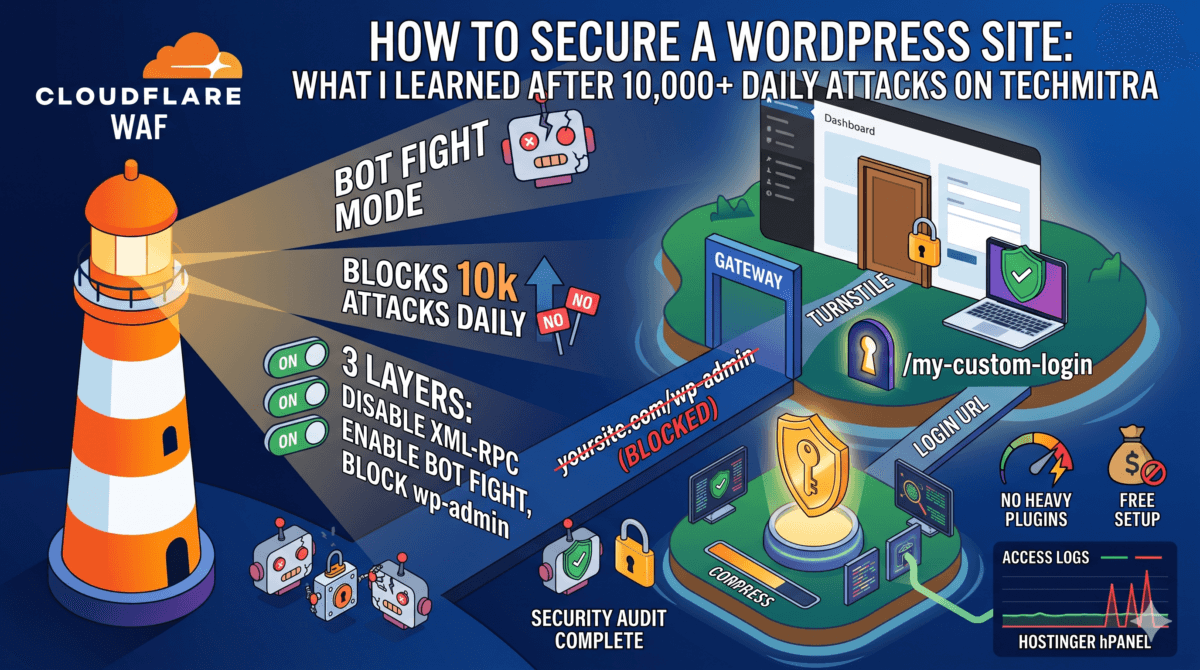
After connecting to Cloudflare, I activated Bot Fight Mode under Security → Bots in the Cloudflare dashboard.
Bot Fight Mode challenges or blocks traffic Cloudflare identifies as non-human automation. It significantly reduced bot traffic hitting my wp-admin page.
But here is something I learned the hard way:
Bot Fight Mode can occasionally mistake legitimate search engine crawlers — including Googlebot — for malicious bots. When this happened on TechMitra, I noticed a temporary drop in rankings because Google was having trouble crawling my pages.
I wrote a detailed article about this exact experience: Impact of Cloudflare Bot Fight Mode on SEO — read that before enabling this feature.
💡 My Recommendation: Enable Bot Fight Mode, but monitor your Google Search Console Crawl Stats and Indexing reports closely for 2–3 weeks after enabling. If crawled pages drop or host errors spike, Bot Fight Mode is likely the cause.
Step 3: Block wp-admin and xmlrpc.php Using Cloudflare WAF
Even with Bot Fight Mode enabled, sophisticated bots and human attackers can still reach your login page. The next layer is creating custom WAF rules in Cloudflare to block both major WordPress entry points — /wp-admin and /xmlrpc.php — before requests ever reach your server.
What your WAF rules should do:
Rule 1 — Protect wp-admin:
- Block all requests targeting
/wp-adminand/wp-login.php - EXCLUDE
admin-ajax.php— WordPress uses this for legitimate background tasks; blocking it breaks site functionality - EXCLUDE verified search engine crawlers so your SEO is unaffected
Rule 2 — Block xmlrpc.php:
- Block all requests to
/xmlrpc.php - This is a secondary WordPress entry point that bots actively use for brute force attacks completely independently of your login page
- Most WordPress sites do not need xmlrpc.php active at all unless you use the WordPress mobile app or Jetpack
How to create WAF rules:
- In your Cloudflare dashboard, go to Security → WAF → Custom Rules
- Click Create Rule
- Build each rule using the expression editor based on the logic above
I am not publishing my exact rule expressions here — they took several days of testing to get right without breaking anything on TechMitra. The logic above gives you the correct direction. If you are not comfortable building these yourself, see the Fiverr offer at the end of this article.
After applying both WAF rules, bot requests to both entry points are blocked at Cloudflare’s edge — they never reach your hosting server. My CPU and I/O spikes disappeared almost immediately.
Step 4: Hide Your WordPress Login URL with WPS Hide Login
The Cloudflare WAF handles automated traffic at the edge. But human attackers or bots that somehow bypass the WAF can still attempt your login page. To close this gap, I added a lightweight layer directly inside WordPress.
WPS Hide Login is a free plugin with over 2 million active installations. It does one job perfectly: changes your login URL to something only you know.
Instead of yoursite.com/wp-admin or yoursite.com/wp-login.php, your login page becomes yoursite.com/your-secret-phrase. Anyone attempting the default URLs gets a 404 error page — no indication that a WordPress site even exists.
How to install and configure it:
- Log in to your WordPress dashboard
- Go to Plugins → Add New Plugin and search for WPS Hide Login
- Click Install Now then Activate
- Navigate to Settings → General and scroll to the very bottom — the WPS Hide Login section appears there (no separate menu item, intentionally low-profile)
- In the Login URL field, enter your custom login path — avoid obvious terms like
/mylogin,/admin, or/dashboard. Use a combination of words and numbers only you would remember - In the Redirect URL field, set where unauthorized users land when they try
/wp-admin— a 404 page is strongly recommended - Click Save Changes
⚠️ Critical: Bookmark your new custom login URL immediately before saving. If you forget it, you will be locked out. Recovery: log into Hostinger File Manager → navigate to
/wp-content/plugins/→ rename thewps-hide-loginfolder towps-hide-login-disabled. This deactivates the plugin and instantly restores default login paths.
📝 LiteSpeed Cache users (Hostinger default): Add your new custom login URL to the “Do Not Cache” list in LiteSpeed Cache settings to prevent login page display issues.
Step 5: Add Cloudflare Turnstile to Your Login Page
The final layer: Cloudflare Turnstile on the custom login page. Turnstile is a free, privacy-focused CAPTCHA alternative that challenges suspicious visitors before they see the login form at all.
Unlike traditional CAPTCHAs, Turnstile is invisible and frictionless for real users but highly effective at stopping bots. And unlike Google reCAPTCHA, it does not share your visitor data with Google.
Why add Turnstile if the login URL is already hidden?
If your custom login URL is ever leaked — via browser history, a shared device, or network sniffing — Turnstile acts as a strict secondary barrier. Bots cannot automate past it even if they find the hidden URL.
How to set it up:
- In your Cloudflare dashboard, click Turnstile in the left sidebar
- Click Add Site and register your domain
- Select Managed mode and copy your Site Key and Secret Key
- Install the free Simple Cloudflare Turnstile plugin on WordPress
- Paste your keys into the plugin settings and enable protection for your login page
Real human visitors pass the Turnstile challenge instantly without friction. Bots cannot.
Also Read : When AI Gets Technical Advice Wrong: A LiteSpeed Cache Purge All Case Study
What I Deliberately Did NOT Do (And Why)
No Heavy Security Plugins (Wordfence, Sucuri, etc.)
Wordfence and Sucuri are well-known tools, but they are resource-heavy. They constantly scan files and run PHP processes in the background — negatively impacting server performance and Core Web Vitals scores, which directly affect Google rankings.
For TechMitra, speed is non-negotiable. Cloudflare’s edge defense combined with a hidden login URL and Turnstile provides strong protection without a single heavy plugin running on the server.
If you run an e-commerce store or handle sensitive customer data, a dedicated security plugin may be worth the performance trade-off. Evaluate based on your specific situation.
No Two-Factor Authentication (2FA)
Most standalone 2FA plugins rely on frameworks like Jetpack, which adds significant load. Because my login URL is completely hidden and protected by Turnstile, I chose to keep the system lightweight without 2FA for now.
If you want 2FA without Jetpack, the WP 2FA plugin is the cleanest standalone option currently available.
Cloudflare vs Wordfence — Which One Does a Small WordPress Site Actually Need?
You may have seen advice saying “use both Cloudflare and Wordfence together for maximum protection.” That recommendation is not wrong — but it assumes your site has the server resources to run both simultaneously without a performance penalty.
Here is the honest reality for a content site on shared hosting in India:
Wordfence’s biggest strength is scanning your WordPress files for malware and catching plugin-level exploits. But those exploits become relevant only after an attacker has already bypassed your perimeter. If Cloudflare’s WAF is blocking unauthorized access to wp-admin at the edge, and your login URL is hidden so bots cannot even find the login form — there is very little left for Wordfence to catch at the application level.
Think of it this way. Wordfence is an excellent security guard stationed inside your house. But if your front door is invisible and the gate is locked at the street — the guard inside has very little work to do. For a small content site, that guard’s salary (server CPU and RAM) is not worth paying when the perimeter is already solid.
For large e-commerce sites, membership platforms, or sites handling sensitive user data — running both makes complete sense. The stakes are higher and the server resources are usually better.
For a content publication like TechMitra on shared hosting — Cloudflare at the edge, a hidden login URL, and blocked xmlrpc.php is sufficient. My hPanel resource usage and GSC crawl stats confirm this is working.
My Complete WordPress Security Stack
Here is the full 7-layer framework protecting TechMitra right now — all free, no heavy plugins:
| Layer | Tool | What It Does |
|---|---|---|
| 1 | Hostinger Server Security | Infrastructure-level DDoS protection and malware scanning |
| 2 | Cloudflare Free CDN | Filters all traffic before it reaches the server |
| 3 | Cloudflare Bot Fight Mode | Detects and blocks automated bot networks |
| 4 | Cloudflare WAF — wp-admin rule | Blocks direct admin access at Cloudflare’s edge |
| 5 | Cloudflare WAF — xmlrpc.php rule | Blocks secondary brute force entry point |
| 6 | WPS Hide Login | Custom login URL, 404 on all default paths |
| 7 | Cloudflare Turnstile | Human verification on custom login page |
Total Setup Cost: ₹0
Quick Security Checklist
Use this to audit your own WordPress site right now to check how to secure wordpress website from hackers
- Backup confirmed — Hostinger hPanel or UpdraftPlus
- Site connected to Cloudflare free plan
- Bot Fight Mode enabled — Search Console Crawl Stats being monitored
- Cloudflare WAF rule active — blocking direct wp-admin access
- Cloudflare WAF rule active — blocking xmlrpc.php
- WPS Hide Login installed and custom URL configured
- Default /wp-admin and /wp-login.php now return 404
- Custom login URL saved in browser bookmarks or password manager
- Cloudflare Turnstile active on custom login page
- Hostinger hPanel CPU/IO usage normal — no unexplained spikes
- Google Search Console Crawl Stats normal
- WordPress core, all themes, and all plugins updated to latest versions
Need Someone to Set This Up for You?
If navigating Cloudflare WAF expressions or configuring these settings feels overwhelming, I can handle it for you. I offer professional WordPress security setup services on Fiverr.
I will personally configure this exact 7-layer security stack for your website — Cloudflare connection, WAF rules for wp-admin and xmlrpc.php, WPS Hide Login, and Turnstile — ensuring your site stays fast and secure from day one.
Final Thoughts
Securing WordPress admin does not require expensive subscriptions or heavy plugins running on your server. It requires understanding where attacks actually come from — and in the vast majority of cases, that is the default wp-admin login page and xmlrpc.php endpoint that every bot on the internet knows about.
By shifting your defense to Cloudflare’s edge network and making your login URL undiscoverable, you eliminate the most common attack vectors completely — without touching your site’s performance.
TechMitra went from 10,000+ daily attack attempts hammering the server to near-zero noise. If you are on shared hosting in India and noticing unexplained slowdowns, check your hPanel resource usage first. The answer is almost always sitting right there in your access logs.
Also read: Cloudflare Cache Everything Rule: Real Case Study — How I Reduced Server Response Time by 60%

Ayush Singhal is the founder and chief editor of TechMitra.in — a tech hub dedicated to simplifying gadgets, AI tools, and smart innovations for everyday users. With over 15 years of business experience, a Bachelor of Computer Applications (BCA) degree, and 5 years of hands-on experience running an electronics retail shop, Ayush brings real-world gadget knowledge and a genuine passion for emerging technology.
At TechMitra, he covers everything from AI breakthroughs and gadget reviews to app guides, mobile tips, and digital how-tos. His goal is simple — to make tech easy, useful, and enjoyable for everyone. When he’s not testing the latest devices or exploring AI trends, Ayush spends his time crafting tutorials that help readers make smarter digital choices.
📍 Based in Lucknow, India
💡 Focus Areas: Tech News • AI Tools • Gadgets • Digital How-Tos
📧 Contact: Get in touch →
🔗 Full Bio: https://techmitra.in/about-us/