
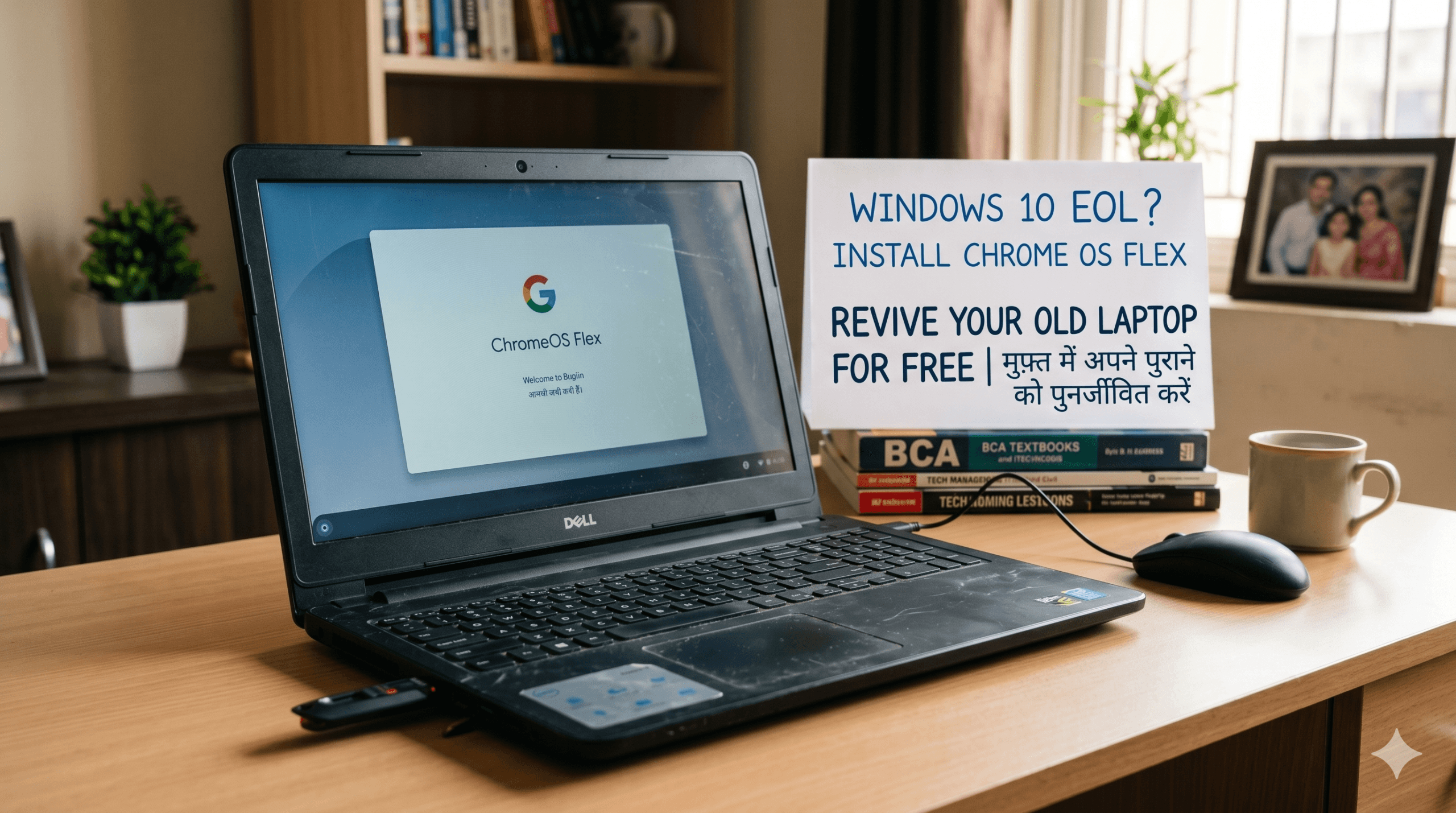
Install Chrome OS Flex on Windows 10 End Of Life PC (Full Guide)
Updated: June 2026
👤 Why I’m writing this I ran an electronics retail shop in Lucknow from 2014 to 2019. During those years, I watched hundreds of customers struggle with slow, aging laptops they couldn’t afford to replace — and later saw the same machines end up in e-waste piles when all they needed was a fresh start. Chrome OS Flex is the closest thing I’ve seen to a genuine second life for those machines. I’ve personally tested it on older Intel Core i3 and Pentium-era laptops, and I’ve recommended it to students, NGO workers, and small businesses in my circle. This guide is based on that real-world experience, not just documentation.
⚠️ Article Updated — June 2026: Windows 10 mainstream support ended on October 14, 2025. Consumer Extended Security Updates (ESU) run until October 13, 2026 — after which there are no more patches, even paid ones. We’ve also updated the Android app support section and added a note on Google’s future OS roadmap. All tables and FAQs have been revised to reflect the current situation.
If you’re still running Windows 10 on an old laptop in mid-2026, you’re in one of two situations: either you enrolled in Microsoft’s ESU program and have a few months of security patches left, or you’ve been running unpatched since October 2025 — which means your machine has been exposed to every vulnerability discovered since then.
Either way, the clock is ticking. And if your laptop can’t run Windows 11 because it lacks TPM 2.0 or a compatible processor, you’re facing a real problem with no obvious Windows solution.
Chrome OS Flex is the most practical answer I’ve found for this exact situation. It’s Google’s free, lightweight operating system that installs on your existing hardware, runs far faster than Windows 10 ever did on the same machine, and gets automatic security updates from Google. No license fees. No hardware upgrades required.
In this guide, I’ll walk you through everything: what Chrome OS Flex is, whether your laptop qualifies, how to install it step by step, and how it compares to your other options as a Windows 10 user in 2026.
Table of Contents
Also Read : How to Speed Up a Slow Windows 11 PC (Also Works on Windows 10): The Ultimate Guide
What Is Chrome OS Flex?
Chrome OS Flex is Google’s free, lightweight operating system designed to modernize older PCs and Macs. It’s based on the same platform as Chrome OS (the software that runs on Chromebooks), but built to be installed on existing hardware — including machines that have been running Windows or macOS for years.
The core idea is simple: instead of discarding an older machine because Windows has outgrown it, you wipe Windows and install Chrome OS Flex instead. The hardware stays the same. The performance often improves dramatically.
Chrome OS Flex is cloud-centric. It boots in seconds, updates silently in the background, and assumes you’ll do most of your work through a browser — Google Docs, Gmail, YouTube, Zoom, WhatsApp Web. If that describes 80–90% of how you actually use your laptop, Chrome OS Flex will serve you well.
Chrome OS Flex vs Chrome OS: Chrome OS Flex is not identical to the Chrome OS on Chromebooks. Chromebooks include a Google-designed security chip for verified boot and hardware-level firmware integration. Chrome OS Flex runs on generic PC hardware without that chip, so some security guarantees differ slightly. The day-to-day experience is nearly identical, but enterprise-grade security features like hardware-root-of-trust are absent on Flex.
The Windows 10 Situation in 2026 — What You Need to Know Now
When I wrote the original version of this article in October 2025, Windows 10’s end of life was days away. We’re now several months past that date, and the situation has evolved in ways worth understanding.
Here’s where things stand in June 2026:
- Windows 10 mainstream support ended October 14, 2025. No more free security updates, feature updates, or technical support from Microsoft.
- Consumer ESU is available — but only until October 13, 2026. Microsoft offered home users a one-year extended security update subscription at ₹0 (via Windows Backup sync), 1,000 Microsoft Rewards points, or a one-time ~₹2,500 (~$30) payment. This program ends in October 2026 and will not be renewed for consumers.
- After October 2026, there is no safety net for home users on Windows 10. Business customers can extend ESU through 2028 at escalating cost (doubling each year), but home users have no paid option beyond October 2026.
- Unpatched Windows 10 machines become increasingly vulnerable. Microsoft has already released multiple security patches via ESU since October 2025. Machines not enrolled have missed every one of those fixes.
The bottom line: If your laptop can’t run Windows 11 and you haven’t enrolled in ESU, your machine has been unprotected for months. If you’re on ESU, you have until October 2026 — after which Chrome OS Flex or a hardware upgrade is your only realistic path forward.
Why Chrome OS Flex Is Ideal for Old Laptops — Especially in India
Here’s what I’ve seen firsthand when recommending Chrome OS Flex to people in Lucknow and surrounding areas:
A student’s 2012-era Core i3 laptop that took 4–5 minutes to boot Windows 10 now starts Chrome OS Flex in under 15 seconds. A relative’s office machine with 4GB RAM that crawled under Windows now handles Google Sheets and Zoom calls without breaking a sweat. And in both cases, the installation took less than 30 minutes total.
Chrome OS Flex is particularly well-suited to Indian users because:
- Zero cost. No Windows license, no antivirus subscription, no paid support. For budget-conscious households, schools, and small businesses, this matters enormously.
- Works offline for basics. Google Docs, Sheets, and Slides all have offline modes. You don’t need a constant connection to work.
- Built for web-based work. Most common Indian work and study tasks — Google Classroom, Zoom, WhatsApp Web, YouTube, DigiLocker, government portals — work perfectly in Chrome.
- No virus worries. Chrome OS Flex uses sandboxing and verified boot. Malware doesn’t spread the way it does on Windows. For users who’ve been burned by ransomware or clicked a fake Microsoft support popup, this is a genuine relief.
- Eco-friendly. Extending a machine’s life by 3–5 years reduces e-waste significantly — something worth considering as India generates increasing volumes of electronic waste.
Also Read : How to Safely & Securely Transfer Data When Moving from an Old Laptop to a New One
Chrome OS Flex System Requirements
Before you do anything else, check these requirements:
| Component | Minimum Requirement | Recommended |
|---|---|---|
| Processor | 64-bit Intel or AMD CPU | Intel Core i3 2nd gen or newer |
| RAM | 4 GB | 8 GB for smoother multitasking |
| Storage | 16 GB internal (HDD or SSD) | SSD strongly preferred — night and day difference |
| USB Port | One USB-A or USB-C port | USB 3.0 for faster installation |
| Internet | Required for setup | Stable Wi-Fi for initial login and updates |
| Architecture | x86-64 only | — ARM not supported |
Check your device on Google’s certified list: Google maintains an official Certified Models List that’s updated regularly (last updated April 2026). If your laptop model is on the certified list, Google guarantees compatibility. If it’s not listed, Chrome OS Flex may still work — but stability across updates isn’t guaranteed. My advice: always test via the “Try it first” USB mode before committing to a full install.
Step-by-Step Guide: How to Install Chrome OS Flex
What You’ll Need
- A USB drive of at least 8 GB (it will be completely wiped)
- A working computer with Google Chrome installed (to create the installer)
- A stable internet connection
- Your old Windows 10 laptop
- 30–45 minutes of time
Back up everything first. Installing Chrome OS Flex wipes your entire hard drive — all Windows data, files, and partitions are erased. There is no undo. Copy your documents, photos, and important files to an external drive or Google Drive before proceeding.
⚠️ Important: Your D:, E:, F: Drives Will Also Be Erased
This is the most common mistake Indian users make — and it leads to permanent data loss.
Most Windows laptops show multiple drives in File Explorer: a C: drive (Windows), and a D: or E: drive (where people store photos, videos, documents, and downloads). These are not separate physical drives — they are partitions on the same single hard disk.
Chrome OS Flex wipes the entire physical disk. It does not install into one partition and leave the rest alone. It creates its own 12-partition layout across the whole drive. Every partition — C:, D:, E:, recovery, everything — is erased completely.
There is no option to choose a specific partition or preserve any existing data. Dual booting is also not supported.
Before installing, back up your D: and E: drives too — not just your C: drive. Use an external hard disk, pen drive, or upload critical files to Google Drive.
Understanding Your Two Options
| Mode | What It Does | When to Use |
|---|---|---|
| Try it first (Live Mode) | Runs Chrome OS Flex from the USB drive without touching your hard drive | Always do this first — test Wi-Fi, touchpad, audio, display before committing |
| Install Chrome OS Flex | Installs permanently to your hard drive, replacing Windows | After you’ve verified everything works in Live Mode |
I cannot stress the Live Mode step enough. Some older laptops have quirks — certain Intel Wi-Fi chipsets drop connection after the lid is closed, some Synaptics touchpads lose two-finger scroll. Test in Live Mode first. If it works there, it’ll work after installation.
The Installation Steps
1.Install the Chromebook Recovery Utility
Open Google Chrome on any working computer. Go to the Chrome Web Store and install the Chromebook Recovery Utility extension by Google.
2. Create the Chrome OS Flex USB installer
Open the Chromebook Recovery Utility. Click “Get started,” then select “Select a model from a list.” Choose Google Chrome OS Flex as the manufacturer and Chrome OS Flex as the product. Insert your 8 GB+ USB drive, select it, and click Continue. The utility downloads and writes the installer automatically — this takes about 10 minutes depending on your internet speed.
3. Boot your old laptop from the USB
Insert the USB into your Windows 10 laptop and restart. At startup, press the boot menu key — usually F12, Esc, F2, or Del depending on your manufacturer (HP: F9 or Esc, Dell: F12, Lenovo: F12, Asus: Esc or F8). Select your USB drive from the boot menu.
4. Test in Live Mode first
When Chrome OS Flex loads, choose “Try it first.” Connect to Wi-Fi, test the touchpad, play a YouTube video to check audio, and browse a few pages. Close the lid and reopen — check if Wi-Fi reconnects. If everything works, you’re good to install.
5. Install to the hard drive
Click the clock area in the bottom-right corner → Settings → click “Install ChromeOS Flex.” Confirm the warning that all data will be erased. Installation takes about 10–15 minutes. Keep the power cable plugged in throughout.
6. Remove the USB and restart
When installation is complete, remove the USB drive and click Restart. Your laptop now boots Chrome OS Flex directly from the hard drive — like a Chromebook.
7. Sign in with your Google Account
Connect to Wi-Fi and sign in with your Google account. Your Gmail, Google Drive files, Chrome bookmarks, and saved passwords will sync automatically within minutes.
Alaso Read : Best Laptops Under 50000 in India (2026): The “Anti-Rating” Specs Guide
Quick Reference: Common Questions About the InstallationA
| Question | Answer |
|---|---|
| Does it erase all my Windows data? | Yes — full physical drive wipe. C:, D:, E:, all partitions gone. Back up everything first. |
| Can I install to just one partition (keep D: drive)? | No. Chrome OS Flex takes over the entire disk. Partition selection is not supported. |
| Can I dual-boot Windows + Chrome OS Flex? | Not officially. Google doesn’t support dual boot. Use Live Mode to test without installing. |
| Will it run on my HDD? | Yes, but expect slower performance. SSD makes a dramatic difference. |
| Does it install on HDD or SSD? | Either. It installs to whichever internal drive your laptop has. |
| How long does setup take? | Total: 30–45 minutes including USB creation. |
| What if my laptop isn’t on the certified list? | Test in Live Mode first. Many uncertified devices work fine — stability across future updates isn’t guaranteed though. |
Windows 10 vs ChromeOS Flex in 2026: Updated Comparison
| Aspect | Windows 10 (Post-EOL) | Chrome OS Flex |
|---|---|---|
| Support Status | Mainstream support ended Oct 14, 2025. Consumer ESU available until Oct 13, 2026 — then nothing. | Actively supported by Google with automatic updates |
| Security After Oct 2026 | No patches available for consumers. Zero protection from new vulnerabilities. | Continues receiving security and feature updates |
| Cost | ESU is free until Oct 2026 (via sync), then no consumer option | 100% free, no expiry |
| Performance on Old Devices | Sluggish, bloated on older hardware | Fast — boots in seconds, smooth on 10-year-old machines |
| Hardware Requirements | Windows 11 needs TPM 2.0, UEFI, modern CPU | Runs on most 64-bit Intel/AMD hardware from last 10+ years |
| Software Ecosystem | Full Windows apps — Office, Photoshop, games | Web apps + some Linux apps (via Crostini). No native Windows apps. |
| Security Model | Requires active antivirus and patch management | Built-in sandboxing, verified boot, auto-updates |
| Best For | Users tied to Windows-only software | Students, casual users, offices doing web-based work |
My verdict for Indian users in 2026
If your laptop can’t run Windows 11 and you use it mainly for browsing, Google Docs, Zoom, WhatsApp Web, YouTube, or government portals — Chrome OS Flex is the right choice. It’s free, fast, and will keep receiving updates long after Windows 10 stops being viable.
If your work depends on Photoshop, Tally, AutoCAD, gaming, or other Windows-only software — look into a budget Windows 11 laptop instead. Chrome OS Flex will frustrate you.
Windows 11 vs Chrome OS Flex: Which Is Better for Indian Users?
| Feature | Windows 11 | Chrome OS Flex |
|---|---|---|
| Price | Paid license or new hardware required | 100% free |
| Performance on Old PCs | Incompatible with many older machines (TPM 2.0 required) | Smooth on most 10-year-old devices |
| Software Ecosystem | Full Windows apps, games, local tools like Tally | Web apps, limited Linux app support via Crostini |
| Security | Needs antivirus, active patching | Built-in protection, no antivirus needed |
| Internet Dependency | Works fully offline | Works best online; limited offline mode for Google apps |
| UPI/Banking | Full support via apps and browser | Works via browser — BHIM, PhonePe web, net banking all fine |
| Best For | Professionals, gamers, creators, Tally/ERP users | Students, teachers, small offices, NGOs, home users |
Advantages and Real Limitations of Chrome OS Flex
Genuine Advantages
- Completely free. No license, no subscription, no antivirus costs.
- Revives old hardware. Machines 10+ years old run smoothly.
- Automatic, silent updates. No “update and restart” interruptions during work.
- Built-in security. Sandboxing, verified boot, and Google’s security infrastructure — no antivirus needed.
- Google ecosystem. Gmail, Drive, Docs, Sheets, Meet, YouTube — all first-class.
- Fast boot. Most machines start in under 15 seconds. Some under 10.
Real Limitations — Be Honest With Yourself
- No native Android/Play Store support. Unlike Chromebooks, Chrome OS Flex does not come with the Google Play Store — and as of June 2026, Google has not committed to bringing it. Third-party workarounds exist (like Brunch/Croissant), but they’re unofficial, technically complex, and not stable for everyday use. If you need Android apps, get a Chromebook, not Flex.
- No Windows software. You cannot install .exe files. Tally, MS Office (desktop), Photoshop, AutoCAD, most Indian accounting software — none of these run on Flex. Web-based equivalents like Google Sheets may work for some, but not all.
- Linux apps work but require effort. Chrome OS Flex supports Linux apps via a feature called Crostini (the Linux development environment). This lets you install apps like LibreOffice, GIMP, or VLC — but the setup isn’t beginner-friendly and performance on older hardware can be inconsistent.
- Offline use is limited. Google Drive, Docs, and Sheets have offline modes, but overall Flex is far more capable with a stable internet connection.
- Some hardware quirks. Older Wi-Fi chipsets, Synaptics touchpads, and certain printer drivers may not work perfectly. Always test in Live Mode first.
- Printer compatibility. CUPS printing support exists, but many older Indian printer models may not be supported out of the box. Cloud Print alternatives or network printers work better.
A Note on Chrome OS Flex’s Long-Term Future
This is something I wish more guides would mention honestly, so I’ll say it plainly.
Google is developing a next-generation operating system internally referred to as “Project Aluminium” or “Aluminium OS” — a future platform that merges ChromeOS with the Android kernel. Court documents from Google’s 2025 antitrust proceedings revealed that this new OS will not be compatible with all existing ChromeOS and Chrome OS Flex hardware. Google is legally obligated to maintain the current ChromeOS stack until the last supported device reaches its official end-of-life date, which extends into the 2030s for recently certified machines.
What this means practically: Chrome OS Flex is not going away tomorrow. Google has committed to maintaining it for the foreseeable future, and devices on the certified list have specific end-of-support dates they’ll be honoured until. But it’s worth being aware that the platform may eventually be superseded by a new OS that not every older device will support.
For a laptop you’re reviving today as a budget machine for 3–5 more years of use, this doesn’t change the recommendation. Chrome OS Flex remains the best free option for old Windows 10 hardware in 2026. Just don’t plan your long-term computing strategy around it without checking your device’s certified-until date on Google’s official list.
Real-World Use Cases in India
Based on what I’ve seen and heard from people I’ve recommended Chrome OS Flex to:
- Students and coaching institutes: Old 4GB RAM laptops given to students for Google Classroom, YouTube lectures, and typing assignments now run smoothly. Teachers don’t have to deal with virus complaints or Windows activation popups.
- Small shop owners doing basic billing: WhatsApp Web, Google Sheets for basic inventory, Gmail for orders — Chrome OS Flex handles all of this without a hitch. (Note: if you use Tally or any Windows-only accounting software, Flex is not for you.)
- NGOs and digital literacy labs: Old donated computers that would otherwise sit unused can be deployed with Chrome OS Flex as functional internet and typing stations.
- Senior citizens at home: Simplified interface, no virus pop-ups, no update restarts. Grandparents using the laptop for video calls and WhatsApp Web find it much less stressful than Windows.
- Freelancers on a budget: If your work is writing, content creation in Google Docs, design in Canva, or video editing via an online tool — Flex costs you nothing and runs reliably.
FAQs About Chrome OS Flex (Updated June 2026)
Is Chrome OS Flex completely free?
Yes, 100% free for personal use. Organizations that want centralized management can purchase Chrome Enterprise Upgrade, but the OS itself has no cost.
Will Chrome OS Flex replace Windows fully on my old laptop?
For light users — browsing, online work, streaming, studies, video calls — yes, completely. For users who need Tally, MS Office desktop, Photoshop, gaming, or any .exe-based software, no. Be honest about which category you’re in before installing.
Will it run on my old Core 2 Duo / early i3 / Pentium laptop?
Yes, if the processor is 64-bit and you have at least 4 GB RAM and 16 GB storage. Chrome OS Flex officially supports most x86-64 devices from the last 10+ years. Many Core 2 Duo machines (like certain older Dells, HPs, and Lenovos) run it well. Check Google’s certified models list and test via USB before installing.
Does Chrome OS Flex support Android apps or the Play Store?
No — and as of June 2026, Google has made no official commitment to bring the Play Store to Flex. Unlike Chromebooks, Chrome OS Flex does not support Android apps natively. If Play Store access is important to you, consider a Chromebook rather than Flex on an old PC.
Is it safe for online banking and UPI transactions?
Yes. Chrome OS Flex uses verified boot and sandboxing that make it resistant to the malware and phishing attacks that target Windows users. Popular Indian banking and UPI services work fine via the Chrome browser.
What happens when my Windows 10 ESU ends in October 2026?
For home users, the consumer ESU program ends October 13, 2026 — and there is no extension or renewal option. After that date, your Windows 10 machine receives no security patches at all. At that point, Chrome OS Flex (or a hardware upgrade to Windows 11) becomes the clear path forward for older machines.
Can I use Google Meet, Zoom, and Microsoft Teams on Chrome OS Flex?
Google Meet and Zoom work natively in the Chrome browser on Flex — no installation needed. Microsoft Teams has a web app (teams.microsoft.com) that works well for most features. Video calling is one of Flex’s strongest use cases.
What about Tally, Marg, or other Indian accounting software?
These are Windows-only desktop applications and do not run on Chrome OS Flex. If your work depends on Tally, Marg, or similar software, Chrome OS Flex is not the right choice. Look into a budget Windows 11 machine instead.
How long will Chrome OS Flex be supported?
Google provides ongoing updates to the platform, and individual devices have specific “certified until” dates on Google’s official list. Most recently certified models are supported through at least 2027–2028. Google is developing a successor platform (Project Aluminium), but the current Chrome OS stack will be maintained for years. Check your device’s specific support date at support.google.com/chromeosflex.
My laptop isn’t on the certified list. Should I still try it?
Yes — with caution. Many uncertified devices run Chrome OS Flex without issues. The risk is that Google doesn’t guarantee stability across future OS updates for uncertified hardware. My recommendation: boot from USB in Live Mode first and test everything thoroughly. If it works well in Live Mode, there’s a good chance it’ll work long-term.
Final Thoughts
If your old Windows 10 laptop is gathering dust because it slowed to a crawl or can’t upgrade to Windows 11, Chrome OS Flex is the most sensible thing you can do with it right now — especially as the Windows 10 ESU window closes in October 2026.
It’s free. It’s fast. It’s secure. And for the majority of everyday tasks — studying, video calls, browsing, working in Google Docs — it genuinely delivers. I’ve seen it transform machines people were ready to throw away into something family members actually enjoy using.
The limitations are real: no Android apps, no Windows software, better online than offline. But for the right user — a student, a home user, a small office running web-based workflows — Chrome OS Flex is not a compromise. It’s an upgrade.
“Chrome OS Flex turns your old Windows 10 laptop into something faster and safer than it’s ever been — for exactly ₹0.”
If you’re unsure whether it’s right for your specific laptop model or use case, drop a comment below and I’ll help you figure it out based on what I know from hands-on testing.
Sources: Google Chrome OS Flex official documentation (chromeos.google/products/chromeos-flex/); Microsoft Windows 10 ESU program (microsoft.com/en-us/windows/extended-security-updates); Google Certified Models List (support.google.com/chromeosflex/answer/11513094, last updated April 2026).
Disclaimer: This article is independently written for informational purposes. Chrome OS Flex and Google Chrome are trademarks of Google LLC. Windows and Windows 10 are trademarks of Microsoft Corporation. The author is not affiliated with or endorsed by Google or Microsoft. ESU pricing and program details may vary by region.

Ayush Singhal is the founder and chief editor of TechMitra.in — a tech hub dedicated to simplifying gadgets, AI tools, and smart innovations for everyday users. With over 15 years of business experience, a Bachelor of Computer Applications (BCA) degree, and 5 years of hands-on experience running an electronics retail shop, Ayush brings real-world gadget knowledge and a genuine passion for emerging technology.
At TechMitra, he covers everything from AI breakthroughs and gadget reviews to app guides, mobile tips, and digital how-tos. His goal is simple — to make tech easy, useful, and enjoyable for everyone. When he’s not testing the latest devices or exploring AI trends, Ayush spends his time crafting tutorials that help readers make smarter digital choices.
📍 Based in Lucknow, India
💡 Focus Areas: Tech News • AI Tools • Gadgets • Digital How-Tos
📧 Contact: Get in touch →
🔗 Full Bio: https://techmitra.in/about-us/