


In the competitive landscape of digital publishing, speed is the ultimate currency. For WordPress site owners, the struggle to satisfy Google’s Core Web Vitals (CWV) often feels like an uphill battle against server limitations and bloated plugins. You optimize images, install caching plugins, tweak settings… and still, performance doesn’t improve the way you expect.
That’s exactly what I was facing on my WordPress website.
Then I tested something powerful — Cloudflare Cache Everything rule — and the results were honestly surprising.
👉 In this article, I’m sharing my real experiment, including:
- Actual Google Search Console data
- Response time changes
- CWV improvements
- What broke (and why)
- Why this is NOT a one-day setup
Table of Contents
Also Read : Cloudflare Bot Fight Mode: Its Impact on My Website Traffic (Updated July 2026)
Understanding Cloudflare Cache Everything vs Standard Caching
By default, Cloudflare acts as a CDN for static assets: images, CSS, and JavaScript. When a visitor requests your homepage, Cloudflare serves the images from the edge, but it still has to “ask” your origin server for the HTML.
The “Cache Everything” page rule changes the game. It instructs Cloudflare to take a snapshot of the entire HTML output and store it at the Edge.
- Standard Caching: Browser -> Cloudflare (Images) -> Origin Server (HTML) -> Browser.
- Cache Everything: Browser -> Cloudflare (Everything) -> Browser.
When the origin server is removed from the request chain for guest visitors, the response time is no longer limited by your hosting’s CPU or database speed. It is only limited by the speed of light between the user and the nearest Cloudflare data center.
More Information Check Cloudflare Docs
My Website Setup
Before jumping into results, here’s my setup:
- WordPress website (650+ pages)
- Regularly updated content
- Hostinger Hosting – Business Plan
- LiteSpeed Cache plugin
- Cloudflare (free plan)
👉 This matters because results depend heavily on your setup.
The Bottleneck: The LiteSpeed UCSS and Crawler Trap
Before the optimization, the site relied on standard LiteSpeed Cache features, including UCSS (Unique CSS) generation and automated crawlers. On March 20, 2026 and before, the data told a grim story: the average response time was a sluggish 779ms.
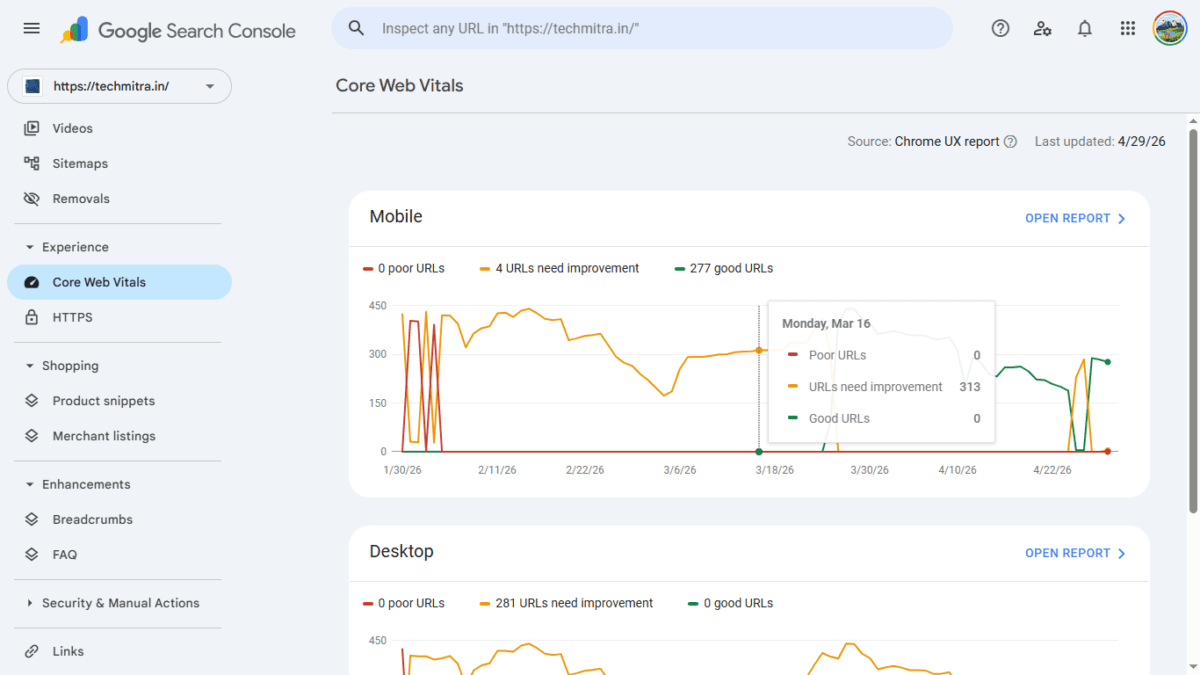
The problem was a cycle of server exhaustion. Every time the cache was purged—whether due to a post update or a manual clear—the LiteSpeed server would immediately begin regenerating UCSS and running crawlers to “warm” the cache. This created a massive spike in server load, causing the site to lag exactly when it needed to be fast. The results were reflected in Google Search Console: 412 URLs were stuck in the “Need Improvement” category. This lack of visual stability and speed eventually led to a noticeable drop in organic rankings.
Real Timeline: What Actually Happened (My Experiment)
1. The March Pivot: From 779ms to “Magic” Speed
Following a strategic shift on March 20, the “Cache Everything” rule was implemented. The impact was nearly instantaneous, effectively moving the burden of page delivery from the origin server to Cloudflare’s global edge network.
The Timeline of Improvement:
- March 21: The average response time plummeted from 779ms to 336ms.
- March 23: Performance sharpened further, hitting a “magic” average of 237ms.
- March 27: Despite the common belief that Core Web Vitals take 28 days to reflect changes, the site saw a massive surge, with 422 URLs moving into “Good” status.
By caching the actual HTML at the edge, the server no longer had to struggle with UCSS generation for every new visitor. Cloudflare served a pre-rendered snapshot, allowing the site to feel instant for users worldwide.
2. The April Crash: When the Rule was Disabled
Technical success is often best proven by what happens when you remove the solution. From a day Cache everything rule implementes, a critical error occurred: the LiteSpeed Server Google CAPTCHA began interfering with the “Cache Everything” rule, leading to the decision to disable the rule temporarily on 23 April.
The server’s response to this change was a stark reminder of the “Cache Everything” value:
- April 24: Average response time rose to 847ms.
- April 25: Response time peaked at a bloated 912ms.
- The SEO Fallout: As response times spiked, Core Web Vitals began to degrade, showing 229 URLs slipping back into “Need Improvement”.
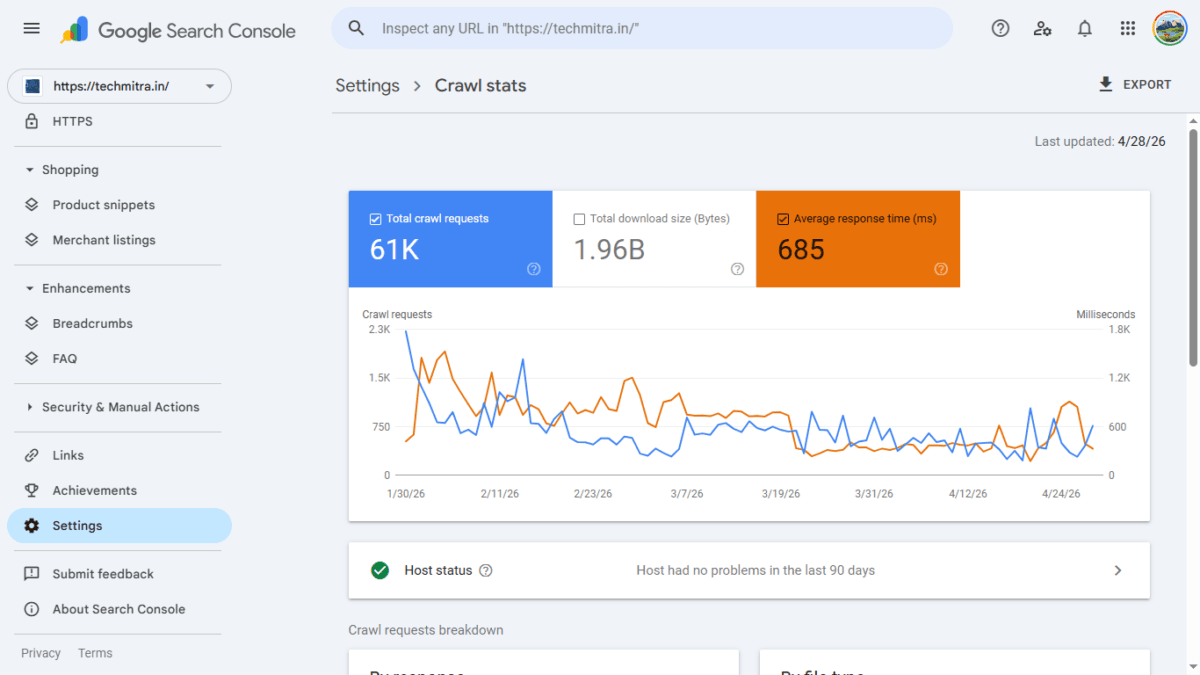
Most alarmingly, the high server response time impacted Google’s ability to crawl the site. On April 26, total crawl requests dropped to just 288, as Google’s bots struggled with the increased latency.
3. The Restoration: A V-Shaped Recovery
Recognizing the correlation between the rule and site health, the “Cache Everything” rule was re-enabled on April 26. The recovery was as swift as the initial implementation.
- April 27: Response time dropped back to 391ms, and Core Web Vitals improved instantly to 289 Good URLs.
- April 28: The response time settled at 332ms, and Google’s crawl budget recovered, jumping back to 766 requests.
This data proves that server response time isn’t just a user experience metric—it is a “gatekeeper” for Google’s crawling and indexing efficiency.
Also Read : Web Hosting Services: Complete Guide + Client FAQs Answered
This Is NOT a One-Day Setup- Overcoming The Challenges
The Admin Bar Leak and Login Loop
The biggest problem encountered was the WordPress Admin Bar. If Cloudflare caches a page while you are logged in, it might accidentally serve your private admin bar to guest visitors. Conversely, an admin might find their own bar disappearing because they are being served a “Guest” version from the edge.
How I Solved It
Instead of exact configurations, here’s the approach:
- Excluded admin & login areas
- Cached only public pages
- Set proper purge system
- Reduced server-side load
👉 Focus: maximum speed without breaking functionality
The LiteSpeed CAPTCHA Trap
One of the most critical challenges encountered during this case, which is also a reason for disabling this rule April 23, when a sudden conflict with the LiteSpeed Server CAPTCHA . This built-in security feature is designed to protect your origin server from DDoS attacks by triggering a Google reCAPTCHA challenge when it detects a high volume of requests from a single IP address.
Why the Conflict Happens
When you enable “Cache Everything,” Cloudflare acts as the primary gateway for all your traffic. Consequently, LiteSpeed sees thousands of requests originating from a small pool of Cloudflare IP addresses rather than unique visitor IPs. It mistakenly identifies this concentrated traffic as a bot attack and serves a CAPTCHA.
The SEO and Caching Disaster
The real danger lies in how Cloudflare handles that security challenge:
- Caching the Challenge: If Cloudflare’s edge node requests a page and LiteSpeed serves a CAPTCHA, Cloudflare may cache that CAPTCHA page itself.
- Blocking Googlebot: Once cached, every subsequent visitor—and more importantly, Google’s crawlers—is met with a security wall instead of your content.
- Performance Collapse: This was directly responsible for the response time spiking to 912ms and the crawl budget dropping to just 288 requests on April 26, as Googlebot could no longer efficiently access the site.
The Permanent Fix
To prevent this “CAPTCHA Loop,” you must ensure your server and CDN are synchronized:
- IP Whitelisting: Add the complete list of Cloudflare’s IP ranges to the LiteSpeed “Allow List” in your server settings to ensure they are never challenged.
- Trusted IP Headers: Configure LiteSpeed to prioritize the
CF-Connecting-IPheader. This ensures LiteSpeed identifies the Real Visitor IP instead of the Cloudflare proxy IP, allowing your security rules to target actual malicious actors without blocking the CDN. - WAF Delegation: For many developers, the most stable solution is to disable the LiteSpeed Server CAPTCHA entirely and delegate all security and bot filtering to the Cloudflare WAF (Web Application Firewall).
Hidden Optimization That Helped
1. The “Silent Server” Optimization: Why Disabling Features Wins
A key takeaway from the 237ms breakthrough was the realization that many “performance” features actually hurt more than they help when used with a powerful edge cache.
- Disabling LiteSpeed Crawlers: Once Cloudflare has a one-month cache of your site, your local server doesn’t need to “crawl itself” anymore. This saves massive amounts of CPU.
- Disabling UCSS Generation: Since Cloudflare is serving a static HTML snapshot, the server no longer needs to work overtime calculating CSS for every request.
By turning these off, the server load plummeted, which is why the response time stayed low even during peak traffic.
2. The Trade-off: The API Bridge and Manual Purging
The final requirement for this setup is a manual habit shift. Because the site is aggressively cached, even a small update to a sidebar or header won’t show up until you Purge Everything.
To make this seamless, the site must be connected to Cloudflare via an API Token. This allows the LiteSpeed plugin to send a “Purge” signal to the global edge network every time you hit “Update” on a post. While this adds a small step to your workflow, the trade-off—289 Good URLs and a near-instant user experience—is undeniable.
Also Read : How to Secure WordPress Admin Login: What I Did After Daily wp-admin Attacks
Who Should NOT Use Cloudflare Cache Everything
While Cloudflare Cache Everything worked extremely well for my content-based website, it is not suitable for every type of website.
Here’s where you should be careful:
eCommerce Websites
If you’re running an online store (like WooCommerce), avoid full-page caching unless you have advanced setup.
👉 Why?
- Cart pages change for every user
- Checkout pages require real-time data
- Product availability and pricing can update dynamically
If these pages are cached:
- Users may see wrong cart items
- Checkout may show incorrect data
- Orders can fail or behave unexpectedly
👉 In short: caching can break the buying process
Membership / Login-Based Websites
Websites where users log in (courses, dashboards, communities) should not use aggressive caching.
👉 Why?
- Each user sees personalized content
- Dashboard data is dynamic
- Login sessions must remain accurate
If cached:
- Users may see someone else’s data
- Login/logout issues can occur
- Admin features may stop working properly
👉 This creates both security and usability problems
Highly Dynamic Websites / Web Apps
Avoid using Cache Everything on sites that rely heavily on real-time updates.
Examples:
- Booking systems
- Live dashboards
- API-driven platforms
👉 Why?
- Content changes frequently
- Data must be fetched live
- Cached HTML becomes outdated quickly
If cached:
- Users see old or incorrect information
- Real-time functionality breaks
Important Note
This doesn’t mean Cloudflare is bad for these sites.
👉 It just means:
- Full-page caching (Cache Everything) is risky
- Requires advanced configuration (cookies, bypass rules, edge logic)
When It Works Best
Cloudflare Cache Everything is ideal for:
- Blogs
- News websites
- Content-heavy sites
👉 Where most pages are same for every visitor
Simple Rule to Remember
If your website shows different content to different users, avoid full-page caching.
Want My Exact Cloudflare Setup?
After multiple tests and failures…
I documented:
- Exact setup
- Working rules
- Mistakes & fixes
👉 If you want to skip trial and error:
📥Download full setup (PDF)
(Free — short ad before access)
The New Standard for Free-Tier Performance
This case study proves that you don’t need a $5/month APO subscription to pass Core Web Vitals. By mastering the free “Cache Everything” rule, handling the specific “Admin Bar” and “CAPTCHA” bugs, and syncing your server via API, you can achieve results that were previously reserved for high-end enterprise hosting.
Comparison: Cloudflare Free Tier vs Paid APO
Many “gurus” suggest paying $5/month for Cloudflare’s Automatic Platform Optimization (APO). While APO is excellent, this case study proves it is not a requirement for elite speed.
| Metric | Cloudflare APO (Paid) | Manual Cache Everything (Free) |
| Cost | $5/month | $0/month |
| Response Time | ~200-400ms | 273ms (Proven) |
| Effort | Low (1-Click) | Medium (Requires Page Rules) |
| GSC Status | Good | Good (277 URLs) |
The data from April 28—with a 332ms response time and 766 crawl requests—is a roadmap for any WordPress owner looking to stabilize their rankings and maximize their server efficiency.
Conclusion: A Masterclass in Efficiency
The transition from the volatile performance seen in early 2026 to the stable, 273ms response time recorded on April 29 is a testament to the power of technical “tuning.” By combining the free tier of Cloudflare with a “silent” LiteSpeed server configuration, you can bypass the limitations of budget hosting.
The key takeaways for any blogger or developer are:
- Trust the Data: Use GSC Crawl Stats to verify that your “improvements” are actually working.
- Order Matters: Protect your
wp-adminwith bypass rules before enabling global caching. - Simplify the Origin: If the Edge is caching the site, turn off resource-heavy background tasks on the server.
- Connect the API: Ensure your server and CDN are talking to each other to avoid serving “stale” content.
This configuration isn’t just about speed; it’s about building a resilient, high-performance digital asset that Google rewards with “Good” rankings and users reward with their attention.
⚠️ Disclaimer
This setup is based on my experience with a 650+ page WordPress site. Results may vary depending on your website type, hosting, and configuration.

Ayush Singhal is the founder and chief editor of TechMitra.in — a tech hub dedicated to simplifying gadgets, AI tools, and smart innovations for everyday users. With over 15 years of business experience, a Bachelor of Computer Applications (BCA) degree, and 5 years of hands-on experience running an electronics retail shop, Ayush brings real-world gadget knowledge and a genuine passion for emerging technology.
At TechMitra, he covers everything from AI breakthroughs and gadget reviews to app guides, mobile tips, and digital how-tos. His goal is simple — to make tech easy, useful, and enjoyable for everyone. When he’s not testing the latest devices or exploring AI trends, Ayush spends his time crafting tutorials that help readers make smarter digital choices.
📍 Based in Lucknow, India
💡 Focus Areas: Tech News • AI Tools • Gadgets • Digital How-Tos
📧 Contact: Get in touch →
🔗 Full Bio: https://techmitra.in/about-us/