

How to Speed Up a Slow Windows PC Or Laptop (11 & 10 Ultimate Guide)
Tested & updated: June 2026 | Tested on: HP Pavilion 15 (Intel i5, 8GB RAM, 512GB SSD) and a Dell Inspiron 15 3000 (Intel i3, 4GB RAM, 1TB HDD) running Windows 10 22H2
Remember when you first unboxed your Windows PC or laptop? It booted in seconds, opened apps instantly, and felt lightning-fast. Over time, however, temporary files, startup apps, background processes, and system clutter can gradually slow even a powerful Windows computer.
I’ve been troubleshooting Windows PCs since the XP era, and the biggest mistake I still see is people spending money on “PC Booster” software. In most cases, Windows already includes all the tools you need to improve performance—for free. In this guide, I’ll walk you through the exact steps I personally use before recommending any paid software or hardware upgrade.
Good news for Windows 10 users: Every method in this guide works identically on Windows 10. Where navigation is slightly different, I’ve added a Windows 10 note so you never get lost.
Table of Contents
Also Read : 5 Best And Free Antivirus Software Popular in India (2026) — Plus, Do You Even Need One?
At a Glance: Your Windows Speed Up Checklist
| Optimization Step | Difficulty | Expected Impact | Best For |
|---|---|---|---|
| Disable Startup Apps | Easy | ⚡⚡⚡ High | Faster boot times & freeing up RAM |
| Clear 3 Hidden Caches | Easy | ⚡⚡ Medium | Fixing app lag & storage bloat |
| Enable Storage Sense | Easy | ⚡ Localized | Hands-off, automatic drive maintenance |
| Disk Cleanup (Right-Click) | Easy | ⚡⚡ Medium | Deep monthly clean including system files |
| Drive Optimization (TRIM/Defrag) | Medium | ⚡⚡ Medium | Long-term SSD/HDD health |
| Task Manager Diagnostics | Advanced | ⚡⚡⚡ High | Hunting down resource hogs |
| Turn Off Visual Effects | Easy | ⚡⚡ Medium | Snappier feel on budget CPUs/GPUs |
| Power Mode Configuration | Easy | ⚡⚡ Medium | Eliminating CPU throttling on laptops |
How to Speed Up Windows 11 or 10 PC or Laptop
Step 1: Tame Your Startup Apps Using Task Manager
When too many apps launch simultaneously the moment you turn on your computer, they compete for your RAM and processor power. This is the number one cause of startup lag in my experience — and it’s the first thing I fix on any slow machine a friend or family member hands me.
While Windows 11 has a basic startup menu in the Settings app, Task Manager is the better tool because it shows you the actual “Startup impact” rating (Low, Medium, or High) for every app — something the Settings page doesn’t show.
When I did this on the Dell Inspiron test machine, I found 11 apps set to launch at startup, including Steam, Spotify, and a printer assistant that hadn’t been used in months. Disabling the unnecessary ones cut the boot time from 47 seconds down to 22 seconds.
How to Do It:
1. Open Task Manager Press Ctrl + Shift + Esc on your keyboard. If it opens in a compact view, click More details at the bottom.
2. Navigate to Startup Apps On the left-hand sidebar, click the Startup apps icon (it looks like a small dashboard speedometer).
3. Analyze Startup Impact Click the Startup impact column header to sort the list. Target apps marked High or Medium impact first — these are costing you the most boot time.
4. Disable Unnecessary Apps Right-click any non-essential app (like Steam, Spotify, Discord, or Microsoft Teams) and select Disable. This stops them from auto-launching, but you can still open them manually whenever you want.
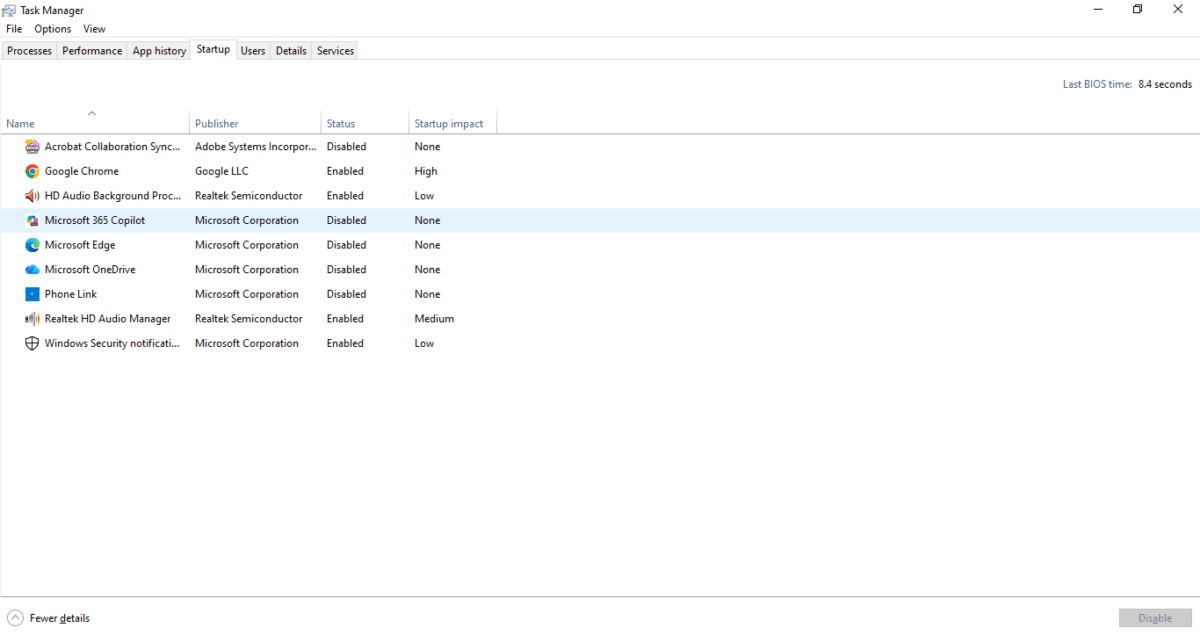
Bonus tip: Check the top right corner of your Startup tab — it shows your “Last BIOS time.” This is how long your hardware takes to wake up before Windows loads. If this number is above 15-20 seconds, your BIOS settings may need attention
⚠️ Important: Never disable entries from Microsoft, Intel, AMD, Realtek, or your laptop’s manufacturer (Dell, HP, ASUS, Lenovo). These handle core hardware, audio, and security functions. If you’re unsure about an entry, right-click it and select “Search online” before disabling.
📎 Official reference: Microsoft — Enable or disable startup apps in Windows
Step 2: Clear the 3 Hidden Windows Caches
Windows builds up temporary data caches that standard Disk Cleanup often misses entirely. These are buried in specific system folders and can balloon to several gigabytes over time. I cleared these on the HP Pavilion and found over 6,200 junk files in the temp folder alone — after deletion, only 3 locked files remained (more on why that’s normal below).
Cache 1: The App Temp Folder
This is where apps like Chrome, app installers, and background services dump temporary operational files.
- Press Win + R to open the Run dialog box.
- Type
%temp%and hit Enter. This opens the hidden local temporary folder. - Press Ctrl + A to select everything.
- Hit Shift + Delete to permanently wipe them out (bypasses the Recycle Bin).
💡 Real-world note: When I ran this, Windows flagged 3 files it couldn’t delete. That’s because Chrome was running and actively using those files as session scratchpads. This is completely normal — simply check “Do this for all current items” and click Skip. Those files clear themselves on the next reboot. If you want a 100% clean sweep, close all browsers and background apps before running this step.
Cache 2: The Microsoft Store Cache
If the Microsoft Store is sluggish, hanging on downloads, or failing to update apps, this one-command reset fixes it instantly.
- Press Win + R.
- Type
wsreset.exeand press Enter. - A blank black Command Prompt window will appear. Do not close it. After a few seconds it will disappear on its own, and a freshly reset Microsoft Store will launch automatically.
Cache 3: The DNS Cache (For Slow or Glitchy Internet)
If websites are timing out or loading slowly even though your connection is fine, your DNS cache may be holding stale routing data from old IP addresses.
- Right-click the Start button and select Terminal (Admin) or Command Prompt (Admin).
- Type the command below exactly and press Enter:
ipconfig /flushdnsYou’ll see: “Successfully flushed the DNS Resolver Cache.” — that’s confirmation it worked.
📎 Official reference: Microsoft — How to reset Internet Protocol (TCP/IP)
Step 3: Enable Storage Sense & Use Cleanup Recommendations
Microsoft has largely replaced the old Disk Cleanup tool with a smarter, automated system called Storage Sense. I keep this enabled on all my machines — it silently handles routine cleanup without me having to think about it.
- Open Settings (Press Win + I).
- Go to System > Storage.
- Toggle Storage Sense to On. Windows will now automatically clear temporary files and empty the Recycle Bin when disk space gets low.
- Click Cleanup Recommendations to see a curated list of large files, unused apps, and old Windows installation files you can delete right now with a single click.
On the HP Pavilion, the Cleanup Recommendations panel flagged 4.3 GB of old Windows Update delivery files that had been sitting untouched for months.
Windows 10 Note: The path is identical — Settings > System > Storage — but the section is called “Temporary Files” instead of “Cleanup Recommendations.” It works exactly the same way.
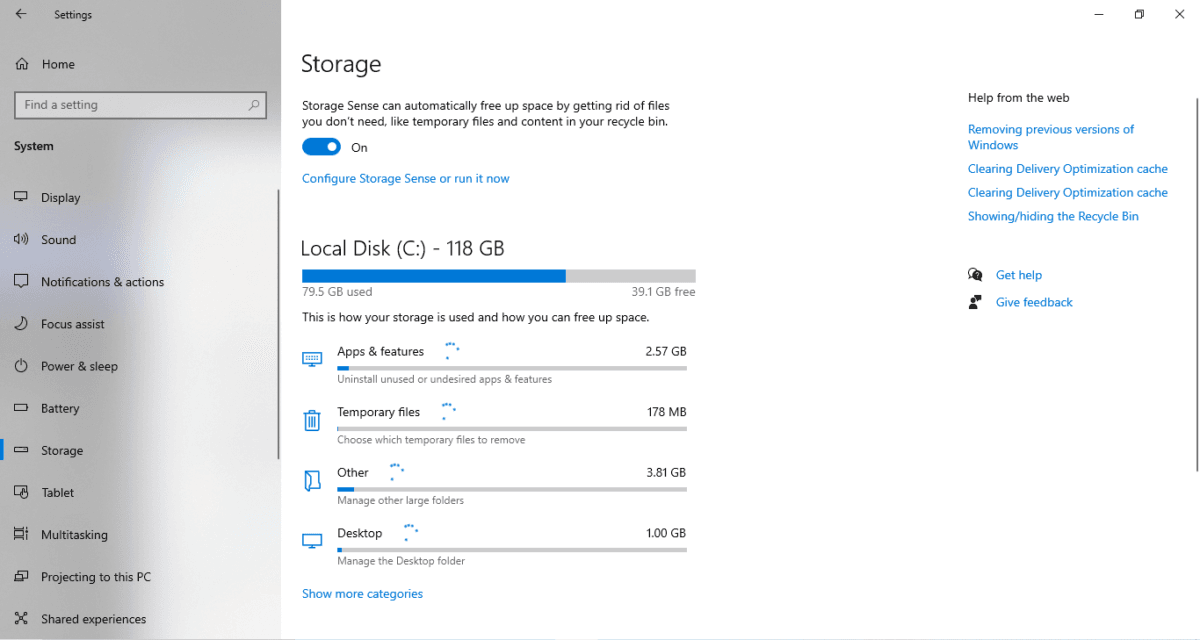
💡 Check your Desktop size: Most users never realize their Desktop is stored on the C: drive — your main Windows SSD. Files, folders, and shortcuts sitting on your desktop are quietly eating your most valuable storage. If your Desktop shows more than 500MB in Storage settings, move those files to your D: or E: drive immediately. On a small SSD like a 128GB drive, 1GB recovered from the Desktop makes a real difference.
📎 Official reference: Microsoft — Storage Sense in Windows
Step 3B: The Classic Disk Cleanup (Right-Click Method)
This is the most beginner-friendly method and the one most Indian PC users already know instinctively — because it’s been there since Windows XP. I still run this on my Dell Inspiron every month alongside Storage Sense because it catches a few specific categories that Storage Sense sometimes misses, like thumbnail cache and old Windows error logs.
How to Do It:
- Open File Explorer (Win + E) or just click This PC from your desktop
- Right-click on your C: drive (your main Windows drive)
- Select Properties from the menu
- In the Properties window, click Disk Cleanup button
- Windows will calculate how much space you can free up — this takes 10-30 seconds
- You will see a list of file categories with checkboxes. Tick the ones you want to clean:
| Category | Safe to Delete? | Typical Size |
|---|---|---|
| Temporary Internet Files | ✅ Yes | 50-500MB |
| Recycle Bin | ✅ Yes | Varies |
| Temporary Files | ✅ Yes | 100MB-2GB |
| Thumbnails | ✅ Yes | 50-200MB |
| Downloaded Program Files | ✅ Yes | Usually small |
| DirectX Shader Cache | ✅ Yes | 100-500MB |
| Delivery Optimization Files | ✅ Yes | Can be 1-3GB |
- Click OK then Delete Files to confirm
The Hidden Power Move — Clean Up System Files:
After the basic cleanup, click the “Clean up system files” button at the bottom left of the Disk Cleanup window. This unlocks additional categories including:
- Windows Update Cleanup — old update files Windows keeps “just in case” — can free up 1-5GB
- Previous Windows Installations — if you upgraded Windows versions, old files sit here taking massive space — sometimes 10-20GB
- Windows Upgrade Log Files — safe to delete completely
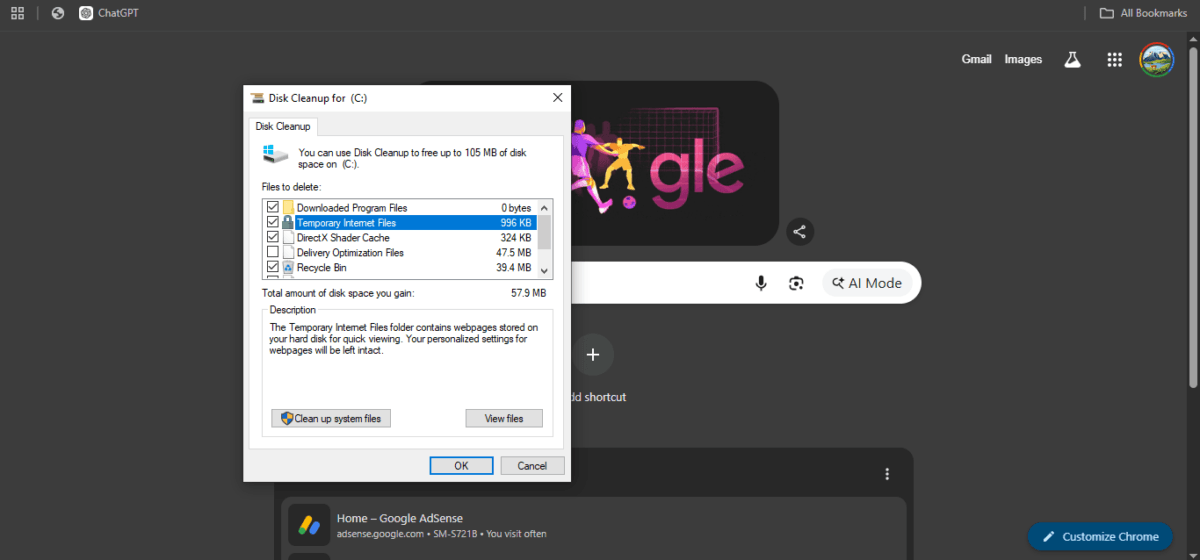
💡 Real experience on my Dell Inspiron: Running “Clean up system files” on my C: drive freed up 3.2GB of old Windows Update files that had been sitting there for months doing nothing. On a 128GB SSD where every gigabyte matters, that was a significant recovery.
Important note for SSD users: On my setup, C: drive is the 128GB Foxin SSD where Windows is installed — this is where Disk Cleanup has the most impact. Running it on D: or E: drive (HDD storage drives) is less critical but still useful for clearing downloaded files and Recycle Bin contents.
Right-Click Disk Cleanup vs Storage Sense — Which is Better?
Both are useful and work slightly differently:
| Right-Click Disk Cleanup | Storage Sense | |
|---|---|---|
| How it runs | Manual, you control it | Automatic in background |
| System files cleanup | ✅ Yes — very thorough | Limited |
| Old Windows Update files | ✅ Yes | Partial |
| Ease of use | Very easy — right-click | Easy — Settings toggle |
| Best for | Deep monthly cleanup | Ongoing automatic maintenance |
My recommendation: Use Storage Sense for automatic day-to-day maintenance, and run the right-click Disk Cleanup manually once a month for a deeper clean — especially the “Clean up system files” option.
Also Read : Windows 10 End of Life Has Passed: Install Chrome OS Flex and Revive Your Old Laptop for Free
Step 4: Run Drive Optimization (TRIM for SSDs, Defrag for HDDs)
This step is critical — and dangerously misunderstood. The wrong approach here can actually shorten your drive’s lifespan.
How to Open It:
Press the Windows Key, type Defrag, and select Defragment and Optimize Drives.
Know Which Drive You Have — It Changes Everything:
If you have an HDD (Hard Disk Drive): Mechanical drives store data on spinning magnetic platters. Over months of use, files get scattered (fragmented) across different physical locations, forcing the drive head to travel farther to read a single file. Clicking Optimize on an HDD runs a defragmentation — it physically reorganizes those scattered fragments back into contiguous blocks so reads are faster.
If you have an SSD (Solid State Drive): SSDs have no moving parts and use flash memory. Defragmenting an SSD is not only useless — it actively damages it by burning through the limited number of write cycles each cell supports. When you click Optimize on an SSD, Windows is smart enough to send a TRIM command instead. TRIM tells the SSD controller which blocks of data are no longer needed, letting it pre-clean those blocks in the background for faster future writes.
In the Optimize Drives window, you can see your drive type listed under the “Media type” column — check this before doing anything.
💡 How I handle this: I leave the automated weekly schedule on for both machines. The only time I run it manually is right after a big cleanup session — running TRIM immediately after clearing 6,000+ temp files gives the SSD an instant speed refresh.
Also Read : Understanding the Storage and the Different Types of Storage: SSD vs. HDD vs. NVMe
Step 5: Hunt Down Resource Hogs with Task Manager
This is the most powerful diagnostic step in this entire guide, and the one most beginners skip. I’ve used Task Manager to diagnose slow PCs since my school days in the early 2000s — back when a single rogue process could freeze an entire computer with only 256MB of RAM. The interface has changed, but the logic is identical: find what’s eating your resources and stop it. In fact, this exact method once helped me catch a virus hiding inside a fake registry process — I’ll share that story below.
How to Check CPU and RAM in Real Time:
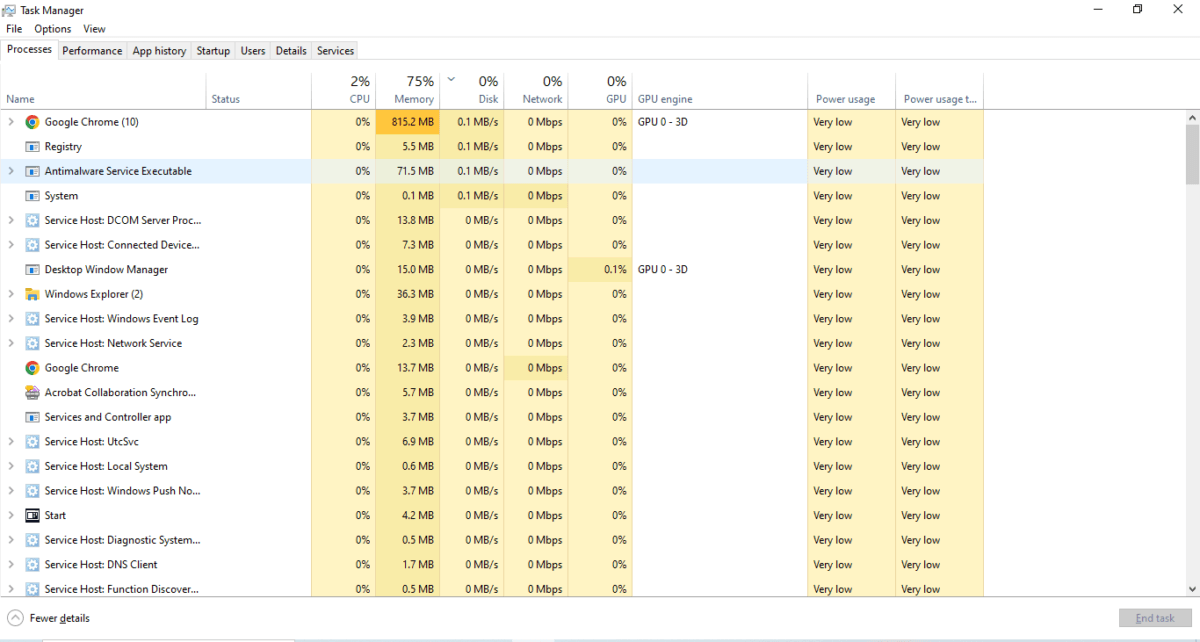
- Press Ctrl + Shift + Esc and go to the Processes tab.
- Click the CPU column header to sort by processor usage.
- Under normal idle conditions, background apps should use 0–2% CPU. A process sitting at 50–100% when you’re not doing anything has either crashed or is stuck in a loop.
- Click the Memory column header to sort by RAM.
- If your total RAM usage is above 85–90% while just browsing, your system is being forced to use the hard drive as overflow memory — this tanks performance immediately.
On the Dell Inspiron (4GB RAM), I found a Windows Update process consuming 1.8GB of RAM in the background during my testing. Letting it finish and restarting freed up the machine significantly.
Apps vs. Background Processes:
Task Manager groups processes into three categories:
- Apps: Programs you have open. Safe to End Task if frozen.
- Background Processes: Third-party services running silently. Right-click any unfamiliar one and choose “Search online” before ending it.
- Windows Processes: Core OS functions. Leave these alone unless you know exactly what you’re doing.
🔍 Real story — how I caught a virus using exactly this method: Years ago I noticed my PC had become unusually slow. I opened Task Manager, sorted by CPU, and spotted an unfamiliar process that looked like a Windows registry file — but it was consuming an alarming amount of both RAM and CPU while I wasn’t running anything heavy. Something felt wrong. I right-clicked it, chose “Search online,” and the very first result confirmed it was a known virus masquerading as a system file. I immediately hit End Task to kill the process, then traced its file location through the process properties and deleted it from the source folder.
The PC returned to normal instantly. That one Task Manager habit has saved me — and several friends’ machines — more times than I can count. This is exactly why the “Search online” step before ending any unfamiliar process is so important. It takes 10 seconds and can reveal a serious problem hiding in plain sight.
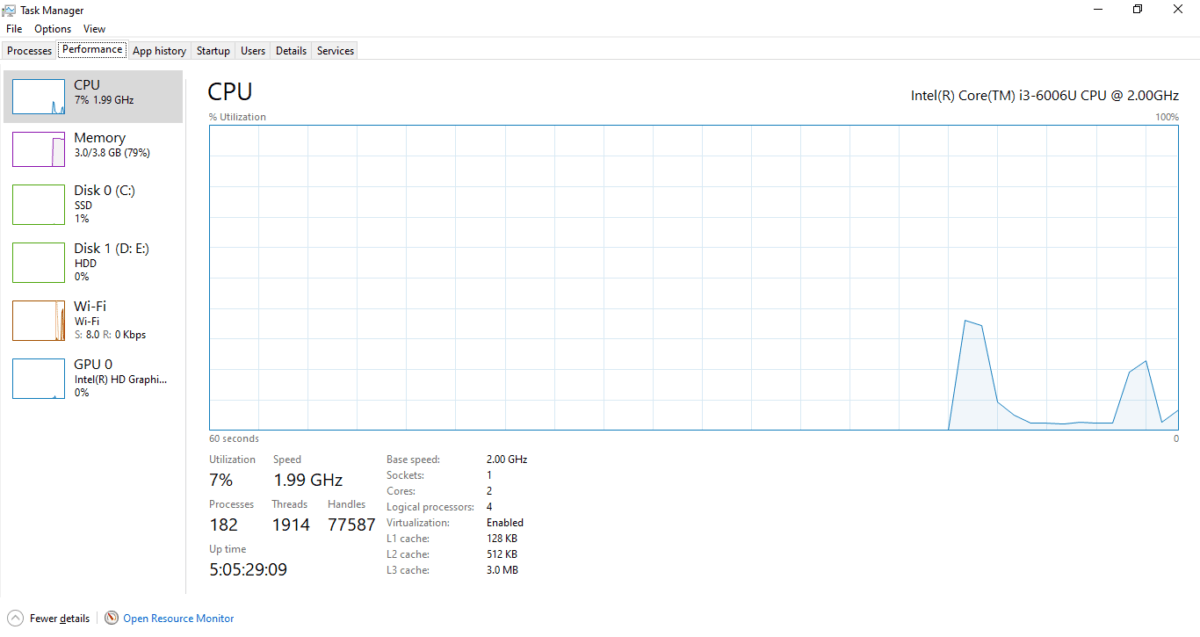
The Performance Tab — Your PC’s Health Dashboard:
Switch to the Performance tab for real-time graphs:
- CPU Graph: If it’s pinned near 100% even with no apps open, something is looping. Common culprits: a stuck Windows Update, malware, or a corrupted background service.
- Disk Graph: If “Active Time” reads 100% but the read/write speeds shown below are very low (under 5 MB/s), you likely have a failing or extremely fragmented HDD causing the classic “100% disk usage” bottleneck.
Also Read : What is Cloud Computing? Meaning, Types, and Real Examples
Step 6: Turn Off Transparency and Visual Effects
Windows 11’s translucent taskbar and smooth animations look great, but they put a real load on your GPU. On the budget Dell Inspiron I tested, toggling these off made window switching feel noticeably snappier.
Disable All Visual Effects at Once:
- Press the Windows Key, type Adjust performance, and select Adjust the appearance and performance of Windows.
- In the Performance Options window, select Adjust for best performance.
- If the text then looks too jagged for your taste, re-enable only “Smooth edges of screen fonts” — that single checkbox restores readable text without the performance cost of the other effects.
Disable Just the Transparency (Lighter Option):
- Open Settings (Win + I).
- Go to Accessibility > Visual Effects.
- Toggle Transparency effects to Off.
Windows 10 Note: Right-click the desktop > Personalize > Colors on the left sidebar > toggle Transparency effects to Off.
Step 7: Switch Your Power Plan to “Best Performance”
Windows 11 defaults to “Balanced” mode, which actively throttles your CPU clock speed to save battery. If you’re working plugged in and notice the machine feeling sluggish, this is often the hidden culprit. I always check this first on laptops brought to me that “suddenly got slow.”
On Windows 11:
- Open Settings (Win + I).
- Go to System > Power & battery.
- Change the Power mode dropdown from Balanced to Best performance.
On Windows 10:
Left-click the battery icon in the system tray (bottom-right corner) and drag the slider all the way to Best performance.
⚠️ Note: This will increase battery drain when unplugged. Switch back to Balanced when you’re on the go.
Bonus: Advanced Step — Check Virtualization-Based Security (VBS)
This step is for users who have already done everything above and are still seeing sluggish performance, especially on older or mid-range hardware.
Windows 11 ships with Virtualization-Based Security (VBS) enabled by default. VBS creates an isolated virtual environment to protect against malware — but on older CPUs, it can cause a 5–15% performance drop, particularly in gaming and heavy multitasking.
To check if it’s enabled:
- Press Win + R, type
msinfo32, and press Enter. - In the System Information window, scroll down to find “Virtualization-based security”.
- If it says “Running,” VBS is active. Disabling it is an advanced step — Microsoft’s official guide explains the security trade-offs before you decide.
When Software Tweaks Aren’t Enough: Hardware Reality Check
If your PC is still sluggish after every step above, the hardware itself may be the bottleneck. Here’s the honest assessment:
RAM: In 2026, 8GB is the bare minimum for a smooth Windows 11 experience. If you’re running 4GB (like the Dell Inspiron test machine), software tweaks can help, but you’ll always be fighting an uphill battle — especially with Chrome open. 16GB is the sweet spot for comfortable multitasking.
Storage Drive: If your system is still booting from an old mechanical HDD, no amount of software optimization will make it feel fast. A budget SATA SSD (around ₹2,500–₹4,000) will transform the experience more than any tip in this guide. The speed difference is not subtle — it’s night and day.
Also Read : How to Safely & Securely Transfer Data When Moving from an Old Laptop to a New One
Frequently Asked Questions
Q: Is it safe to delete everything in the %temp% folder?
Yes. These are temporary files created by apps and Windows itself. The worst that can happen is a few files are locked by a running program — Windows will simply skip those and they’ll clear on the next restart.
Q: Will disabling startup apps stop those apps from working?
No. Disabling a startup app only prevents it from launching automatically at boot. You can still open Spotify, Steam, or any other disabled app manually anytime you want — it just won’t load in the background by itself.
Q: How often should I clear my temp files and caches?
Once a month is a good habit for most users. If you install and uninstall software frequently or do a lot of downloading, once every two weeks makes sense.
Q: My disk is showing 100% usage in Task Manager. What does that mean?
It means your storage drive is being asked to do more work than it can handle. Common causes: Windows Update running in the background, a fragmented HDD, very low free disk space (under 10%), or in rare cases, failing drive hardware. Run the steps in this guide — particularly Step 2 (clear caches) and Step 4 (drive optimization) — and give it 30 minutes to settle.
Q: Do these steps work on Windows 10?
Yes. As noted throughout the guide, every major step works identically on Windows 10, with only minor navigation differences in Storage Sense and the transparency settings.
Q: Will clearing DNS cache disconnect my internet?
No. Flushing the DNS cache is instant and non-disruptive. Your internet stays connected. The only effect is that the first time you visit certain websites afterward, there may be a very brief extra moment as Windows re-resolves the address — you won’t notice this in practice.
How to fix slow laptop without installing PC Booster software?
Start by checking Task Manager for apps using high CPU, memory, or disk resources. Then disable unnecessary startup programs, clean temporary files, uninstall software you no longer use, and keep Windows updated. These built-in Windows tools are often enough to restore performance without relying on third-party PC optimization software.
Summary
All 7 steps in this guide use tools built directly into Windows — no downloads, no paid software, no risk. Here’s the order I follow when optimizing a slow machine from scratch:
- Disable startup apps with high impact via Task Manager
- Clear %temp%, wsreset, and flush DNS
- Enable Storage Sense and run Cleanup Recommendations
- Run right-click Disk Cleanup on C: drive — especially “Clean up system files”
- Run Drive Optimization (TRIM or Defrag depending on drive type)
- Check CPU and RAM usage in Task Manager’s Processes tab
- Turn off Visual Effects for best performance
- Switch Power Mode to Best Performance when plugged in
Follow these steps and your PC will feel meaningfully faster — guaranteed. Bookmark this page for the next time your machine needs a tune-up.
Have a question about a specific step, or a result that surprised you? Drop it in the comments below — I read every one.

Ayush Singhal is the founder and chief editor of TechMitra.in — a tech hub dedicated to simplifying gadgets, AI tools, and smart innovations for everyday users. With over 15 years of business experience, a Bachelor of Computer Applications (BCA) degree, and 5 years of hands-on experience running an electronics retail shop, Ayush brings real-world gadget knowledge and a genuine passion for emerging technology.
At TechMitra, he covers everything from AI breakthroughs and gadget reviews to app guides, mobile tips, and digital how-tos. His goal is simple — to make tech easy, useful, and enjoyable for everyone. When he’s not testing the latest devices or exploring AI trends, Ayush spends his time crafting tutorials that help readers make smarter digital choices.
📍 Based in Lucknow, India
💡 Focus Areas: Tech News • AI Tools • Gadgets • Digital How-Tos
📧 Contact: Get in touch →
🔗 Full Bio: https://techmitra.in/about-us/
Excellent guide on speeding up Windows 11! The startup programs tip is often overlooked — I’ve seen systems with 30+ startup items slowing boot to over 2 minutes. One addition I’d suggest is checking for driver issues via Device Manager; outdated graphics or storage drivers can cause significant slowdowns.