

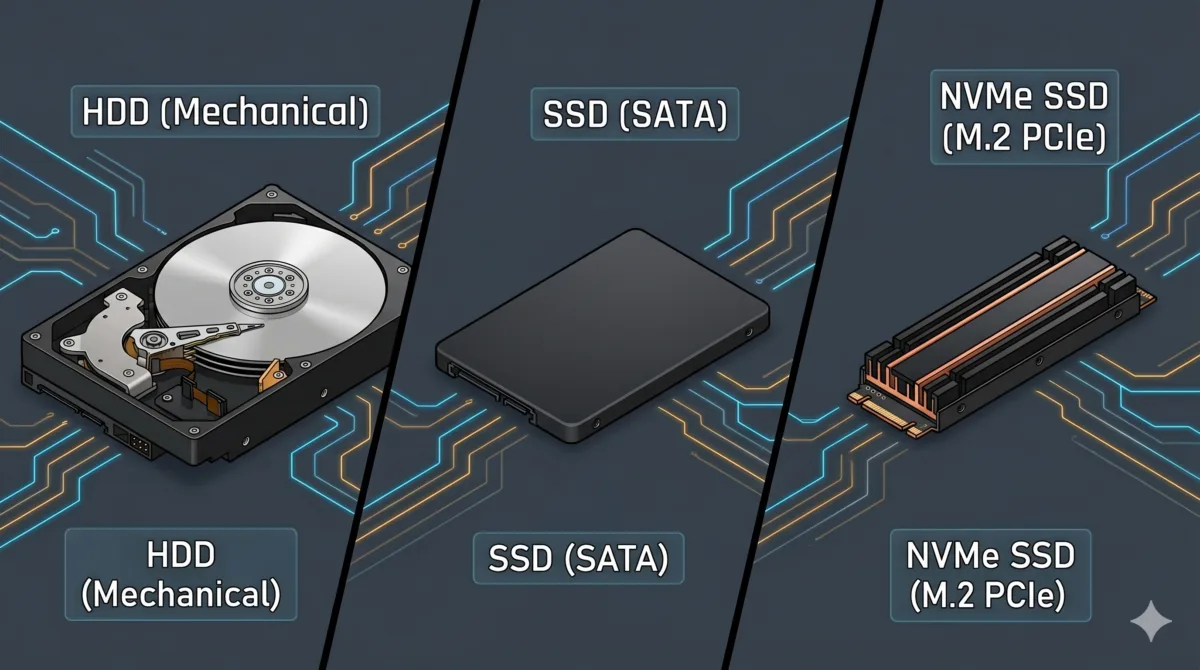
Image : Understanding Data Storage: HDD vs SSD vs NVMe Explained
In the ever-evolving world of technology, data is everything. Whether you are a business storing critical client information, a content creator managing terabytes of 4K video, or a gamer saving progress in a massive virtual world, the need for reliable, fast, and efficient storage is crucial.
But with multiple storage options available, shopping for a new device or upgrading an old one can get incredibly confusing. Should you go with a traditional HDD, a standard SATA SSD, or a cutting-edge NVMe drive?
To make an informed decision, you need to understand how digital storage has evolved, how these technologies work under the hood, and how market forces shape their availability and performance. This comprehensive guide will break down everything you need to know about digital storage to help you decide which option perfectly suits your workflow and budget.
Table of Contents
Check 100+ Tech Full Forms and Abbreviations
What is Data Storage?
At its core, data storage refers to the recording and retaining of digital information on a physical medium. This information can be retrieved, modified, and used by computers or other electronic devices at any time.
Digital storage generally falls into two primary categories:
- Temporary Storage (Volatile Memory): Devices like Random Access Memory (RAM) hold data temporarily while your computer is powered on. The moment you shut down the system, this data is wiped clean.
- Permanent Storage (Non-Volatile Memory): Devices like HDDs, SSDs, NVMe drives, and optical media retain your data even when the device is completely powered off. This is where your operating system, applications, games, and personal files live.
The Importance of Storage in Modern Devices
In today’s digital age, data is generated and consumed at an unprecedented rate. From smartphones and laptops to enterprise servers and gaming consoles, almost every modern device relies heavily on its storage subsystem to operate efficiently.
Many people mistakenly believe that processor speed (CPU) and memory capacity (RAM) are the only factors that dictate a computer’s speed. In reality, storage is often the ultimate system bottleneck. The speed, reliability, and capacity of your storage device directly determine:
- System Responsiveness: How snappy the operating system feels during everyday use.
- Boot and Load Times: How quickly your device turns on and launches resource-heavy applications.
- Multitasking Efficiency: How smoothly the system swaps data back and forth when running multiple heavy programs simultaneously.
- Data Integrity and Recovery: How safe your files are from physical shocks, data corruption, and sudden power failures.
The Evolution of Storage: How We Got Here
Before diving into modern internal storage drives, it helps to look at the historical steps that brought us to this point. For decades, engineers have fought a continuous battle to make storage smaller, faster, more resilient, and higher in capacity.
The Floppy Disk (The Magnetic Pioneer)
Dominating the 1970s through the late 1990s, the iconic 3.5-inch floppy disk was the standard for portable data. It featured a thin, flexible magnetic disk enclosed in a rigid plastic shell. However, it maxed out at a meager 1.44 MB of data. To put that in perspective, a single photo taken on a modern smartphone would require three or four floppy disks just to store it. Beyond its tiny capacity, its magnetic surface was highly vulnerable to dust, physical wear, and magnetic interference.
The CD-ROM and DVD (The Optical Revolution)
Rising to prominence in the 1990s and 2000s, optical storage traded magnets for lasers. Data was burned onto a reflective disc using microscopic bumps, which a precise laser beam read. Compact Discs (CDs) bumped capacity up to 700 MB, paving the way for high-fidelity music and commercial software distribution. DVDs later pushed the envelope to 4.7 GB (and 8.5 GB for dual-layer), making digital movie distribution possible. The major downsides were their slow read speeds, bulkiness, and high vulnerability to surface scratches.
Flash Drives and Portable Memory Cards
Introduced in the early 2000s, USB thumb drives and SD cards eliminated moving parts entirely for portable media. Utilizing NAND flash memory, they could retain data without a power source, offering gigabytes of storage in a device the size of a stick of gum. This technology permanently disrupted optical media and laid the crucial architectural foundation for modern solid-state drives.
What is an HDD? (Hard Disk Drive)
A Hard Disk Drive (HDD) is the oldest and most traditional form of permanent storage still in widespread use today. Introduced by IBM in the 1950s, it has survived generations of technological shifts due to its incredible cost efficiency for mass storage.
How It Works
An HDD is entirely mechanical. It consists of multiple magnetic, circular platters stacked on top of a spindle that spins at incredibly high speeds (typically 5,400 or 7,200 RPM in consumer devices). As the platters spin, a mechanical actuator arm equipped with a read/write head glides microscopically close to the surface, altering or reading the magnetic charges to manage data.
Pros
- Lowest Cost per Gigabyte: HDDs remain the cheapest way to store massive amounts of data.
- Enormous Capacities: Consumer-grade mechanical drives easily scale up to 32TB, while advanced enterprise drives utilizing Heat-Assisted Magnetic Recording (HAMR) achieve 44TB and beyond for cloud data centers.
Cons
- Slow Performance: Because the mechanical arm must physically move to find data, read and write speeds are heavily restricted (typically averaging 80–160 MB/s).
- Physical Fragility: Moving parts mean HDDs are highly vulnerable to physical shocks. Dropping a laptop with a spinning HDD can permanently damage the platter or cause the read head to crash, resulting in total data loss.
- Noise and Bulk: They generate audible spinning and clicking sounds, run hot, and require significant physical space and power.
Best For: Archiving data, long-term cold storage, massive media libraries, network-attached storage (NAS) devices, and secondary backup drives where speed is irrelevant.
View Seagate BarraCuda 2TB 3.5 Internal Hdd on Amazon

- Versatile, fast and dependable
- Incredible speed
- Multi-tier caching firmware
- Advanced power modes help save energy
What is a Standard/SATA SSD? (Solid State Drive)
A Solid State Drive (SSD) is a storage device that completely eliminates mechanical architecture in favor of pure electronic circuitry.
How It Works
Instead of spinning platters, an SSD utilizes integrated circuits packed with NAND flash memory (similar to the technology found in smartphones and USB drives). Because there are no moving components, the drive accesses data almost instantaneously by sending electronic signals across a silicon controller. Traditional consumer SSDs utilize the standard SATA (Serial ATA) interface and look like compact 2.5-inch plastic bricks that plug into the same cables as old HDDs.
The Modern Market Reality
While SSDs were once hailed as a steadily cheapening technology, the landscape has shifted due to the global explosion of enterprise AI data centers. Because AI infrastructures require immense amounts of high-speed flash storage, the industry’s raw NAND supply has faced severe strain. Consequently, consumer SSD pricing has experienced an upward surge, commanding a noticeable market premium.
Furthermore, legacy 2.5-inch SATA SSDs have been largely phased out of modern laptops and pre-built desktops. Because modern motherboards favor direct slots, standard SATA SSDs are now primarily relegated to upgrading older computer hardware or serving as affordable secondary game storage blocks.
Pros
- Significantly Faster Than HDDs: Offers read and write speeds around 500–600 MB/s, making a night-and-day difference in general computer usability.
- High Durability: Completely shock-resistant; dropping a solid-state drive will not destroy your data.
- Silent and Power-Efficient: Operates in total silence while generating minimal heat and using very little battery power.
Cons
- SATA Interface Bottleneck: The legacy SATA connection caps performance at roughly 600 MB/s, preventing the underlying flash memory from reaching its true speed potential.
- AI-Driven Price Premiums: Prices are subject to volatility based on enterprise flash demands.
Best For: Reviving older laptops/desktops that lack modern motherboard slots, secondary storage for general applications, and budget-conscious builds.
View the Kingston SSDNow A400 480GB Internal Solid State Drive on Amazon
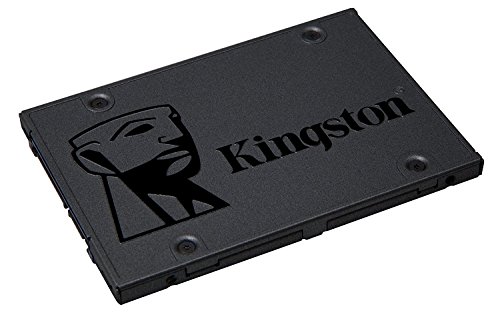
- Fast start-up, loading and file transfers
- More reliable and durable than a hard drive
- Multiple capacities with space for applications or a hard drive replacement
- Capacity: 480GB, Interface: SATA Rev. 3.0 (6Gb/s) – with backwards compatibility to SATA Rev. 2.0. 480GB — 500MB/s read and 450MB/s write, Operating temperature: 0°C~70°C and Vibration operating: 2.17G Peak (7–800Hz)
Also Read : Is Google Reducing Free Cloud Storage to 5GB? What the New Policy Test Means for Gmail, Drive, and Photos
What is NVMe? (Non-Volatile Memory Express)
NVMe (Non-Volatile Memory Express) is not actually a separate physical device, but an advanced communication protocol designed explicitly for high-speed solid-state drives.
How It Works
Legacy SSDs were held back because they used the old SATA interface, which was originally built for slow, mechanical hard drives. NVMe cuts out the middleman entirely. NVMe SSDs—which typically look like slim sticks of chewing gum (the M.2 form factor)—plug directly into the motherboard and communicate over the PCIe (Peripheral Component Interconnect Express) bus. This gives the storage controller direct, ultra-high-bandwidth access to the CPU.
Performance Tiers
The speed of an NVMe drive is determined by the generation of the PCIe slot it uses:
- PCIe Gen 4 NVMe: Capable of speeds up to roughly 7,000 MB/s.
- PCIe Gen 5 NVMe: Mainstream high-performance choice, pushing blazing sequential read speeds between 14,000 and 14,900 MB/s. These modern drives feature highly advanced thermal solutions (like beefy heatsinks or miniature fans) to manage the immense heat generated by such extreme speeds.
- PCIe Gen 6 and Beyond: Industry specifications are already locked in, with early corporate demonstrations paving the way for future consumer deployment.
Pros
- Unmatched Speeds: Reaches sequential speeds upwards of 14,000+ MB/s on modern Gen 5 platforms.
- Extreme Parallelism: Can handle tens of thousands of simultaneous data queues, making it flawlessly efficient at heavy multitasking.
- Compact Form Factor: The tiny M.2 design mounts directly flat onto the motherboard, eliminating messy power and data cables completely.
Cons
- Highest Cost: The most expensive consumer storage option per gigabyte.
- Thermal Management Required: High-speed NVMe drives require adequate airflow or dedicated heatsinks to prevent thermal throttling under heavy loads.
- Overkill for Casual Tasks: Everyday users won’t notice its extreme speed when simply browsing the web or writing documents.
Best For: Enthusiast gamers, professional video editors dealing with 4K/8K uncompressed footage, software developers running local virtual environments, data scientists, and high-end workstation rigs.
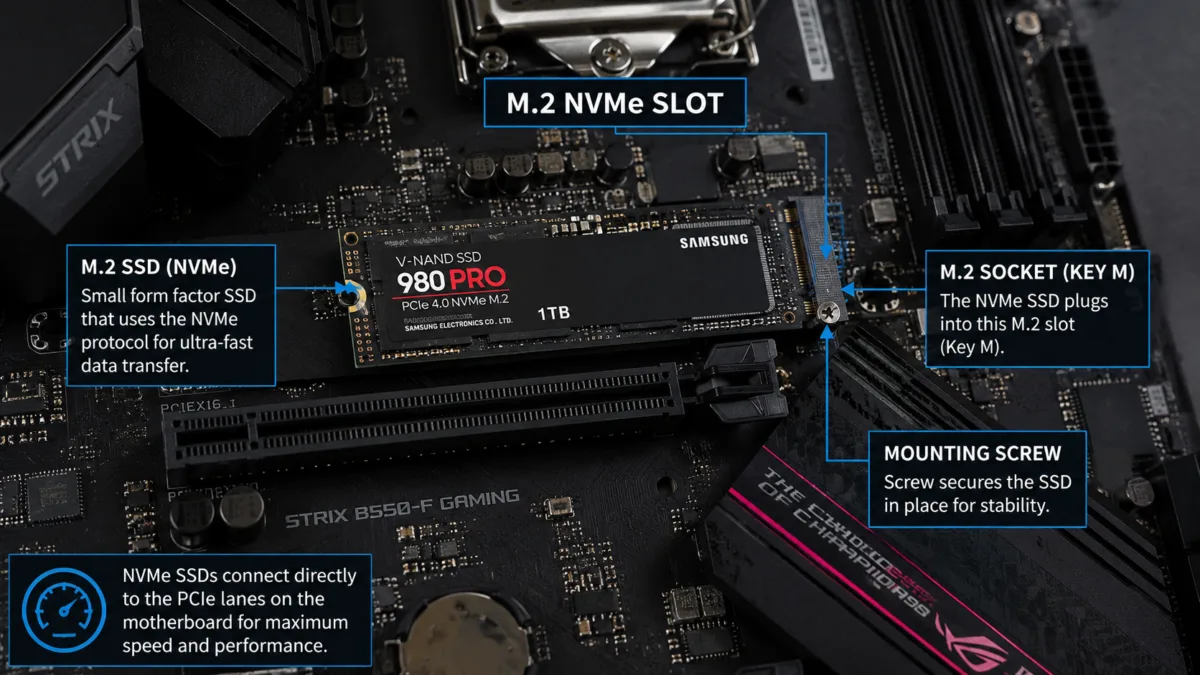
Inside a modern motherboard: The M.2 NVMe slot enables ultra-fast SSD storage with direct PCIe connectivity for lightning-fast boot times, gaming, and high-performance computing.
View the Samsung 990 PRO 1TB on Amazon

- HUGE SPEED BOOST: Get random read/write speeds that are 40%/55% faster than 980 PRO; Experience up to 1400K/1550K IOPS, while sequential read/write speeds up to 7,450/6,900 MB/s reach near the max performance of PCIe 4.0*
- BREAKTHROUGH POWER EFFICIENCY: Use less power and get more performance; Enjoy up to 50% improved performance per watt over 980 PRO, plus optimal power efficiency with max PCIe 4.0 performance**
- SMART THERMAL CONTROL: Samsung’s own nickel-coated controller delivers effective thermal control; With its slim size, 990 PRO is a perfect fit for desktops and laptops that meet the PCI-SIG D8 standard***
HDD vs SATA SSD vs NVMe SSD: Key Differences at a Glance
| Feature | HDD (Traditional Mechanical) | SATA SSD (2.5-inch Solid State) | NVMe SSD (M.2 PCIe Gen 4/5) |
|---|---|---|---|
| Average Speed | 80 – 160 MB/s | 500 – 600 MB/s | 3,000 – 14,000+ MB/s |
| Price per Gigabyte | Exceptionally Low | Moderate | Premium |
| Physical Durability | Fragile (Mechanical parts) | Highly Durable (Solid state) | Highly Durable (Solid state) |
| Real-World Boot Time | 30 – 60 seconds | 10 – 15 seconds | 10 – 15 seconds |
| Operating Noise | Audible spinning/clicking | Completely Silent | Completely Silent |
| Power Consumption | High | Low | Very Low |
| Max Consumer Capacity | Up to 32TB | Up to 8TB | Up to 8TB (16TB emerging) |
A Note on Real-World Boot Times: While NVMe drives boast raw sequential speeds up to 25 times faster than SATA SSDs, you will not experience a 25-times faster boot time in the real world. Modern operating systems spend the majority of their startup routine running motherboard POST (Power-On Self-Test) initializations and checking hardware components. Consequently, a computer booting from a standard SATA SSD and one booting from an elite NVMe drive will land within a practically identical window of 10 to 15 seconds.
Storage in 2026: What’s Actually Changed
The core hierarchy hasn’t shifted — HDDs for bulk, SATA SSDs for budget upgrades, NVMe for performance — but the ceiling has moved. PCIe Gen 5 NVMe drives now push sequential speeds past 14,000 MB/s, and Gen 6 is already specced for future rollout. The bigger 2026 story isn’t raw speed, though — it’s pricing. AI data center demand has pulled NAND supply away from the consumer market, so don’t expect the steady year-over-year price drops SSD buyers got used to through the 2010s.
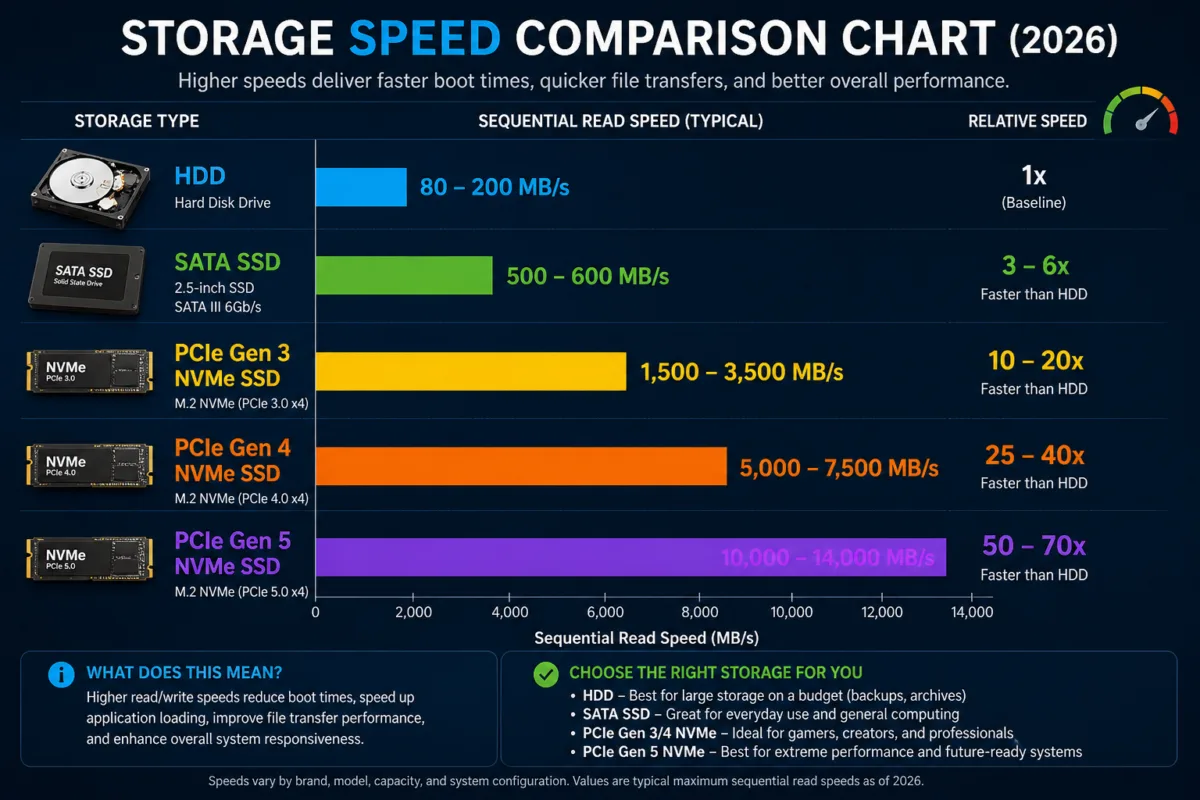
Storage speed comparison in 2026: From traditional HDDs to ultra-fast PCIe Gen 5 NVMe SSDs, modern storage technology delivers dramatically faster boot times, quicker file transfers, and improved overall system performance.
Also Read : Best Processor for Mobile and PC (2023–2026): Which Chipset Is Actually Worth Buying?
Which Storage Type Should You Choose?
The correct choice depends entirely on balancing your workload requirements against your financial boundaries.
Choose HDD If:
- You need to hoard vast quantities of data (e.g., hundreds of movies, raw photography backups, deep project archives).
- You are setting up a home server or an office backup vault where files sit passively.
- You are operating on a strict budget where sheer capacity takes total priority over performance.
Choose SATA SSD If:
- You are breathing new life into an older desktop or laptop that lacks an M.2 PCIe slot.
- You need a dedicated secondary drive to hold your expanding library of casual indie games or applications.
- You want a quiet, durable, and highly reliable storage configuration without paying a cutting-edge price premium.
Choose NVMe SSD If:
- You are building a high-end modern desktop or buying a flagship laptop for intensive production tasks.
- You regularly transfer massive multi-gigabyte files, work with professional 3D rendering engines, or edit high-bitrate video.
- You play modern AAA games designed to leverage direct-to-GPU asset streaming technologies, where loading screens need to be virtually instantaneous.
Local vs. Cloud Storage: Do You Even Need a Physical Drive?
While choosing between an HDD, SSD, or NVMe covers your physical device, modern computing offers a major alternative: Cloud Storage (such as Google Drive, iCloud, or OneDrive).
It is important to remember that the cloud isn’t magic—it is simply a remote data center filled with massive arrays of enterprise-grade HDDs and ultra-dense solid-state drives. Instead of saving a file to a chip inside your laptop, you are streaming it over the internet to a drive owned by Google, Microsoft, or Apple.
- When to choose Cloud Storage: It is perfect for seamless multi-device syncing, automated phone backups, and cross-platform collaboration. If you just need to access documents and photos from both your phone and laptop, a cloud subscription is often more convenient than buying a physical external drive.
- Why Local Hardware Still Wins: Cloud storage is entirely dependent on your internet connection. You cannot run an operating system, launch high-end software, or play modern AAA video games directly from the cloud without massive lag. For raw system speed, local NVMe or SSD storage remains completely irreplaceable.
Also Read : What is Cloud Storage? The Ultimate Guide to Safeguarding Your Digital Life
Frequently Asked Questions (FAQs)
Q1: Is NVMe completely different from an SSD?
No. NVMe is actually a specialized high-speed communication protocol used by solid-state drives. Think of an SSD as the physical car and NVMe as an unrestricted, multi-lane superhighway, whereas SATA is an old, congested city street. Both are solid-state drives, but an NVMe SSD utilizes a vastly superior pipeline.
Q2: Can I use an HDD and an NVMe SSD together in the same system?
Absolutely. In fact, this is one of the smartest and most cost-effective hybrid configurations for desktop PC builders. You can install your operating system, primary applications, and heavy games on a fast, responsive 1TB or 2TB NVMe drive, while mapping your documents, media downloads, and archives to a massive, cheap 8TB+ HDD.
Q3: How long do solid-state drives last compared to mechanical drives?
Modern consumer SSDs typically last anywhere from 5 to 10 years depending on how intensely they are used. While it is true that flash memory wears down over time from a finite number of write cycles, modern drive controllers utilize advanced algorithms like wear-leveling and built-in error correction to ensure the drive outlives the useful lifespan of the computer itself. Unlike HDDs, SSDs will not degrade or fail simply due to standard physical vibrations.
Q4: Will an NVMe drive give me higher frame rates (FPS) in video games?
No. Upgrading your storage drive will dramatically slash game loading screen times and eliminate mid-game texture streaming stutters, but it does not directly process graphics. Your peak in-game frame rates remain almost entirely dependent on the horsepower of your Graphics Processing Unit (GPU) and Central Processing Unit (CPU).
Q5: Are high-capacity enterprise SSDs available for everyday buyers?
While enterprise cloud infrastructures utilize specialized, ultra-dense solid-state drives that scale up to an astounding 245TB on a single block, these are not compatible with standard consumer motherboards and cost thousands of dollars. For typical retail buyers, consumer M.2 NVMe slots are currently capped at a practical maximum of 8TB, with premium 16TB form factors just starting to surface in specialty markets.
Q6. What is cloud storage?
Cloud storage is a service that allows you to save data, photos, and files on remote servers accessed entirely over the internet, rather than saving them locally on your computer’s internal hard drive. Despite the name, “the cloud” isn’t magic or invisible—your files are physically stored on massive arrays of high-capacity HDDs and enterprise solid-state drives located in secure data centers worldwide owned by companies like Google, Microsoft, or Apple. It is incredibly convenient for syncing files across multiple devices and running automatic backups, though you still need fast local hardware (like an NVMe or SATA SSD) to run your operating system and heavy software smoothly.
What’s the difference between TLC and QLC SSDs?
NAND flash comes in different “densities” based on how many bits each memory cell stores. TLC (Triple-Level Cell) stores 3 bits per cell and offers a strong balance of speed, durability, and price — it’s what most mid-range and high-end consumer SSDs use. QLC (Quad-Level Cell) stores 4 bits per cell, which allows for higher capacities at a lower cost, but at some expense to write speed and long-term durability. Early QLC drives had a rough reputation, but modern controllers and large SLC caching have closed much of that gap — QLC is now a perfectly reasonable choice for everyday use, boot drives, and read-heavy workloads. If your work involves heavy, sustained writing (video editing, large databases, AI workloads), TLC remains the safer pick.
Q8: Should I avoid DRAM-less SSDs?
Not necessarily. DRAM on an SSD acts as a high-speed cache that helps the controller track where data is stored, which speeds up random read/write operations. DRAM-less SSDs skip this chip and instead borrow a small slice of your system’s RAM through a feature called HMB (Host Memory Buffer). For casual use — web browsing, office work, general gaming — you’re unlikely to notice a difference. Where DRAM-less drives fall behind is in sustained heavy workloads: video editing, running virtual machines, or compiling large codebases, where the lack of dedicated DRAM shows up as higher latency and less consistent performance. For a budget or secondary drive, DRAM-less is fine. For your primary drive on a production or workstation build, a DRAM-equipped model is worth the extra cost.
Disclaimer
Accuracy & Performance: The information in this guide is for educational purposes. Real-world storage speeds, transfer rates, and boot times will vary depending on your specific hardware configuration, operating system, and system thermals.
Risk of Data Loss: Upgrading or replacing internal hardware carries inherent risks, including potential data loss or hardware damage. Always back up your critical files completely before making any physical changes to your device. The author and this publication assume no liability for any damage or loss resulting from this guide.
Market Volatility: Storage prices and component availability fluctuate constantly due to global manufacturing and supply chain demands, and are subject to change without notice.
Affiliate Disclosure: This article may contain affiliate links. If you purchase hardware through these links, we may earn a small commission at zero additional cost to you. We only recommend hardware that meets our standards for quality and performance.

Ayush Singhal is the founder and chief editor of TechMitra.in — a tech hub dedicated to simplifying gadgets, AI tools, and smart innovations for everyday users. With over 15 years of business experience, a Bachelor of Computer Applications (BCA) degree, and 5 years of hands-on experience running an electronics retail shop, Ayush brings real-world gadget knowledge and a genuine passion for emerging technology.
At TechMitra, he covers everything from AI breakthroughs and gadget reviews to app guides, mobile tips, and digital how-tos. His goal is simple — to make tech easy, useful, and enjoyable for everyone. When he’s not testing the latest devices or exploring AI trends, Ayush spends his time crafting tutorials that help readers make smarter digital choices.
📍 Based in Lucknow, India
💡 Focus Areas: Tech News • AI Tools • Gadgets • Digital How-Tos
📧 Contact: Get in touch →
🔗 Full Bio: https://techmitra.in/about-us/