

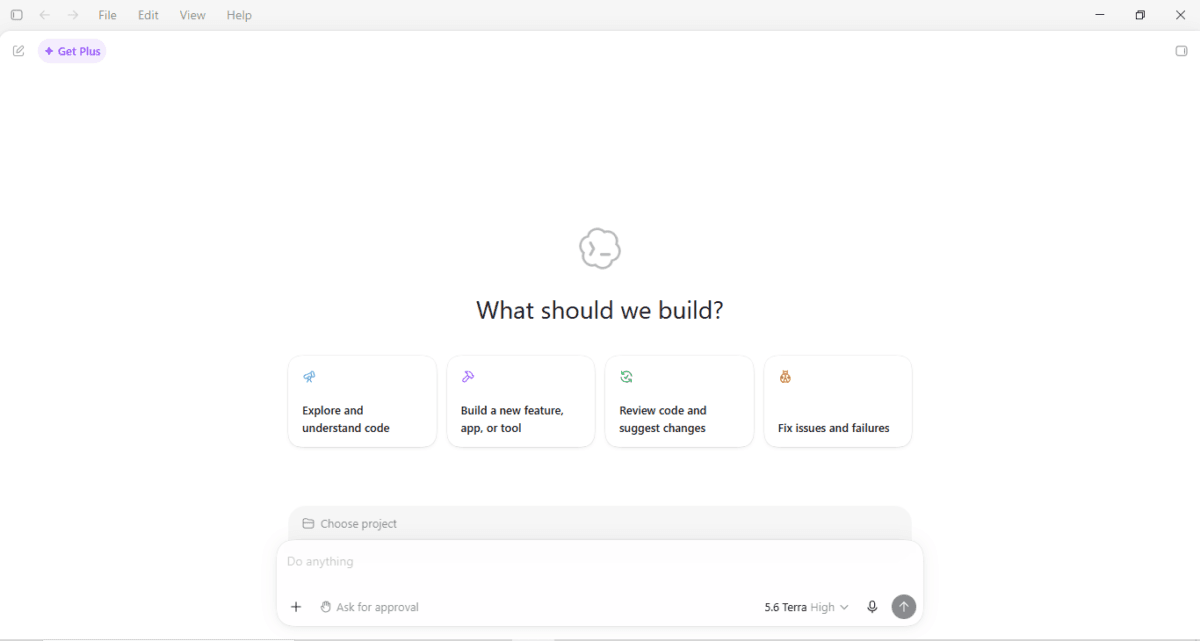
Screenshot: ChatGPT Codex desktop app
ChatGPT Codex has become one of the most useful tools I use while running TechMitra — not just for writing code, but for catching real errors and security issues in code that other AI tools generate. If you’ve seen Codex mentioned inside ChatGPT or as a separate downloadable app and wondered what it actually is, whether it costs extra, and whether it’s only for software engineers, this article breaks it down in simple language.
In this article, we’ll cover what ChatGPT Codex actually is, what it can do, what it costs in India, and how I personally use it to build and secure tools for TechMitra — including a real example of a bug it caught that I would have otherwise missed.
Table of Contents
Also read : Razorpay Brings UPI Payments Inside OpenAI Codex — Developers Can Now Monetise Apps in Minutes
What Is ChatGPT Codex?
ChatGPT Codex is a specialized coding-focused mode inside ChatGPT — and now also a standalone desktop app.
While normal ChatGPT is great for explanations, writing, and ideas, Codex is designed to build, modify, and fix software-related things.
In short:
- ChatGPT = conversation + knowledge
- Codex = planning + coding + debugging
Codex is developed by OpenAI and is optimized to understand programming logic, file structures, and development workflows.
You don’t need to be a hardcore programmer to use it. Codex is built to work with natural language instructions, which means you can describe what you want, not how to code it line by line.
Codex Is Not a Separate Subscription

One thing worth clearing up early: Codex doesn’t have its own separate price tag. OpenAI states it plainly on their pricing page: “Codex is included in your ChatGPT Free, Go, Plus, Pro, Business, or Enterprise plan.” There’s no “buy Codex alone” option — every plan gets Codex, and what changes across tiers is how much you can use it, not whether you can use it at all.
ChatGPT Codex Pricing in India
| Plan | India Price (incl. GST) | Codex Access |
|---|---|---|
| Free | ₹0 | Limited trial access |
| Go | ₹399/month | Limited trial access, more than Free |
| Plus | ₹1,999/month | Expanded usage, desktop app for macOS/Windows, Slack/GitHub/Figma plugins |
| Pro (lower tier) | From ₹10,699/month | 5x Plus usage — built for frequent coding sessions |
| Pro (higher tier) | ₹19,900/month | Maximum tasks, 20x Plus usage |
For most publishers and solo developers, Plus at ₹1,999/month is the realistic starting point once you move past testing. If you’re using Codex daily for real work — like I do for TechMitra — the ₹10,699 Pro tier becomes worth considering once you start hitting Plus’s usage limits regularly.
One important reality check: even on Pro, usage isn’t unlimited. Codex runs on rolling 5-hour usage windows, so heavy daily use should be planned around those caps rather than assumed to be all-you-can-use. I’ve confirmed this myself — even on the free Go plan, the Codex desktop app shows a visible “usage remaining” meter (monthly, resetting on a fixed date), not a hard block. So even lower-tier users get real, working access — just with a ceiling.
Exact Usage Limits Across Every Tier
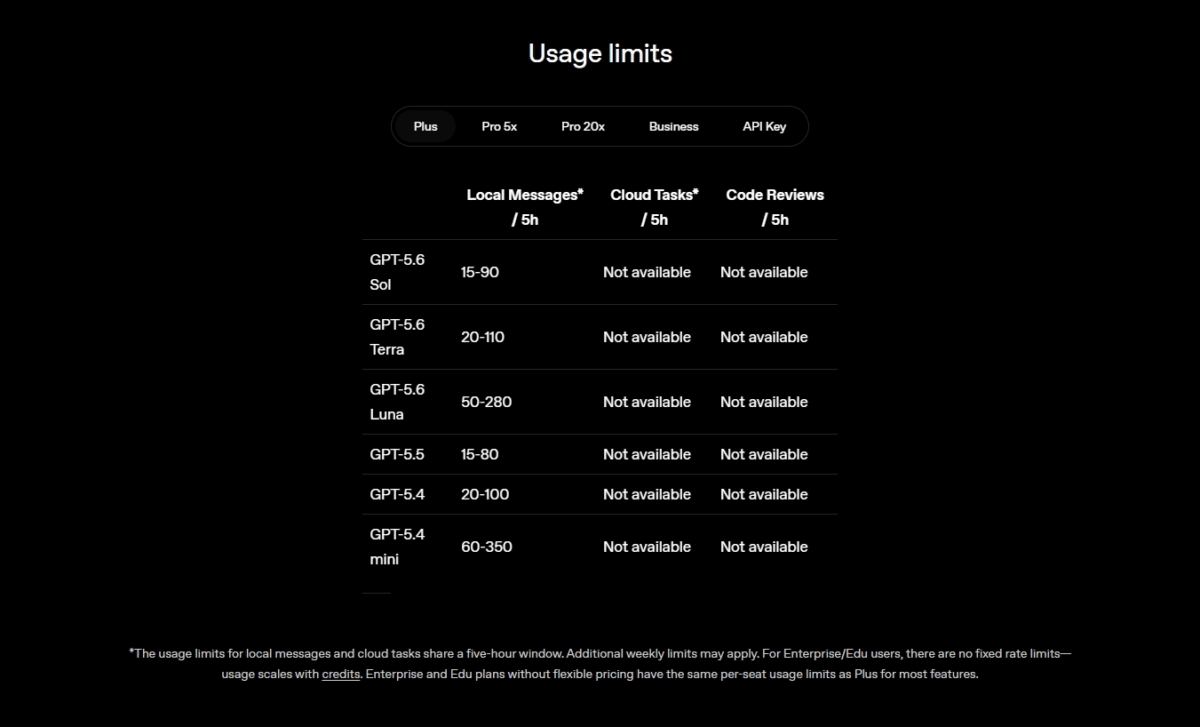
OpenAI publishes exact numbers for how many local messages you get per 5-hour window, and they vary by both plan and which model you’re using inside Codex. Here’s the full picture:
| Model | Plus | Pro 5x | Pro 20x | Business | API Key |
|---|---|---|---|---|---|
| GPT-5.6 Sol | 15–90 | 75–450 | 300–1800 | 15–90 | Usage-based |
| GPT-5.6 Terra | 20–110 | 100–550 | 400–2200 | 20–110 | Usage-based |
| GPT-5.6 Luna | 50–280 | 250–1400 | 1000–5600 | 50–280 | Usage-based |
| GPT-5.5 | 15–80 | 75–400 | 300–1600 | 15–80 | Usage-based |
| GPT-5.4 | 20–100 | 100–500 | 400–2000 | 20–100 | Usage-based |
| GPT-5.4 mini | 60–350 | 300–1750 | 1200–7000 | 60–350 | Usage-based |
(All figures are local messages per 5-hour window. Cloud Tasks and Code Reviews are listed as “Not available” on every tier at the time of writing — this appears to still be a limited or upcoming feature rather than something live yet.)
A few things worth noting here:
- The range (e.g., 15–90) reflects that actual usage varies with task complexity — simple queries cost less of your quota than large, multi-file coding tasks.
- Pro 5x gives roughly 5x the Plus limits, and Pro 20x gives roughly 20x — the naming is literal, not marketing shorthand.
- Business shares the exact same limits as Plus, per-seat — so a Business subscription isn’t automatically higher-capacity than Plus; its value is more about team management, security, and admin controls than raw usage headroom.
- API Key access is usage-based rather than a fixed message count — you pay per token/request instead of hitting a hard 5-hour cap, which suits developers building Codex into their own tools or scripts rather than using the chat interface directly.
- If you want lighter, faster responses within a tighter budget, GPT-5.4 mini consistently gives the most headroom across every tier (up to 350 on Plus, up to 7,000 on Pro 20x) — useful if you’re doing many small fixes rather than a few heavy ones.
- Local messages and cloud tasks share the same 5-hour window, and additional weekly limits may also apply on top of this.
- Enterprise and Edu plans don’t have fixed rate limits — usage scales with credits instead.
What Happens When You Hit Your Usage Limit?
If you run out of Codex usage before your window resets, you’re not stuck. OpenAI gives a few practical options:
- Plus and Pro users can purchase additional credits to keep working, without needing to upgrade their plan entirely.
- Business, Edu, and Enterprise plans on flexible pricing can similarly buy additional workspace credits to continue using Codex.
- Switching to GPT-5.6 Luna stretches your existing limit further, since it consistently allows the highest message count across every tier (up to 280 on Plus, up to 5,600 on Pro 20x) — a useful move if you’re mid-project and don’t want to pay for extra credits right away.
- Any user can fall back on an API key to run extra local tasks once their plan’s limit is hit, billed separately at standard API rates rather than counted against your subscription’s quota.
In practice, this means a hard stop is avoidable — you can either pay incrementally for more credits, switch to a higher-capacity model, or route around the limit entirely using an API key, without committing to a full plan upgrade.
Why Codex Isn’t in Your ChatGPT Web Sidebar Anymore
This is worth explaining clearly, because it confused me too, and there’s now a confirmed reason behind it.
On July 9, 2026, OpenAI merged the standalone Codex app into a unified ChatGPT desktop app (available on macOS and Windows), alongside the launch of a new agent called ChatGPT Work. This wasn’t a bug or a rollout glitch — it’s a deliberate architecture decision, and OpenAI’s own documentation confirms it plainly:
“Codex is not selectable on web or mobile.”
Here’s how it actually breaks down:
- On ChatGPT web (browser): You get Chat and Work. Codex is not available as a selectable experience here at all — by design, not by account restriction.
- On the ChatGPT desktop app (Windows/macOS): You get all three — Chat, Work, and Codex — accessible from a toggle at the top-left menu. This is the only place Codex genuinely runs as a full experience.
- On mobile: Codex isn’t directly selectable either, though you can access supported desktop Codex sessions remotely through the “Remote” tab in the ChatGPT mobile app.
- Your plan is not the reason. OpenAI’s documentation confirms Codex is included across every ChatGPT plan — Free, Go, Plus, Pro, Business, and Enterprise — with usage limits varying by tier, not availability.
This explains my own experience exactly: Codex never actually ran through the ChatGPT web sidebar for me — clicking it only offered a “Download for Windows” prompt, with no working in-browser session. That’s precisely because, post–July 9, Codex genuinely isn’t a web experience anymore. The desktop app download isn’t a workaround — it’s the intended, and now only, way to use Codex directly.
If you were using Codex in the browser before this change and it’s since disappeared, you haven’t lost access — you just need to move to the desktop app to keep using it.s broken — for some accounts, the desktop app download is effectively the real entry point, not a browser session.
What Can ChatGPT Codex Do?
Codex is best understood by looking at what problems it solves.
1. Turns plain English into working code
You can say:
“Create a WordPress plugin that calculates solar panel wattage for Indian homes”
Codex can:
- Decide the plugin structure
- Write PHP, JavaScript, and HTML
- Explain how to install it
No need to know coding syntax in advance.
2. Fixes errors and bugs
If your site shows:
- PHP errors
- White screen after plugin activation
- JavaScript not loading
- Android build failures
You can paste the error into Codex and ask:
“Why is this happening and how do I fix it?”
Codex analyzes the problem like a developer and suggests practical fixes, not just theory.
3. Explains existing code in simple terms
You can paste confusing code and ask:
“Explain this in simple language”
This is extremely helpful if:
- You’re editing theme files
- You’re modifying plugins
- You inherited old or messy code
4. Optimizes and cleans up code
Codex can:
- Remove unused code
- Replace heavy libraries
- Improve performance
- Make scripts more secure
This is useful for PageSpeed optimization, CLS fixes, and reducing plugin dependency.
5. Converts code between languages
Examples:
- Java → Kotlin
- PHP → JavaScript logic
- Old-style JS → modern JS
This is especially useful for Android developers and WordPress users who want cleaner code.
How I Actually Use Codex for TechMitra
This is where most articles on Codex stop at theory. Here’s how it fits into my real workflow running TechMitra.
I generate a lot of interactive tools and calculators for the site using AI. The problem I kept running into with plain AI-generated HTML/JS code was simple: it almost always had small errors — a broken function, a layout that didn’t render right, a script that failed silently. I’d have to manually debug it every time.
Codex fixes this gap. When I feed it a tool concept or a piece of code that’s throwing errors, it doesn’t just suggest a fix in theory — it actually corrects the code and gives me a working version. For someone who isn’t a full-time developer, that difference between “here’s probably what’s wrong” and “here’s the corrected file” saves real time.
A real example: fixing my IndexNow submission tool
Here’s a concrete case from my own workflow. I had built a WordPress plugin to submit URLs to IndexNow using Claude free verrsion (the protocol search engines like Bing use for instant URL discovery) using AI-generated code. It looked functional on the surface. I asked Codex to review it — and it caught issues I wouldn’t have noticed on my own:
- A public security hole: the tool exposed an unauthenticated AJAX endpoint, meaning any visitor — not just me — could have used my server to fire off IndexNow submissions for domains they didn’t even own, quietly burning my hosting resources.
- A DOM-XSS vulnerability: user-controlled data was being injected into the page via
innerHTML, an unsafe pattern that can allow script injection. - A functional bug: the code was treating
example.comandwww.example.comas identical hosts, which would have caused real API failures with IndexNow. - Weak key generation: it was using
Math.random()instead of a cryptographically secure method for generating IndexNow keys.
Codex didn’t just list these problems — when I asked it to fix them, it rewrote the plugin to version 1.1.0: locked the tool down to logged-in WordPress administrators only, added nonce verification, replaced the unsafe innerHTML with safe textContent, fixed the hostname comparison bug, and switched to crypto.getRandomValues() for key generation.
That review also led me to a decision I wouldn’t have made otherwise: I held back from publishing the original public-facing version of the tool, because Codex made it clear it wasn’t safe to expose to the public without rate limiting. This is exactly the kind of catch that separates “code that looks like it works” from “code that’s actually safe to ship” — and it’s the main reason Codex has become part of my regular workflow rather than a one-off experiment.
What the Codex desktop app actually looks like in practice
As covered earlier, the desktop app (available for macOS and Windows) is where Codex genuinely runs — it’s not a separate alternative to a browser version, it’s the only place the full experience exists. On the Windows app, you get options like “Explore and understand code,” “Build a new feature, app, or tool,” “Review code and suggest changes,” and “Fix issues and failures” — and you can point it at a project folder directly instead of pasting code into a chat window.
How file editing actually works
Here’s a detail that’s easy to miss if you haven’t used the app hands-on: when you upload an existing code file to Codex and ask it to fix or improve something, it doesn’t just show you a copy — it directly edits the original file in your project folder. If your file was at version 1.0, after Codex makes changes it updates it to version 1.1 in place. It’s a real edit, not a separate suggestion you have to manually apply.
Every time Codex generates or edits code, it also saves the output into a folder simply named “Codex” on your system, organized into subfolders by date — so each day’s work is easy to trace back to later. This has turned out to be a handy, if accidental, changelog of everything I’ve built.
Also read : OpenAI Codex Gets a Major Update: A New Era for Developer Productivity
How Software Engineers Use ChatGPT Codex
For professional developers, Codex is a productivity multiplier, not a replacement.
Common developer use cases
- Rapid prototyping of ideas
- Writing boilerplate code
- Debugging production issues
- Refactoring old projects
- Generating test cases
- Understanding unfamiliar codebases
Instead of starting from scratch, developers use Codex to speed up repetitive tasks and focus on logic and architecture.
Important reality check
Good engineers:
- Review Codex output
- Test everything
- Treat it as an assistant, not an authority
Codex helps you work faster — it doesn’t remove responsibility.
How Publishers and Website Owners Can Use Codex (Most Ignored Part)
You don’t need to be a software engineer to benefit from Codex.
1. Creating online tools for your website
Publishers can use Codex to build:
- Calculators
- Generators
- Converters
- Interactive forms
- Small utilities
Examples:
- PageSpeed score estimator
- Image size calculator
- SEO checklist tool
- AI prompt generator
These tools:
- Increase time-on-page
- Improve user engagement
- Help AdSense performance
- Strengthen topical authority
2. Reducing dependency on heavy plugins
Many WordPress sites slow down because of:
- Too many plugins
- Overloaded page builders
- Heavy JS libraries
Codex can create lightweight custom tools using:
- Plain HTML
- Clean CSS
- Minimal JavaScript
Result:
- Better Core Web Vitals
- Lower CLS and TBT
- Faster real-world performance
3. Building custom shortcodes and features
Instead of installing plugins for everything, Codex can help you create:
- Custom shortcodes
- Simple admin panels
- Form handlers
- Data calculators
This is especially useful for niche sites like tech blogs, affiliate sites, or utility-based platforms.
4. Fixing website issues without hiring a developer
Many publishers face issues like:
- Theme conflicts
- Broken layouts
- Script errors
- Mobile responsiveness problems
With Codex:
- You paste the problem
- Ask what’s wrong
- Get step-by-step guidance
This saves time and money, especially for solo site owners.
Real-World Examples for Publishers
A tech publisher can use Codex to:
- Add a “Website Speed Estimator” tool
- Embed a “Hosting Cost Calculator”
- Create an “AI Prompt Generator for Bloggers”
- Build an “Image Compression Estimator”
Each tool becomes:
- A separate SEO landing page
- A linkable asset
- A long-term traffic source
This is how blogs slowly turn into tool-based authority websites.
Codex App: How It’s Different from Codex Inside ChatGPT
OpenAI actually offers Codex across four connected surfaces: the ChatGPT web/sidebar version, a downloadable desktop app for macOS and Windows, an IDE extension for code editors, and a command-line (CLI) tool for terminal use — all tied to the same ChatGPT account.
The Codex app is designed to run alongside professional tools like code editors and IDEs, allowing software engineers — and non-engineers like publishers — to generate, edit, and debug code without switching contexts or working purely inside a browser tab.
Codex inside ChatGPT is meant to offer guided, conversational coding that’s approachable for beginners, publishers, and website owners just getting started — though in practice, some accounts (like mine) find that clicking Codex in the sidebar simply prompts a desktop app download rather than opening an in-browser session. The desktop app itself is built for users who want deeper integration into their daily file-based workflow — directly editing project files, saving dated output folders, and working close to their actual project structure. At its core, all four surfaces use the same Codex intelligence — the difference lies in how and where you end up actually working, which for many users right now means the desktop app by default.
Limitations You Should Know
Codex is powerful, but not magical.
- It can make mistakes
- It doesn’t “understand business context” fully
- Code should always be tested
- Security best practices still matter
- Since it edits your original files directly, it’s worth keeping your own backups before big changes — even though Codex’s own dated “Codex” folder acts as a rough version history
Used correctly, it saves time. Used blindly, it can cause problems — just like any tool.
Should You Use ChatGPT Codex?
Use Codex if you:
- Run a WordPress website
- Publish tech or utility content
- Want online tools on your site
- Care about performance and speed
- Want more control without deep coding
Also Read – Technology in 2025: How Artificial Intelligence – AI Reshaping the World Around Us
You may skip Codex if you:
- Only write pure content
- Never touch website structure
- Don’t plan interactive features
Final Thoughts
ChatGPT Codex is not just for software engineers. For publishers and website owners, it’s turned into a genuinely practical tool — in my own experience running TechMitra, it’s the difference between AI-generated code that mostly works and code that actually works, fixed and edited in place, with a running dated history of everything built along the way. Combined with clear, India-priced ChatGPT plans, it’s become one of the more accessible ways for a solo publisher to add real, functional tools to a website without hiring a developer.
Disclaimer: This article is for informational purposes only. ChatGPT Codex features, availability, and usage limits may change over time as OpenAI updates the product. Pricing details reflect information available as of mid-2026 and are subject to change by OpenAI. Always verify current rates on the official ChatGPT pricing page before subscribing. Readers are advised to verify details from official sources before relying on any specific functionality.

Ayush Singhal is the founder and chief editor of TechMitra.in — a tech hub dedicated to simplifying gadgets, AI tools, and smart innovations for everyday users. With over 15 years of business experience, a Bachelor of Computer Applications (BCA) degree, and 5 years of hands-on experience running an electronics retail shop, Ayush brings real-world gadget knowledge and a genuine passion for emerging technology.
At TechMitra, he covers everything from AI breakthroughs and gadget reviews to app guides, mobile tips, and digital how-tos. His goal is simple — to make tech easy, useful, and enjoyable for everyone. When he’s not testing the latest devices or exploring AI trends, Ayush spends his time crafting tutorials that help readers make smarter digital choices.
📍 Based in Lucknow, India
💡 Focus Areas: Tech News • AI Tools • Gadgets • Digital How-Tos
📧 Contact: Get in touch →
🔗 Full Bio: https://techmitra.in/about-us/