

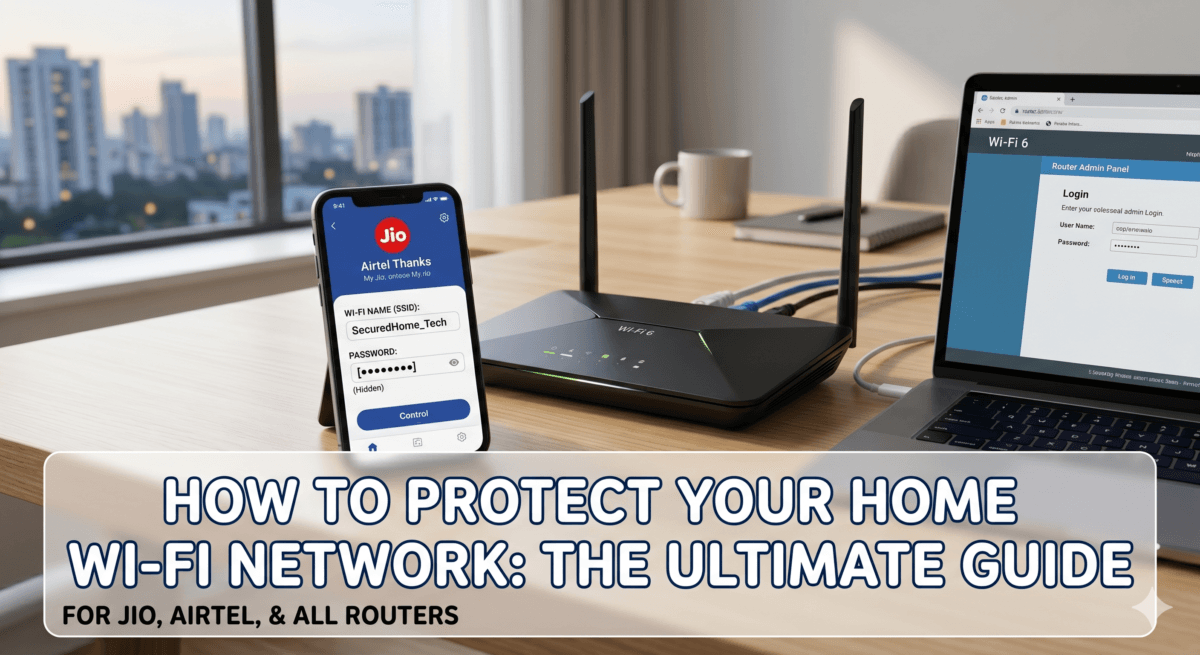
Image : How to Protect Your Home Wi-Fi Network: Ultimate Guide
In today’s hyper-connected world, our homes are filled with smart gadgets. From smartphones and laptops to smart TVs, security cameras, and even refrigerators, almost everything relies on your home Wi-Fi network. While this connectivity makes life incredibly convenient, it also opens up a massive digital doorway for cybercriminals.
Leaving your Wi-Fi network unsecured is the digital equivalent of leaving your front door wide open. A hacker who gains access to your wireless network can steal your personal financial information, spy on your online activities, infect your devices with malware, or even use your internet connection for illegal activities.
Securing your home router doesn’t require a degree in computer science. In this guide I tell the steps to how to protect your home wi-fi network, whether you use India’s top telecom providers like Jio and Airtel, or any other broadband connection, updating your security takes less than 15 minutes.
Table of Contents
Also Read : Why Security Updates Are Critical for Your Smartphone in 2026 ?
Part 1: Quick Setup for JioFiber and Jio AirFiber Users
If you are using a JioFiber or Jio AirFiber connection, you cannot open the traditional local web admin page (like 192.168.1.1) as Jio locks it down to prevent configuration errors. Instead, Jio has migrated all network management tools into their mobile app ecosystem.
Here is the exact step-by-step process to change your network name (SSID) and passphrase on a Jio connection:
1.Open the MyJio App:Step 1.
Launch the MyJio app on your smartphone. Make sure you are logged in with your registered mobile number linked to your internet connection.
2.Link Your Fiber Account:Step 2.
If you haven’t done it already, link your JioFiber or AirFiber account to your MyJio dashboard using your Service ID or registered mobile number.
3.Navigate to JioHome:Step 3.
Tap on the JioHome tab from the menu. This screen will display your active, linked Fiber or AirFiber account details.
4.Find the ‘My WiFi’ Section:Step 4.
Scroll down the JioHome dashboard until you find the My WiFi box. Inside this box, tap on WiFi Settings.
5.Update SSID and Passphrase:Step 5.
Select your network bands (2.4GHz or 5GHz), enter your new desired Wi-Fi name (SSID), and type in your new strong password.
6.Submit and Apply Changes:Step 6.
Click the Submit button. Your Jio router will automatically update, apply the new credentials, and restart the wireless signals within a minute.
If you are using a JioFiber or Jio AirFiber connection (you can read our full Jio AirFiber Review here to check real-world speeds and performance)
Part 2: Quick Setup for Airtel Xstream Fiber and AirFiber Users
If you are an Airtel Xstream Fiber or Airtel AirFiber user, Airtel provides a similarly convenient way to secure your network via their mobile app.
Here is the exact step-by-step procedure to update your network name and password on an Airtel connection:
1.Open the Airtel Thanks App:Step 1.
Launch the Airtel Thanks app on your mobile phone and ensure you are logged in using your registered mobile number.
2.Go to the Manage / Broadband Tab:Step 2.
Tap on the Manage icon or select your active Broadband/AirFiber service account card from the main dashboard.
3.Access ‘My Wi-Fi’:Step 3.
Tap on the My Wi-Fi option. The app will briefly take a moment to safely fetch your live router details from the backend network.
4.Select ‘Manage Wi-Fi ID & Password’:Step 4.
Inside the network settings layout, tap on Manage Wi-Fi ID and Password.
5.Input New SSID and Passphrase:Step 5.
You will see your current network name. Delete it and type your new desired Wi-Fi name. Right beneath it, enter your new strong password.
6.Save Changes:Step 6.
Click on Save Changes. The Airtel system will sync the details with your physical router, instantly updating your network settings.
Also Read : Top 10 Free and Best Email Services Indians Should Choose From (Hands-On Review)
Part 3: Configuration for Other Broadband Connection Users
(BSNL, ACT Fibernet, Excitel, Hathway, TP-Link, D-Link, Netgear, etc.)
If you are using any other broadband service provider, or a third-party router, you will need to access your router’s local administrative dashboard through a web browser.
1.Connect to the Wi-Fi:Step 1.
Ensure your laptop or smartphone is connected to the Wi-Fi network you want to secure.
2.Enter the Router IP Gateway:Step 2.
Open any web browser (Chrome, Safari, Edge) and type your router’s default gateway IP address into the address bar. Common IPs include:
- 192.168.1.1 (Common for BSNL, ACT, Asus, TP-Link, Airtel)
- 192.168.0.1 (Common for D-Link, Netgear, Tenda)
- 192.168.18.1 (Common for some Excitel/Huawei ONU terminals)
3.Log In with Credentials:Step 3.
Enter the router’s administrative username and password.
Where to find them: If you haven’t changed this before, the default login URL, username, and password are printed on a sticker at the back or bottom side of your physical router.
4.Change the Default Admin Login:Step 4.
Before touching the Wi-Fi settings, navigate to System Tools / Administration and change the default router login password. This prevents anyone connected to your Wi-Fi from altering your router settings.
5.Navigate to Wireless Settings:Step 5.
Look for a tab labeled Wireless, Wi-Fi Settings, or WLAN in the side menu.
6.Update Wi-Fi Name & Set Strong Encryption:Step 6.
- Change the SSID (Network Name) to something custom. Do not use your family name or house number.
- Find the Security/Encryption dropdown and select WPA3 Personal According to Microsoft Support’s Wireless Configuration Guide, upgrading your security to WPA3 introduces robust authentication protocols and significantly stronger cryptographic defenses against automated brute-force attacks.
- Type your new Wi-Fi Passphrase (aim for a unique 12-16 character passphrase combining random words, numbers, and symbols).
7.Save and Reconnect:Step 7.
Click Save, Apply, or Reboot. Your router will restart its wireless radios, and you will need to reconnect all your devices using the new credentials.
Universal Security Rules for Every Home Network
Regardless of which app or browser gateway you use to manage your internet connection, keep these critical safety rules active to completely bulletproof your network:
⚠️ The Service Technician Rule (Crucial): Always change your Wi-Fi password immediately after a new installation or after a technician visits your home to resolve a network complaint. If you had to share your Wi-Fi name and password with the service person to verify the internet speed or test connection stability, log into your app or gateway and reset it the moment they leave.
- Set Up a Guest Wi-Fi Network: Enable a secondary guest network with a distinct password. Put visitors and smart home IoT (Internet of Things) devices like smart bulbs or cameras on this network. If an IoT device or a friend’s phone gets infected with malware, it remains isolated and cannot spread to your primary personal computers.
- Disable Wi-Fi Protected Setup (WPS): If your router interface allows it, turn off WPS. While clicking a physical button to connect devices is convenient, the underlying 8-digit PIN mechanism is highly vulnerable to automated hacking tools.
- Turn Off Universal Plug and Play (UPnP): While UPnP helps consoles discover each other on a local network, sophisticated malware can manipulate it to bypass your firewall. As outlined in the Google Nest Wifi Security Documentation, keeping features like UPnP disabled maintains a rigid barrier against unsolicited external connections trying to access your local data.
- Keep Firmware Updated: For third-party routers, periodically log into the dashboard to check for firmware updates. Jio and Airtel push automated updates to their official equipment, ensuring your backend is continually protected against newly discovered vulnerabilities.
Also Read : Are Your Smart Home Devices Secure? Best Safe Gadgets & Tips
Conclusion
Securing your home Wi-Fi network doesn’t require expensive software. Whether you handle it in a few taps via the MyJio or Airtel Thanks apps, or take the browser gateway route for other routers, these adjustments transform your home network from an easy target into a digital fortress.
Take 15 minutes today to lock down your credentials, protect your bandwidth, and keep your data exactly where it belongs—with you.
Frequently Asked Questions (FAQs)
Q: Should I hide my Wi-Fi network name (SSID)?
A: While it sounds like a good security measure, hiding your SSID does not actually stop network scanners used by hackers. In fact, forcing your devices to constantly broadcast search requests to find a hidden network can sometimes decrease performance and expose your private data more than broadcasting a visible SSID protected by a strong password.
Q: Can I access the 192.168.1.1 gateway on a Jio router?
A: No. Jio completely blocks or heavily restricts traditional local browser admin panels on JioFiber and Jio AirFiber routers to prevent accidental configuration errors. All changes must be done via the MyJio or JioHome apps.
Q: What should I do if the Airtel Thanks app fails to change my Wi-Fi password?
A: If the app glitches, Airtel users have a backup option. Connect your laptop or phone to your Airtel Wi-Fi, open a browser, and go to 192.168.1.1. You can log in using the default admin username and password printed on the sticker at the back of your Airtel router to change it manually.
Q: Is it safe to leave my Wi-Fi password as the one given during installation?
A: Absolutely not. You should change your Wi-Fi password immediately after a new installation or after a field technician visits your home to resolve a complaint. Since you likely had to share the credentials with the technician to test the connection, resetting it ensures your network remains completely private.
Q: How often should I change my home Wi-Fi password?
A: It is good practice to change your Wi-Fi password every 3 to 6 months, or immediately if you suspect an unfamiliar device has managed to connect to your network.
Q: What is the most secure Wi-Fi encryption protocol to select?
A: Always choose WPA3-Personal if your router and devices support it. If you have older devices in the house that don’t connect to WPA3, choose WPA2-AES. Avoid old, outdated protocols like WEP or WPA, as modern automated scripts can crack them in minutes.
Q: Can a VPN protect my entire home Wi-Fi?
A: Yes. If you use a third-party router (like TP-Link, Asus, or Netgear) that supports router-level VPN configurations, you can install a Virtual Private Network directly onto it. This automatically encrypts the internet traffic for every single device in your home, including smart TVs and IoT gadgets.
Check 5 best free antivirus software for your pc

Ayush Singhal is the founder and chief editor of TechMitra.in — a tech hub dedicated to simplifying gadgets, AI tools, and smart innovations for everyday users. With over 15 years of business experience, a Bachelor of Computer Applications (BCA) degree, and 5 years of hands-on experience running an electronics retail shop, Ayush brings real-world gadget knowledge and a genuine passion for emerging technology.
At TechMitra, he covers everything from AI breakthroughs and gadget reviews to app guides, mobile tips, and digital how-tos. His goal is simple — to make tech easy, useful, and enjoyable for everyone. When he’s not testing the latest devices or exploring AI trends, Ayush spends his time crafting tutorials that help readers make smarter digital choices.
📍 Based in Lucknow, India
💡 Focus Areas: Tech News • AI Tools • Gadgets • Digital How-Tos
📧 Contact: Get in touch →
🔗 Full Bio: https://techmitra.in/about-us/
This is a comprehensive Wi-Fi security guide! The WPA3 recommendation is spot-on — many people still use WPA2 without realizing how vulnerable it is to KRACK attacks. I’d also add that disabling WPS (Wi-Fi Protected Setup) is critical since most routers have a PIN-based WPS vulnerability that can be brute-forced in hours.