
Tired of endless scrolling? now you can disable YouTube Shorts feed. Photo by Zulfugar Karimov on Unsplash
Let’s be honest—opening YouTube for “just a minute” often turns into 30 minutes of endless scrolling through Shorts. Those quick, addictive clips are designed to keep you hooked, and before you realize it, your time is gone.
But here’s the good news: YouTube has finally introduced a simple, built-in way to control (and even completely disable) Shorts—no third-party apps, no complicated hacks.
If you’re trying to regain focus, reduce screen time, or just clean up your feed, this guide will walk you through exactly how to do it.
Also Read : YouTube Premium Lite vs Premium in India (2026): Which Plan Should You Choose?
Why YouTube Shorts Feel So Addictive
Before jumping into the solution, it’s worth understanding the problem.
Short-form content like Shorts works on a loop-based algorithm:
- Instant gratification (videos start immediately)
- Endless feed (no stopping point)
- Personalized recommendations
This combination makes it very easy to lose track of time. That’s exactly why YouTube introduced a time management feature specifically for Shorts.
The New Feature: Shorts Feed Limit
YouTube has added a “Shorts feed limit” option inside its Time Management settings.
Earlier, the minimum limit was 15 minutes—but now, you can set it to 0 minutes, which effectively blocks Shorts entirely.
This is a big shift. Instead of just reducing usage, you can now completely eliminate Shorts from your experience.
Step-by-Step: How to Disable YouTube Shorts
Follow these steps carefully—it takes less than a minute.
Step 1: Open YouTube Settings
Start by opening the YouTube app on your Android or iPhone.
- Tap on your profile icon (bottom-right corner)
- Select Settings
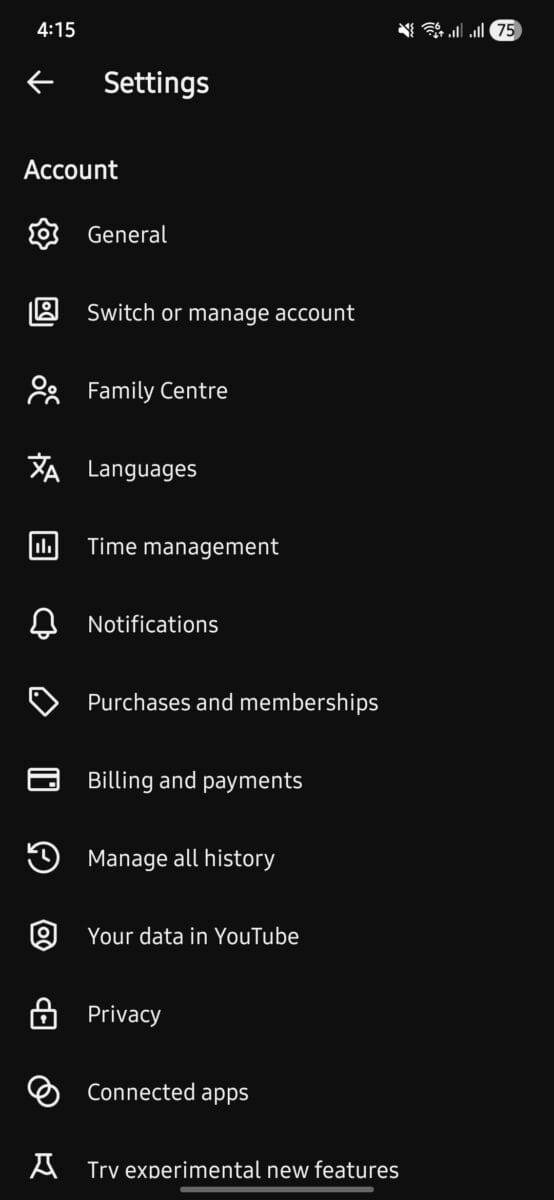
Step 2: Go to Time Management
Inside Settings:
- Look for “Time management”
This section includes tools designed to:
- Track usage
- Reduce distractions
- Control screen time
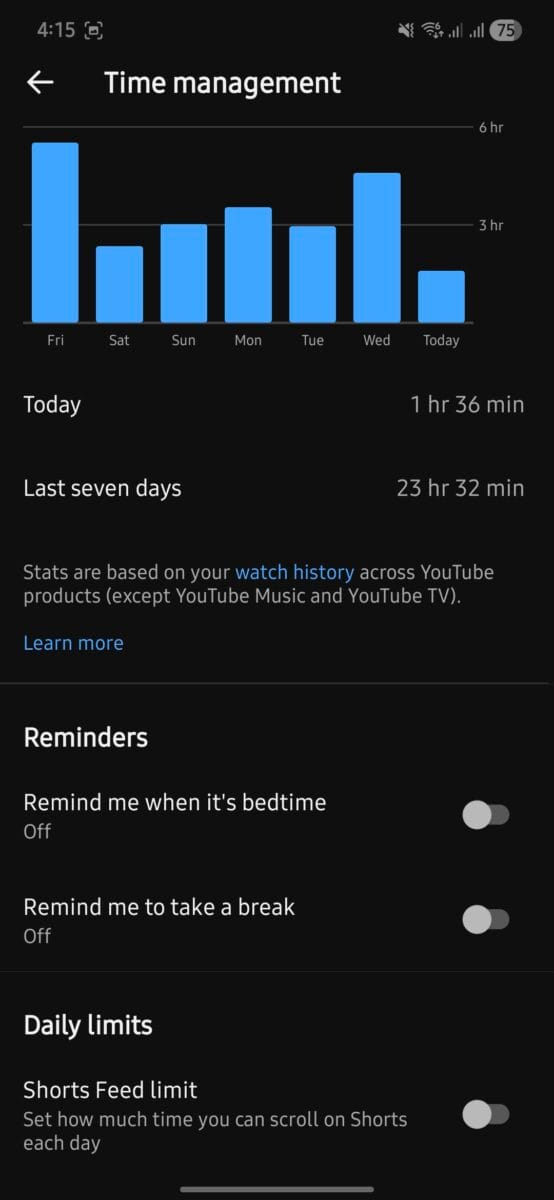
Step 3: Enable “Shorts Feed Limit”
Now:
- Find “Shorts feed limit”
- Turn the toggle ON
Once enabled, you’ll be asked to choose your daily limit.
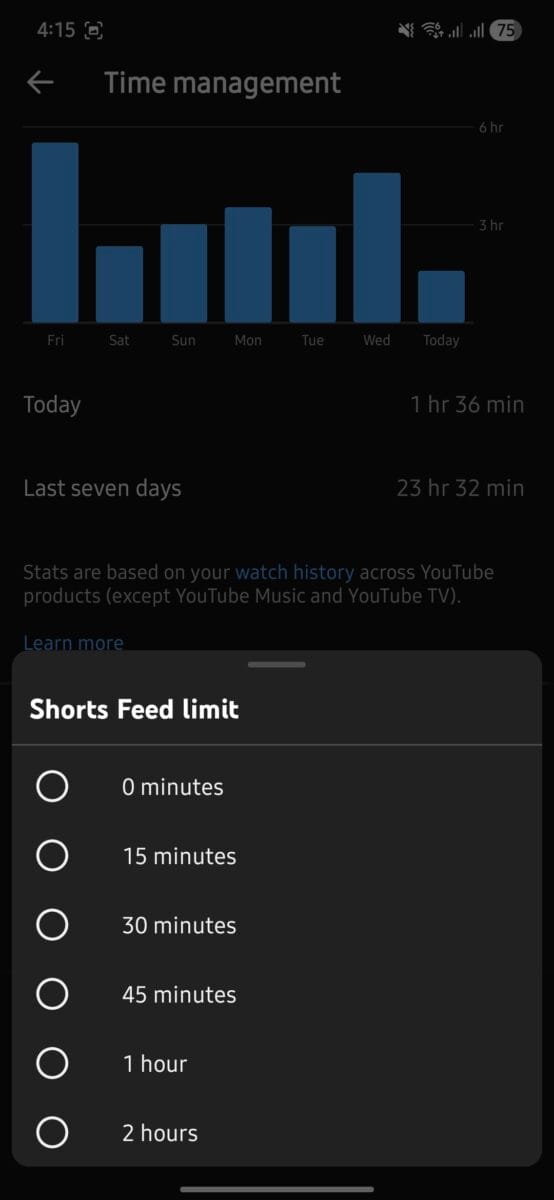
Step 4: Set the Limit to 0 Minutes
Here’s the key step:
- Select “0 minutes”
This tells YouTube:
👉 You don’t want to watch Shorts at all.
The moment you set this:
- The Shorts feed gets restricted instantly
- No need to wait or restart the app
What Happens After You Disable Shorts?
Once you set the limit to zero, the changes are noticeable immediately.
✔ Shorts Tab Stops Working
- Opening Shorts shows a message instead of videos
- You’ll see something like: “You’ve reached your Shorts limit”
✔ Fewer Shorts in Home Feed
- Shorts may disappear (or significantly reduce) from your homepage
✔ No Endless Scrolling
- The addictive loop is effectively broken
✔ No Extra Apps Needed
- Everything works within YouTube itself
Who Is This Feature For?
Originally, this feature was introduced as part of parental controls to help manage kids’ screen time.
Now, it’s rolling out to all users, which makes it useful for:
- Students trying to focus
- Professionals avoiding distractions
- Anyone doing a digital detox
- Content creators who want to avoid mindless consumption
Also Read – WhatsApp Launches Mobile Recharge Feature in India: Everything You Need to Know
Is This the Best Way to Stop Watching Shorts?
Honestly—yes, for most users.
There are other methods like:
- Using browser extensions
- Installing third-party apps
- Blocking YouTube entirely
But those are either complicated or extreme.
This method is:
- Simple
- Built-in
- Effective
And most importantly—it gives you control without deleting the app.
Final Thoughts
Short-form content isn’t going anywhere, and platforms will keep making it more engaging. But that doesn’t mean you have to fall into the trap.
With YouTube’s new Shorts feed limit set to 0 minutes, you can:
- Eliminate distractions
- Take back your time
- Use YouTube more intentionally
Sometimes, small settings like this make a huge difference.

Ayush Singhal is the founder and chief editor of TechMitra.in — a tech hub dedicated to simplifying gadgets, AI tools, and smart innovations for everyday users. With over 15 years of business experience, a Bachelor of Computer Applications (BCA) degree, and 5 years of hands-on experience running an electronics retail shop, Ayush brings real-world gadget knowledge and a genuine passion for emerging technology.
At TechMitra, he covers everything from AI breakthroughs and gadget reviews to app guides, mobile tips, and digital how-tos. His goal is simple — to make tech easy, useful, and enjoyable for everyone. When he’s not testing the latest devices or exploring AI trends, Ayush spends his time crafting tutorials that help readers make smarter digital choices.
📍 Based in Lucknow, India
💡 Focus Areas: Tech News • AI Tools • Gadgets • Digital How-Tos
📧 Contact: Get in touch →
🔗 Full Bio: https://techmitra.in/about-us/