
25 Free Best Chrome Extensions for Productivity in 2026
As a blogger, I spend most of my day inside Google Chrome. Whether I’m researching a new topic, optimizing articles for SEO, checking competitors, managing affiliate links, or testing AI tools, Chrome has become my primary workspace.
Over the years, I’ve installed and tested hundreds of Chrome extensions on Chrome Web Store. Some genuinely improved my productivity, while others slowed down my browser or offered little real value. After extensive testing, I’ve narrowed down the list to the 25 best free Chrome extensions that can help students, bloggers, content creators, marketers, developers, and professionals work more efficiently in 2026.
The best part? Every extension listed here offers a free version that is useful enough for everyday productivity.
Table of Contents
Also read : The Google App on Android: What It Actually Does (and Why It’s Not the Same as Chrome)
What Are Extensions In Chrome ?
A Chrome extension is a small software program that adds extra features and functionality to the Google Chrome browser. Extensions can help users improve productivity, enhance security, customize browsing experiences, manage tabs, block ads, check grammar, perform SEO analysis, and much more.
For example, extensions like Grammarly help improve writing, OneTab helps organize browser tabs, and Bitwarden securely stores passwords. Most extensions can be installed directly from the Chrome Web Store and work seamlessly within your browser.
In simple terms: Chrome extensions are like apps for your Chrome browser that help you work smarter, browse faster, and customize your online experience.
Quick Comparison Table
| Extension | Best For | Free Version | Rating |
|---|---|---|---|
| Perplexity | AI Research | Yes | 4.8/5 |
| Monica AI | AI Assistant | Yes | 4.7/5 |
| OneTab | Tab Management | Yes | 4.9/5 |
| SEO Minion | SEO Analysis | Yes | 4.8/5 |
| Grammarly | Writing | Yes | 4.7/5 |
| Workona | Workspace Management | Yes | 4.6/5 |
| Session Buddy | Session Backup | Yes | 4.7/5 |
| Bitwarden | Password Management | Yes | 4.9/5 |
| Wappalyzer | Technology Detection | Yes | 4.8/5 |
| uBlock Origin Lite | Ad Blocking | Yes | 4.8/5 |
6 Best Chrome Extensions 2026 I Recommend
If you don’t want to install 25 extensions, start with these five:
- Perplexity – Best AI-powered research assistant
- OneTab – Best tab management extension
- SEO Minion – Best free SEO extension
- Bitwarden – Best free password manager
- Workona – Best workspace organizer
- GoFullpage– Best for copying full web page or screen
Best Free AI Chrome Extensions
AI-powered browser tools have become essential for productivity in 2026. These extensions can summarize articles, answer questions, generate content ideas, and automate repetitive tasks.
1. Perplexity
Best For: AI-Powered Research & Fact Checking
Perplexity is currently one of the most useful AI research tools available for Chrome users. Instead of opening multiple tabs and manually searching for information, you can ask questions directly and receive summarized answers with source citations.
I personally find it useful when researching new technology trends or comparing products for TechMitra articles. It helps reduce research time significantly while still allowing you to verify information through cited sources.
Key Features
- Instant web research
- Source citations
- Article summarization
- Follow-up questions
- AI-powered search
Pros
✔ Accurate answers
✔ Fast research workflow
✔ Source references included
✔ Clean interface
Cons
✘ Daily limits on free plan
2. Monica AI
Best For: Everyday AI Assistance
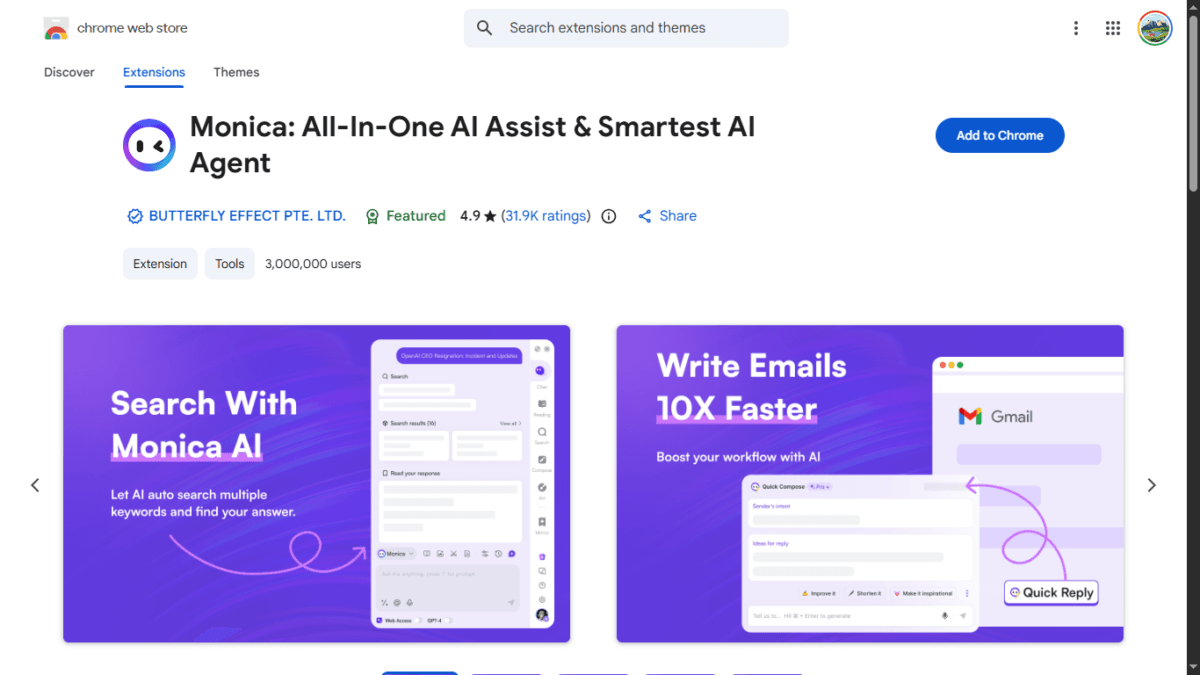
Monica AI works like a personal AI assistant that follows you across the web. Whether you’re writing emails, summarizing content, generating social media captions, or translating text, Monica can help without requiring you to switch tabs.
For bloggers and content creators, Monica can speed up content creation and brainstorming sessions.
Key Features
- AI writing assistant
- Content summarization
- Translation tools
- Email drafting
- Quick AI prompts
Pros
✔ Easy to use
✔ Works on most websites
✔ Multiple AI models
Cons
✘ Usage limits on free plan
3. Merlin AI
Best For: AI Chat Anywhere
Merlin brings AI assistance directly into Chrome. You can access AI-generated answers while browsing websites, reading PDFs, or watching videos.
This is particularly useful for students and researchers who need quick explanations without leaving the current page.
Key Features
- AI chat
- PDF analysis
- YouTube summaries
- Writing assistance
- Content generation
Pros
✔ Supports multiple websites
✔ Simple interface
✔ Fast responses
Cons
✘ Limited free credits
4. HARPA AI
Best For: Browser Automation
HARPA AI combines artificial intelligence with browser automation. Besides generating content, it can monitor webpages, track changes, and automate repetitive tasks.
This makes it one of the most powerful productivity extensions available for free users.
Key Features
- AI writing
- Website monitoring
- Automation tools
- Data extraction
- Task scheduling
Pros
✔ Advanced automation
✔ Multiple AI features
✔ Useful for professionals
Cons
✘ Learning curve for beginners
Also Read : The Ultimate AI Showdown: ChatGPT 5.5 (Go) vs. Gemini 3.5 Flash (Pro) vs. Claude Sonnet 4.6 (Free)
Best Writing & Content Creation Chrome Extensions
If you’re a blogger, student, marketer, freelancer, or business professional, writing is a major part of your daily workflow. These Chrome extensions can help you write faster, improve grammar, generate ideas, and save valuable research for later.
5. GoFullPage – Full Page Screen Capture
Best For: Capturing Entire Webpages in One Screenshot
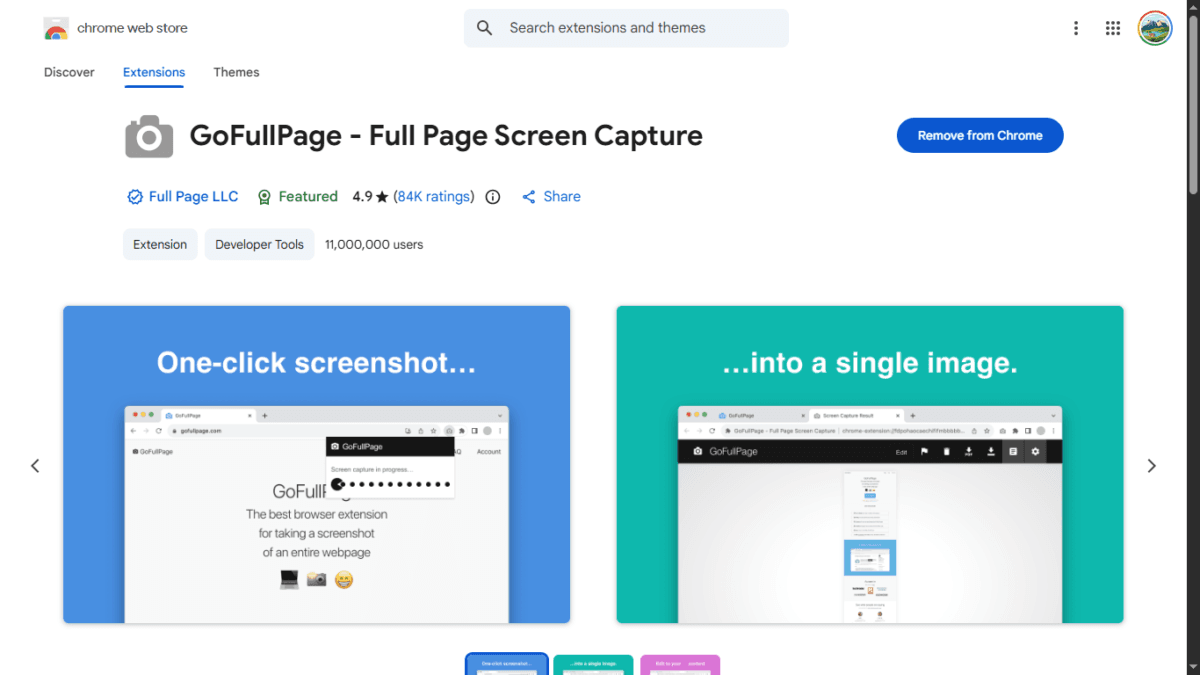
GoFullPage is one of the most useful Chrome extensions for bloggers, content creators, web designers, and SEO professionals. Unlike the standard screenshot tools built into browsers, GoFullPage can capture an entire webpage from top to bottom, including content that extends beyond the visible screen.
With a single click, the extension automatically scrolls through the page and stitches everything together into one high-quality image. This makes it incredibly useful for saving articles, documenting website designs, creating tutorials, and analyzing competitor landing pages.
As a blogger, I find GoFullPage especially helpful when researching competitors or creating step-by-step guides for TechMitra. Instead of taking multiple screenshots and combining them manually, I can capture the entire page in seconds.
Key Features
- Capture complete webpages with one click
- Automatic scrolling and image stitching
- Export screenshots as PNG or PDF
- No account registration required
- Works on most websites
- High-resolution image output
Pros
✔ Extremely easy to use
✔ Saves time when creating tutorials
✔ Excellent for competitor analysis
✔ High-quality screenshots
✔ Free version covers most needs
✔ No watermark on screenshots
Cons
✘ Very long pages may create large image files
✘ Some highly dynamic websites may not capture perfectly
Why Bloggers Should Use GoFullPage
If you frequently write tutorials, compare websites, or publish how-to guides, GoFullPage can save hours of manual work. It’s one of the easiest ways to create professional-looking screenshots for articles and presentations.
6. Grammarly
Best For: Grammar Checking & Professional Writing
Grammarly remains one of the most popular Chrome extensions for improving writing quality. It automatically checks grammar, spelling, punctuation, clarity, and tone while you type on websites, emails, Google Docs, WordPress, and social media platforms.
As a blogger, I find Grammarly particularly useful for catching small mistakes before publishing an article. Even experienced writers can miss typos after staring at the same content for hours.
Key Features
- Grammar and spelling correction
- Tone detection
- Clarity suggestions
- Writing style improvements
- Works across websites
Pros
✔ Easy to use
✔ Real-time suggestions
✔ Supports multiple platforms
✔ Helpful free version
Cons
✘ Advanced writing suggestions require Premium
7. LanguageTool
Best For: Multi-Language Grammar Checking
LanguageTool is an excellent alternative to Grammarly, especially if you work with multiple languages. It supports English, Hindi, German, Spanish, French, and many other languages.
Unlike some writing assistants that focus mainly on English, LanguageTool helps users worldwide improve grammar and writing quality.
Key Features
- Grammar correction
- Style improvements
- Multi-language support
- Browser integration
- Writing suggestions
Pros
✔ Supports many languages
✔ Free version is generous
✔ Privacy-friendly
Cons
✘ Fewer advanced AI features than Grammarly
8. Wordtune
Best For: Rewriting Sentences
Sometimes your writing is grammatically correct but doesn’t sound engaging. That’s where Wordtune becomes useful.
It helps rewrite sentences in different styles, making them clearer, shorter, or more professional. This is particularly helpful when writing blog posts, emails, and social media content.
Key Features
- Sentence rewriting
- Tone adjustments
- Shorten or expand content
- Alternative phrasing suggestions
Pros
✔ Improves readability
✔ Saves editing time
✔ Easy interface
Cons
✘ Daily limits on free plan
9. Compose AI
Best For: Faster Writing
Compose AI is designed to speed up typing using AI-powered autocomplete suggestions.
Think of it as Gmail Smart Compose but available across multiple websites. It predicts what you’re about to type and suggests complete phrases or sentences.
For professionals who write dozens of emails every day, Compose AI can save a surprising amount of time.
Key Features
- AI autocomplete
- Email drafting
- Text expansion
- Writing assistance
- Productivity shortcuts
Pros
✔ Speeds up typing
✔ Works across websites
✔ Easy to learn
Cons
✘ Suggestions may occasionally be inaccurate
10. Glasp
Best For: Saving Research & Highlights
Glasp is one of my favorite tools for collecting useful information while browsing.
Instead of bookmarking an entire article, you can highlight important sections and save only the valuable insights. All highlights remain searchable and organized for future reference.
This is extremely useful when researching long-form content or collecting information from multiple sources.
Key Features
- Highlight webpages
- Save notes
- Organize research
- Knowledge management
- Export highlights
Pros
✔ Excellent for researchers
✔ Saves time during content creation
✔ Cloud synchronization
Cons
✘ Requires account creation
Also Check Adobe Photoshop Chrome Extension – A Big Step Toward Lightweight, On-the-Go Creativity
Best Free SEO Chrome Extensions
SEO professionals and bloggers spend countless hours analyzing websites, checking rankings, auditing content, and researching competitors. These free Chrome extensions make those tasks much easier.
11. SEO Minion
Best For: On-Page SEO Analysis
SEO Minion is one of the first extensions I install on every browser.
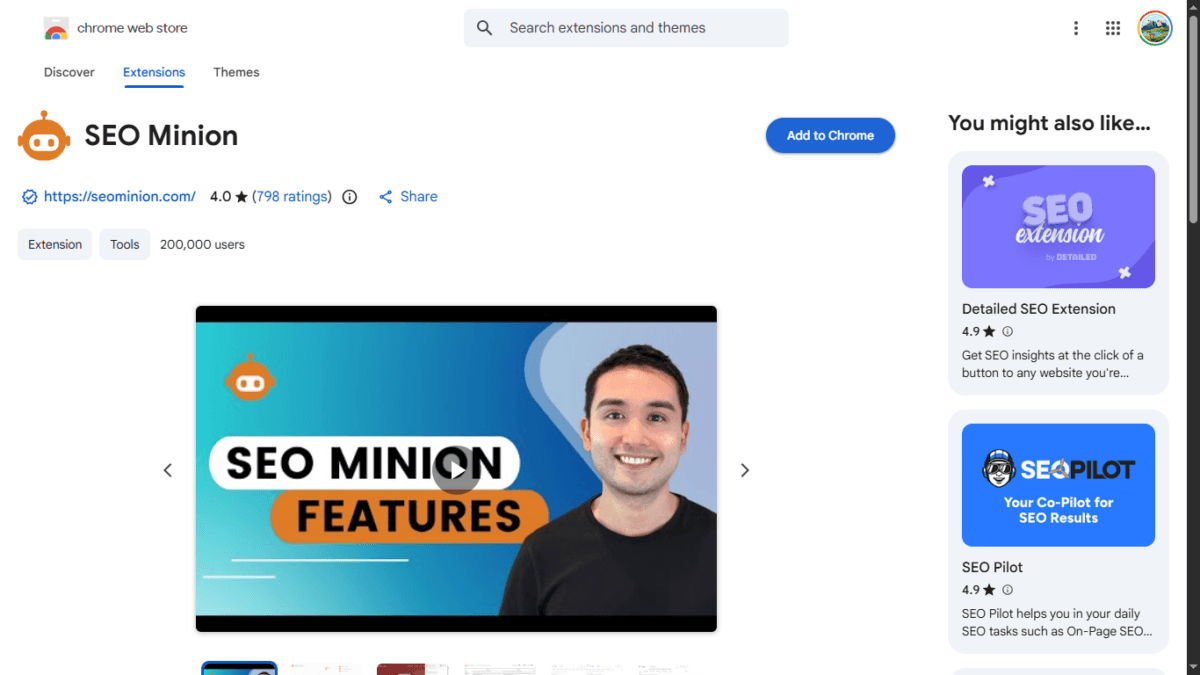
It helps analyze on-page SEO elements such as meta titles, descriptions, heading structure, internal links, external links, and SERP previews.
Whenever I publish a new article on TechMitra, I often use SEO Minion to quickly verify that all important SEO elements are properly configured.
Key Features
- On-page SEO analysis
- SERP preview
- Broken link checker
- Heading structure analysis
- Link highlighting
Pros
✔ Completely free
✔ Beginner-friendly
✔ Extremely useful for bloggers
Cons
✘ Limited advanced technical SEO features
12. Detailed SEO Extension
Best For: Advanced SEO Audits
Detailed SEO Extension provides a deeper analysis of a webpage’s SEO setup.
With one click, you can view:
- Title tags
- Meta descriptions
- Canonical URLs
- Schema markup
- Header structure
- Indexing information
This extension is particularly useful when analyzing competitor websites.
Key Features
- Technical SEO insights
- Schema detection
- Header hierarchy
- Canonical analysis
- Meta data review
Pros
✔ Fast and lightweight
✔ Useful for competitor research
✔ Free to use
Cons
✘ May overwhelm SEO beginners
13. Keyword Surfer
Best For: Keyword Research
Keyword Surfer displays keyword search volume directly inside Google search results.
Instead of opening separate SEO tools, you can instantly see search volume estimates while researching topics.
This helps content creators identify keyword opportunities much faster.
Key Features
- Search volume estimates
- Keyword suggestions
- Traffic estimates
- SERP insights
Pros
✔ Saves research time
✔ Simple interface
✔ Useful for content planning
Cons
✘ Data may differ from premium SEO tools
14. Check My Links
Best For: Finding Broken Links
Broken links can negatively affect user experience and SEO.
Check My Links scans an entire webpage and instantly highlights working and broken links.
This extension is especially valuable if you manage large resource pages or old blog posts with many outbound links.
Key Features
- Broken link detection
- Link validation
- Fast scanning
- Error identification
Pros
✔ Quick results
✔ Easy to use
✔ Saves manual checking time
Cons
✘ Primarily useful for SEO professionals
15. Redirect Path
Best For: Technical SEO Analysis
Redirect Path helps identify HTTP status codes and redirects.
When you visit a webpage, it shows whether the page returns:
- 200 OK
- 301 Redirect
- 302 Redirect
- 404 Error
- 500 Server Error
This information is extremely useful when troubleshooting technical SEO issues.
Key Features
- Redirect tracking
- HTTP header analysis
- Status code monitoring
- Technical SEO diagnostics
Pros
✔ Lightweight
✔ Accurate data
✔ Helpful for SEO audits
Cons
✘ Mainly useful for advanced users
Why Bloggers Should Use These Extensions
For bloggers and content creators, the combination of:
- Grammarly
- Glasp
- SEO Minion
- Detailed SEO Extension
- Keyword Surfer
can significantly improve content quality, keyword research, and SEO performance without spending money on expensive software.
These five extensions alone can save several hours every week and make content creation much more efficient.
Also Read : Google Drive’s Hidden Document Scanner Gets AI Upgrade: Here’s What’s New
Best Productivity & Tab Management Chrome Extensions
Managing tabs efficiently can dramatically improve productivity. If you frequently find yourself with dozens of open tabs while researching, writing, or working, these extensions can help keep your browser organized and responsive.
16. OneTab
Best For: Reducing Tab Clutter
OneTab is one of the simplest yet most effective productivity extensions available for Chrome. Instead of keeping dozens of tabs open and consuming system memory, OneTab converts them into a single organized list.
Personally, I use OneTab whenever I’m researching comparison articles. It’s common for me to have 30–40 tabs open while gathering information. OneTab helps keep Chrome fast while ensuring I don’t lose important pages.
Key Features
- Convert tabs into a list
- Restore tabs individually or all at once
- Save browser memory
- Organize research sessions
Pros
✔ Extremely lightweight
✔ Helps improve browser performance
✔ Easy to use
✔ Completely free
Cons
✘ No automatic cloud synchronization
17. Session Buddy
Best For: Session Backup & Recovery
Session Buddy acts like a backup system for your browser tabs.
If Chrome crashes unexpectedly or your computer restarts, Session Buddy allows you to restore previous browsing sessions instantly.
For content creators working on multiple projects, this extension can be a lifesaver.
Key Features
- Save browsing sessions
- Restore closed tabs
- Session backup
- Search saved sessions
Pros
✔ Reliable backup system
✔ Great for multitasking
✔ Easy session recovery
Cons
✘ Interface feels slightly outdated
18. Workona
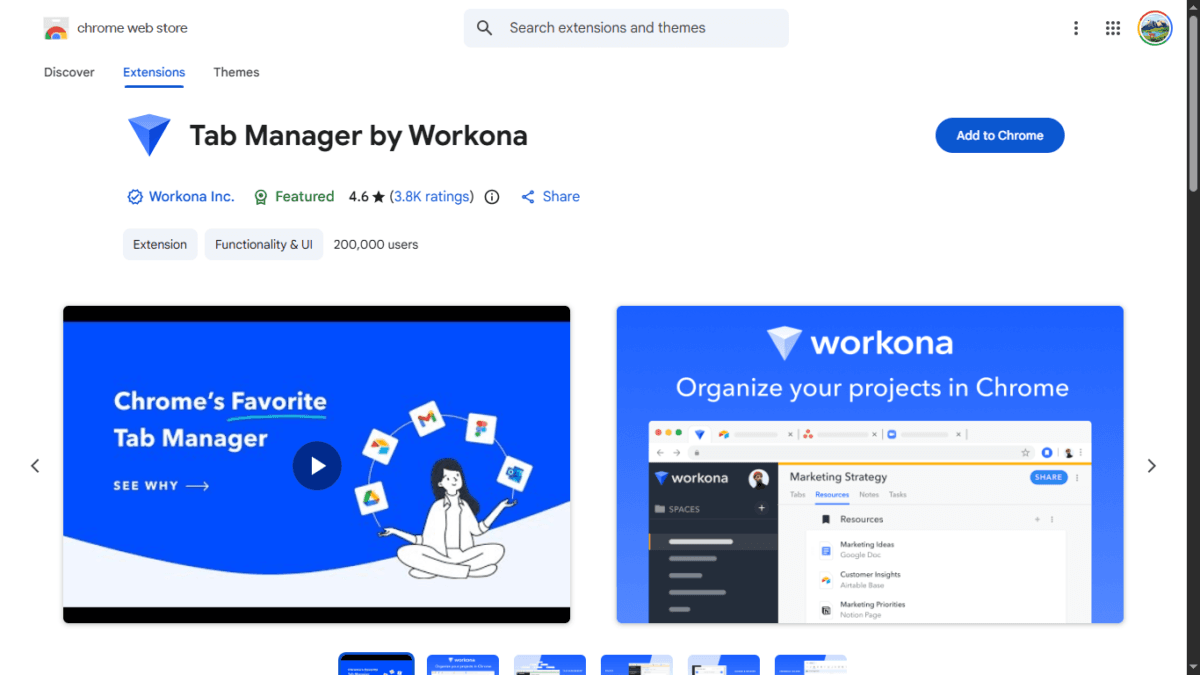
Best For: Workspace Organization
Workona takes tab management to another level by organizing tabs into dedicated workspaces.
For example:
- Blogging Workspace
- SEO Workspace
- Affiliate Marketing Workspace
- Client Project Workspace
This keeps your browser organized and reduces distractions.
Key Features
- Workspace management
- Tab organization
- Session synchronization
- Project separation
Pros
✔ Excellent organization
✔ Great for professionals
✔ Improves workflow
Cons
✘ Some advanced features are premium
19. StayFocusd
Best For: Avoiding Distractions
One of the biggest productivity killers is distraction.
StayFocusd helps users limit access to websites that consume too much time, such as social media, entertainment websites, and other distractions.
You can set daily limits for specific websites and stay focused on important work.
Key Features
- Website blocking
- Time limits
- Focus mode
- Productivity tracking
Pros
✔ Highly customizable
✔ Effective distraction blocker
✔ Free to use
Cons
✘ Requires self-discipline to configure properly
20. Dark Reader
Best For: Comfortable Browsing
Dark Reader applies dark mode to almost every website.
For people who spend hours working in front of a screen, dark mode can help reduce eye strain, especially during evening hours.
Key Features
- Universal dark mode
- Brightness controls
- Contrast adjustments
- Site-specific settings
Pros
✔ Better visual comfort
✔ Highly customizable
✔ Works on most websites
Cons
✘ May occasionally affect website appearance
Best Web Development & Design Chrome Extensions
Whether you’re a blogger, designer, or developer, understanding how websites are built can be incredibly useful. These extensions simplify design analysis and website research.
21. Wappalyzer
Best For: Identifying Website Technologies
Have you ever wondered which CMS, analytics tool, hosting platform, or plugin a website uses?
Wappalyzer can reveal a website’s technology stack in seconds.
For bloggers and developers, it’s one of the best competitor research tools available.
Key Features
- CMS detection
- Hosting information
- Analytics detection
- Technology profiling
Pros
✔ Excellent competitor research tool
✔ Easy to use
✔ Valuable technical insights
Cons
✘ Some technologies may not be detected
22. WhatFont
Best For: Identifying Fonts
Typography plays a major role in website design.
WhatFont allows users to identify fonts simply by hovering over text on a webpage.
Key Features
- Font detection
- Font size analysis
- Color identification
- Typography inspection
Pros
✔ Extremely simple
✔ Accurate font identification
✔ Lightweight
Cons
✘ Limited to visible text elements
23. ColorPick Eyedropper
Best For: Capturing Website Colors
ColorPick Eyedropper helps designers and bloggers capture exact color values from websites.
This is particularly useful when creating graphics, matching brand colors, or redesigning websites.
Key Features
- Color picker
- HEX codes
- RGB values
- Color history
Pros
✔ Accurate color detection
✔ Easy to use
✔ Helpful for design work
Cons
✘ Primarily useful for designers
Best Security & Utility Chrome Extensions
Security should never be ignored. These extensions help protect accounts, improve browsing speed, and create a safer online experience.
24. Bitwarden
Best For: Password Management
Bitwarden is one of the best free password managers available today.
Instead of using weak passwords or reusing the same credentials across multiple websites, Bitwarden securely stores passwords and automatically fills login forms.
As someone managing multiple websites, hosting accounts, affiliate programs, and social media profiles, a password manager is essential.
Key Features
- Password storage
- Password generator
- Auto-fill
- Cross-device synchronization
- Secure vault
Pros
✔ Excellent free plan
✔ Open-source
✔ Strong security
✔ Cross-platform support
Cons
✘ Interface could be more modern
25. uBlock Origin Lite
Best For: Ad Blocking & Faster Browsing
uBlock Origin Lite blocks intrusive ads and trackers while improving browsing performance.
Many websites today contain heavy advertising scripts that slow down page loading times. uBlock Origin Lite helps create a cleaner and faster browsing experience.
Key Features
- Ad blocking
- Tracker blocking
- Faster page loading
- Lightweight design
Pros
✔ Improves browsing speed
✔ Reduces distractions
✔ Low resource usage
✔ Free and reliable
Cons
✘ Fewer advanced customization options compared to the classic version
Frequently Asked Questions (FAQs)
What is the best free Chrome extension for productivity?
OneTab, Perplexity, Grammarly, SEO Minion, and Bitwarden are among the best free Chrome extensions for productivity in 2026.
Which Chrome extension is best for bloggers?
Bloggers can benefit greatly from SEO Minion, Detailed SEO Extension, Grammarly, Perplexity, and Glasp.
Are Chrome extensions safe to install?
Most extensions from the Chrome Web Store are safe, but users should always check reviews, permissions, update history, and developer reputation before installing
Do Chrome extensions slow down Chrome?
Installing too many extensions can impact browser performance. It’s recommended to keep only the extensions you actively use enabled.
Which AI Chrome extension is best in 2026?
Perplexity, Monica AI, Merlin AI, HARPA AI, and Sider AI are among the most popular AI-powered Chrome extensions available in 2026.
How many Chrome extensions should I install?
Quality matters more than quantity. Most users can comfortably use 5–10 essential extensions without affecting browser performance.
Final Thoughts
Google Chrome can become much more than a web browser when equipped with the right extensions. Whether you want to improve writing, manage tabs, conduct SEO research, enhance security, or leverage AI tools, the extensions listed in this guide can help you work smarter and save valuable time every day.
For most users, I recommend starting with Perplexity, OneTab, Grammarly, SEO Minion, and Bitwarden. These five extensions alone can significantly improve productivity without costing anything.
As always, install only the extensions you genuinely need, keep them updated, and periodically review permissions to maintain browser speed and security.
If you’re looking to maximize productivity in 2026, these 25 free Chrome extensions are an excellent place to start.

Ayush Singhal is the founder and chief editor of TechMitra.in — a tech hub dedicated to simplifying gadgets, AI tools, and smart innovations for everyday users. With over 15 years of business experience, a Bachelor of Computer Applications (BCA) degree, and 5 years of hands-on experience running an electronics retail shop, Ayush brings real-world gadget knowledge and a genuine passion for emerging technology.
At TechMitra, he covers everything from AI breakthroughs and gadget reviews to app guides, mobile tips, and digital how-tos. His goal is simple — to make tech easy, useful, and enjoyable for everyone. When he’s not testing the latest devices or exploring AI trends, Ayush spends his time crafting tutorials that help readers make smarter digital choices.
📍 Based in Lucknow, India
💡 Focus Areas: Tech News • AI Tools • Gadgets • Digital How-Tos
📧 Contact: Get in touch →
🔗 Full Bio: https://techmitra.in/about-us/