
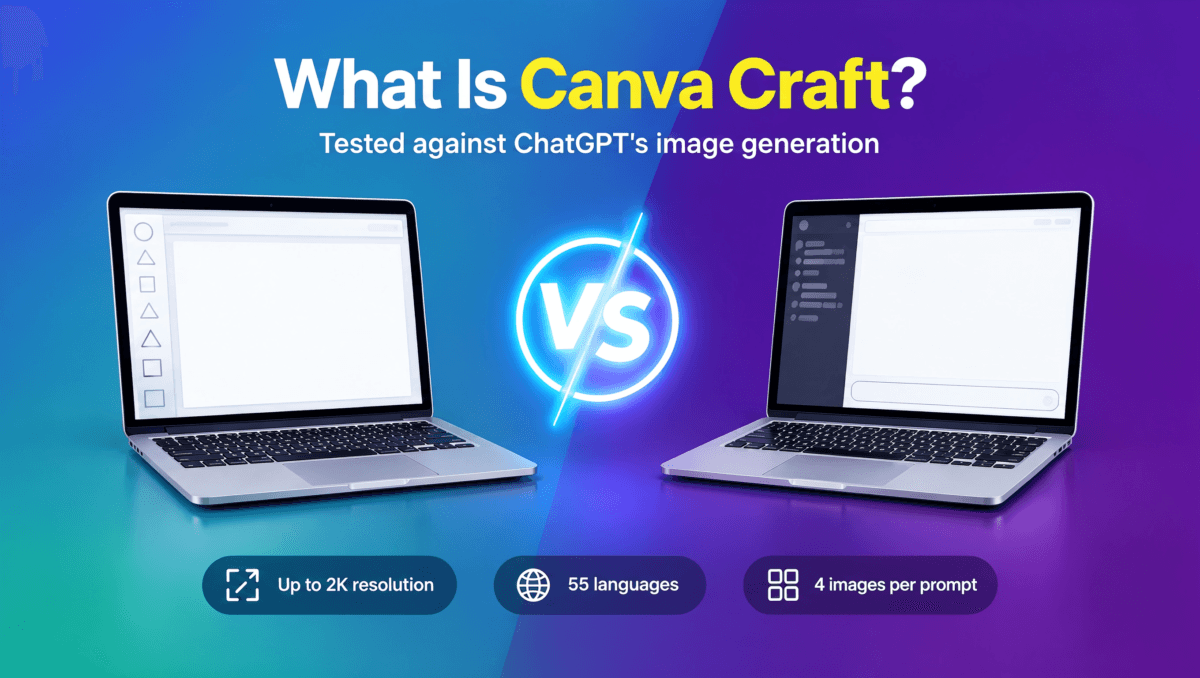
Canva has launched Craft, its first image generation model built entirely in-house, and it is already sitting in the Dream Lab of Indian Canva accounts as the default option. We spent a day testing it on real blog-banner prompts and put the results next to what ChatGPT’s image generation produced from the same prompts. Here is what Craft is, how it works, and where it wins and loses. If you are new to the platform, our guide to what Canva is, its features, pricing and AI tools covers the basics.
Table of Contents
What is Canva Craft?
Craft is a foundation model trained from scratch by Canva Research, the company’s internal AI lab. Canva says it debuted as the fourth most advanced image model on DesignArena, a crowdsourced ranking of AI design quality, which the company uses to call itself the world’s second most advanced AI lab for image generation.
According to Canva, Craft ranks first globally for People & Portraits (out of 87 models) and for Landscapes & Nature (out of 85), second for Abstract & Patterns, and fourth for Products. These are Canva’s own figures, so treat them as a starting point rather than proof.
It generates images at up to 2K resolution in more than 30 aspect ratios, accepts prompts in any language, and can render text in 55 languages. It is available to all Canva users worldwide, and developers can reach it through Canva’s public API. A Canva MCP integration, which would let AI assistants and agents generate images as part of a larger task, is listed as coming soon, along with two faster and cheaper variants called Craft-fast and Craft-ultrafast.
Canva Craft at a glance
Everything below comes from Canva’s own announcement, so it describes what the company claims rather than what we verified.
- Built in-house from scratch. Craft is Canva’s first image generation model, trained entirely by Canva Research, its internal AI lab.
- Plan first, render second. A planning model decides the composition, element positions, sizes, visual hierarchy and exact text, and a separate rendering model then draws the image from that plan.
- Trained on real design work. Instead of relying mainly on photographs, it learned from millions of human-made templates such as posters, presentations, menus and infographics.
- Tuned by professional designers. Canva says its designers reviewed more than 25,000 head-to-head image comparisons against competing models, and when automated scores and the designers disagreed, the designers’ judgment decided.
- Strong text handling. Prompts can be written in any language, and the model can render text in 55 languages, which is the area where older image models struggled most.
- High resolution and flexible shapes. Images go up to 2K resolution, in more than 30 aspect ratios or a custom one.
- Editable results. Because the layout is planned in advance, one element can be changed without disturbing the rest, and outputs work with Magic Layers, which turns a generated image into editable design elements.
- Benchmark rankings. On DesignArena, Canva says Craft ranks fourth overall, first for People & Portraits and for Landscapes & Nature, second for Abstract & Patterns, and fourth for Products.
- Speed and cost. A custom inference engine and model distillation made it about ten times faster than the first internal version, and two cheaper, faster variants, Craft-fast and Craft-ultrafast, are on the way.
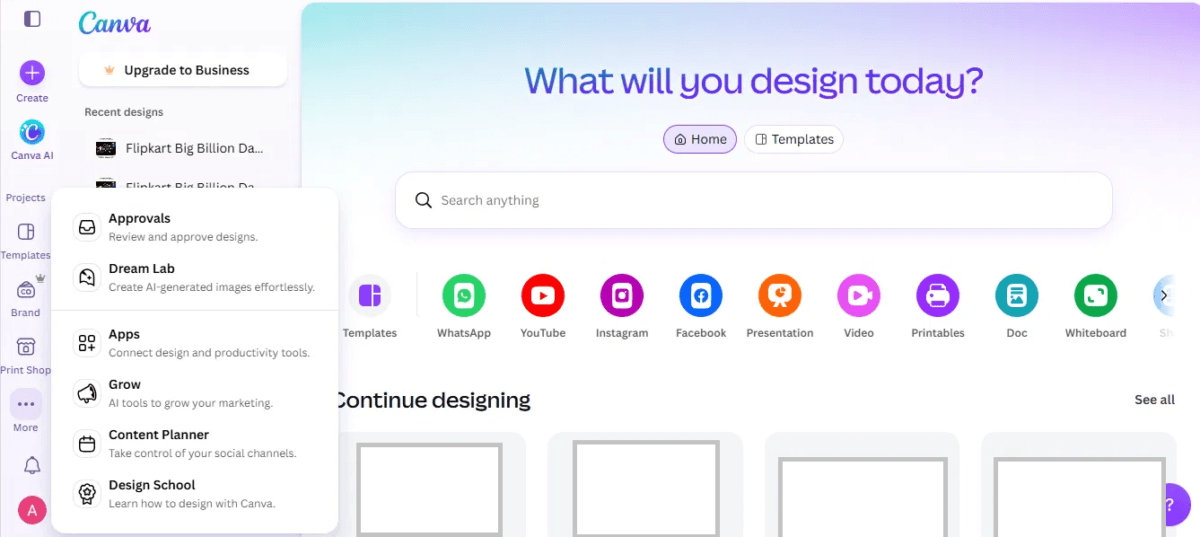
- Where to use it. It is live for all Canva users worldwide through Dream Lab, which you open from the left side bar (it may sit under More) or at canva.com/dream-lab. Developers can use it through Canva’s public API, and a Canva MCP integration for AI assistants and agents is listed as coming soon.
- Safety controls. Canva says it falls under Canva Shield, its AI safety framework, which includes input and output moderation and reporting tools.
- What comes next. Canva says upcoming releases will bring stronger editing and reference-image features, and better handling of fine print and technical drawings.
How Craft works
Most image models turn a prompt directly into pixels. Craft splits the job in two. A planning model first reads the prompt and writes out a plan for the composition: which elements appear, where they sit, how large they are, what the visual hierarchy is, and exactly what text needs to appear.
A separate rendering model then turns that plan into the final image. By settling layout and typography before it draws anything, Canva says the model can produce legible text, precise object placement and more control over individual elements.
The training data is also unusual. Instead of leaning mainly on photographs, Craft learned from millions of human-made templates in Canva’s library, such as posters, presentations, menus and infographics, and was then tuned using feedback from Canva’s professional designers. In practice this shows. The output tends to look like a banner a designer would actually put on a website, with sensible spacing and hierarchy, rather than a dramatic piece of AI art.
How to use Canva Craft
Craft needs no separate app or setup. It is built into Canva’s Dream Lab, and in our Indian account it was already the default model.
- Open Dream Lab. Log in to Canva and look in the left side bar. On our free account, Dream Lab has its own icon in the side bar, while on our other account it sat inside the “More” menu, described as a place to create AI-generated images effortlessly. You can also go straight to canva.com/dream-lab.
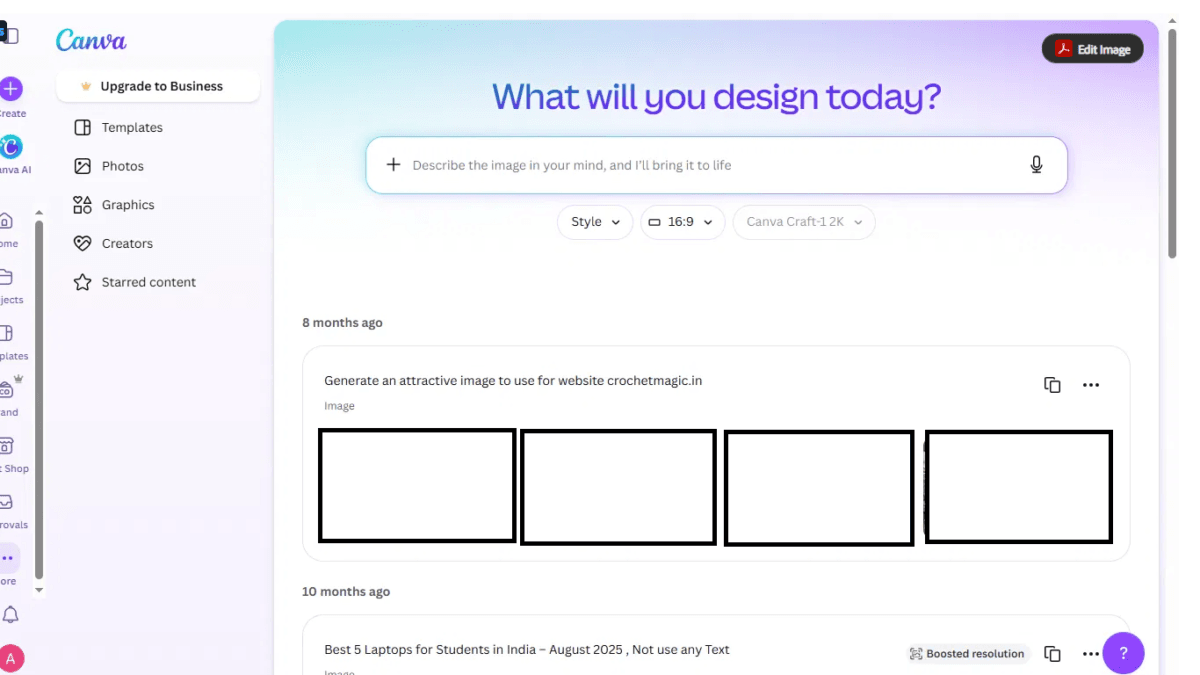
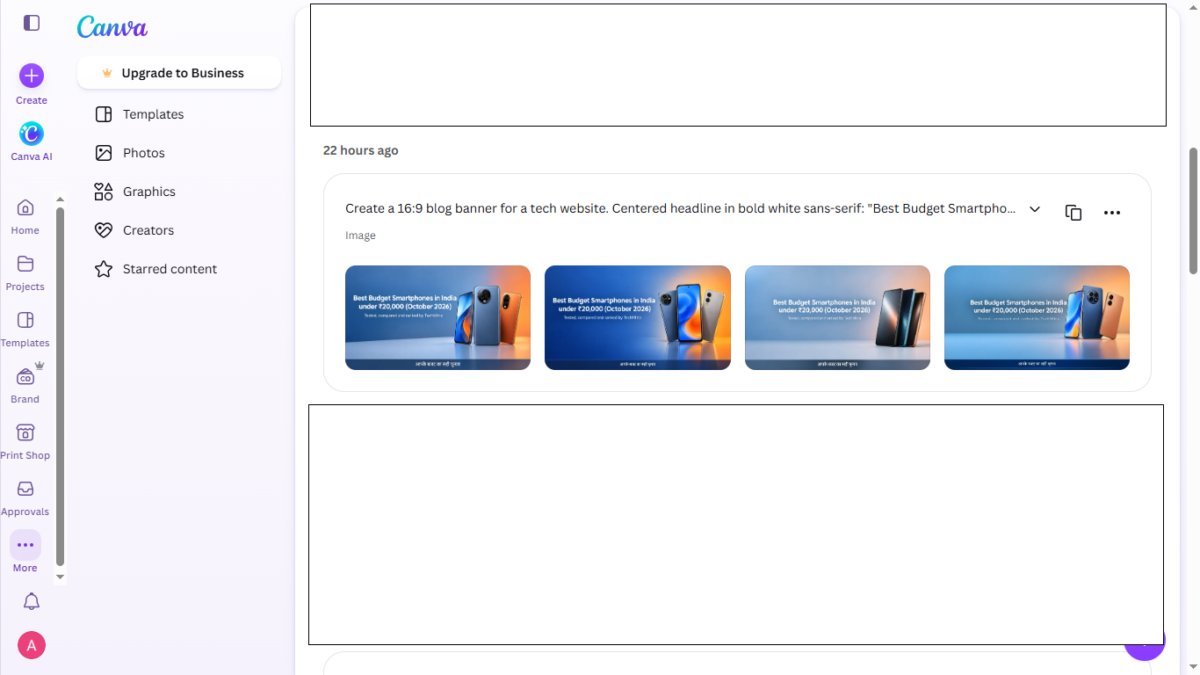
- Check the model. Under the prompt box, the model selector should show “Canva Craft-1 2K”. If it shows something else, switch it.
- Write your prompt. Type what you want in the box that says “Describe the image in your mind, and I’ll bring it to life”. Put any text that must appear in quotation marks and spell it exactly as you want it.
- Set the style and shape. Pick a style and an aspect ratio next to the model selector. We used 16:9 for blog banners.
- Generate and choose. Canva returns four images for each prompt. Open each one at full size and pick the best.
- Fix or finish. Use “What would you like to change?” to request one edit at a time, “Boost resolution” to increase quality, “Open in editor” to continue in Canva’s design editor, or the download button to save the image.
A few habits made a difference in our tests. Add a line such as “use only the text I specified, with no extra labels, badges or taglines”, because without it Craft sometimes added unrequested text. Treat the edit box as an instruction field and not a chat, since a question typed there is painted onto the image as text. And always zoom into the finished image to check numbers, symbols such as ₹, and any Hindi or other non-English text before publishing.
Using Craft: free account versus Pro
Craft is not limited to paid plans. We repeated the smartphone banner prompt on a free Canva account and it generated normally, but free accounts come with a monthly AI allowance. The Billing page shows this as an “AI usage” meter with a reset date, which was November 1 in our case. Before we ran the prompt, the meter read 0%. After one prompt, which returned four images, it read 20%. If every prompt costs about the same, that works out to roughly five prompts a month on a free plan.
Treat that figure with some caution. It is a single measurement, and Canva links a page from the meter, titled “Which features use up my AI allowance?”, that is the place to confirm exactly what counts. We also did not test whether edits, Boost resolution or regenerating an image use extra allowance.
In practice, free users should write each prompt carefully, include the exact text and the “use only the text I specified” line, and review all four results before generating again. Anyone producing banners regularly will probably need more than the free allowance, and the “Get more” button and the 30-day trial shown on the same page are Canva’s routes to that.
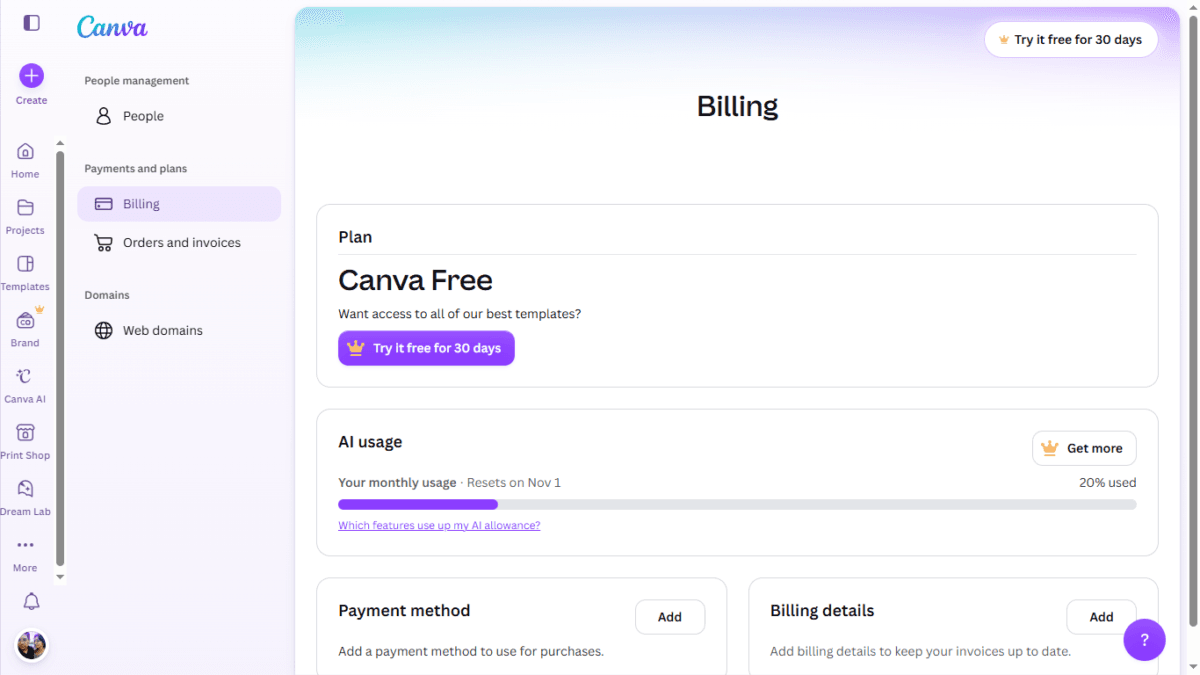
For comparison, the Billing page of our Canva Pro account shows the same AI usage meter, and it read only 5% used for the current month, which resets on October 28, even though that account ran our test prompts for this article. We cannot say exactly how many prompts that equals, because the meter shows a percentage and not an absolute number, and it also counts any other AI features used during the month.
The gap is still clear: one prompt took a fifth of the free allowance, while our whole round of testing barely moved the Pro meter. For anyone publishing banners regularly, that headroom is the main practical difference between the plans. Pro showed as ₹500 a month on our account, with Canva offering a 33% saving on the yearly option, though prices can vary by account and change over time. For a full breakdown of the plans, see our complete Canva Free vs Pro Lite vs Pro comparison.
Our test setup
We ran two prompts through both tools. The first was a 16:9 banner for an article titled “25 Powerful ChatGPT Prompts for Stunning AI Image Editing (2025 Guide)”, with a laptop, glowing icons and a blue-purple gradient. The second was deliberately harder: a banner headlined “Best Budget Smartphones in India under ₹20,000 (October 2026)”, with a subtitle, three smartphones, and a Hindi line in Devanagari at the bottom, plus an instruction to use only the text specified and add no extra labels or badges.
Canva generates four images per prompt, while ChatGPT gave us one, so we judged Canva on all four and on its best result. We did not time generations with a stopwatch, and each prompt was effectively a single run, so these are impressions from a small test, not a benchmark.
Before and after: Canva’s earlier model versus Craft
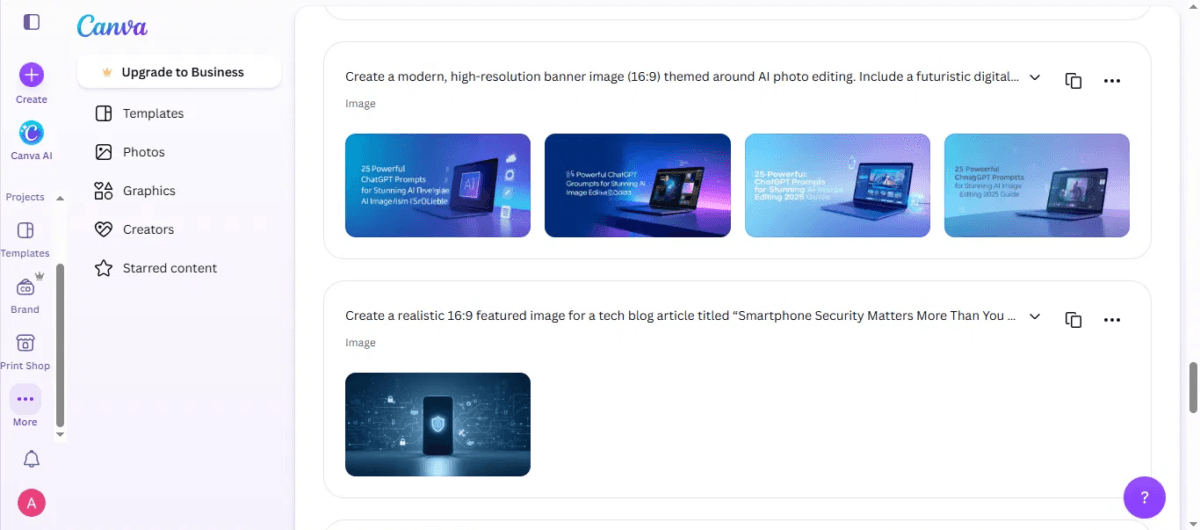
Our most direct comparison is between Canva’s own earlier image model and Craft, using the identical prompt: the 16:9 banner for “25 Powerful ChatGPT Prompts for Stunning AI Image Editing (2025 Guide)”. Because the wording was exactly the same, any difference in the result comes from the model and not from the prompt.
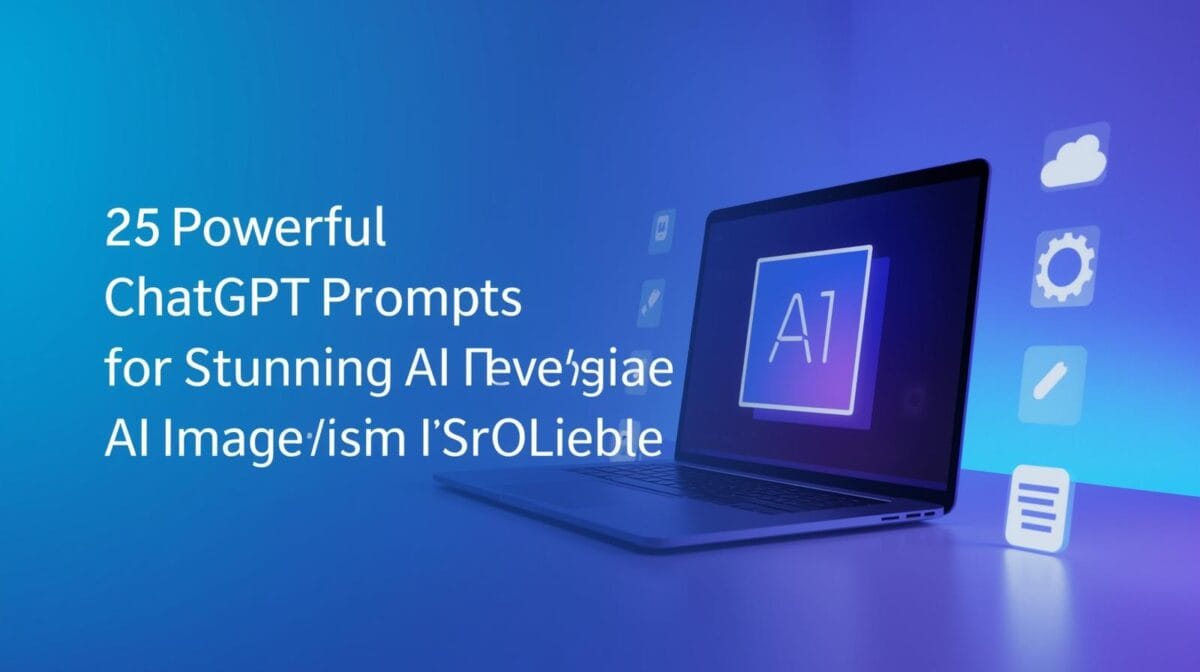
The earlier model also returned four images for this prompt. They looked attractive at a glance, with a laptop, glowing icons and a blue-purple gradient, but the text failed in every one. In the first image, the first two lines of the headline came out correctly, and the rest turned into garbled letters, including odd stray characters and nonsense fragments where the final words should have been.
The second image was garbled in a similar way. The third was closer but added stray punctuation and dropped the brackets around “(2025 Guide)”, and the fourth misspelled “ChatGPT” and “Prompts”. None of the four could have gone on a site without the text being redrawn by hand in an editor.
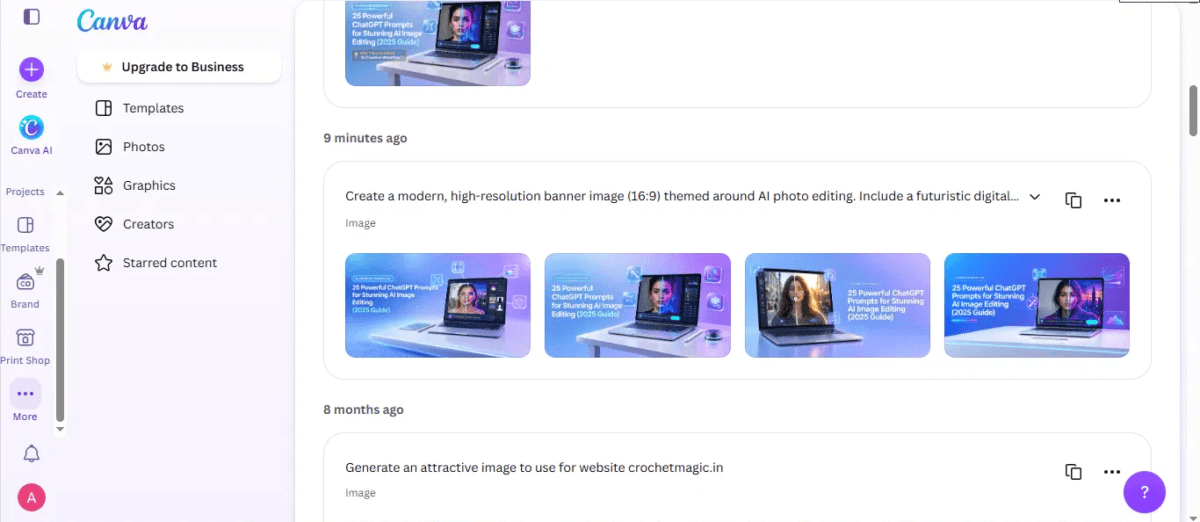
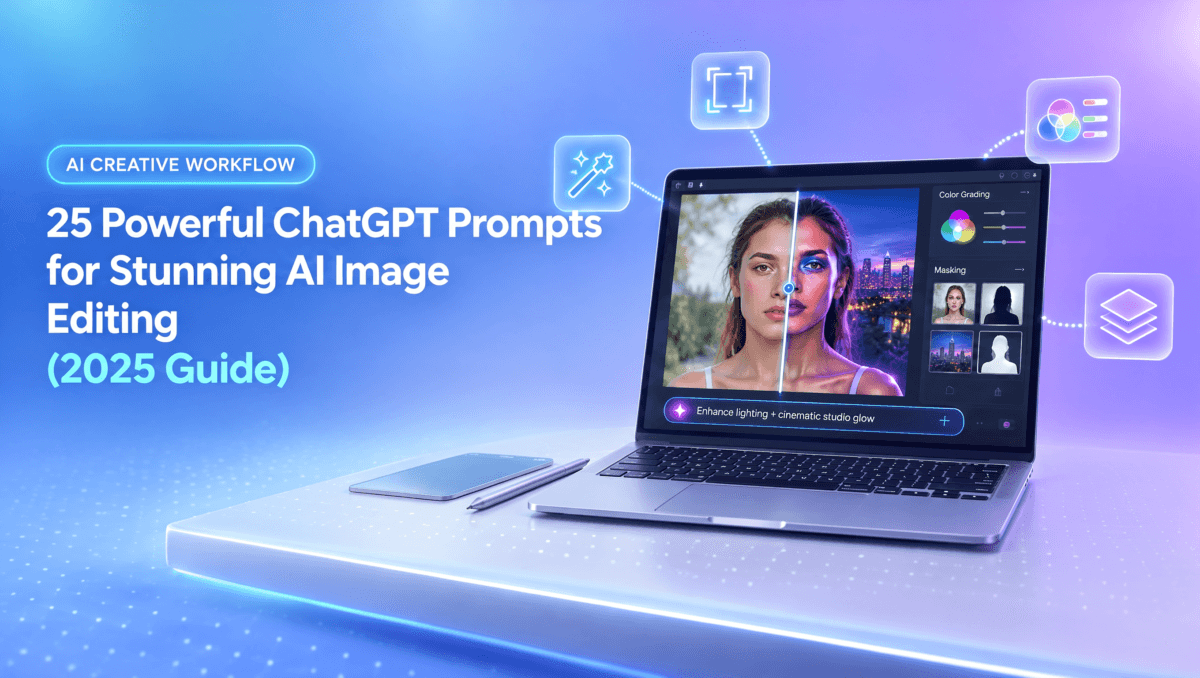
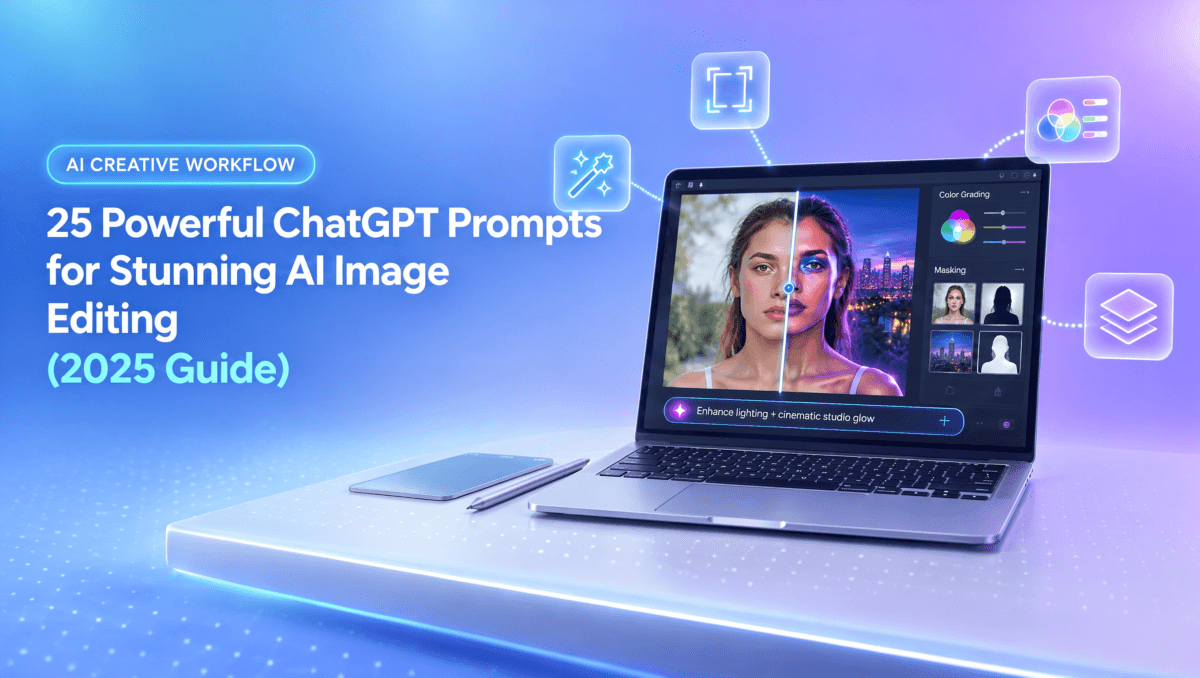
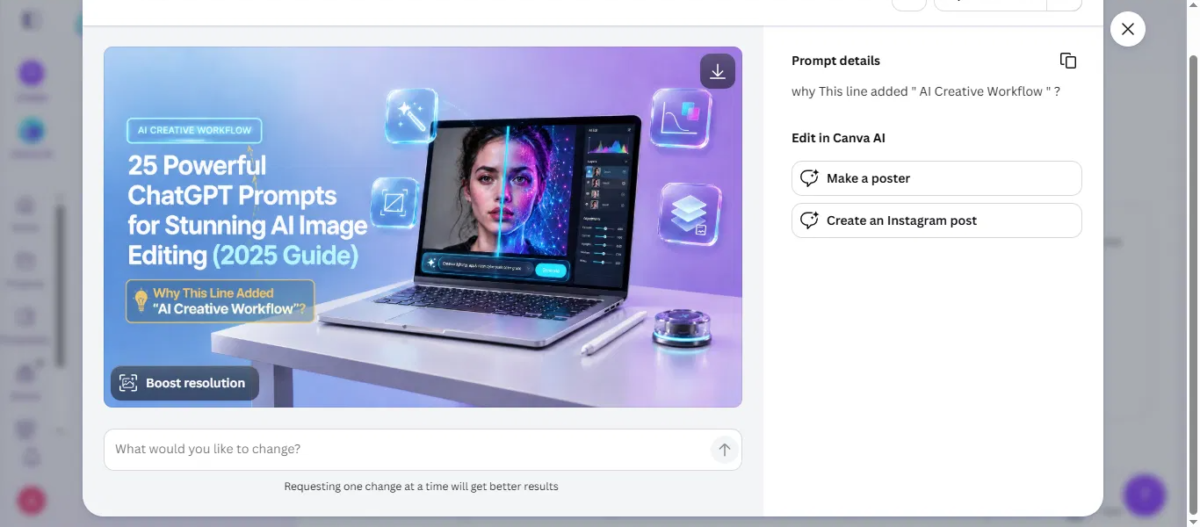
Craft, given the same prompt, also returned four images, and all four rendered the complete headline, including “(2025 Guide)”, correctly. That makes it four images against four, so the result was not a lucky draw. The layout was cleaner, and the small interface text on the laptop screen, such as the prompt bar and the slider labels, was readable at full resolution.
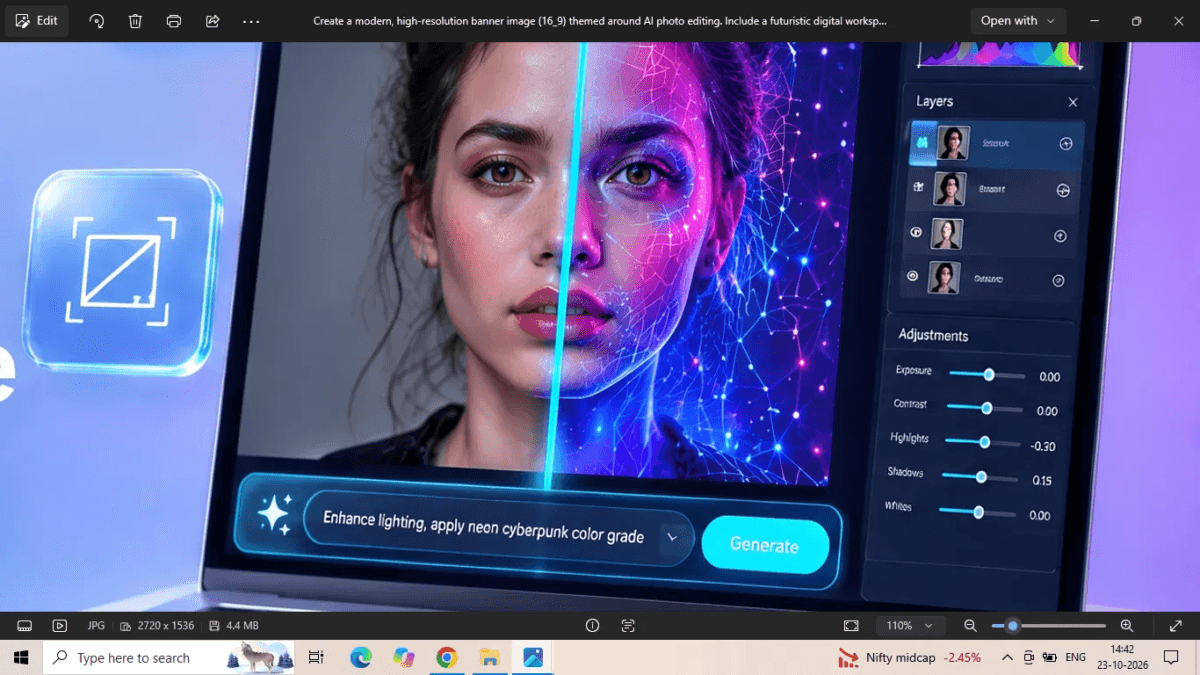
The tiniest text, the layer names in the side panel, still dissolved into plausible-looking shapes, and Craft introduced a new kind of flaw, an unrequested “AI Creative Workflow” badge. In short, the earlier model could draw the scene but not the words, while Craft handles both, and its remaining mistakes are smaller and easier to fix.
Test one: the long headline
The first prompt is the one we also ran on Canva’s earlier model, and the before-and-after comparison is in the section above. Zooming into one image at its full 2720 x 1536 resolution, the small interface text on the laptop screen was impressive too: the prompt bar, the Generate button, the Layers and Adjustments headings and the slider labels were all readable. Only the tiniest text, the layer names, dissolved into plausible-looking shapes.
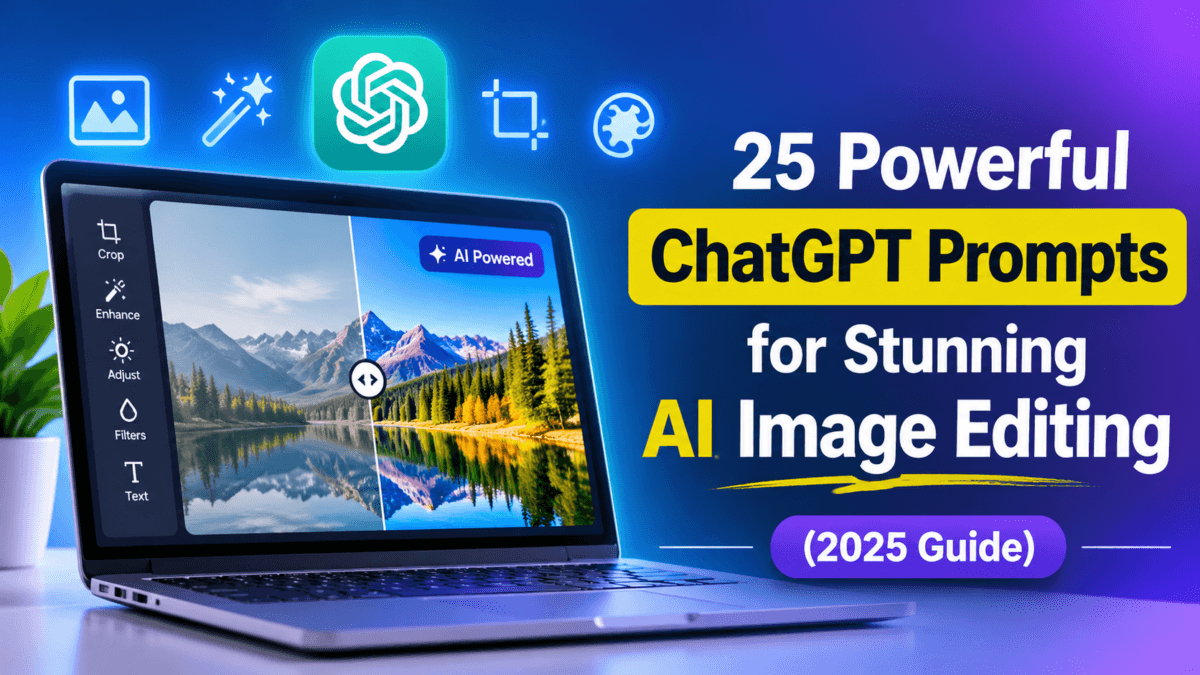
Craft also added a small “AI CREATIVE WORKFLOW” badge that we never asked for, in most of the variations. ChatGPT’s version added its own extras, including an “AI Powered” tag and the ChatGPT logo. ChatGPT’s design was louder and more striking, with a yellow highlight box behind “ChatGPT Prompts”, a brush-stroke underline and a pill for “(2025 Guide)”, and it works well as a thumbnail straight out of the box. Craft’s output was calmer and closer to the “minimal, bright, professional” brief we wrote, but its headline was smaller and less punchy.
Test two: rupee symbol, Hindi and no extra text
This prompt is where Indian publishers should pay attention. Craft reproduced the headline, the ₹ symbol, the brackets and the subtitle correctly, and the Hindi line “आपके बजट का सही चुनाव” looked clean, with the vowel marks and conjuncts in the right places. It also obeyed the instruction to add nothing else, so the unrequested badge from the first test did not return. Giving the model an explicit negative instruction appears to work.
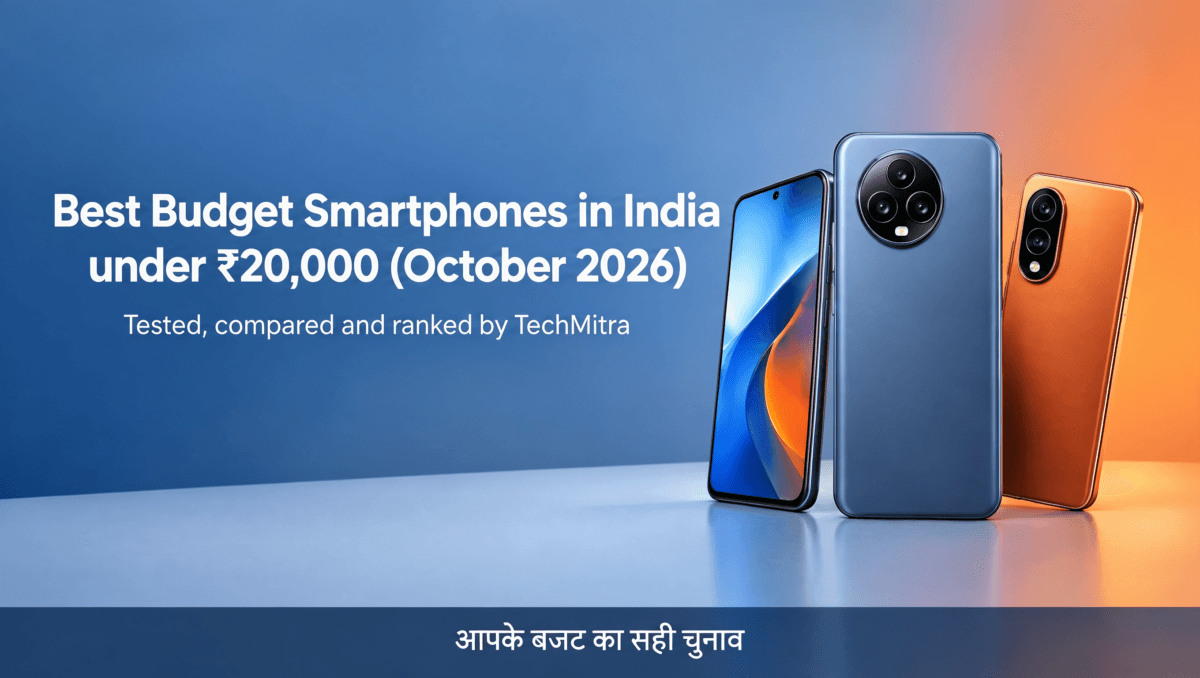
ChatGPT handled the same prompt just as accurately: correct headline, correct ₹, correct Hindi, nothing extra. Its version was the stronger banner, though. The headline was larger and had better contrast against the deep blue background, the Hindi line sat in a bigger, easier-to-read strip, and the three phones were fanned out more as the prompt described.
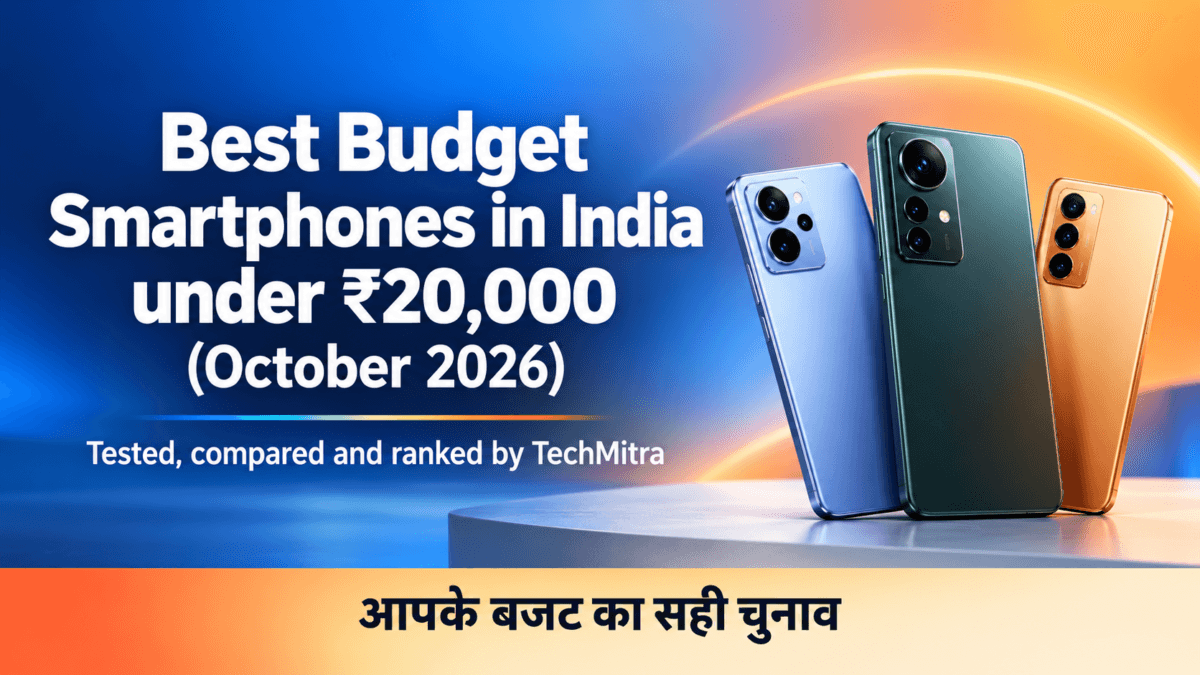
Two of Craft’s four variations had a lighter background that weakened the white headline, so picking the right one of the four mattered. Neither tool centered the headline as requested, and both invented phones, which matters for the reason below.
Speed and workflow
Craft felt slower than the older Canva model, which fits its plan-then-render design, though Canva says its custom inference engine already made it roughly ten times faster than the first internal version. The slowdown is partly offset by the fact that each prompt returns four images, so you can pick the best one instead of re-running the prompt.
One workflow quirk is worth knowing: the “What would you like to change?” box is an edit instruction field, not a chat. When we typed a question asking why the badge had been added, Craft simply painted that sentence onto the image as a new text callout, and the edit also introduced small stray marks near the headline. Give it one clear edit at a time, and check the result closely afterward.
Verdict
On text accuracy, the gap between Craft and ChatGPT’s image generation has largely closed in our tests. Both produced complete, correct headlines, both handled the ₹ symbol and Hindi, and both could follow a “no extra text” instruction. Craft’s strengths are four options per prompt, a restrained, designer-made look, and a tight link to the Canva editor, including Magic Layers for turning generated images into editable elements. ChatGPT’s strengths, on these prompts, were bolder typography, stronger contrast and more eye-catching layouts that suit thumbnails.
The most noticeable difference, in our impression, is that Craft’s images look like the work of a human designer who also edited them. The spacing is sensible, the text hierarchy is simple, and the layouts resemble banners a person would actually put on a website, with a footer strip, a clear headline and room around the elements, instead of a dramatic piece of AI art.
That fits how Canva built the model. Canva created Craft in-house, and instead of relying mainly on photographs, it trained the model on millions of human-made templates such as posters, presentations, menus and infographics, then tuned it with feedback from professional designers. ChatGPT’s results were bolder and more eye-catching, but they felt more like a generated thumbnail. This is a subjective judgment from one reviewer and a handful of prompts, and Craft still has tells, such as the unrequested badge in our first test, blurred tiny text and invented phones. If you want proof for your own audience, show a few readers Craft, ChatGPT and human-made banners without labels and ask which ones a person made.
For TechMitra-style feature images on explainers and guides, either tool is good enough to use, provided you zoom into every image before publishing and check each character of any Hindi or numeric text. For reviews and “best of” lists, be careful with banners like the smartphone example.
Both tools drew phones that do not exist, and readers may assume they are real models. Use real product photos for anything that implies a specific device, and keep generated images for abstract or illustrative visuals. It is also sensible to check Canva’s terms for commercial use of AI-generated images on your plan, and to consider a short disclosure note on AI-generated imagery.
Craft is only the first version, with faster variants and better editing tools still to come. If its text handling holds up across more prompts, it will be a serious tool for anyone producing banners at volume, especially in Indian languages. If you want to see how Canva’s other AI tools perform, we also tested Canva’s AI photo editing tools hands-on.

Ayush Singhal is the founder and chief editor of TechMitra.in — a tech hub dedicated to simplifying gadgets, AI tools, and smart innovations for everyday users. With over 15 years of business experience, a Bachelor of Computer Applications (BCA) degree, and 5 years of hands-on experience running an electronics retail shop, Ayush brings real-world gadget knowledge and a genuine passion for emerging technology.
At TechMitra, he covers everything from AI breakthroughs and gadget reviews to app guides, mobile tips, and digital how-tos. His goal is simple — to make tech easy, useful, and enjoyable for everyone. When he’s not testing the latest devices or exploring AI trends, Ayush spends his time crafting tutorials that help readers make smarter digital choices.
📍 Based in Lucknow, India
💡 Focus Areas: Tech News • AI Tools • Gadgets • Digital How-Tos
📧 Contact: Get in touch →
🔗 Full Bio: https://techmitra.in/about-us/