
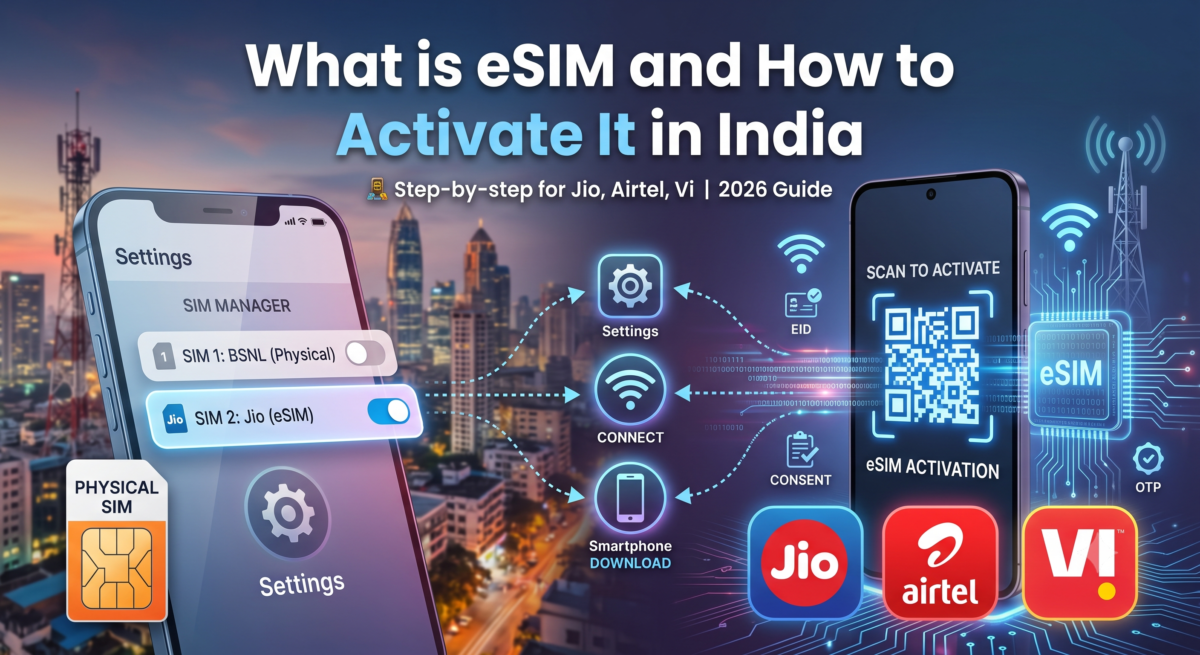
Image : Graphical display of What is E sim and how to activate E Sim ?
If you’ve bought a new phone recently, you’ve probably seen the option to “convert to eSIM” and wondered whether it’s worth the switch. I converted my own Jio number to eSIM on my Samsung S24 FE, and I’m using that exact experience — including the emails Jio sent me at every step — to walk you through what actually happens, not just what the carrier’s help page claims happens.
Table of Contents
Also read : My Jio Postpaid Experience: Jio 449 Family Plan Details & Review (2026)
What is e SIM?
An eSIM (embedded SIM) is a digital SIM built into your phone’s hardware. Instead of inserting a physical plastic card, your carrier sends your SIM profile to your device electronically — usually via a QR code or an activation notification. Once installed, it works exactly like a regular SIM: same number, same network, same OTPs.
The difference is entirely in how it gets onto your phone, not in how it performs once it’s there.
eSIM vs Physical SIM — quick comparison
| Physical SIM | eSIM | |
|---|---|---|
| Setup | Visit store, insert card | Digital, no store visit needed for existing customers |
| Switching phones | Remove and reinsert card | Re-download profile (needs fresh QR/code each time) |
| Dual SIM | Two physical slots (or hybrid slot) | Can often carry SIM + eSIM, or two eSIMs on newer phones |
| Risk if lost | Physical card can be removed and reused | Tied to device hardware, harder to physically steal |
| Ideal for | Older phones, budget devices | iPhone 15+/16, Pixel 8/9, Galaxy S23/S24 series and similar |
Is your phone eSIM-compatible?
Most flagship and upper-midrange phones launched in India from 2022 onward support eSIM — iPhone XR and newer, Pixel 3 and newer, Galaxy S20 series and newer, and select OnePlus, Vivo, and Oppo models. The fastest way to check: dial *#06# on your phone. If an EID (a 32-digit code) shows up alongside your IMEI, your phone supports eSIM.
How To Activate eSIM Jio (real walkthrough)
Here’s exactly what happened when I converted my Jio number, step by step, based on the confirmation emails I received.
Step 1: Request the eSIM from the MyJio App
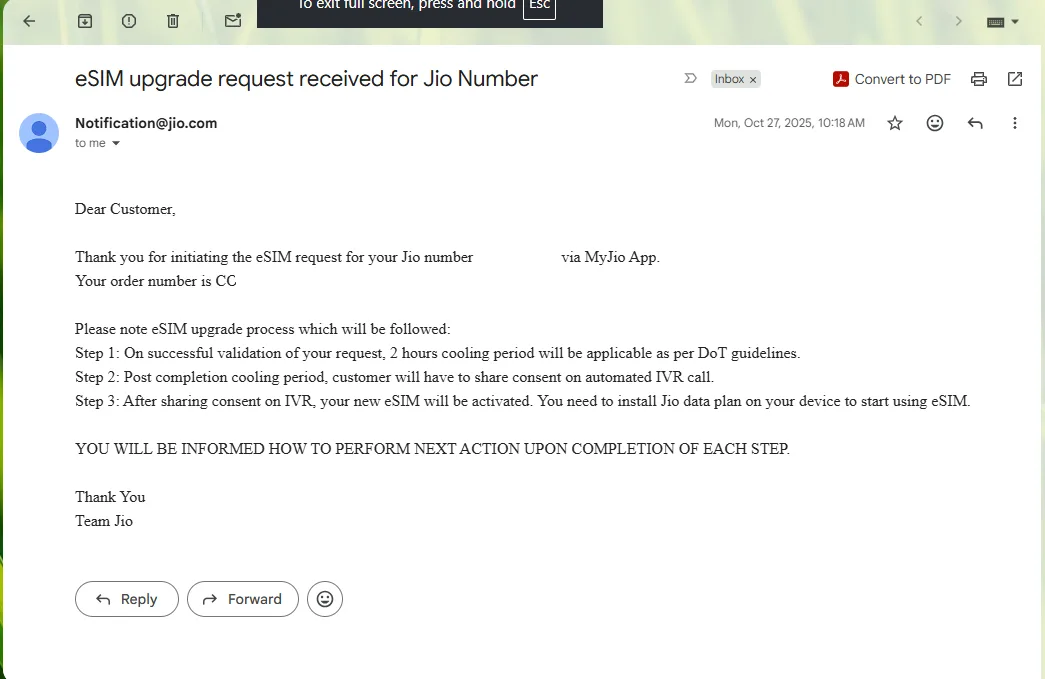
I initiated the request from the MyJio App (you can also start this at jio.com/esim/request). Within minutes, Jio sent a confirmation email:
“Thank you for initiating the eSIM request for your Jio number… Your order number is [order ID].”
The email laid out exactly what would happen next, in three stages — and crucially, it told me I wouldn’t need to guess what came next, because Jio would notify me at each stage.
Step 2: The mandatory 2-hour cooling period
This is the part most guides skip, and it genuinely surprised me the first time. As per DoT (Department of Telecommunications) regulations, every eSIM request in India goes through a mandatory 2-hour cooling-off period before anything else happens. This exists to prevent fraudulent SIM-swap attempts — if someone else requests an eSIM on your number without your knowledge, you have a 2-hour window where nothing irreversible has happened yet.
Don’t panic if nothing happens immediately after you submit the request. That’s expected.
Step 3: IVR consent call
After the cooling period ended, I got an automated IVR call from Jio’s system. I had to answer and confirm my consent to proceed — this is a second fraud-prevention layer, on top of the cooling period. Only after I gave verbal/IVR consent did Jio move to send the actual eSIM profile.
Step 4: Activation email and QR code
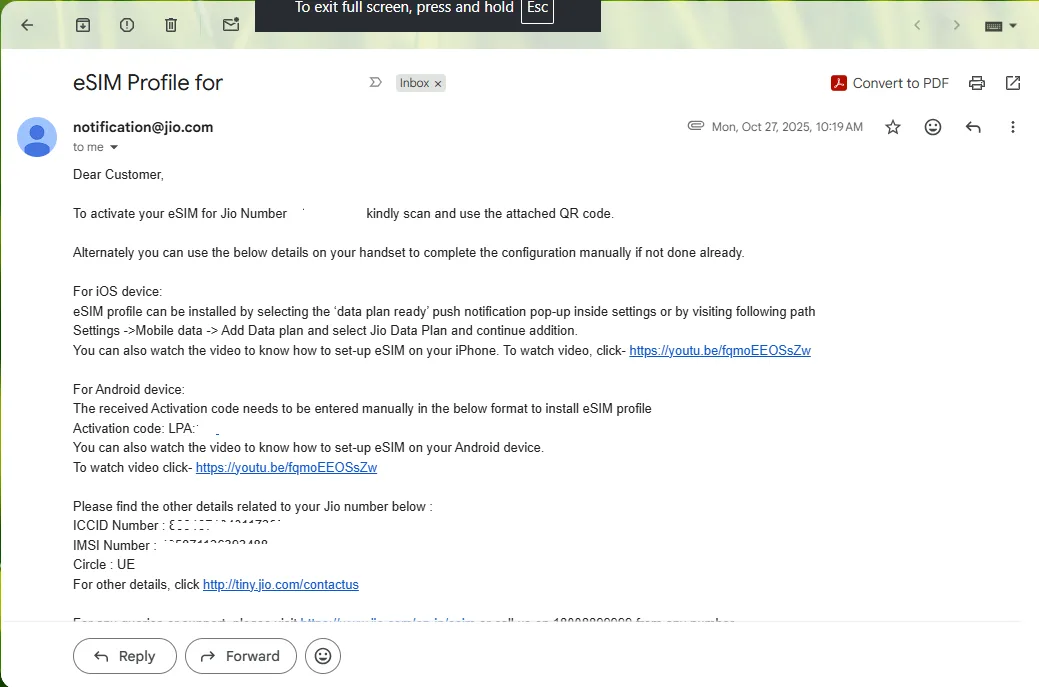
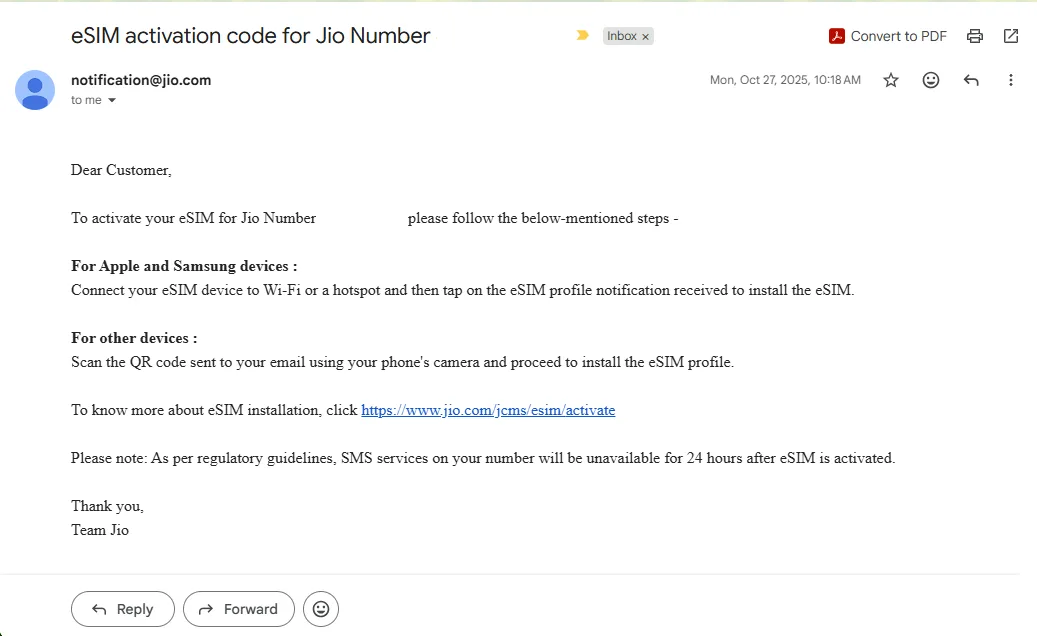
Jio then sent the actual activation email with device-specific instructions:
- For Apple and Samsung devices: connect to Wi-Fi and tap the eSIM profile notification that appears automatically.
- For other devices: scan the QR code sent to your registered email using your phone’s camera.
On my Samsung S24 FE, the path was: Settings → Connections → SIM Manager → Add eSIM, then choosing to scan the QR code from the email (Android also gives you the option to transfer directly from another Galaxy/Android phone or an iPhone, if you’re migrating an existing eSIM rather than activating fresh).
Step 5: 24-hour SMS blackout — plan around this
One important note buried in the fine print: SMS services, including OTPs, are barred on your number for 24 hours after eSIM activation, per regulatory guidelines. If you’re mid-way through anything that needs an OTP on that number — bank verification, a food delivery order, logging into an app — do it before you start the eSIM process, not after.
Airtel e SIM activation Process
Airtel has also moved to an app-based flow (the [email protected] route is largely retired):
- Download the Airtel App and log in with the number you want to upgrade to eSIM.
- On the Home page, scroll to Shortcuts and tap Upgrade to eSIM.
- Choose “this device” or “another device.” For the same device, enter your 32-digit EID (find it via device settings, or dial *#06#).
- Enter the OTP sent to your registered Airtel number.
- About 10 minutes after submitting the request, Airtel will call you for verbal confirmation — answer and confirm to finalize the request.
- Once confirmed, download the eSIM profile using your device’s usual steps (QR scan or direct notification, depending on phone brand). Activation completes within about 2 hours of the profile download. As always, activate the new profile, remove the old physical SIM, and restart your device to finish the switch.
If you’re on international roaming and run into activation issues, Airtel has a dedicated support number: +91 9910099100.
Vi (Vodafone Idea) e SIM activation Process
Vi’s process now runs through the Vi App rather than plain SMS, and has more fraud-prevention checkpoints than Jio or Airtel:
- Log into the Vi App and go to Help → Activate eSIM.
- Choose whether you’re activating on the same device or another device. For the same device, enter your 32-digit EID directly (find it via device Settings, or dial *#06#). For another device, just select Android or iOS. Double-check the EID carefully — entering the wrong one will cause the profile activation to fail outright.
- Verify the OTP sent to your registered number.
- Within 15 minutes, send a confirmation SMS reading “eSIMY” to 199. This step exists specifically to block fraudulent eSIM requests on your number — miss the 15-minute window and you’ll likely need to restart the process.
- After you’ve confirmed, wait 15 minutes, then go to Settings → Add eSIM on your device and select the “VI INDIA” plan to download the profile (or scan the QR code if that’s how it’s delivered — steps vary slightly by handset). Make sure you’re on a stable Wi-Fi connection before downloading. Once the new eSIM profile is active, remove your old physical SIM and restart the phone.
Note: As of now, Vi eSIM isn’t available for customers in Himachal Pradesh, Jammu & Kashmir, Odisha, and the North-East/Assam circles — worth checking before you start if you’re in one of these regions.
Using eSIM alongside a physical SIM (dual SIM setup)
A lot of readers run two networks together — say, BSNL for call reliability in low-coverage areas and Jio for everyday 5G data. If you’re converting one of these to eSIM, hardware management becomes incredibly important.
While premium flagships theoretically let you shuffle digital profiles or drop physical cards entirely, many dual-SIM Android devices, like the Galaxy S24 FE, logically bind the eSIM profile to the Slot 2 pathway. When you activate an eSIM, the phone completely deactivates the physical Slot 2 tray to let the digital network run.
Because of this hardware layout, older network setups (like BSNL physical SIMs) can experience serious provisioning glitches if left in a secondary, shared path. You must move your physical BSNL SIM strictly into the physical SIM 1 tray slot. If you leave it in Slot 2, the phone will drop its signal entirely once the eSIM goes live.
Practical Tips for Dual SIM Management:
- Default Settings: Go into Settings → SIM Manager and manually set your preferred default for calls, SMS, and mobile data independently. The SIM 1/SIM 2 hardware labeling doesn’t decide this for you.
- OTP Delays: Some apps are tied to whichever SIM triggered the request. If you’ve set your eSIM as your primary data default but an app expects an OTP on your physical SIM number, double-check your default SMS path is set correctly.
Common problems and fixes
- “Profile Not Downloaded” or “Invalid QR Code” error: Almost always a Wi-Fi issue. Switch to a different Wi-Fi network (avoid public Wi-Fi with a login page) and retry.
- Nothing happens after 2 hours: Check your registered email’s spam folder — the IVR call and follow-up email can be delayed if your carrier has your alternate contact number instead of your primary one.
- Moved to a new phone: You cannot simply reuse the old QR code. You need to request a fresh eSIM transfer from your carrier’s app — Jio and Airtel support this directly through their apps; deactivate the old device’s profile first.
- No calls/SMS for a day after activation: Normal — this is the mandatory 24-hour barring period, not a fault.
Also read : Jio AirFiber vs Airtel Xstream AirFiber: Full Plan Comparison (2026)
Disadvantages of eSIM
eSIM isn’t strictly better in every scenario — a few real limitations are worth knowing before you switch:
- You need a working internet/Wi-Fi connection to activate it. This is the biggest catch: activation happens by downloading a digital profile, so if you’re in an area with poor connectivity, or you’re switching phones while traveling with no Wi-Fi access, you can get stuck. A physical SIM just needs to be inserted — no network dependency at all.
- No quick swap between phones. With a physical SIM, you can pop the card into any spare phone in seconds. With eSIM, every device change means requesting a fresh profile from your carrier, waiting through cooling periods/OTP verification again, and downloading a new QR code — there’s no “just move the card” option.
- Old or budget devices don’t support it. If you or a family member is still using an older phone without eSIM hardware, this isn’t an option at all regardless of carrier.
- Losing/formatting your phone means starting over. If your phone is lost, stolen, or hard-reset, you can’t just remove and reinsert the eSIM elsewhere — you have to go through the full carrier activation process again on a new device.
- Slightly more points of failure during setup. Between the cooling period, OTP, IVR consent, and Wi-Fi-dependent download, there are more steps where something can go wrong (spam-filtered email, delayed IVR call, weak Wi-Fi) compared to just inserting a card.
If you travel to low-connectivity areas often, or you swap SIMs between multiple devices regularly, keep this in mind before converting your primary number.
Should you switch to eSIM?
If you’re on a flagship or upper-midrange phone from the last 2–3 years, and you don’t frequently swap SIM cards between devices, eSIM is a straightforward upgrade — no store visit, no waiting for a physical card, and one less thing that can be physically lost or damaged. If you regularly juggle multiple phones or share SIMs across devices, a physical SIM is still more flexible for now, since every device swap needs a fresh eSIM request rather than a quick card swap.
Frequently Asked Questions (FAQ)
Can I switch back to a physical SIM card if I don’t like eSIM?
Yes. However, unlike switching to an eSIM (which can be done entirely from home), returning to a physical SIM requires you to visit a local Jio, Airtel, or Vi store with your ID proof to get a new physical card issued.
Does an eSIM drain my phone’s battery faster or affect 5G speeds?
No. Once installed, an eSIM performs identically to a physical SIM. It uses the exact same cellular modem inside your phone, meaning your battery consumption, network reception, and 5G speeds will remain unchanged.
Can I use the same eSIM profile QR code on two different phones?
No. An eSIM profile is strictly a “one-time use” digital token securely locked to your device’s unique 32-digit EID number. If you change phones, you must request a completely fresh eSIM transfer via your carrier’s app.
Why is my physical SIM card still showing signal bars after I requested an eSIM?
During the mandatory 2-hour DoT cooling-off period and until you answer the automated IVR consent call, your old physical SIM card will stay fully active so you don’t lose connectivity. It will only stop working once the digital profile is successfully downloaded to your device.
What should I do if I missed the automated IVR consent call from Jio/Airtel?
If you missed the confirmation call, do not panic. Jio users can request an immediate automated IVR callback by sending an SMS reading
RECALLto199Why can’t I receive banking OTPs or log into apps right after activation?
Per Department of Telecommunications (DoT) regulations to prevent online fraud, all SMS services—specifically incoming and outgoing OTPs—are strictly barred for 24 hours following any SIM change or eSIM activation. Normal SMS functionality will resume automatically exactly 24 hours later.
Why did my secondary physical SIM card (like BSNL) lose network coverage after I activated my eSIM?
Many modern dual-SIM Android smartphones (such as the Galaxy S24 FE) share logical modem pathways. Activating an eSIM completely shuts down the physical Slot 2 tray hardware. If your secondary physical card was sitting in Slot 2, you must physically power down your phone and move that card to the SIM 1 slot to restore its signal.
Can I store multiple eSIM profiles on a single phone?
Yes. Most modern premium devices allow you to download and store multiple eSIM profiles (often up to 5–10). However, depending on your phone’s hardware capabilities, you can usually only keep one (or two on dual-eSIM compatible flagships) active at any given time.
Have you activated an eSIM in India recently? Drop your carrier and experience in the comments — I’ll keep this guide updated as Jio, Airtel, and Vi refine their processes.

Ayush Singhal is the founder and chief editor of TechMitra.in — a tech hub dedicated to simplifying gadgets, AI tools, and smart innovations for everyday users. With over 15 years of business experience, a Bachelor of Computer Applications (BCA) degree, and 5 years of hands-on experience running an electronics retail shop, Ayush brings real-world gadget knowledge and a genuine passion for emerging technology.
At TechMitra, he covers everything from AI breakthroughs and gadget reviews to app guides, mobile tips, and digital how-tos. His goal is simple — to make tech easy, useful, and enjoyable for everyone. When he’s not testing the latest devices or exploring AI trends, Ayush spends his time crafting tutorials that help readers make smarter digital choices.
📍 Based in Lucknow, India
💡 Focus Areas: Tech News • AI Tools • Gadgets • Digital How-Tos
📧 Contact: Get in touch →
🔗 Full Bio: https://techmitra.in/about-us/