

Google Gemini Spark AI Agent quietly appeared in my Gemini dashboard on August 1, 2026 — a new tab, sitting right next to Chat, with a “Meet Gemini Spark” welcome screen I’d never seen before. Turns out that’s not a coincidence: Google switched Spark on for India (and 160+ other countries) on July 29–30, just a day or two before I spotted it.
Most coverage of Spark so far is a rewrite of Google’s own blog post. I decided to actually use it — set it up, hand it real tasks against my real Gmail and my real writing history, and see what it got right, what it got wrong, and where it broke. This is that walkthrough.
Table of Contents
Also Read : Google Unveils Gemini Spark at I/O 2026: A New AI Agent Workspace That Can Work for You
What Is Google Gemini Spark AI Agent, Actually?
Gemini Spark is Google’s “agentic” AI layer — the shift from answering questions to doing things. Instead of a back-and-forth chat, you hand Spark a goal, and it works on it in the background, on Google’s own cloud servers, even after you close the tab or lock your phone.
Here’s the rollout timeline, confirmed against Google’s own posts:
- May 19, 2026 — Announced at Google I/O, opened to “trusted testers”
- June 30, 2026 — Added to the Gemini Mac app, plus more connected apps and custom MCP support
- July 29–30, 2026 — Opened to Google AI Pro/Ultra subscribers in India and most other countries, along with Chrome-based web browsing for handling web errands
I’m on Google AI Pro, which is the tier where Spark shows up for most individual users.
Gemini vs. Gemini Spark — What’s the Actual Difference?
I asked Spark to explain this itself, and cross-checked the answer against Google’s official documentation. It holds up:
| Operations | Standard Gemini Chat | Gemini Spark |
|---|---|---|
| Operating model | Reactive — responds when prompted, stops when the session ends | Proactive, always-on — runs in the cloud even with your device off |
| Execution | Single-turn Q&A, drafting, one-step actions | Multi-step autonomous workflows with task planning |
| Automation | Answers one query at a time | Background schedules, recurring triggers, reusable skills |
| Integrations | Chat-based Workspace tools, web search | Deep Workspace access, custom connectors, Chrome auto-browse for web tasks |
In short: Chat answers you. Spark goes and does the thing.
Setting It Up
The first screen is a straightforward consent gate — and Google is unusually direct about what it means:
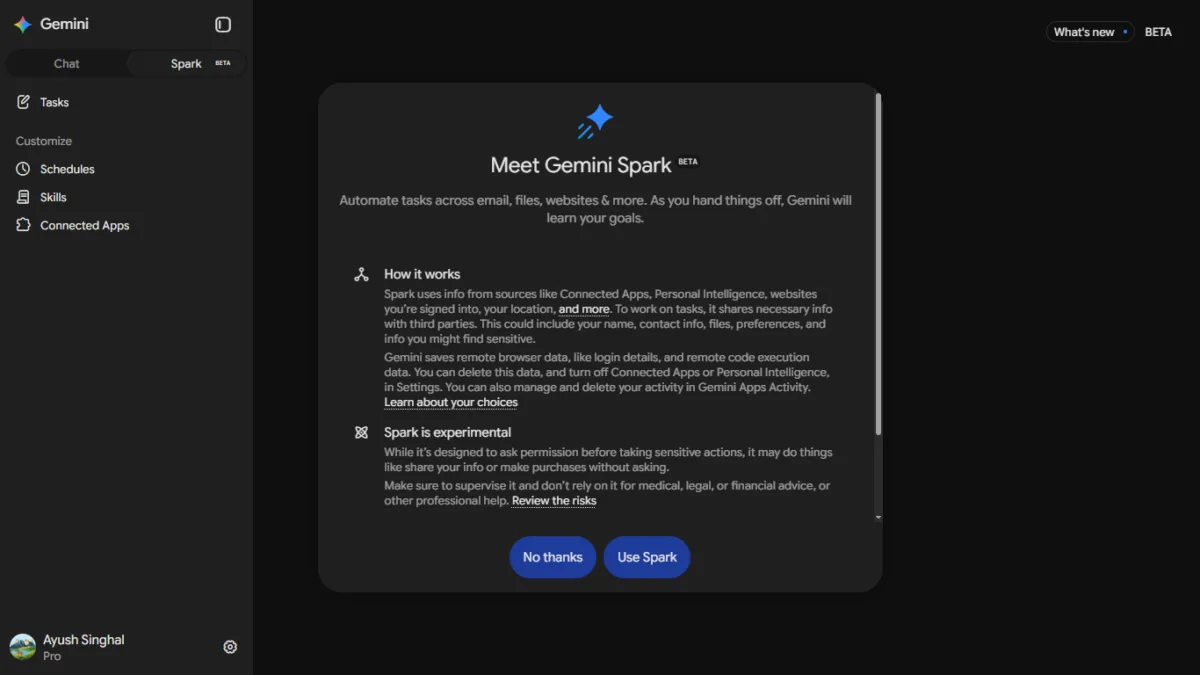
“While it’s designed to ask permission before taking sensitive actions, it may do things like share your info or make purchases without asking. Make sure you supervise it and don’t rely on it for medical, legal, or financial advice.”
That’s not boilerplate. It’s genuinely worth reading before you tap “Use Spark.”
Once enabled, four new sections appear in the sidebar: Tasks, Schedules, Skills, and Connected Apps. Clicking “Help me get started” kicks off a short onboarding conversation where Spark asks permission to look at your Workspace data and “learn about your role, interests, and priorities” before suggesting starter tasks.
I later pulled up Google’s official Spark support page directly, and it fills in a few things Spark never mentioned to me on its own — worth knowing before you try this:
- You must be 18 or older
- You need a personal Google Account — work or school accounts aren’t supported yet
- You need “Keep Activity” turned on
- Spark is currently not available in the EEA, UK, Switzerland, or Nigeria
- Only works in the Gemini mobile app, Mac app, or web app — not embedded elsewhere
- Google’s own guidance: never type sign-in info or payment details directly into a task thread
- If a scheduled task runs while you’re offline, you may not be able to stop it before it completes
That last point matters more than it sounds — it’s Google, in writing, telling you this thing can act without your ability to intervene in real time.
A note for Jio users: My own access came through the Jio-Google partnership — the free 18-month Google AI Pro offer for Jio 5G users, worth ₹35,100. I confirmed this is a genuine Google AI Pro subscription, not a limited version, so Spark works exactly the same on it as it would on a directly-paid Pro plan. If you got Gemini through Jio and don’t see the Spark tab yet, double-check that “Keep Activity” is turned on in your settings — that’s a separate requirement Google lists, and it’s easy to miss.
Test 1: Inbox Cleanup — A Genuine Win
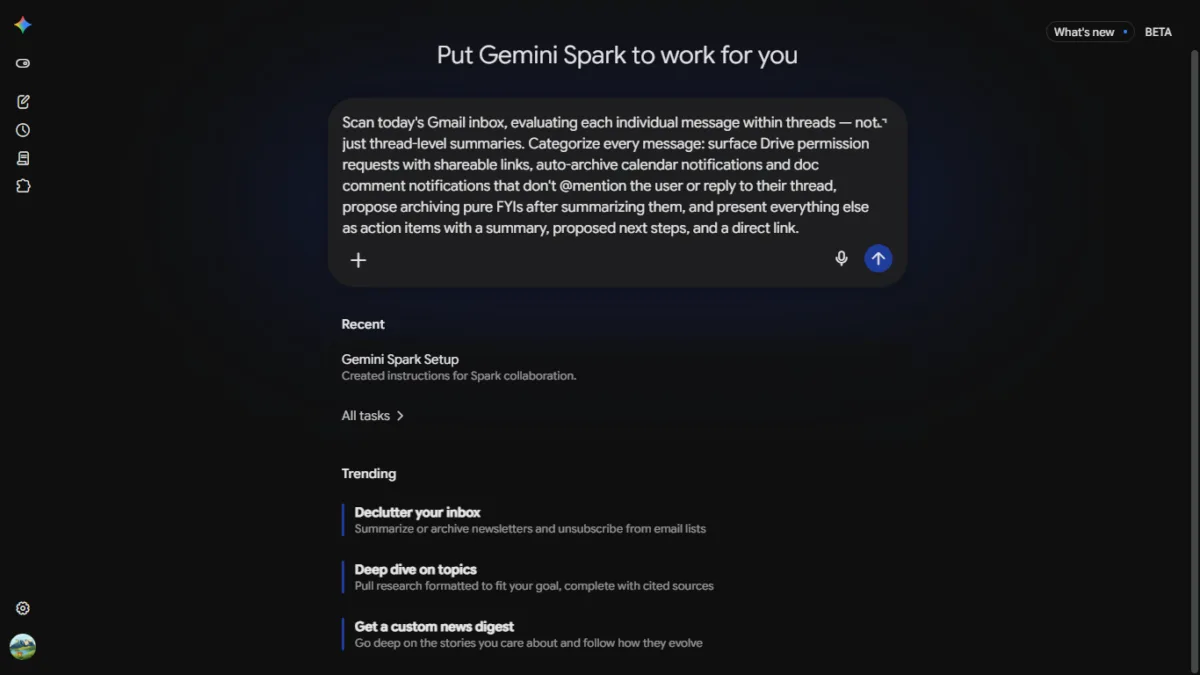
I gave Spark a deliberately specific prompt rather than the generic “declutter my inbox” suggestion:
“Scan today’s Gmail inbox, evaluating each individual message within threads — not just thread-level summaries. Categorize every message: surface Drive permission requests with shareable links, auto-archive calendar notifications and doc comment notifications that don’t @mention the user or reply to their thread, propose archiving pure FYIs after summarizing them, and present everything else as action items with a summary, proposed next steps, and a direct link.”
Spark showed a visible “Thinking it through…” trace — defining scope, confirming the date and timezone, then working through my inbox thread by thread. It came back with a structured breakdown: zero Drive permission requests, zero qualifying calendar notifications (correctly reporting nothing rather than inventing something), 10 promotional emails proposed for archiving with sender and one-line summary each, and two genuine action items — a LinkedIn connection request, and, notably, a spam comment on my other site, AdaptiveLifeGuide.com, correctly flagged with a direct link to the WordPress moderation panel.
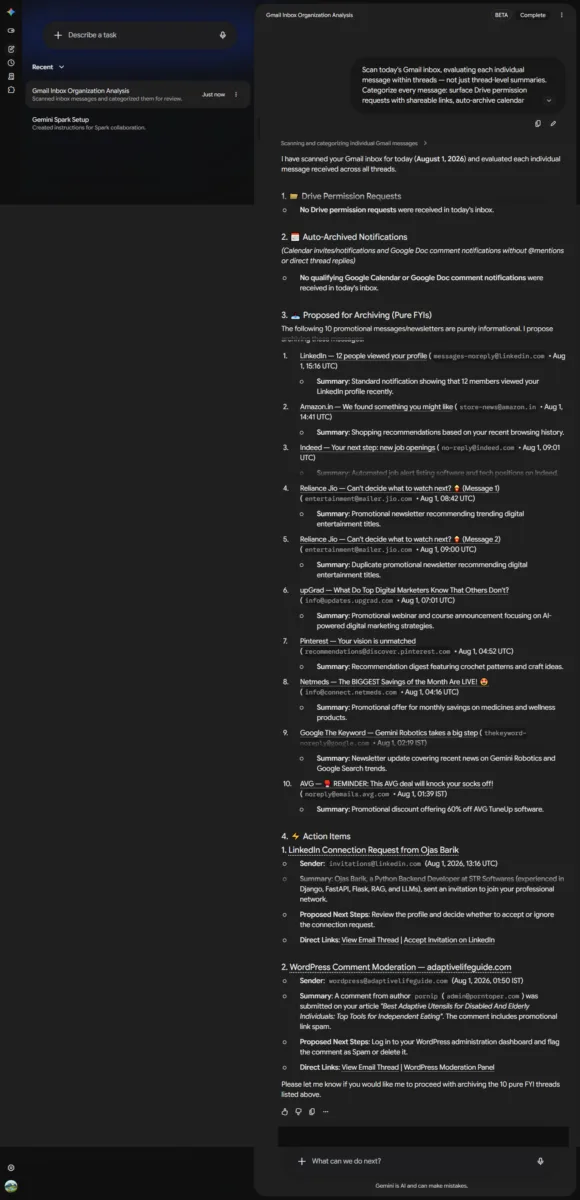
It then asked permission before archiving anything. I said yes. It came back with:
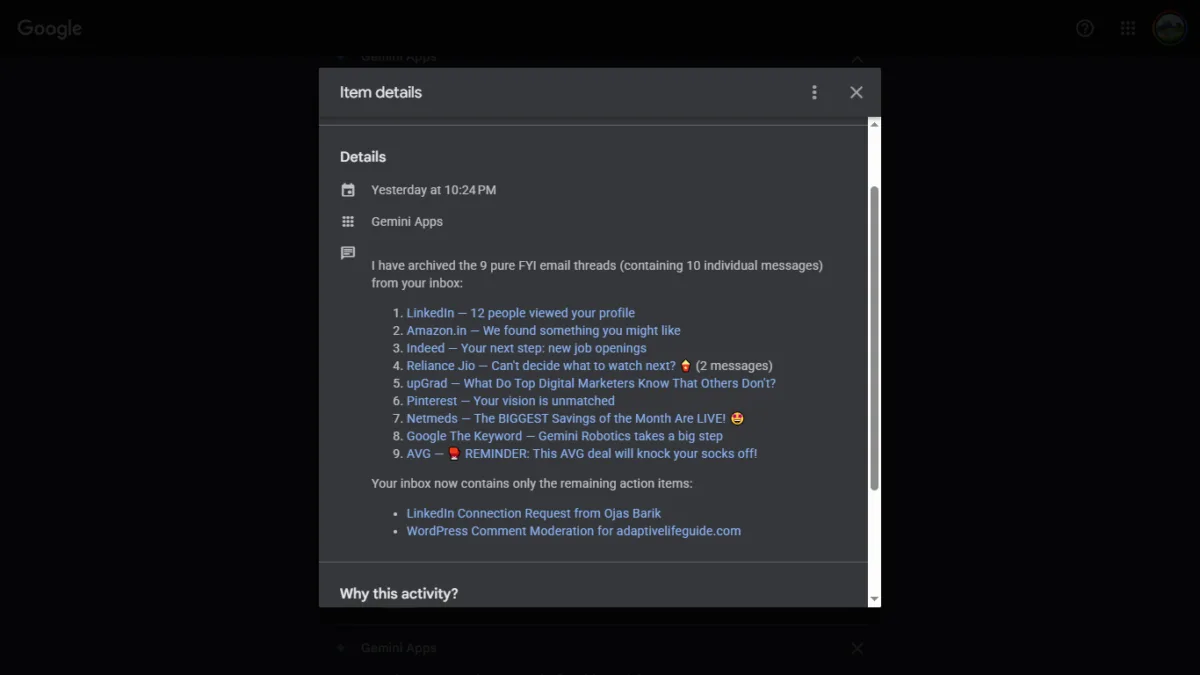
“I have archived the 9 pure FYI email threads (containing 10 individual messages) from your inbox” — followed by a clickable Gmail link for each one, and confirmation that only the two real action items remained.
This is Spark’s strongest feature in practice: it did exactly what it proposed, nothing more, with verifiable receipts for every action. Catching a spam comment on a completely different website — one I hadn’t mentioned in the prompt — was a genuinely useful, unprompted find.
Test 2: Deep Research — Where It Fell Down
I asked Spark to research and compare two of its own competitors — OpenAI’s ChatGPT Agent and Anthropic’s Claude Cowork — with a request for a comparison table, cited sources, and a saved Google Doc.
The format worked exactly as designed: clarifying questions first, a structured comparison table, source citations, a persisted Doc. But the actual content had real problems:
- The India pricing was inconsistent between its own chat answer and the saved document — Claude Pro was listed as both ₹2,399/month and ₹1,700/month in the same task; ChatGPT Plus as both ~₹1,999 and ~₹1,650.
- One cited source for Anthropic’s official India pricing was “Croma Unboxed” — a blog run by an electronics retailer. Not a credible source for software subscription pricing.
- It also claimed Claude Cowork runs on an architecture called “Opus 4.5/Fable 5,” a detail I couldn’t verify against anything reliable.
I challenged it directly, pointing out the contradiction and the bad source without telling it the right answer. To its credit, it re-verified against OpenAI’s and Anthropic’s actual help pages, correctly identified $20/month as the real base USD price for both ChatGPT Plus and Claude Pro, correctly found Claude Pro’s $17/month annual rate, and dropped the bad citation.
But the India-specific rupee figures — the numbers an Indian reader actually needs — remained something I couldn’t independently verify were accurate even after the correction. Its explanation (base USD conversion vs. GST-inclusive checkout pricing) was plausible and internally consistent, but plausible is exactly what got it into trouble the first time.
The honest takeaway: Spark is reliable when describing well-documented public information — its explanation of what Spark itself does, for instance, checked out completely against Google’s own docs. It’s noticeably less reliable when asked to produce a specific number it has to synthesize from scattered sources, especially region-specific pricing. Don’t take a Spark-generated number at face value — verify it yourself before you act on it or publish it.
Test 3: Skills — The Genuine Standout
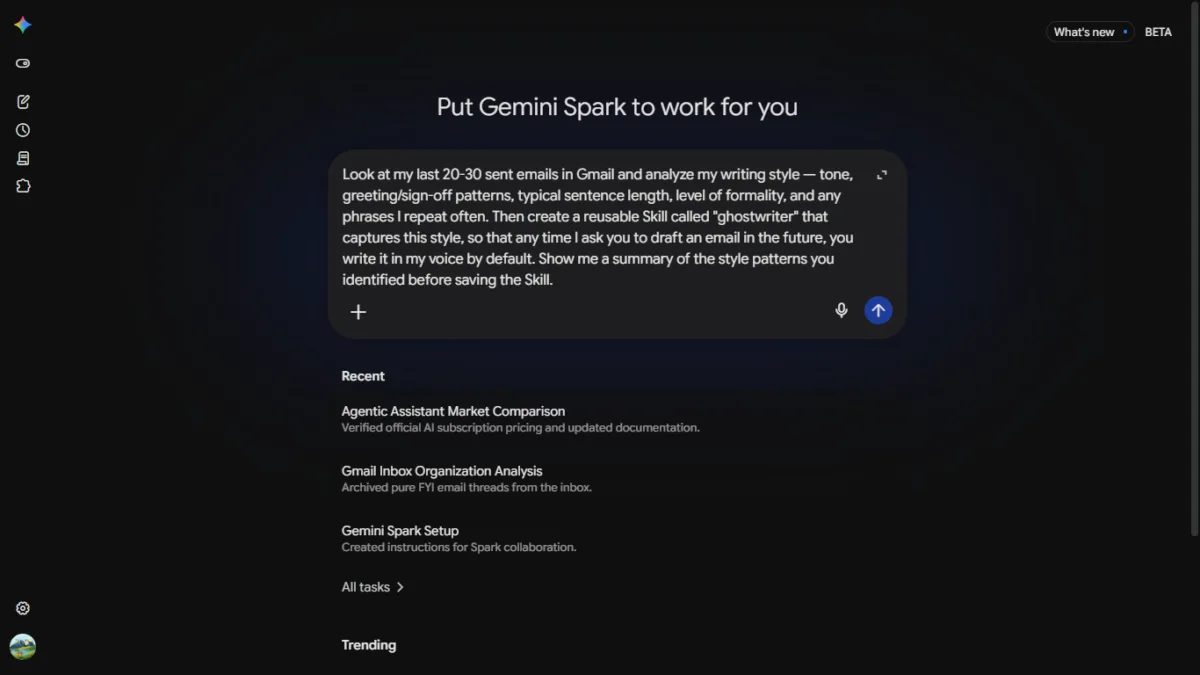
This is the feature Google’s own India launch post highlighted as a flagship use case, so I tested it directly. I asked Spark to read 20–30 of my sent emails, extract my actual writing style, and save it as a reusable “ghostwriter” skill.
What it came back with was specific, not generic. It correctly identified two different registers depending on context — a courteous, collaborative tone for PR/media outreach, versus a direct, matter-of-fact tone for customer support and complaints. It captured my real greeting patterns (Hi [Name], vs. Hi [Team] Team,), my actual sign-off block with my TechMitra title and URL, and a list of phrases I genuinely use often — “really appreciate it,” “Please feel free to,” “I’m currently planning to cover.”
Here’s the style breakdown Spark generated, condensed:
Tone: Courteous and collaborative for media/PR outreach; direct and solution-focused for support and complaints. Greetings: “Hi [First Name],” for individuals; “Hi [Team] Team,” for organizations; a bare “Hi,” or direct issue statement for quick support threads. Sign-off: Best regards, Ayush Singhal — Founder & Chief Editor, TechMitra — https://techmitra.in for professional outreach; shorter for casual replies. Recurring phrases: “Thank you for sharing…”, “really appreciate it”, “Looking forward to…”, “Please feel free to…”, “I’m currently planning to cover…”
It saved this as a reusable skill called ghostwriter, set to trigger automatically any time I ask it to draft or reply to an email.
The real test came in a separate, fresh task, days removed from the setup: “Using my ghostwriter skill, draft an email to a PR contact thanking them for sharing details on a new product launch and asking if they can send review units.”
It correctly picked the media-outreach register — not the support tone — without being told which to use, and the draft used my actual phrases and sign-off naturally. Here’s what it produced:
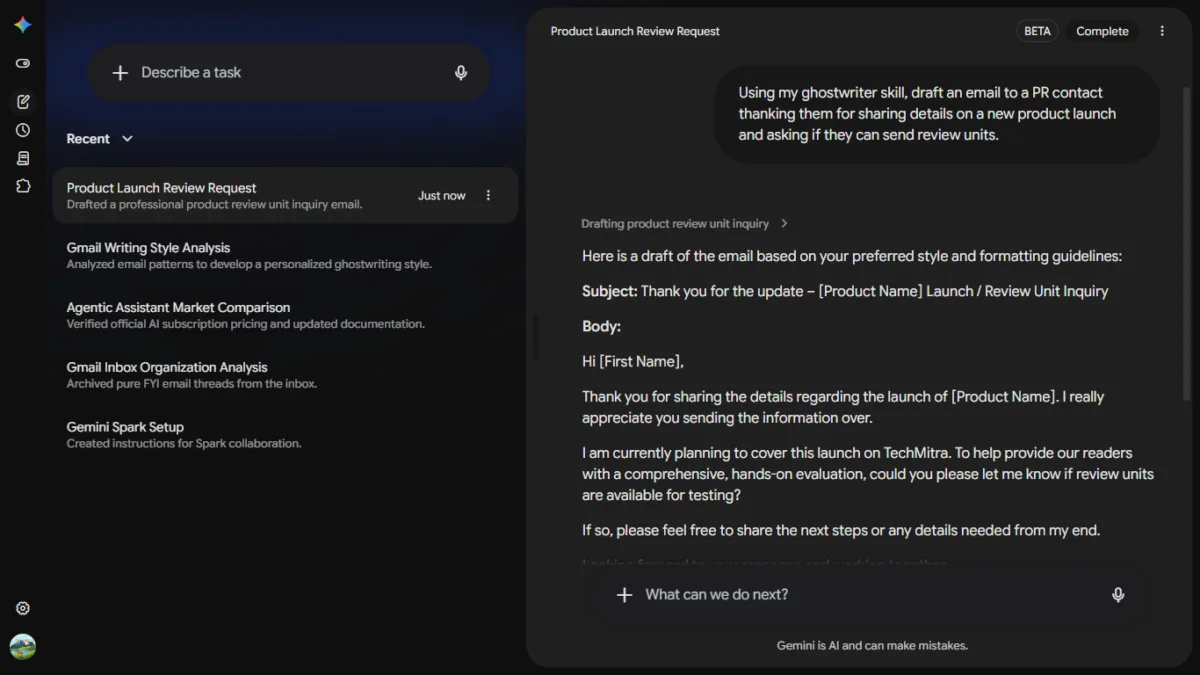
The real test came in a separate, fresh task, days removed from the setup: “Using my ghostwriter skill, draft an email to a PR contact thanking them for sharing details on a new product launch and asking if they can send review units.”
It read like something I’d have written myself, not a generic AI approximation of “professional and friendly.”
Of the three things I tested, this is the one that fully delivered on Google’s own claim.
Also Read : Ask Google Pay: Google Pay’s New AI Assistant Explained
Should You Use It?
If you’re already a Google AI Pro or Ultra subscriber, there’s no extra cost to try it. Based on what I found:
- Good for: clearing inbox noise, catching things you’d have missed (like the spam comment on a second site), and — if Skills work for you the way they did for me — producing drafts that genuinely sound like you.
- Verify before trusting: anything involving a specific number, price, or fact it has to synthesize from multiple sources. Cross-check before you act on it, especially for anything financial.
- Supervise, don’t set-and-forget: Google’s own documentation is explicit that offline scheduled tasks may complete before you can stop them. Start with low-stakes tasks and watch the first few closely.
Gemini Spark isn’t a finished product yet — it says so itself, right on the landing screen. But the parts that worked, worked well enough to actually save time, and the parts that didn’t fail in ways that are honest and correctable if you know to check.
Update: The Spark Tab Disappeared a Day Later
One day after running the tests above, the Spark tab vanished from my sidebar entirely — on the same Google AI Pro account, no settings changed on my end. Google’s own Activity log (myactivity.google.com) confirmed the sessions above genuinely happened, timestamps and all — including the exact “Hi, I’m Gemini Spark, your 24/7 personal assistant” onboarding message, logged under Gemini Apps.
It returned on August 3, roughly a day after it disappeared — same account, same Pro subscription, no action needed on my end. If you’re trying Spark yourself and the tab vanishes, that appears to be normal instability for a feature that’s only days into its India rollout rather than a sign your access was revoked. Give it a day.

Ayush Singhal is the founder and chief editor of TechMitra.in — a tech hub dedicated to simplifying gadgets, AI tools, and smart innovations for everyday users. With over 15 years of business experience, a Bachelor of Computer Applications (BCA) degree, and 5 years of hands-on experience running an electronics retail shop, Ayush brings real-world gadget knowledge and a genuine passion for emerging technology.
At TechMitra, he covers everything from AI breakthroughs and gadget reviews to app guides, mobile tips, and digital how-tos. His goal is simple — to make tech easy, useful, and enjoyable for everyone. When he’s not testing the latest devices or exploring AI trends, Ayush spends his time crafting tutorials that help readers make smarter digital choices.
📍 Based in Lucknow, India
💡 Focus Areas: Tech News • AI Tools • Gadgets • Digital How-Tos
📧 Contact: Get in touch →
🔗 Full Bio: https://techmitra.in/about-us/