
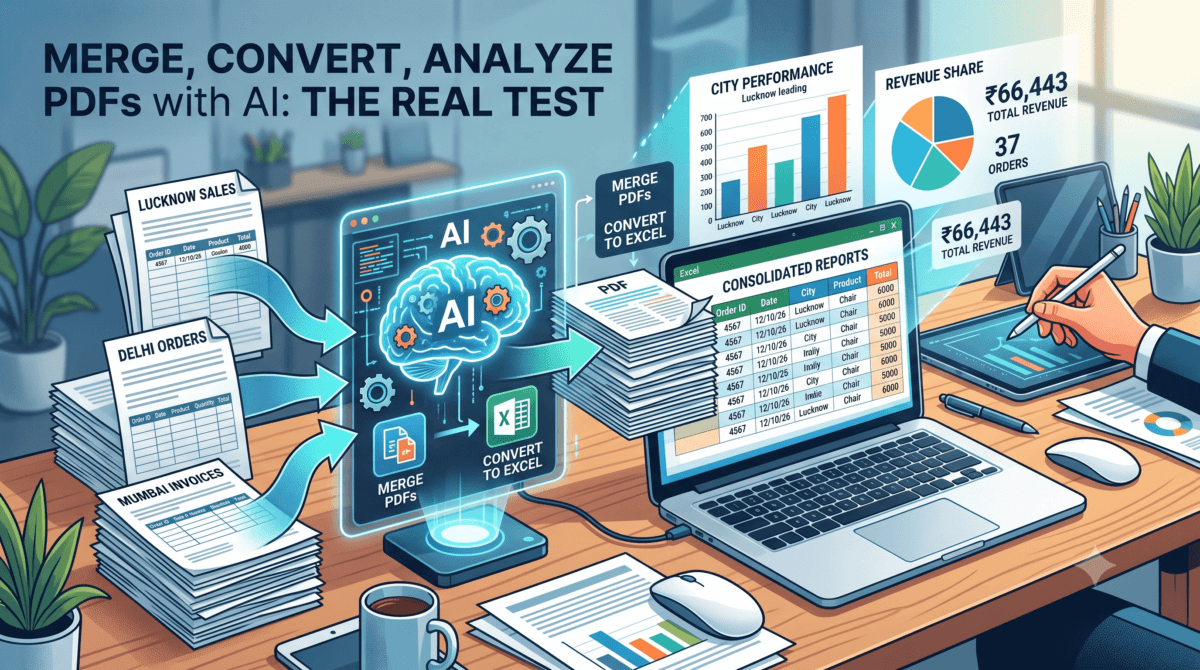
Image : Can AI Convert PDF to Excel? How to, Real Test, Real Results
A lot of freelancers and small business owners deal with the same recurring headache: multiple PDF reports — sales exports, order lists, invoices from different branches or platforms — that need to be combined into one file, turned into an editable Excel sheet, and then actually analyzed for decisions. If you sell on Amazon, Flipkart, or your own website across more than one city or warehouse, you already know this drill — every platform exports its own PDF, in its own format, and none of them talk to each other.
The question that actually matters here isn’t whether a dedicated PDF tool can do this — plenty can. The real question freelancers and small business owners are asking is simpler: can AI convert PDF to Excel well enough to trust it with real business data, using nothing more than the AI assistant already sitting on your phone or laptop? Not a separate paid tool, not a new subscription — just Claude, ChatGPT, or Gemini, doing the job in the same window you already use for everything else.
Rather than repeat what other articles claim or guess at an answer, I tested this end-to-end myself using sample order data across three cities, to see exactly what AI can and can’t do here, without guessing or repeating claims I hadn’t verified. Every result below — the merge, the conversion, the formulas, the totals — is from an actual run, checked for accuracy, not a theoretical explanation of how it’s supposed to work.
Also Read : I Connected My Hostinger Mailbox to ChatGPT — Here’s What Actually Happened
The Test
I used three sample PDF files — each a list of product orders for a different city, with columns for Order ID, Date, City, Product, Quantity, Unit Price, and Total. This is a realistic stand-in for the kind of files you’d export from an e-commerce dashboard, a POS system, or a marketplace seller panel.
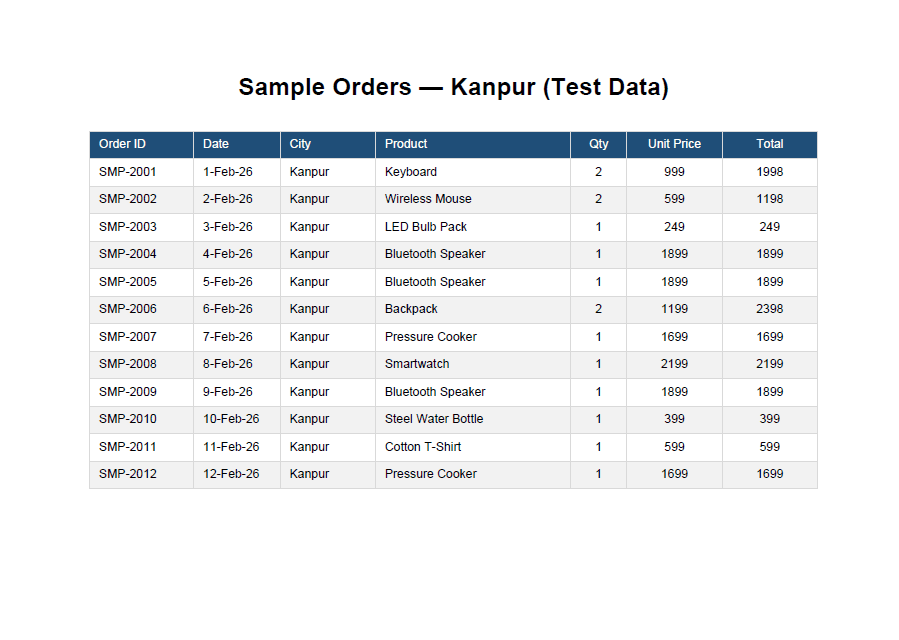
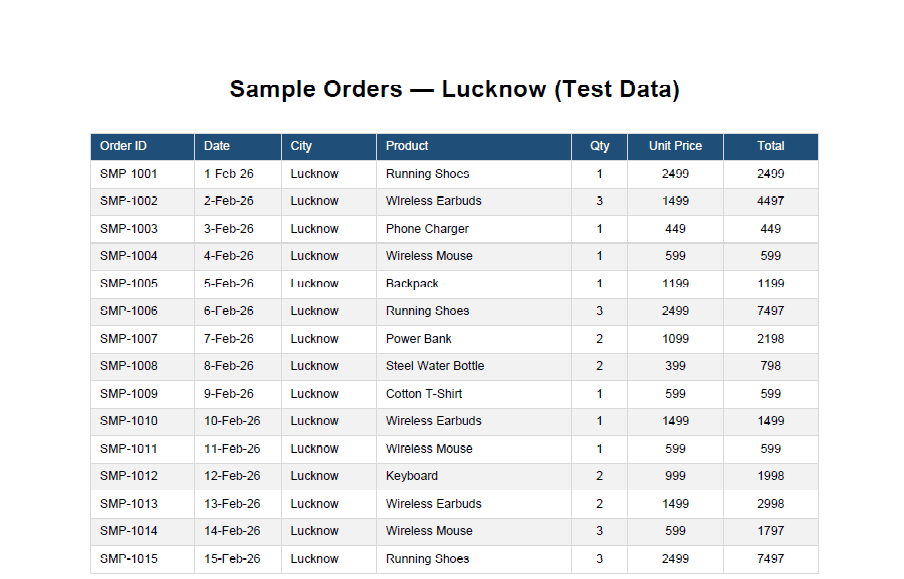
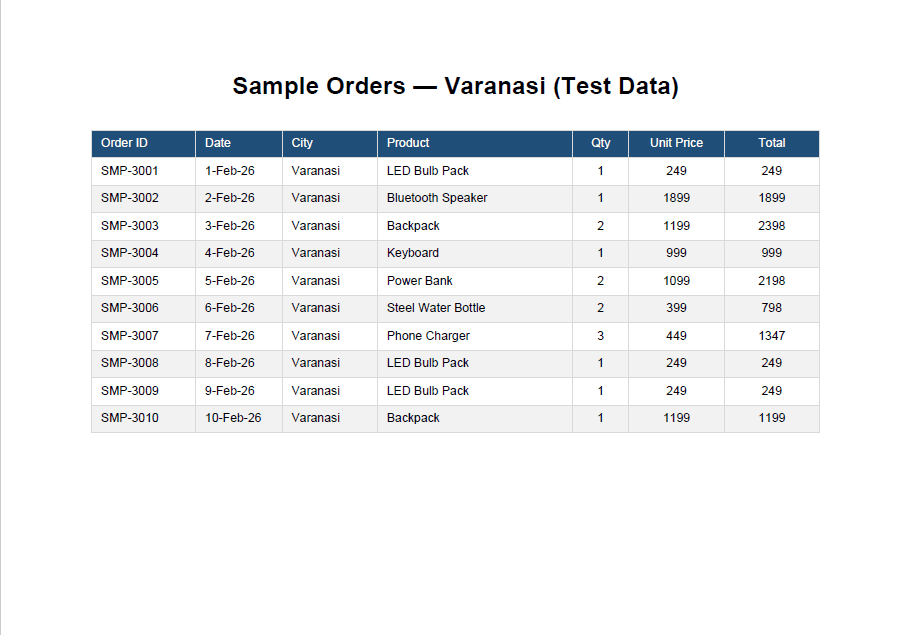
Task 1: Merge the three PDFs into one file. Task 2: Convert the combined data into a working Excel spreadsheet. Task 3: Analyze the data — city-wise performance, totals, and patterns.
How to Upload files
“Just open your AI assistant’s chat — Claude, ChatGPT, or Gemini all work the same way on phone or PC. Tap the ‘+’ or attachment icon near the message box, select your files, and type what you want done. No separate app, no install, no upload to a random website.”
How to Convert PDF to Excel Using AI
You don’t need a complicated prompt to get started — but the level of detail you give does change how polished the result is. Here’s exactly what I asked, so you can copy and adapt it yourself.
A simple prompt (good enough for a quick one-off conversion):
“I have 3 PDF files with order data from different cities. Merge them into one PDF, then extract the data into a single Excel file.”
This alone is enough to get a working spreadsheet — the AI will merge the files and pull the table data into rows and columns.
A more detailed prompt (what actually produced the polished, multi-sheet result used in this article):
“Merge these PDFs into one file. Then convert the combined data into an Excel workbook with: a main sheet with all the order rows, a summary sheet showing total orders and revenue by city using formulas (not fixed numbers), and check that quantity × unit price matches the total for every row before finishing.”
The difference matters. The simple prompt gets you usable data. The detailed prompt — specifying a summary sheet, asking for formulas instead of hardcoded numbers, and asking for a data accuracy check — is what actually produced a spreadsheet with working SUMIF/COUNTIF formulas that update automatically, plus a verified, error-free result.
A quick tip if you’re trying this yourself: always ask the AI to double-check its own numbers — something like “verify that quantity times unit price equals the total for every row” — before you trust the output for a real business decision. This one line of instruction is what caught potential errors in our own test and confirmed the data was accurate before moving forward.
Also Read : Xbox Cloud Gaming in India (2026): Pricing, Setup & Is It Worth It ?
What Actually Happened
Merging: Straightforward — the three PDFs combined into a single multi-page file with no loss of formatting or content. This part is genuinely trivial for AI to handle and doesn’t need any paid software.
Download Merged Pdf File from Here
Download Converted Excel File From Here
Converting to Excel — the part that matters: This is where the real work happens, and it’s also where the type of PDF changes everything.
- When the PDF has an actual ruled table (visible grid lines), extracting rows into structured data is clean and reliable — every column mapped correctly with no manual fixing needed.
- When a PDF has no ruled lines and is just plain aligned text (very common in reports exported from older billing software or simple invoice generators), a table-detector alone won’t find anything. It has to fall back to reading the raw text and matching a pattern — which works, but only if the row structure is consistent. I tested this in an earlier version of this exercise on a different, unruled PDF layout and it required writing custom pattern-matching logic rather than a one-click extraction.
The takeaway: “AI can convert PDF to Excel” isn’t a single fixed capability — it depends heavily on how the source PDF is structured. A clean table converts easily. A scanned image or a messy layout needs more work, and a genuinely scanned (photographed) PDF would need OCR first, which is a further step again.
Analysis: Once the data was in spreadsheet form, generating real insights — revenue by city, order counts, average order value, top products by revenue — was fast and used real spreadsheet formulas (SUMIF, COUNTIF) rather than static hardcoded numbers, so the sheet stays usable and updates if you edit any row.
For this test set: 37 sample orders, ₹66,443 combined revenue, with Lucknow contributing the largest share of both order volume and revenue among the three sample cities.
What This Means If You Want To Try It Yourself
- You don’t need extra paid software for the basic workflow — merging PDFs, extracting clean tabular data, and building a working spreadsheet with formulas is something a general AI assistant can do directly, provided your source PDFs are digitally generated (not scanned images).
- Check what kind of PDF you’re dealing with. A report exported directly from software (Excel-to-PDF, a dashboard export, an invoicing tool) is usually clean and structured. A scanned or photographed document is a different, harder problem — it needs OCR, and OCR accuracy on messy handwriting or poor scans is never 100%. Always double-check OCR’d numbers before trusting them for business decisions.
- Verify the totals yourself once, the first time. I ran an integrity check comparing Quantity × Unit Price against the Total column for every row — worth doing this once for any dataset before trusting the summary numbers, especially for financial records.
- Be careful about what data you actually upload. If you’re using a free-tier AI account for this kind of task, check your account’s data/privacy settings before uploading real client or customer information — free consumer accounts on most AI platforms can differ significantly from paid business accounts in terms of data retention and whether your uploads are used for anything beyond your own session. This matters more for genuine business or client data than for practice files, but it’s worth checking once and not assuming.
Privacy and Security: What Happens to the Data You Upload
This is the part most people skip, and it’s the part that actually matters if you’re uploading real business, customer, or client files rather than test data. Here’s what’s genuinely true as of 2026, across the major AI platforms — not specific to any one tool.
The free-vs-paid distinction most people assume is wrong. A lot of users assume that once they’re paying for an AI subscription, their data is automatically private. That’s not accurate for individual/consumer-tier paid plans. Across the major platforms, the real dividing line isn’t free vs. paid — it’s individual consumer accounts vs. business/team/enterprise accounts:
- Free and individual paid plans (the ₹1,500–2,000/month personal subscriptions most freelancers and small business owners sign up for) generally can be used to train the underlying AI models by default, unless you go into account settings and manually opt out. This is true across the major providers, not just one.
- Business, Team, or Enterprise-tier accounts typically do not train on your data by default, come with clearer data retention limits, and often include contractual protections (Data Processing Addendums, audit logs, admin controls) that individual accounts don’t offer.
What this means practically:
- Check your account’s privacy settings before uploading real client or customer data. Every major AI platform has a toggle somewhere in Settings (usually under Privacy or Data Controls) that lets you opt out of having your conversations used for model training. If you’re on a free or individual paid plan and handling real business data, turn this off.
- “Deleted” isn’t always immediate. Most platforms retain deleted conversations on backend systems for a defined window (commonly around 30 days) even after you delete them from your visible history, for safety and abuse-monitoring purposes, before permanent deletion.
- Business-tier accounts are the safer default for real client work. If you’re regularly uploading customer invoices, order data, financial figures, or anything with a client’s name attached, a business/team-tier account is the more defensible choice — both for actual data protection and for being able to tell a client honestly what happens to their data if they ask.
- Test data and real data are different risk categories. Everything I used for the tests in this article was synthetic sample data I generated myself specifically so there was nothing sensitive at stake. If you’re experimenting with a new AI workflow for the first time, do the same — test with dummy data before running your actual client files through any new tool or process.
- This isn’t unique to AI tools. The same due-diligence applies to any free online PDF/Excel converter website, not just AI chat platforms — arguably more so, since many free web-based file converters have far less transparent data handling than a named AI company’s published privacy policy.
None of this means you shouldn’t use AI for these tasks — it means treat it the way you’d treat any cloud software handling business data: check the settings once, use the right account tier for the sensitivity of what you’re uploading, and don’t assume “paid” automatically means “private” unless it’s specifically a business or enterprise plan.
Every major AI platform has a toggle somewhere in Settings (usually under Privacy or Data Controls) — see Anthropic’s Privacy Center or OpenAI’s enterprise privacy commitments for the exact current policy on each.
Bottom Line
Yes — merging, converting, and analyzing PDF data is realistically achievable with AI tools available today, without needing dedicated paid software, for the common case of digitally-generated PDF reports. The honest caveat is that “convert PDF to Excel” quietly hides a range of difficulty depending on your source file, and scanned documents are a meaningfully harder problem than clean digital exports. If your business regularly generates PDF reports from software (not scans), this is a genuinely time-saving workflow worth using — just be deliberate about which account tier you use once real client data is involved.
Disclaimer: All data used in this article is synthetic sample data for demonstration only — no real client information was involved. Always verify results before using them for actual business decisions.

Ayush Singhal is the founder and chief editor of TechMitra.in — a tech hub dedicated to simplifying gadgets, AI tools, and smart innovations for everyday users. With over 15 years of business experience, a Bachelor of Computer Applications (BCA) degree, and 5 years of hands-on experience running an electronics retail shop, Ayush brings real-world gadget knowledge and a genuine passion for emerging technology.
At TechMitra, he covers everything from AI breakthroughs and gadget reviews to app guides, mobile tips, and digital how-tos. His goal is simple — to make tech easy, useful, and enjoyable for everyone. When he’s not testing the latest devices or exploring AI trends, Ayush spends his time crafting tutorials that help readers make smarter digital choices.
📍 Based in Lucknow, India
💡 Focus Areas: Tech News • AI Tools • Gadgets • Digital How-Tos
📧 Contact: Get in touch →
🔗 Full Bio: https://techmitra.in/about-us/