
Disclosure: NimbleVid provided me with a 30-day test account with 4,000 credits and Basic plan features. The NimbleVid links in this article are affiliate links. If you subscribe through my link, I may earn a recurring commission for as long as you remain subscribed.
If you take a monthly NimbleVid subscription through my affiliate link, you get 10% off the subscription price. The 10% discount does not apply to the one-time Starter Pack.
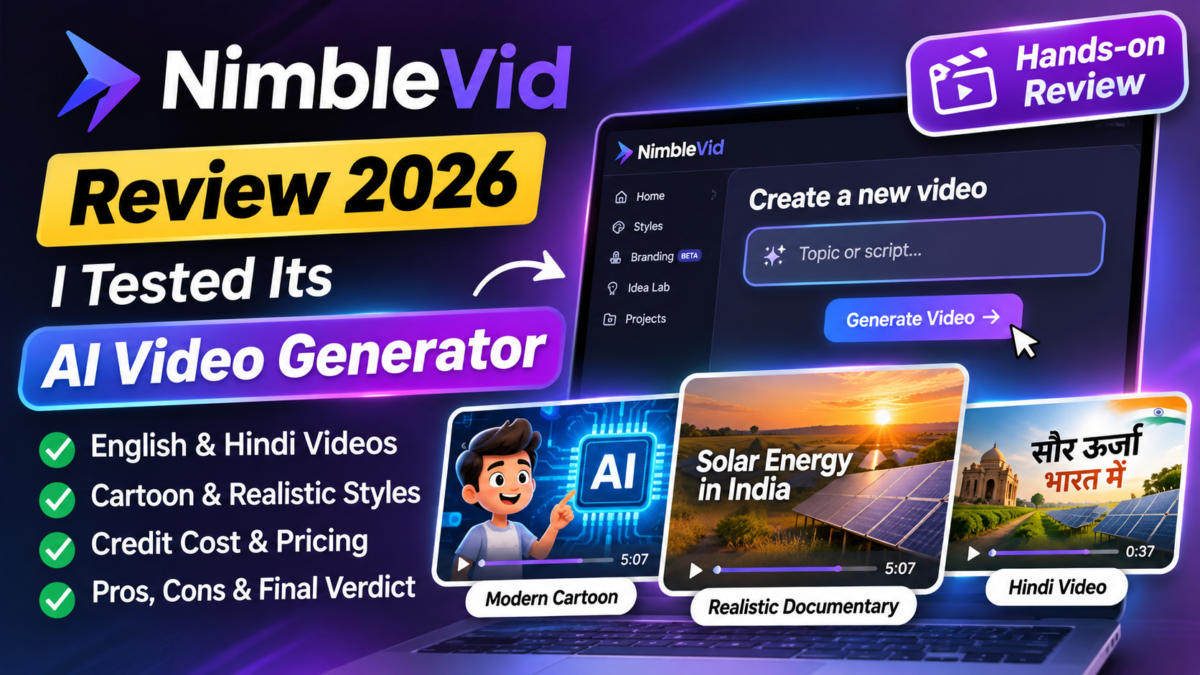
This is a hands-on NimbleVid review based on my own testing. I created multiple videos in different formats, including English and Hindi videos, cartoon and realistic documentary-style videos, and tested features such as custom scripts, visual styles, reference images, and scene corrections. I’ve included short clips from my actual test videos so you can see the results for yourself, including both what worked well and what didn’t.
Table of Contents
Also Read : I Built Six Games With Hostinge AI Game maker: Here Is What Actually Worked Or Not
Quick verdict
NimbleVid is a script-to-video tool for faceless YouTube videos. You give it a topic or your own script, and it writes the narration, plans the scenes, draws an image for each one and assembles a draft you can watch and fix. In my four tests it did several things better than I expected: it quoted an exact credit price before spending anything, it paused for me to approve each script, it drew readable rupee amounts and Hindi text inside its images, and its Hindi narration was perfect to my ear.
It also showed me why you cannot publish its output without checking it. In one test it invented a “Total Loan Amount” label that was nowhere in my script and put dollar signs on an Indian electricity bill. In another, a documentary about solar energy in India included a US flag and landscapes that looked American.
The English voices sound like AI, the Director’s drafts download at 720p unless you ask for Full HD (an extra 40 credits), and the real cost of a video is noticeably higher than the quote once chat replies and edits are counted.
My view: it is a good first-draft machine for creators who will review every scene, and a poor fit for anyone who wants to publish without checking or who wants to turn existing footage into a faceless video.
What NimbleVid AI Video Generator Does ?
NimbleVid follows a fairly structured process for turning an idea or script into a finished video. Before starting a project, you first choose your styles. The Styles section has separate Visual Styles and Content Styles. Visual styles control the look of the scene images and thumbnails, while content styles shape the titles and scripts. NimbleVid provides several ready-made styles, and you can save the ones you want to use in your projects.
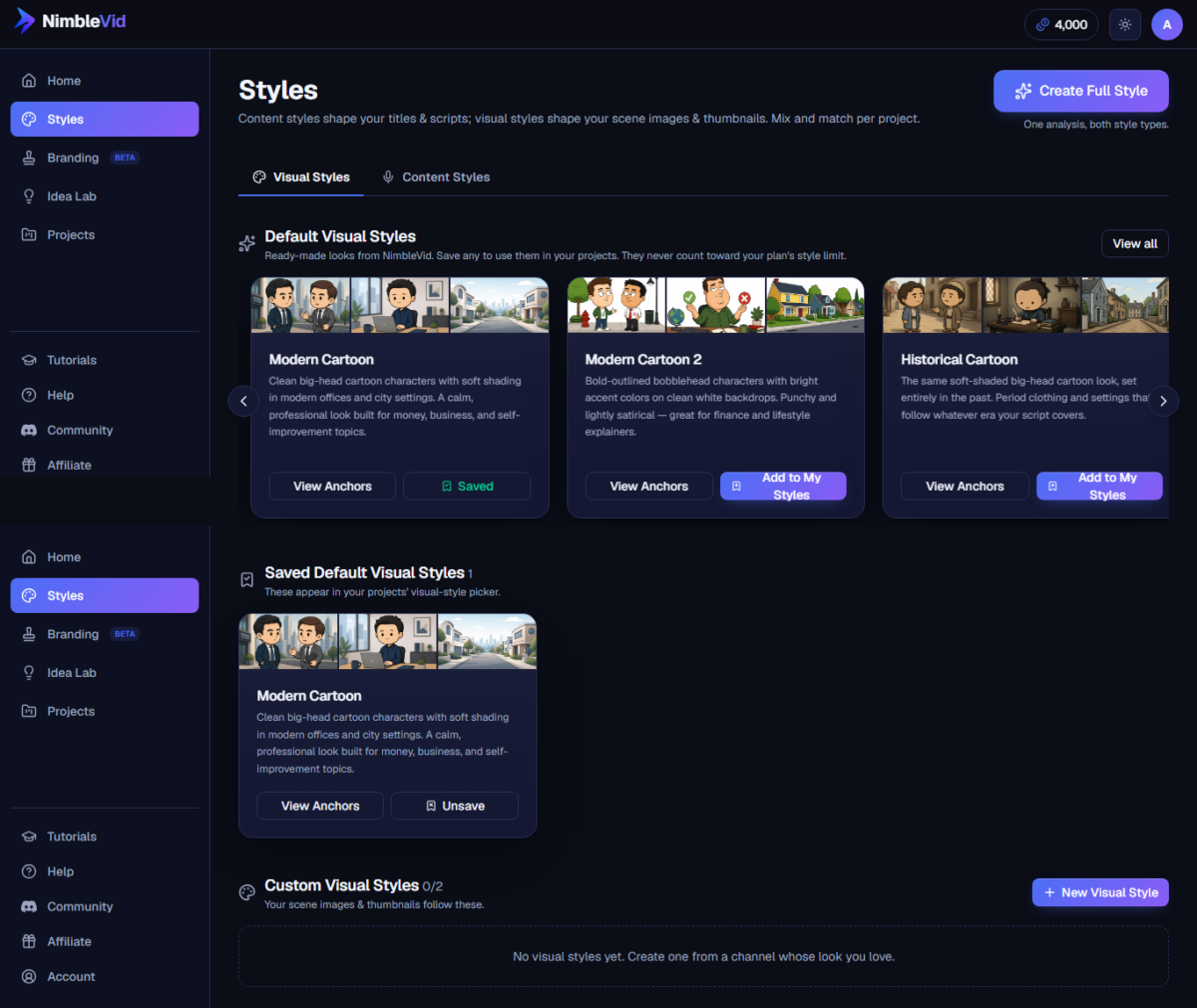
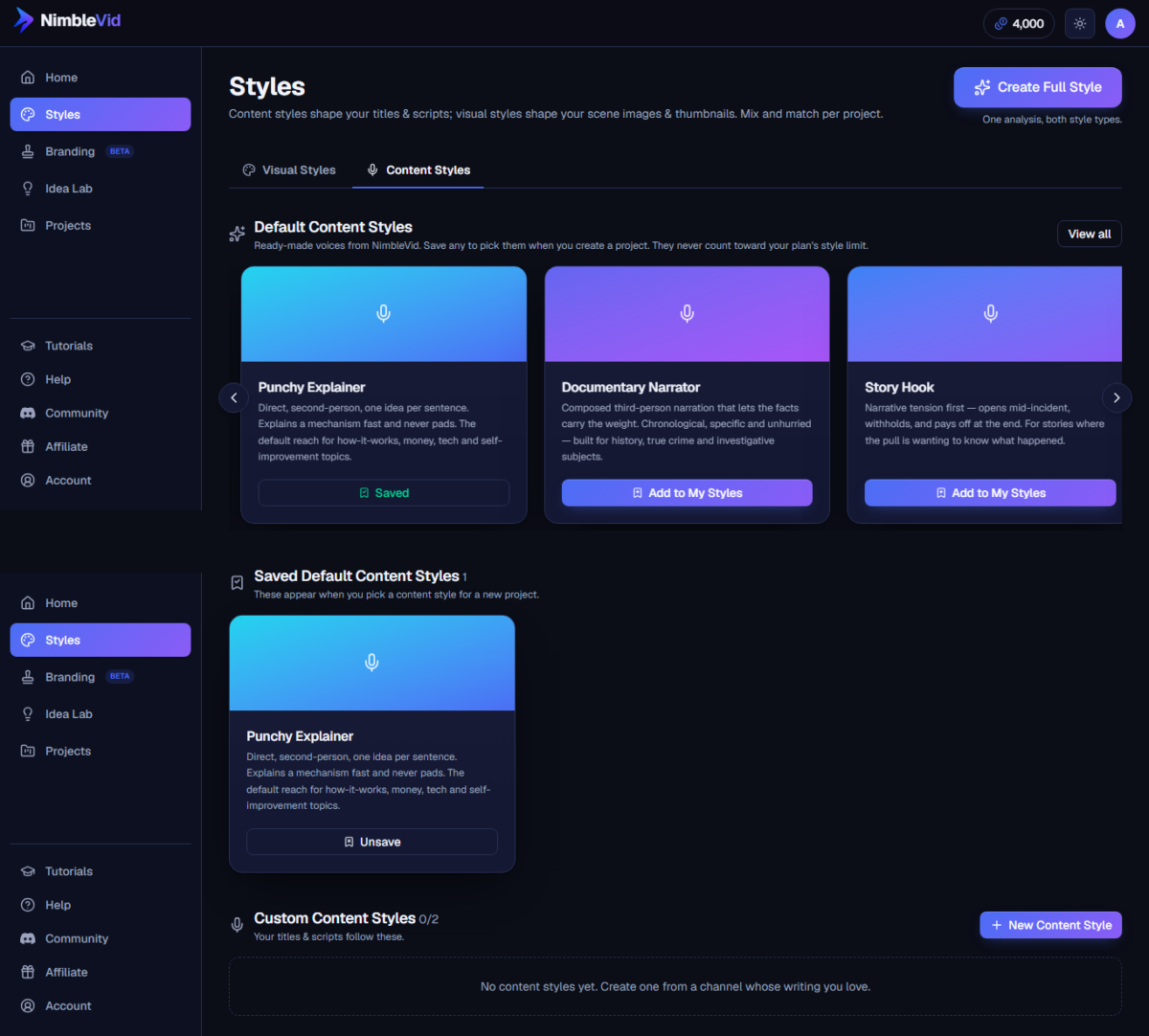
Once your styles are selected, click Create New Video to start a project. You first choose the video format, then give the project a name and select its video shape:
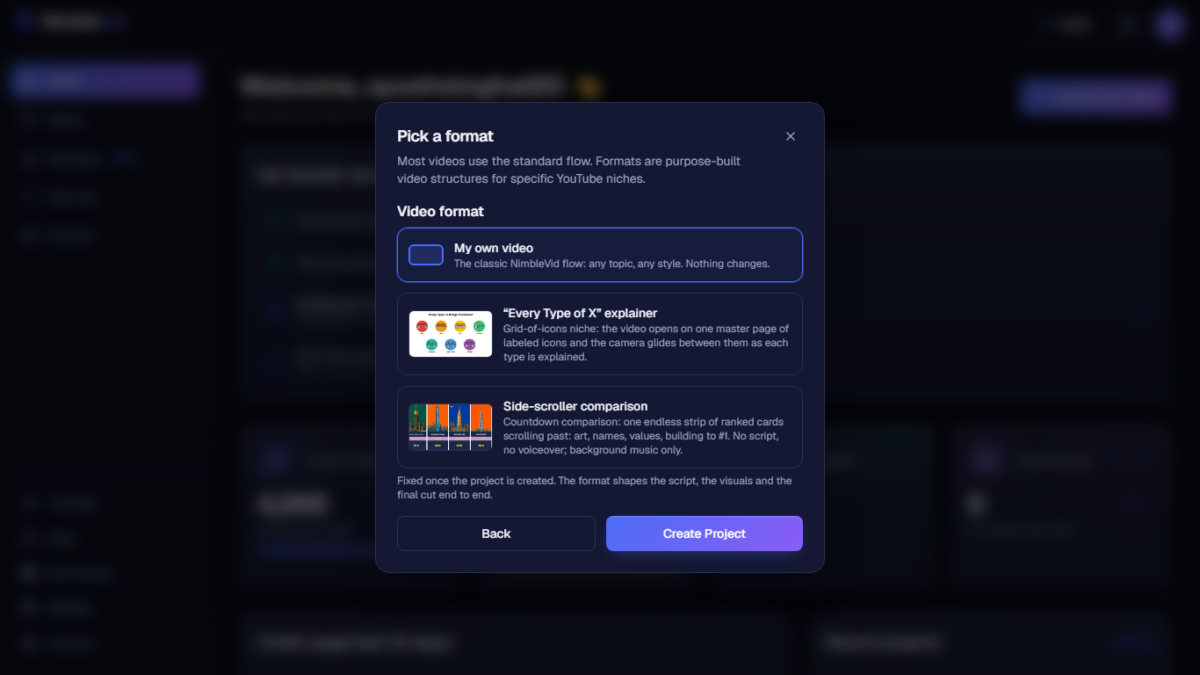
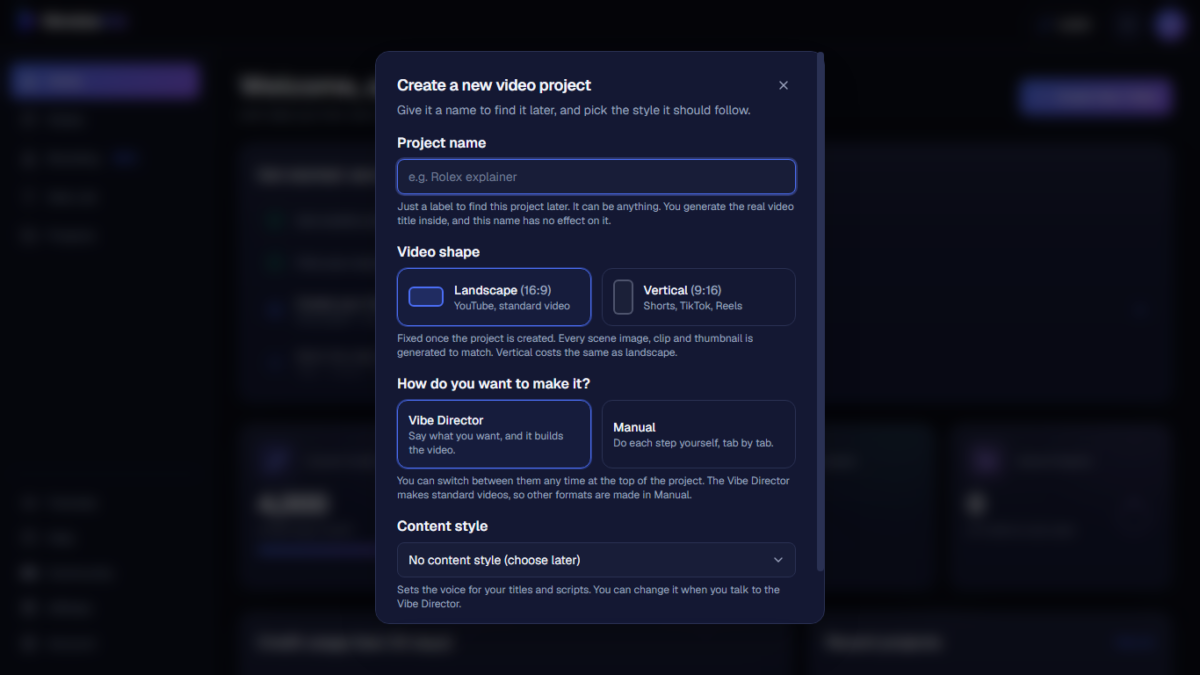
- Landscape (16:9): intended for YouTube and standard horizontal videos.
- Vertical (9:16): intended for Shorts, TikTok, Reels, and other vertical content.
The video shape is fixed when the project is created and cannot be changed afterwards. NimbleVid also states that the scene images, clips, and thumbnails are generated to match the selected shape, so this is an important choice to make before you start.
After setting up the project, you can choose between two ways to create the video:
- Vibe Director: You describe the video you want in a chat. It builds the video plan, shows you the estimated credit cost, and lets you approve it before generation.
- Manual mode: You handle each step yourself through separate tabs, giving you more control over the process.
A typical project can move through script → voiceover → scene plan → one image per scene → pan and zoom → draft video, followed by optional thumbnail and YouTube description generation.
The important thing to understand is that NimbleVid uses credits for these actions. Before approving a generation, the interface shows an estimated credit cost, so you can see roughly how much the project will consume.
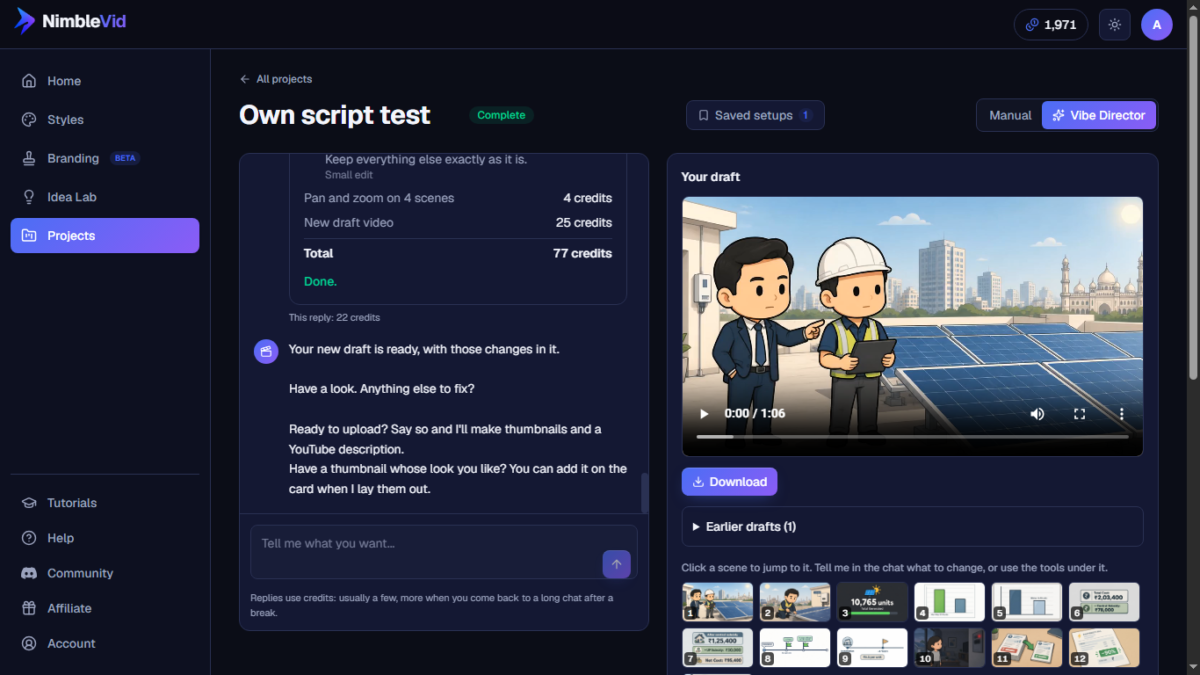
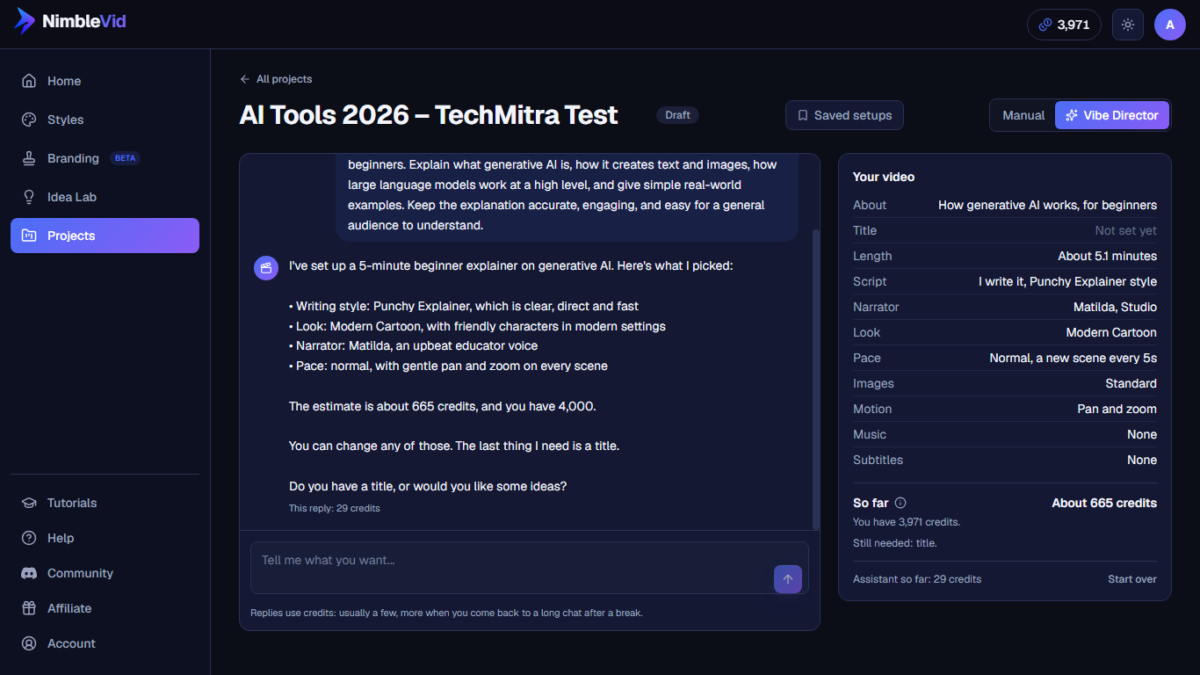
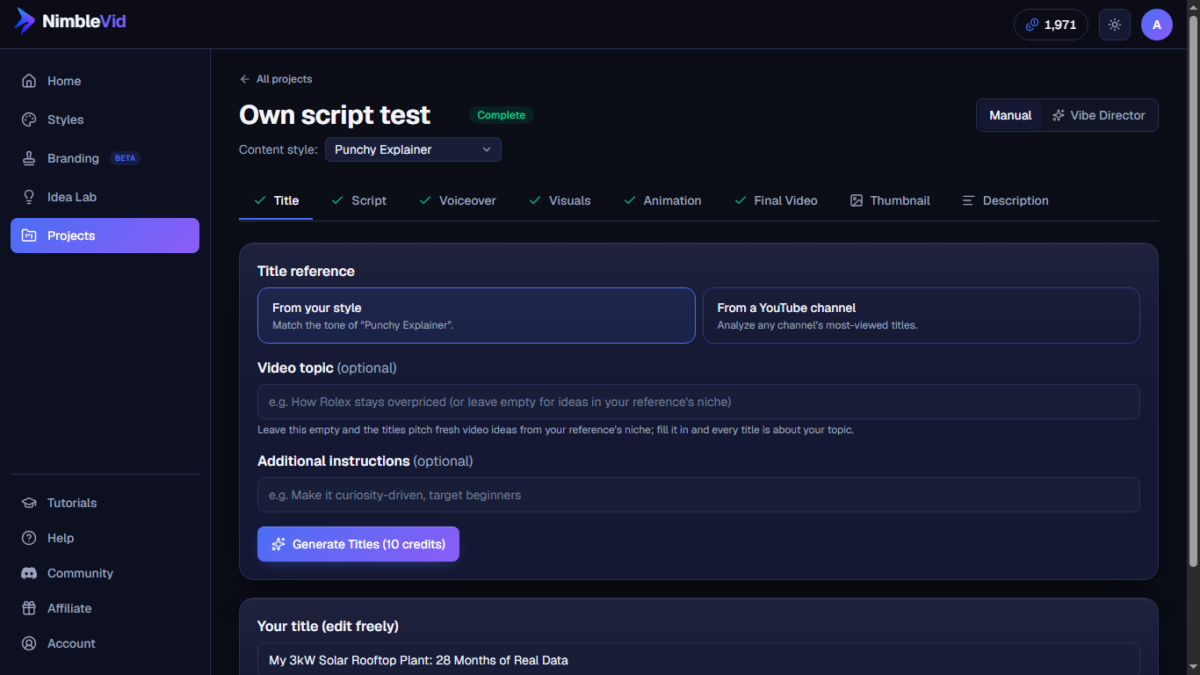
What the NimbleVid project page looks like
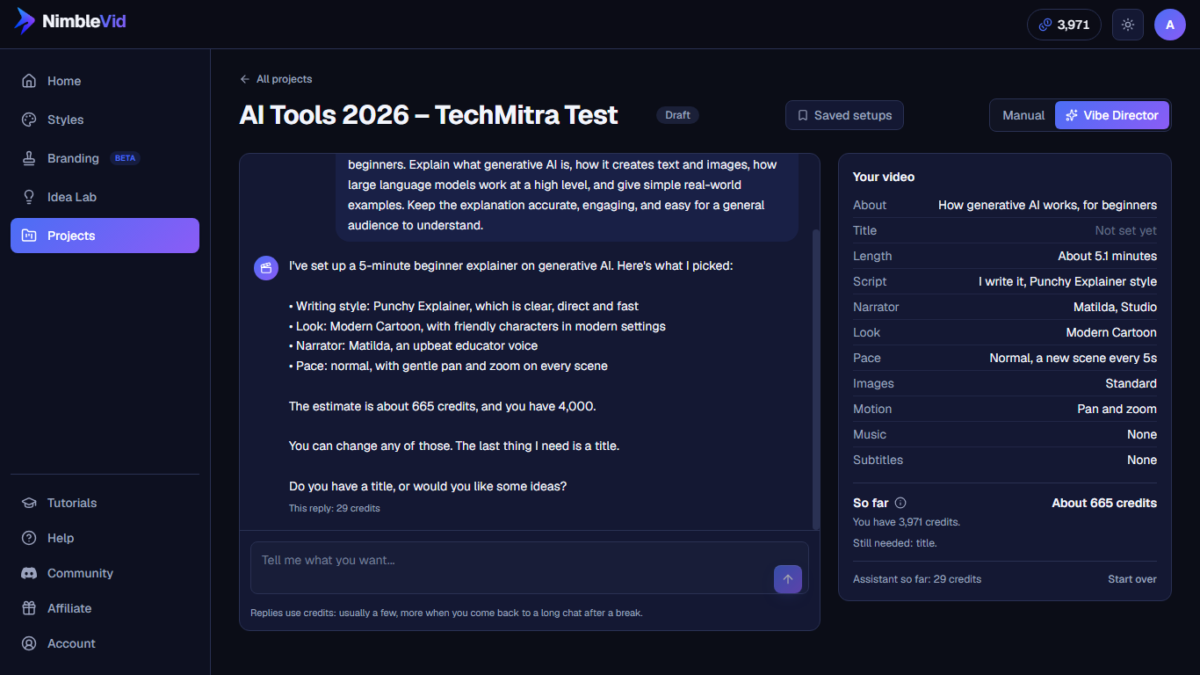
Everything in Vibe Director happens on one page, which I think is one of NimbleVid’s better design choices. The chat sits on the left. On the right, a summary card called “Your video” fills in as you answer the Director’s questions, listing the topic, title, length, script word count, narrator, visual look, pace, image quality, motion, music and subtitles.
Before you approve, it shows the estimated credits, and afterwards it shows the credits you approved. At the bottom it also shows how many credits the chat itself has used, under “Assistant so far”, which is how I tracked the cost of conversation replies.
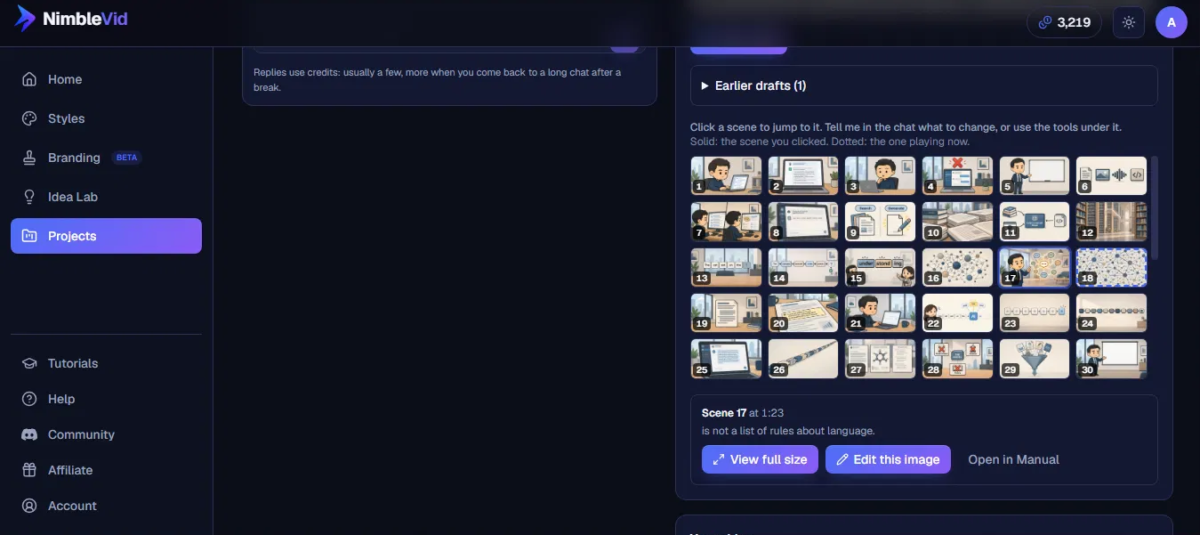
When the draft is ready, the same page shows the video player with a Download button, then the thumbnail and YouTube description if you asked for them, with copy buttons for the description, the tags and a pinned comment. Below that is a strip of numbered scene thumbnails. Clicking a scene shows its image and the narration line at that moment, with buttons to view it full size, edit the image or open it in Manual mode, and older drafts stay listed under “Earlier drafts” so you can go back. Switching to Manual mode, at the top right, splits the same project into tabs for Title, Script, Voiceover, Visuals, Animation, Final Video, Thumbnail and Description.
One important limitation
The video shape is fixed at the project-creation stage. You need to choose between landscape 16:9 and vertical 9:16 at the beginning, and you cannot change the format later.
I learned this the hard way during my fourth test. I accidentally created the solar documentary as a vertical project, and there was no option to switch it to landscape afterwards. If you’re creating a YouTube video, choose 16:9 before starting; for Shorts, Reels, or other vertical content, choose 9:16.
How I tested it
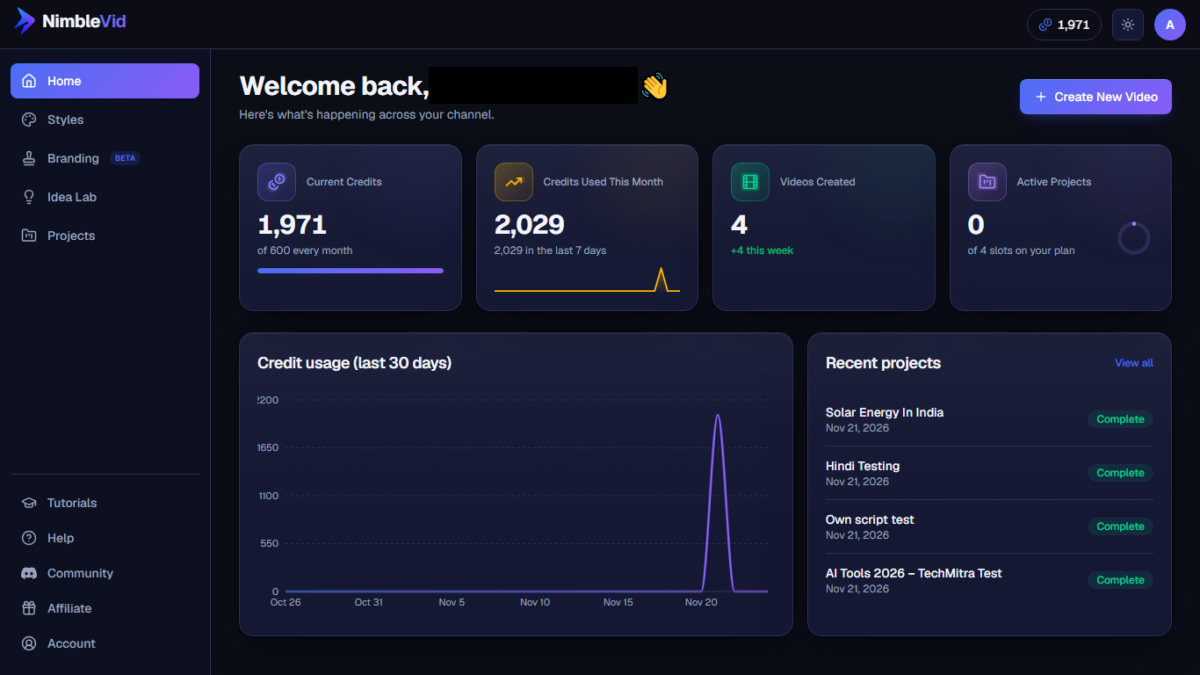
I ran four tests over one day: a five-minute English explainer, a one-minute video from my own article script, the same script in Hindi, and a five-minute photorealistic documentary. The table shows what each one cost, using my account balance before and after, which includes chat replies and edits.
| Test | Finished length | Quoted price | Actual balance drop |
|---|---|---|---|
| 1. English explainer (Modern Cartoon) | 5:07 | about 666 credits, plus 39 for a fix round | about 781 |
| 2. My own script, English | 1:06 | 151 credits | about 299 |
| 3. Hindi script, with thumbnail and description | 0:37 | 100 credits | about 165 |
| 4. Photoreal documentary (vertical) | 5:07 | about 635 credits | about 700 |
Across the four tests I used about 1,950 of my 4,000 credits, which my account shows as a one-time test-account grant, not a monthly allowance. Counting the 1080p re-render, thumbnail edits and other experiments, I used about 2,029 credits in total.
Test 1: a five-minute explainer on how generative AI works
For the first test I asked the Vibe Director for a five-minute beginner video on how generative AI works, in a Modern Cartoon style with a punchy explainer tone. It proposed about 750 words, 61 scenes and an estimated 665 credits, broken down by step: script, voiceover, scene plan, 61 images, pan and zoom, and the draft.
Before generating the video it let me read the script. I rewrote a few lines because the first version used absolute statements, such as saying a model never memorizes answers. That is the first thing I would tell any reader: the script step is where you catch technical mistakes, and the tool will not catch them for you.
The draft arrived in about six to seven minutes and came out at 5 minutes 7 seconds. The cartoon style was consistent and the visuals tried to explain the concepts, not just decorate them. One scene did not match its narration, so I used the scene-level editing.
NimbleVid first suggested a poor replacement, then corrected itself and proposed a better pair of fixes for 39 credits: a next-token illustration for one scene and a learned-patterns illustration for another. In my check the next-token image worked well, with correctly spelled text. The other image only partly matched what I asked for: I wanted a web of connected words, and I got a presenter beside speech bubbles with no words in them.
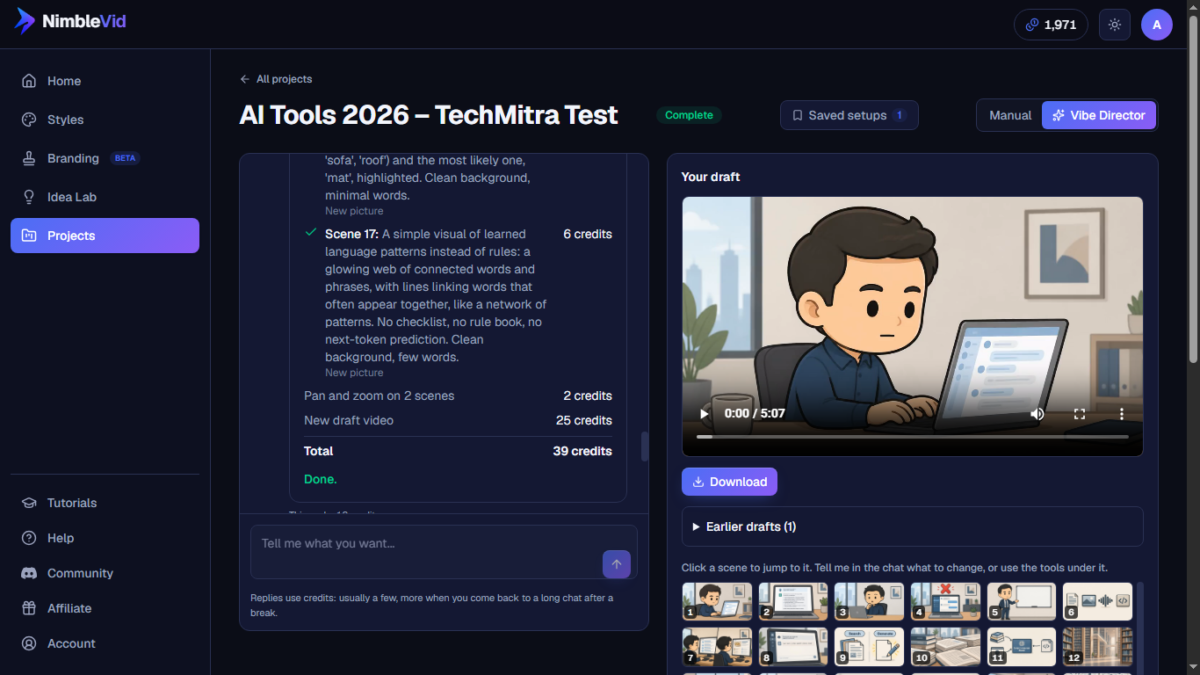
The lesson here was that editing by chat is useful but not free. The chat replies that proposed the fixes cost credits of their own, and each draft re-render costs 25.
Test 2: my own script, with the tool adding things I never wrote
This was the test I cared about most, because it is how TechMitra would really use the tool. I took a 144-word section from my rooftop solar review, with Lucknow, a 3.39 kilowatt system, rupee amounts and PM Surya Ghar, and asked for it to be used word for word.
The tool did what it said. The plan card showed 151 credits and no charge for the script step, since I supplied it. The words were not changed, and the images drew the rupee amounts correctly, including the Indian digit grouping in ₹2,03,400. It even put a Lucknow skyline and a 3.39 kW label on an inverter.
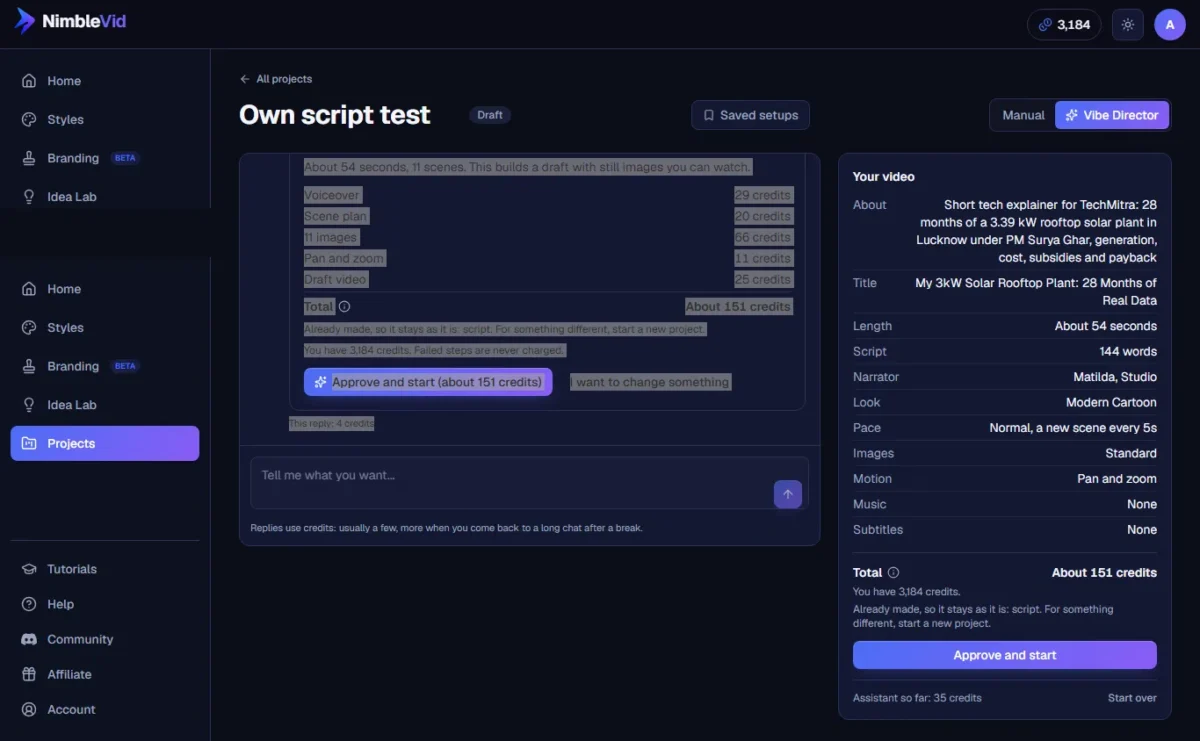
But it also added content I never wrote. One cost scene was labelled “Total Loan Amount”, although there is no loan anywhere in my script. The electricity-bill scenes showed dollar signs and a “$24.50” total on a video about Indian rupees. The video also ran 1 minute 6 seconds against a quoted 54 seconds.
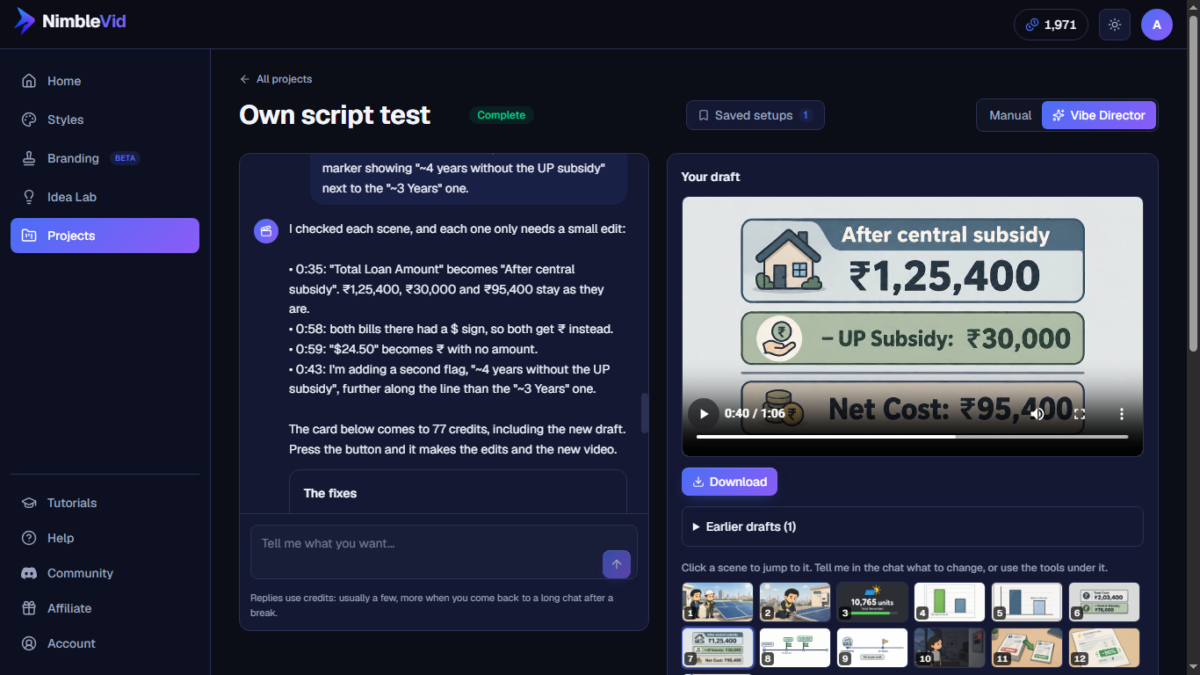
I asked for fixes, and the Director split them into four small edits at 12 credits each, plus pan and zoom and a new draft, for 77 credits. It fixed the loan label, replaced the dollar signs with the rupee symbol and added the payback marker I asked for. The one flaw left was a bare rupee symbol where the total used to be, which looked unfinished. The conclusion I would stress: the tool kept my words perfectly but invented the labels around them, so you have to watch every frame.
Test 3: Hindi
I asked the Director before spending anything whether it supported Hindi. It said yes to Hindi narration and to a Devanagari script used word for word, and it admitted it did not know whether the images could show Hindi text reliably. That honesty was useful, because image text is where most tools fail.
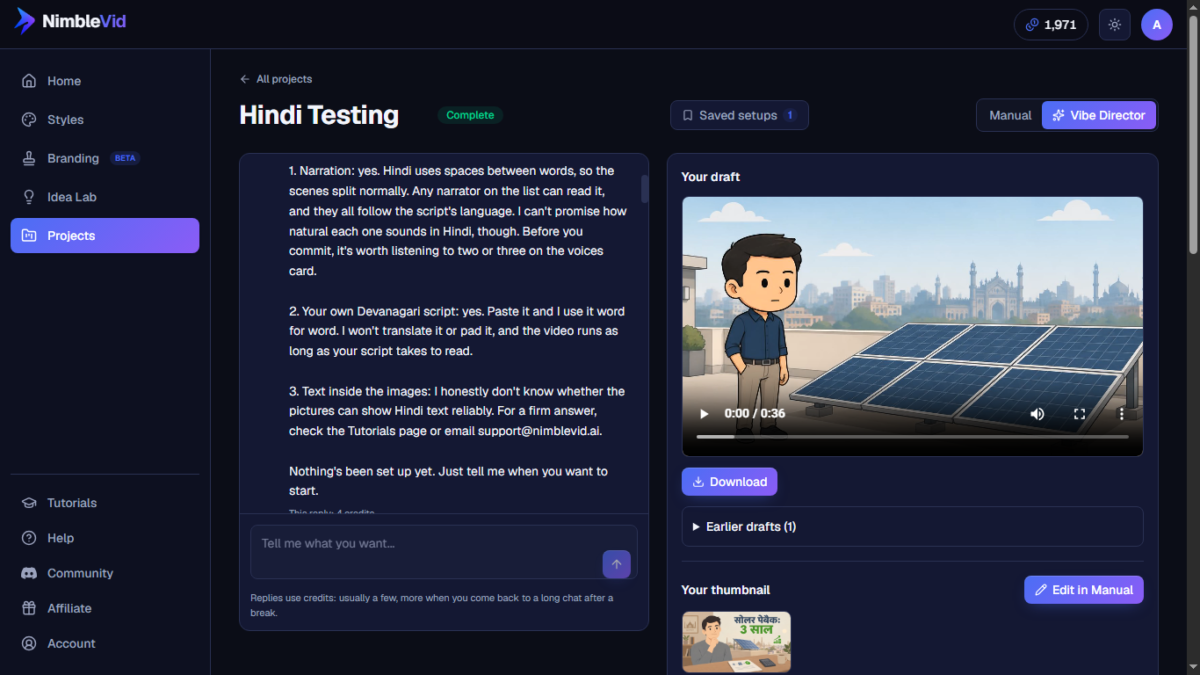
I pasted a 75-word Hindi version of the same script and asked for any text in the pictures to be in Hindi. The plan came to 100 credits, and the video that came out was 37 seconds, not the 24 quoted, with seven scenes instead of five. The Hindi text in the images was clear and correctly formed, including labels such as कुल लागत, केंद्र सरकार and शुद्ध खर्च, and the narrator, Eric, read the script perfectly to my ear.
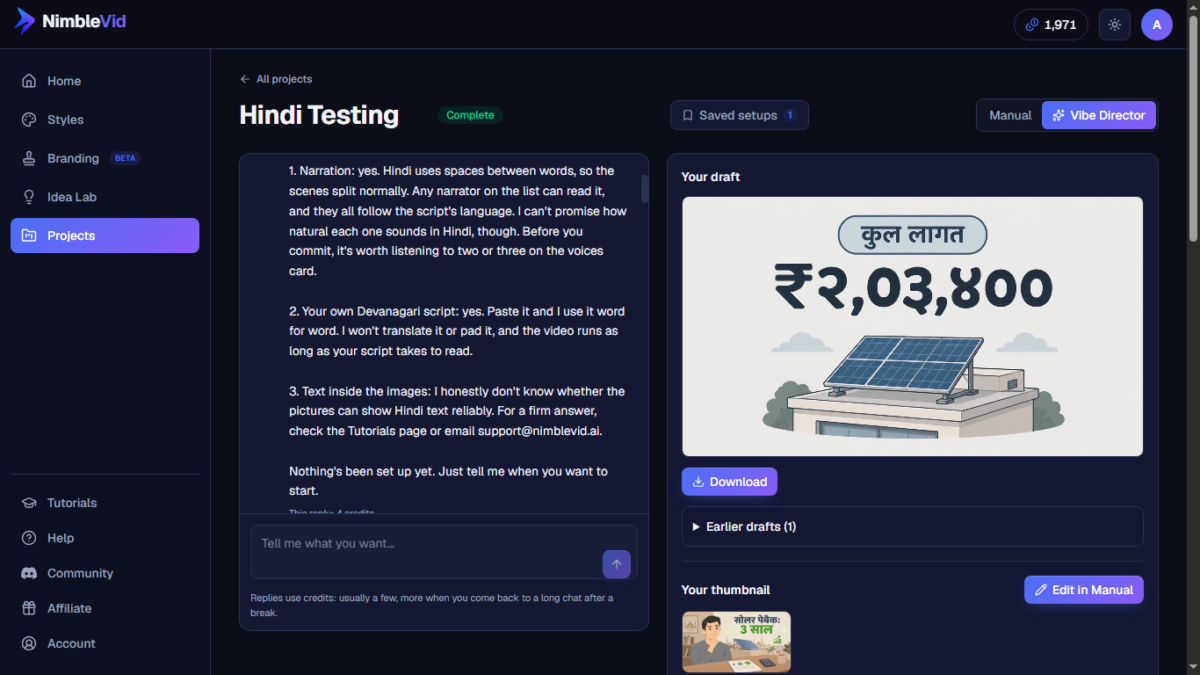
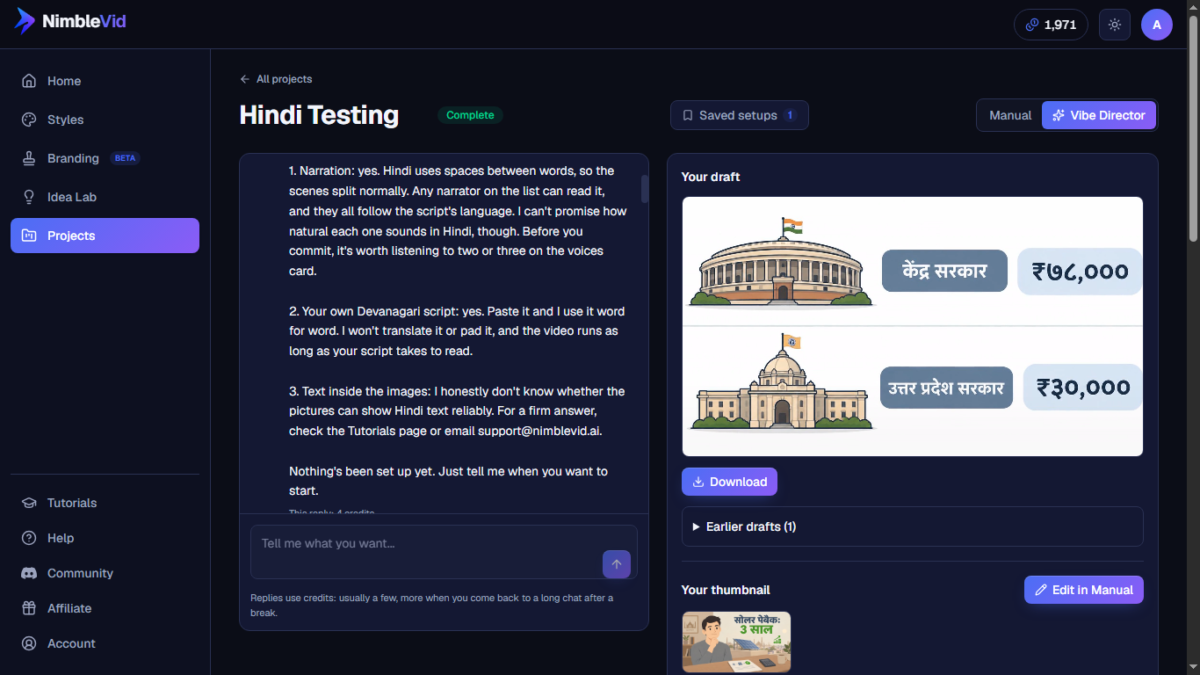
Screenshot – Two Hindi frames, the ₹२,०३,४०० cost card and the subsidy card.
The upload kit was mixed. The YouTube description came out fully in Hindi with accurate timestamps and relevant tags. The thumbnail first showed an English headline, which I fixed by editing the text in the thumbnail editor, and the next version read correctly in Hindi. The pinned comment promised that the next video’s topic would be decided by the replies, which I never wrote. It is a small thing, but it is the same pattern as the loan label.
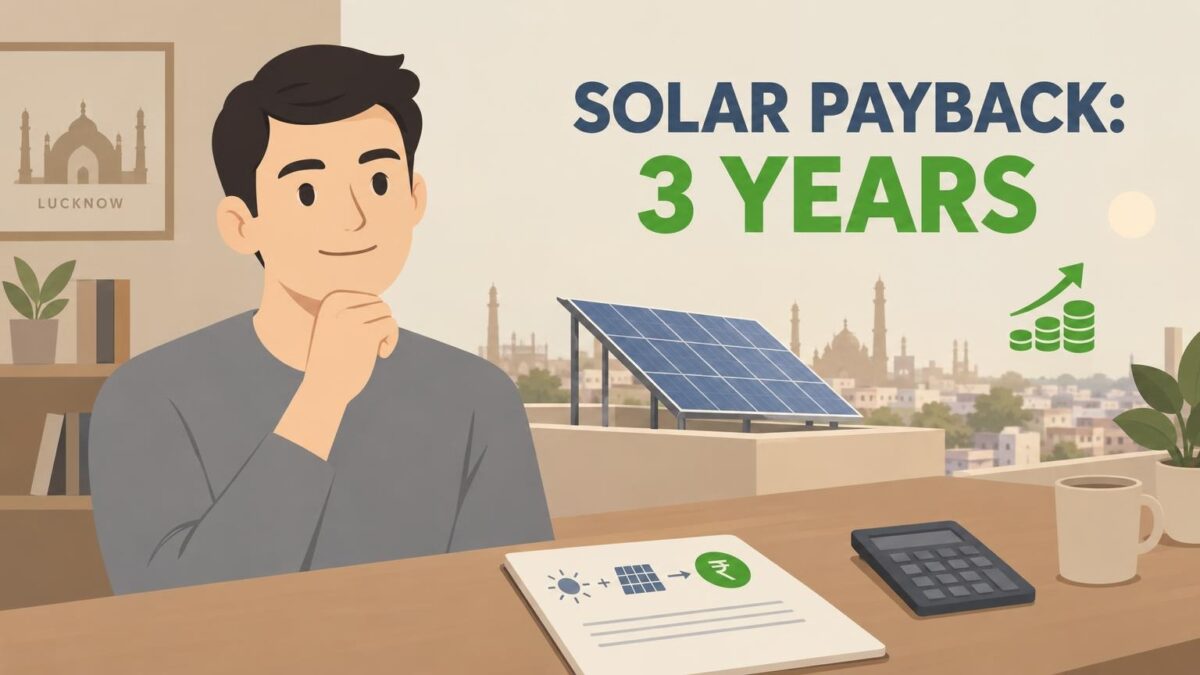
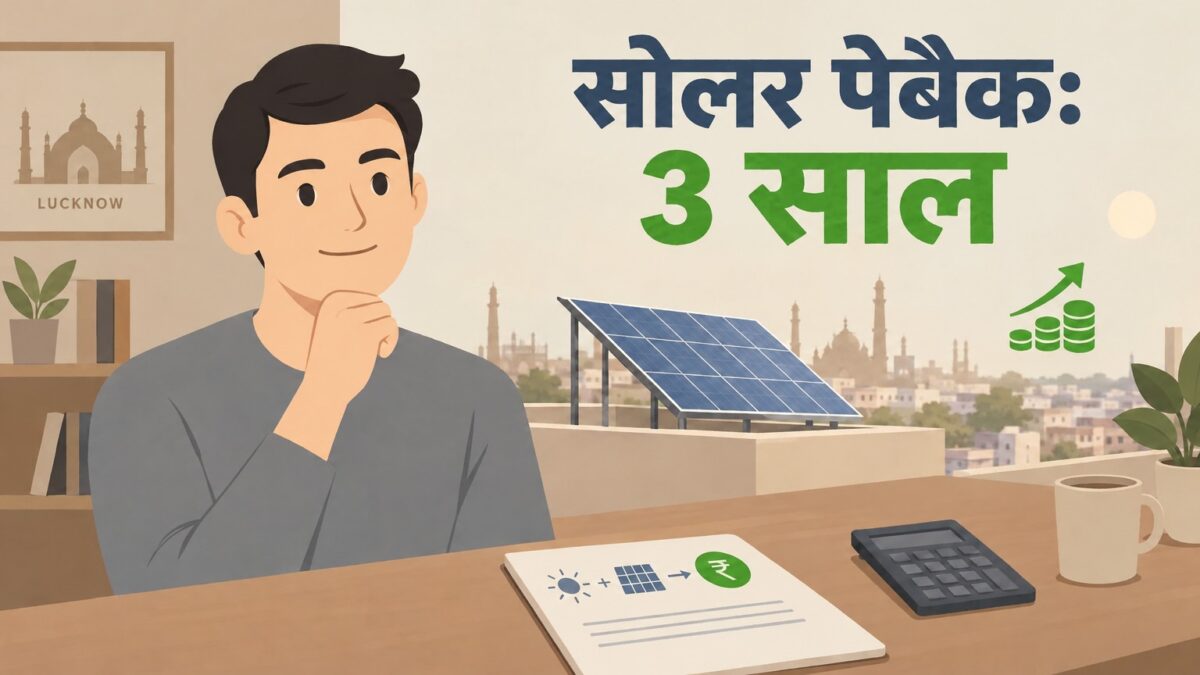
I also tested Full HD on this video. When I asked the Director whether it could be downloaded in 1080p, it said my draft was 720p and offered a new draft for 40 credits, with the script, voiceover and pictures left as they were. The 720p version stayed under Earlier drafts.
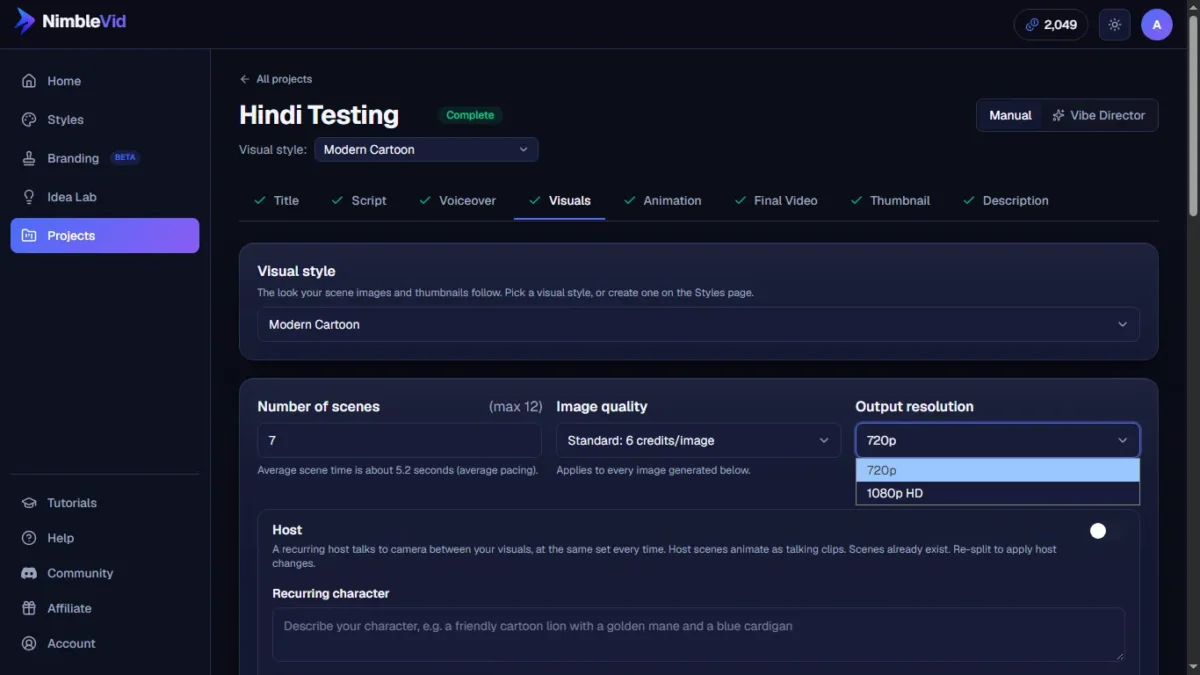
The new file came out at 1920 by 1080 with the same 36.7-second length, and text edges looked a little crisper, though the difference is modest because the images are simple cartoon art. If you work in Manual mode, the Visuals tab also has an Output resolution setting with 720p and 1080p HD. I saw no watermark in the frames I checked from any of my files.
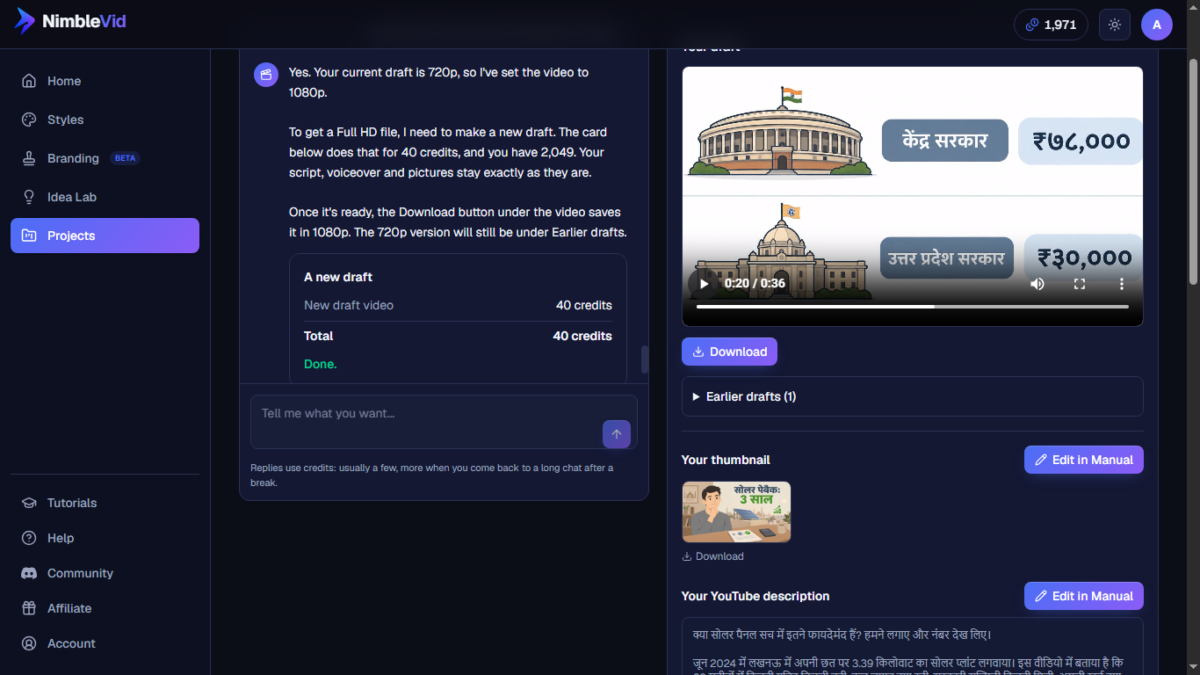
For Indian creators, this was the most encouraging result of the four tests. It is one 75-word script, so I would not claim more than that, but Hindi worked end to end.
Test 4: a five-minute photorealistic documentary
For the last test I asked for a five-minute, realistic documentary about solar energy in India, with cinematic photographic scenes and a serious tone. The Director picked a photorealistic look and a deep documentary voice, Brian, and quoted about 635 credits for 57 scenes.
It also set the project up as vertical 9:16, and I found out only while planning. When I asked to change it, the Director said the shape is locked at creation and the only fix is a new project. I went ahead with the vertical version, so this video is not directly comparable with the first one.
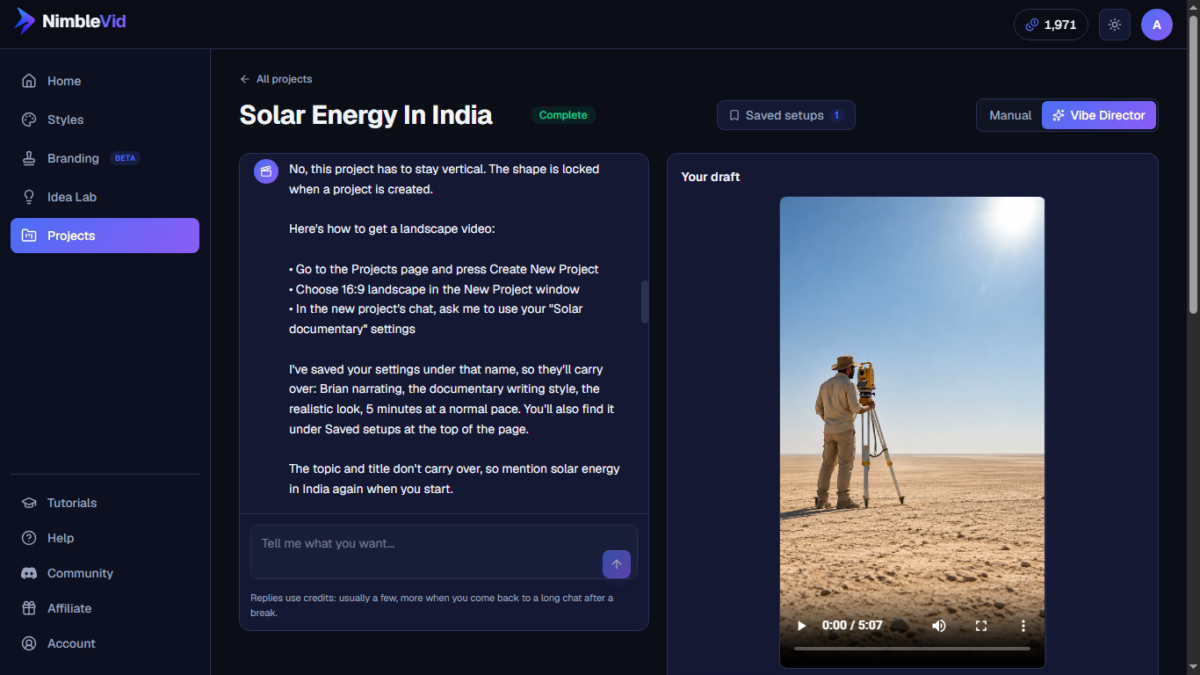
The visuals are impressive at a glance: desert surveying shots, aerial views of solar farms, factory floors, ministry rooms with the national emblem, and clean charts and maps. But the build used about 690 credits, not 635, and the plan grew from 57 to 61 scenes. Before drawing, the Director showed a card for recurring characters and places such as Bhadla Solar Park, the Thar Desert and a government chamber, each marked “the AI decides the look”, with an option to generate or upload reference pictures for 84 credits in total.
I chose to continue without references. Some images then looked American: a government room with a US flag and a shelf of “Federal Land” books, and red-rock landscapes more like the American Southwest than Rajasthan. [confirm these on full-size frames] I cannot prove the missing references caused it, but I would upload my own photos next time.
The narration, Brian, pronounced names like Bhadla correctly, but he still sounds like AI. Every number shown in the charts also needs checking against official data, because realistic images make wrong figures look authoritative.
What worked well
The pricing process is the best part of the product. Every plan card shows an itemized price, the Director says failed steps are never charged, and nothing starts until you press approve. The script review step is also a real safeguard, and it paused for me in every video. Targeted edits do what they say, changing the scenes you name and leaving the rest alone, and the rollback of the last thumbnail edit is free. Finally, text inside images, including the rupee symbol and Devanagari, was far better than I expected.
What did not work or needs care
The tool adds content you did not ask for, as the loan label, the dollar signs and the pinned comment showed. Real costs run above the quote: the five-minute documentary cost about 8 percent more than estimated, short videos cost more per minute because of fixed steps, and chat replies and edits add up.
My downloads were 720p by default (1280 by 720, or 720 by 1280 for the vertical documentary), and I had to ask for Full HD. The English voices sound like AI even when they pronounce names well. And I looked for a way to turn an existing video into a faceless one and found none, so NimbleVid is built around generating new videos from scripts.
NimbleVid Pricing
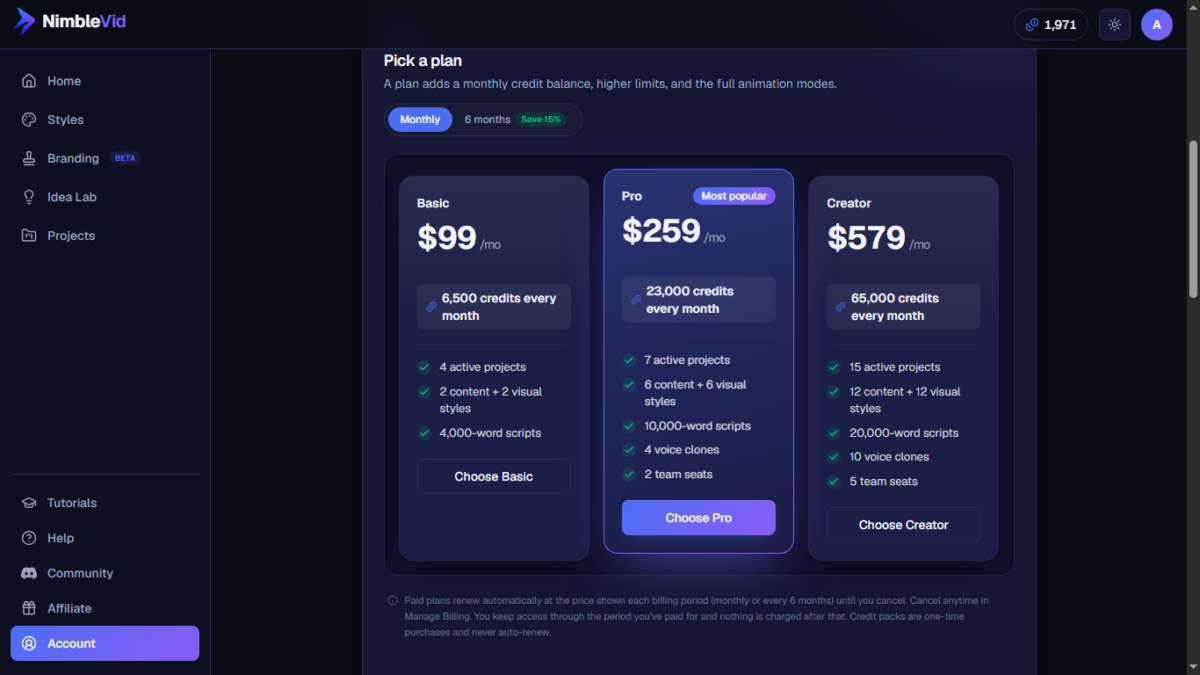
The plans on the pricing page are listed below. Credits are the only thing that varies.
| Plan | Price | Credits per month |
|---|---|---|
| Basic | $99/month | 6,500 |
| Pro | $259/month | 23,000 |
| Creator | $579/month | 65,000 |
NimbleVid also offers a one-time Starter Pack of 1,100 credits for $9.99, limited to one per customer and normally $19.25, which it says is enough for 5 to 8 minutes of finished video. Other credit packs never auto-renew: 500 credits cost $8.75, 1,000 cost $17.50, 2,500 cost $43.75 and 5,000 cost $87.50, and you can buy any amount from $5 at the same rate, which is $1.75 per 100 credits.
Paid plans renew automatically until you cancel in Manage Billing, with a 15 percent saving if you pay for six months at once. Basic allows 4 active projects and 4,000-word scripts, Pro allows 7 projects, 10,000-word scripts, 4 voice clones and 2 team seats, and Creator allows 15 projects, 20,000-word scripts, 10 voice clones and 5 seats.
By my arithmetic, a five-minute draft of around 666 credits costs about $10 on Basic, $7.50 on Pro and $6 on Creator, before edits and chat. My four tests used about 1,950 credits, which works out to roughly $18 at the Starter Pack rate, $30 at Basic rates and $34 at the one-time pack rate. My account page lists the 4,000 credits as a single “Test account credits” grant, with the test account included until December 21, 2026. My dashboard also showed a figure of 600 credits “every month”, which I could not explain, so I have not relied on it.
NimbleVid vs InVideo
I tested NimbleVid hands-on and looked at InVideo only through its pricing page, checked on November 21, 2026, so this compares what each product offers, not the quality of their results. They are different kinds of tool. NimbleVid builds a narrated video from a script, with one generated still image per scene and pan and zoom. InVideo is a broader platform: it generates video clips with models such as Seedance, Kling and Veo, and it includes a full timeline editor and support for your own footage.
| NimbleVid | InVideo | |
|---|---|---|
| Entry price | Basic $99/month (6,500 credits); one-time packs from $8.75 | Starter $20/month list, $10/month billed annually (400 credits) |
| Higher plans | Pro $259 (23,000 credits), Creator $579 (65,000) | Plus $60 list, $30/month annually (2,000 credits); Max listed at $250 (8,000 credits) |
| Timeline editor | No | Yes, on every plan |
| Your own footage | Not found in my tests | Yes, from Starter |
| Models | NimbleVid’s own still-image pipeline; full animation needs a paid plan | Seedance, Kling, Veo and others; Starter is limited to Seedance 2.0 Fast and Mini |
| Best fit | An automated, narrated explainer from a script | Editing, your own footage and generated clips |
InVideo’s prices include time-limited promotions, such as Black Friday offers of up to 75 percent off and a two-year prepaid option, so check the page before you buy. InVideo says unused credits do not roll over, and I did not find NimbleVid’s rule.
Credits cannot be compared between the two. InVideo prices each model and clip separately, for example about 30 credits for a Seedance 2.0 Fast video and about 56 credits for five seconds of Seedance 2.5 at 720p. NimbleVid charged about 6 credits per still image, and a five-minute draft was quoted at about 635 to 666 credits in my tests.
By my arithmetic, a five-minute video made only of five-second Seedance 2.5 clips would be roughly 3,360 credits, more than a month of Plus. That is a different kind of video, so I would not rank the two on price.
Choose NimbleVid if you want to turn a script into a complete narrated video with a consistent look and little manual editing. Choose InVideo if you want to edit on a timeline, use your own footage or pick between several video models. I have not tested InVideo myself, so treat this as a guide to what each tool offers, not a verdict.
Who should use NimbleVid
It suits creators who want fast first drafts of faceless explainer videos and who will read every script and check every scene. It is especially interesting for Hindi, given how well the Hindi test went. It is a poor fit if you want to publish without review, if you need 1080p, or if your plan is to convert existing footage.
What I did not test
I did not test videos longer than five minutes, even though the site is aimed at 10 to 60 minutes, and I did not try the Host option, which adds a recurring presenter talking to camera. I also did not test style cloning, Idea Lab, full animation (which the account page says needs a paid plan), consistent characters across a long video, or the reference picture upload in the thumbnail tool.
NimbleVid FAQ
Is NimbleVid worth it?
It is worth trying if you want fast first drafts of faceless videos and will check every scene. In my tests the pricing was transparent and Hindi worked well, but it added details I never wrote, and real costs ran above the quotes. Start with a small credit pack.
Does NimbleVid support Hindi?
Yes, in my test. I pasted a 75-word Hindi script, and the video used it word for word, with a Hindi narrator and Devanagari text inside the images. The thumbnail first showed an English headline and needed one edit. It was a single short script, so I cannot speak for longer videos.
How much does NimbleVid cost?
Basic is $99 a month for 6,500 credits, Pro is $259 for 23,000 and Creator is $579 for 65,000. There is also a one-time Starter Pack of 1,100 credits for $9.99, limited to one per customer. A five-minute draft was quoted at about 635 to 665 credits in my tests, and my real spend was higher once chat replies and edits were counted.
Is there a NimbleVid discount?
Through my affiliate link, a monthly subscription gets 10% off. The discount does not apply to the one-time Starter Pack.
Can NimbleVid make 1080p videos?
Yes. My downloads from the Director were 720p by default. Full HD cost 40 credits for a new draft in my test, and you can also set the output resolution in Manual mode.
Can NimbleVid turn my existing video into a faceless video?
I did not find a way to do that. NimbleVid generates new videos from a script or a topic.
Can I change a project from vertical to landscape?
No. The video shape is fixed when you create the project, so choose before you start.
Final verdict
NimbleVid is a quick and unusually transparent way to turn a script into a watchable first draft. Its honest pricing, script approval and Hindi support are real strengths. Its tendency to invent details means it saves time only if you treat its output as a draft. If you are willing to do that, it is worth trying with a small credit pack first.
Affiliate link: NimbleVid has told me that if you take a monthly subscription through my affiliate link, you get 10% off the subscription price, and I earn a recurring commission for as long as you remain subscribed. The 10% discount does not apply to the one-time Starter Pack.

Ayush Singhal is the founder and chief editor of TechMitra.in — a tech hub dedicated to simplifying gadgets, AI tools, and smart innovations for everyday users. With over 15 years of business experience, a Bachelor of Computer Applications (BCA) degree, and 5 years of hands-on experience running an electronics retail shop, Ayush brings real-world gadget knowledge and a genuine passion for emerging technology.
At TechMitra, he covers everything from AI breakthroughs and gadget reviews to app guides, mobile tips, and digital how-tos. His goal is simple — to make tech easy, useful, and enjoyable for everyone. When he’s not testing the latest devices or exploring AI trends, Ayush spends his time crafting tutorials that help readers make smarter digital choices.
📍 Based in Lucknow, India
💡 Focus Areas: Tech News • AI Tools • Gadgets • Digital How-Tos
📧 Contact: Get in touch →
🔗 Full Bio: https://techmitra.in/about-us/