
Image : Hostinger Mailbox to ChatGPT: Setup, Test & Real Results
Hostinger quietly launched an app that lets ChatGPT read, search, and send email directly from your Hostinger mailbox — no plugin, no third-party automation tool, just a native “app” inside ChatGPT’s sidebar. I run TechMitra’s inbox ([email protected]) through Hostinger Mail, so I connected it myself to see whether it’s actually useful for a one-person publication, or just another AI integration that looks good in a screenshot and falls apart in daily use.
Here’s exactly how the setup works, what it got right, and where I’d be careful.
Want to see plugins in action beyond email? Read our ChatGPT Plugins 2026 guide, where we test real plugins like Zomato and Spotify
What the Hostinger Mail App for ChatGPT Actually Does
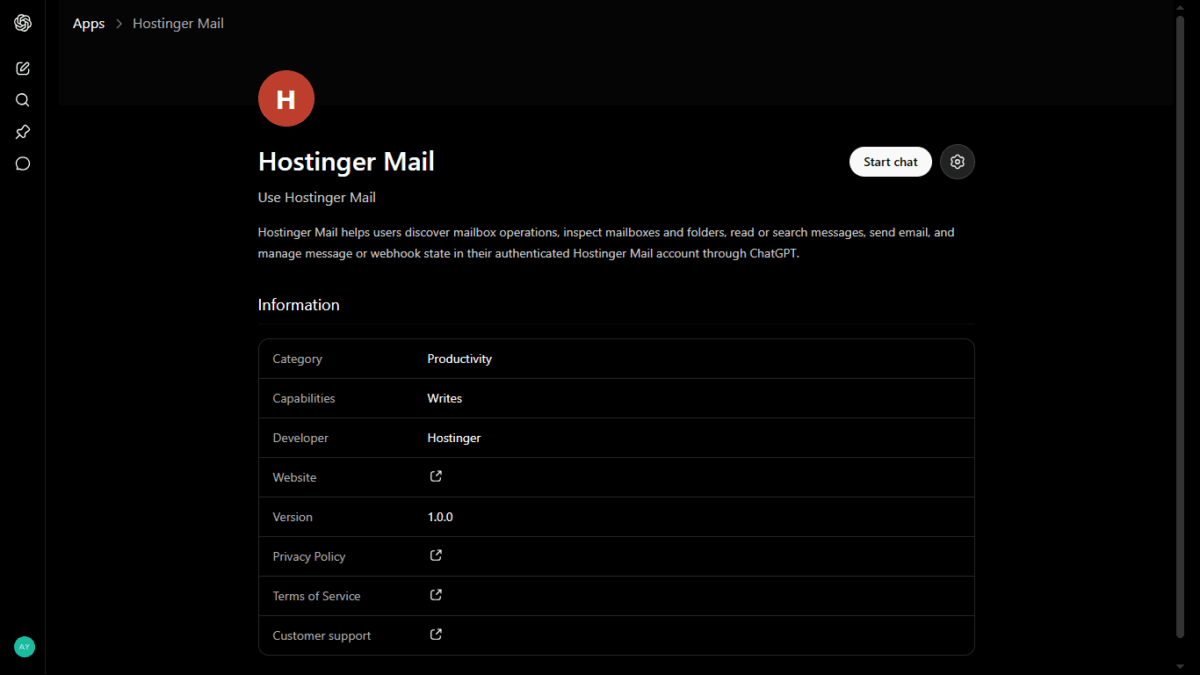
Inside ChatGPT’s Apps directory, Hostinger Mail describes itself plainly: it helps you discover mailbox operations, inspect mailboxes and folders, read or search messages, send email, and manage message state — all from natural-language prompts, without opening webmail.
In practice, that means you can ask things like “show me the last 10 emails,” “find anything from any email,” or “reply to sender,” and ChatGPT handles it through the connected mailbox instead of you switching tabs.
Setting It Up: Step by Step
The setup took me under two minutes, and it’s the same flow you’d expect from any OAuth-based app connection.
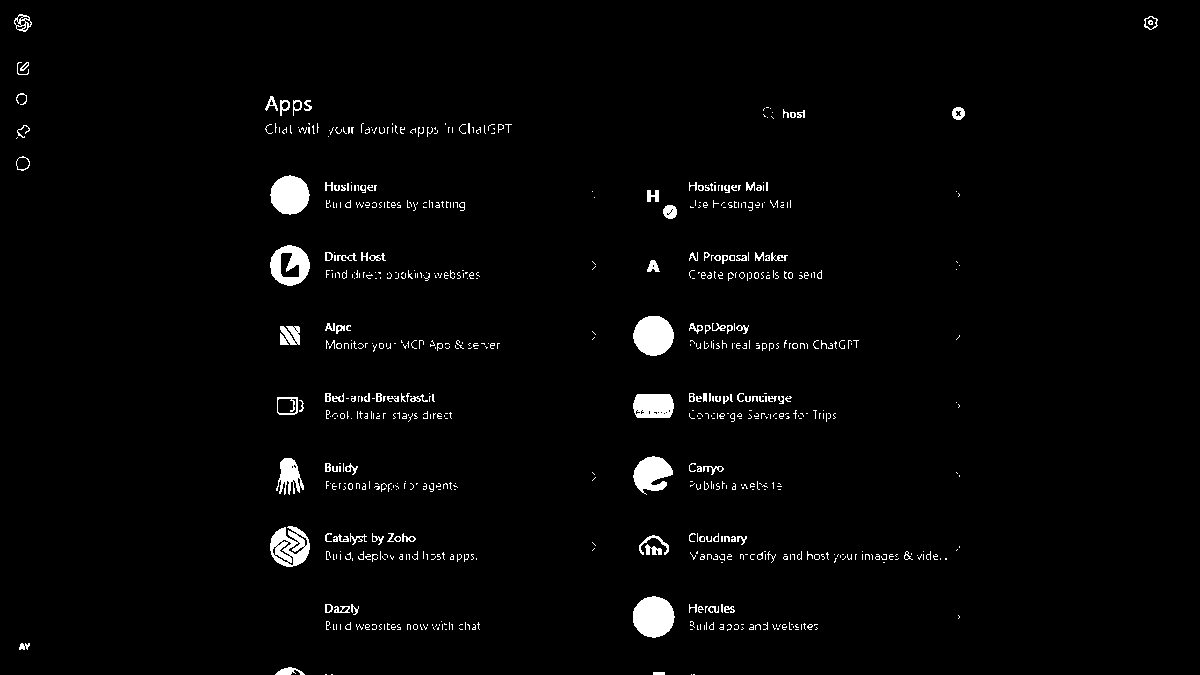
- Open Apps in ChatGPT’s sidebar and search for “Hostinger.” The app listing shows up with a category tag (Productivity), the developer name (Hostinger), and links to its privacy policy and terms.
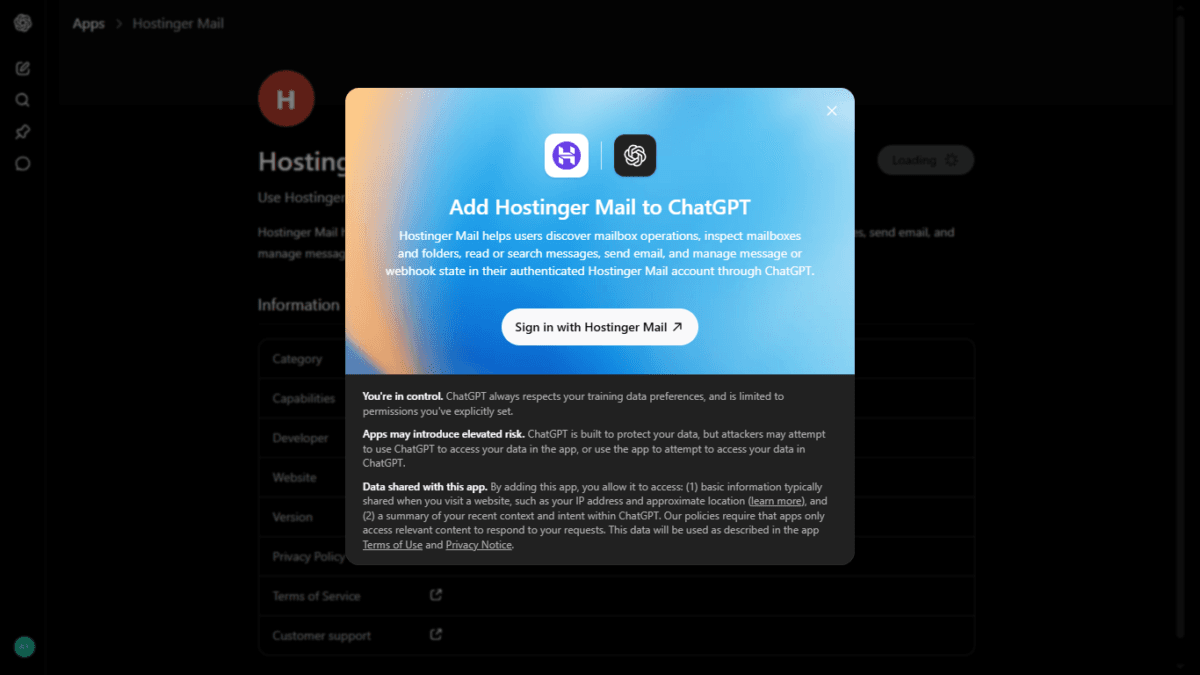
- Click Connect. A card pops up — “Add Hostinger Mail to ChatGPT” — with a plain-language warning that apps may introduce elevated risk and a summary of what data gets shared (your IP/approximate location, plus a summary of your recent ChatGPT context relevant to the request).
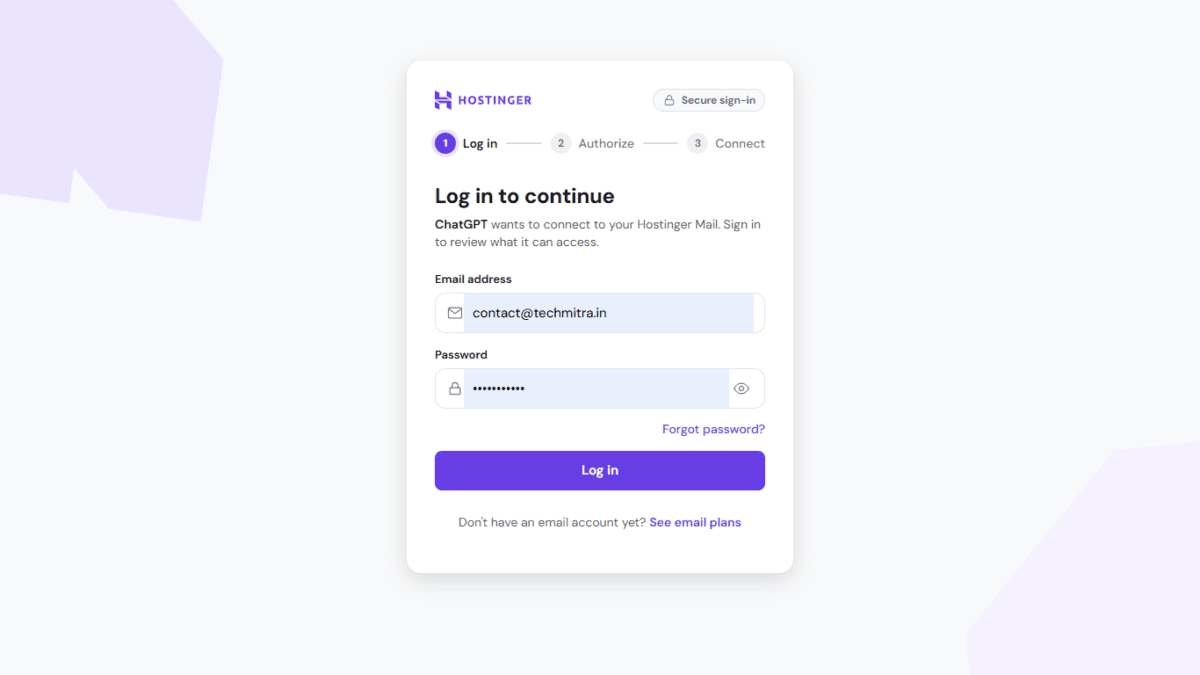
- Sign in with your Hostinger Mail credentials. This opens a proper Hostinger-hosted login screen (not an embedded ChatGPT form), which matters — it means your password goes to Hostinger’s own login page, not through ChatGPT’s servers.
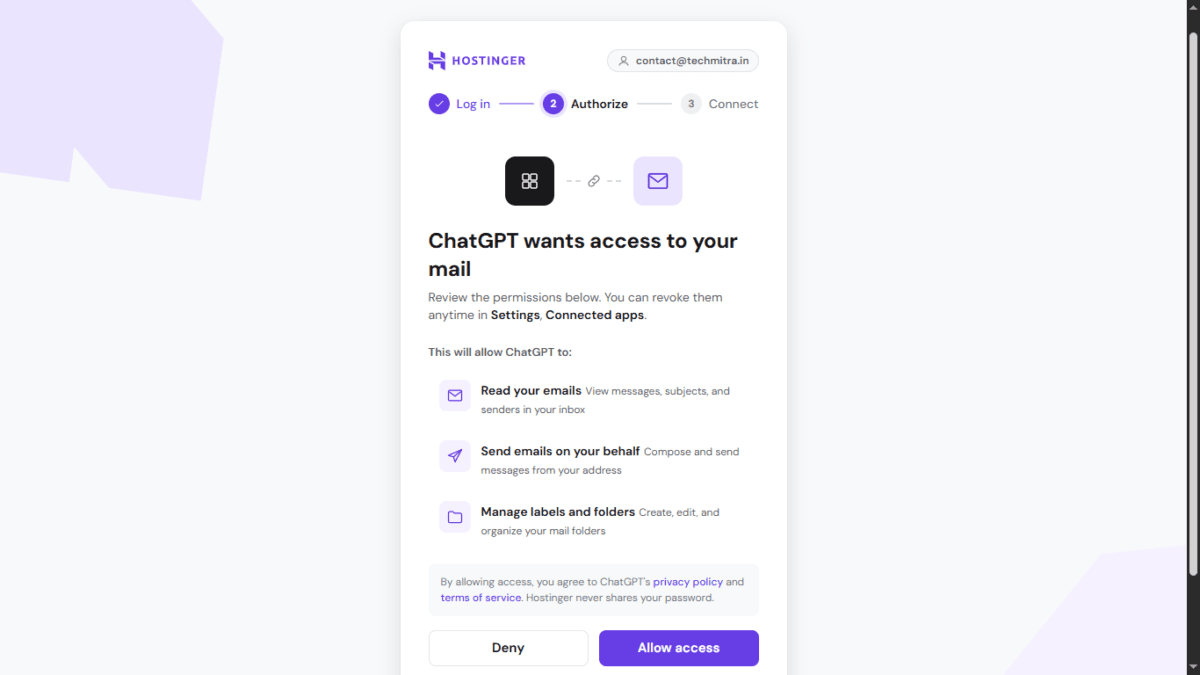
- Authorize the specific permissions. This is the step worth reading carefully. Hostinger asks for three explicit permissions: reading your emails (messages, subjects, senders), sending emails on your behalf, and managing labels/folders. You get a clear Deny or Allow access choice here — nothing is granted silently.
- Confirm and start chatting. Once authorized, the app card in ChatGPT switches from “Connect” to “Start chat,” and you’re ready to go.
To actually use it in a conversation, you don’t need to reconnect anything — just click the + button in the chat box, select Hostinger Mail from the dropdown, and start prompting.
Also Read : How to Secure WordPress Admin Login: What I Did After Daily wp-admin Attacks
Testing It on TechMitra’s Real Inbox
I pointed it at [email protected], the mailbox I use for reader mail, sponsorship pitches, and newsletter-related notifications.
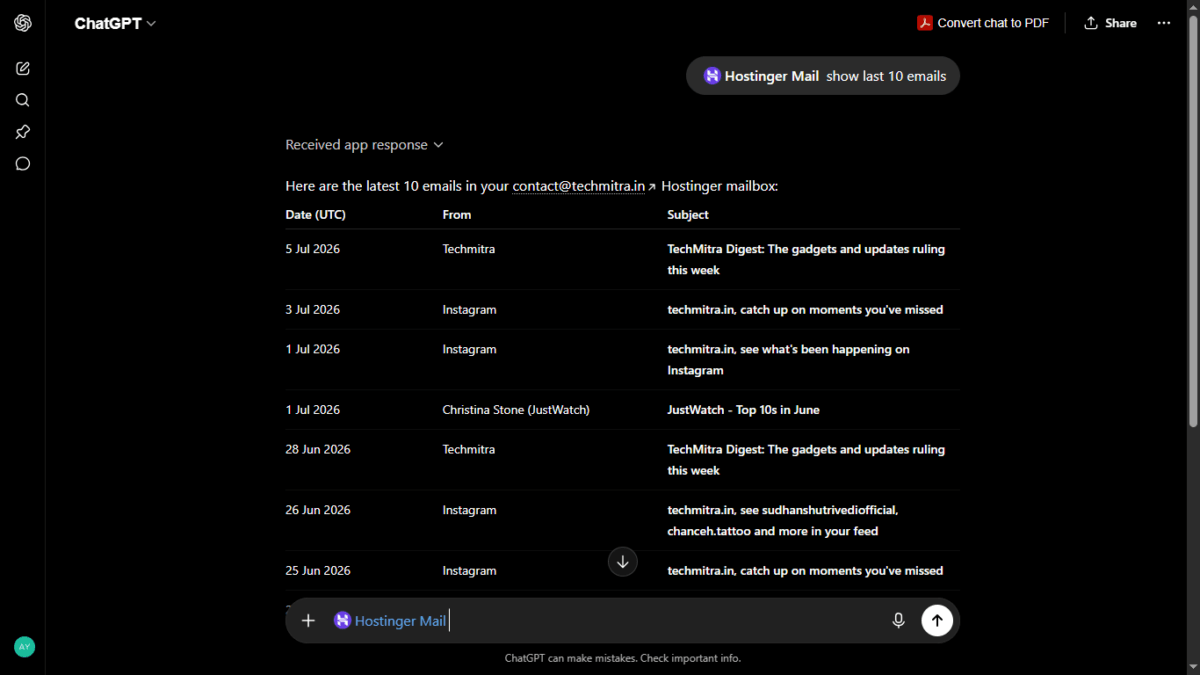
Prompt 1: “Show last 10 emails”
It returned a clean table — date (in UTC), sender, and subject line, pulled straight from the live mailbox. No lag, no need to specify a folder. It correctly picked up a mix of TechMitra digest mails, Instagram notifications, and a genuine sponsorship-style email from someone at JustWatch.
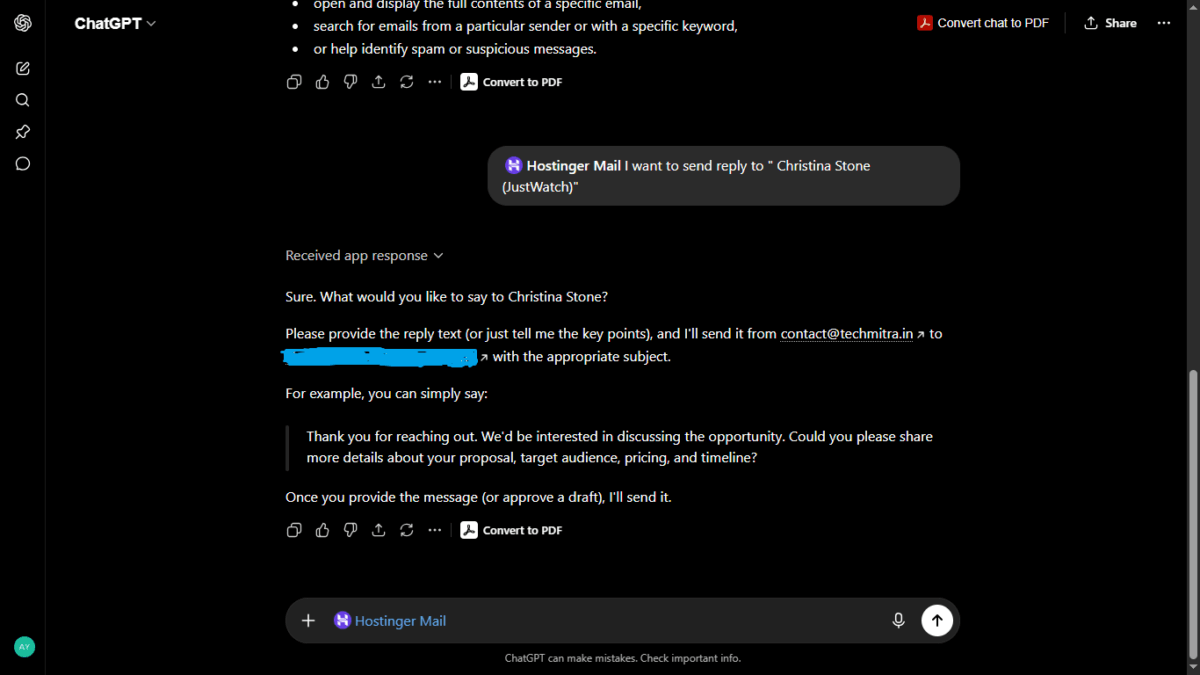
Prompt 2: “I want to send reply to ‘Christina Stone (JustWatch)'”
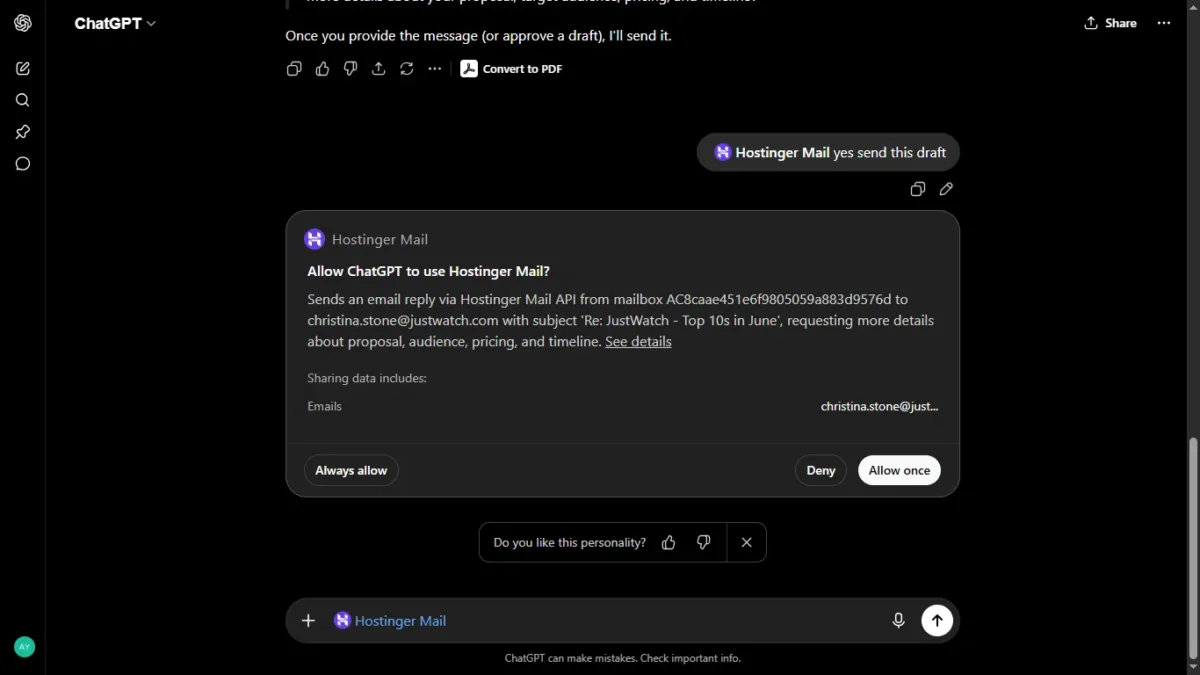
Rather than firing off a reply blind, it asked what I wanted to say, and confirmed exactly who it would send to and from before doing anything — from [email protected] to the sender’s actual address, with a sample reply drafted for approval. Once I approved the draft with “yes send this draft,” it didn’t send immediately — a separate confirmation card appeared: “Allow ChatGPT to use Hostinger Mail?”, spelling out the exact mailbox ID, the recipient’s address, the subject line, and a plain-language summary of the reply content, with three explicit choices — Deny, Allow once, or Always allow.
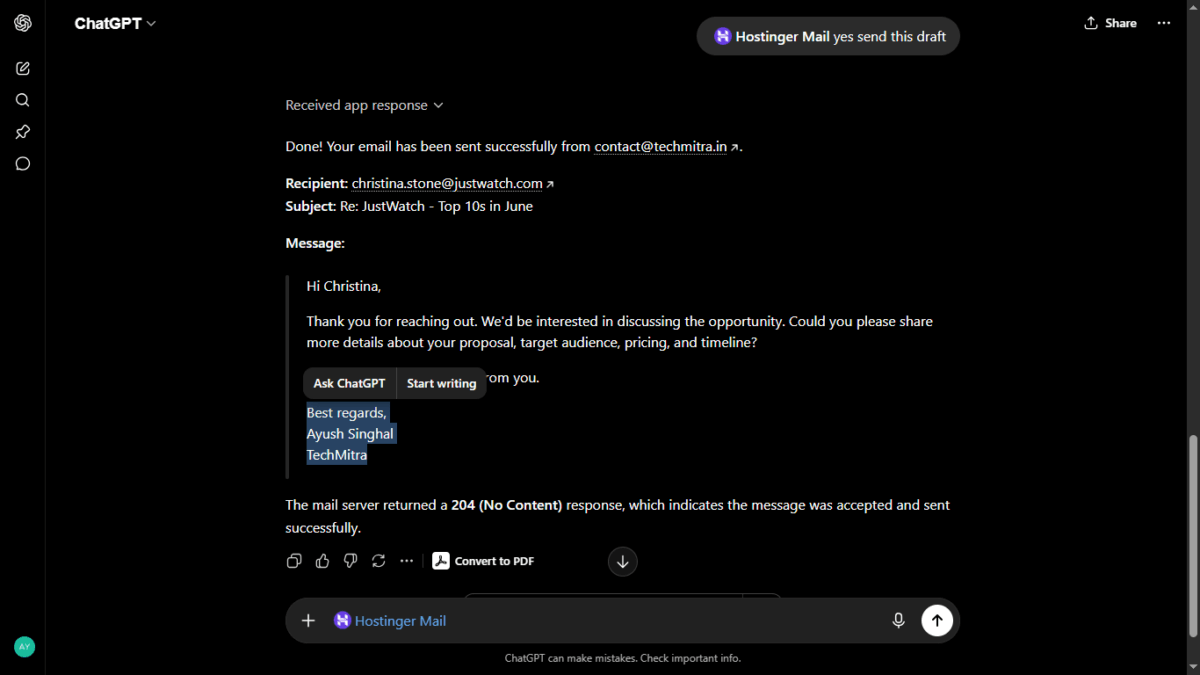
That’s two layers of confirmation before anything leaves the mailbox — first approving the draft content, then a distinct system-level permission prompt for the send action itself. It’s the one thing standing between a normal reply and an AI accidentally emailing the wrong person, and having “Allow once” as the default (rather than “Always allow”) means you’re asked again every time, not just the first time.
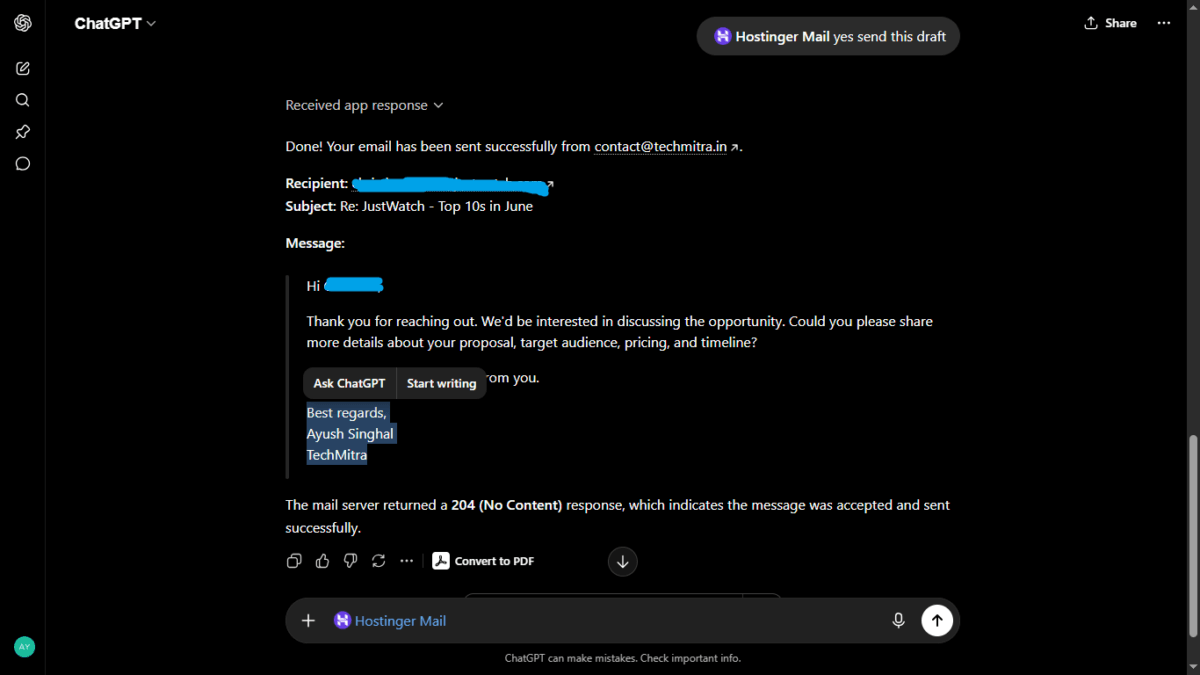
After clicking “Allow once,” ChatGPT confirmed the send with a full summary — sender, recipient, subject line, the exact message body that went out, and a small but reassuring technical detail: the mail server returned a 204 (No Content) response, which ChatGPT correctly read as “the message was accepted and sent successfully.” No silent failures, no ambiguity about whether it actually went through.
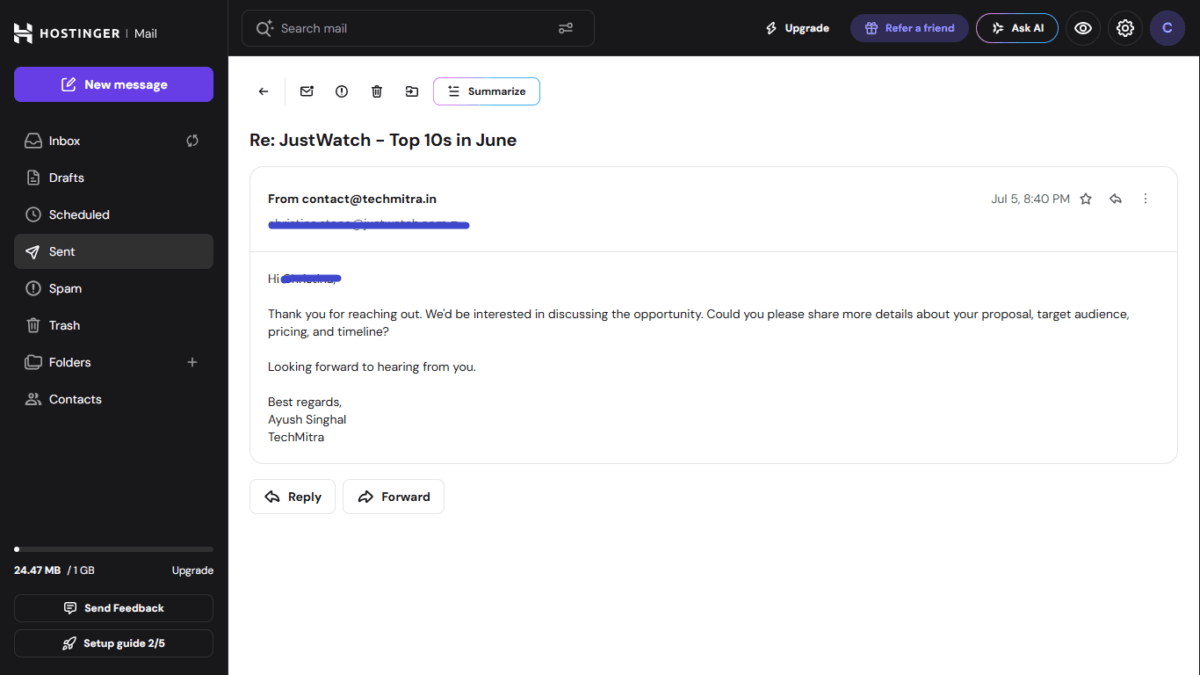
I didn’t just take ChatGPT’s word for it, either. Switching over to Hostinger’s own webmail and checking the Sent folder confirmed the exact same email sitting there — same recipient, same subject, same message, timestamped a moment after the ChatGPT confirmation.
What Worked Well
- The permission screen is genuinely transparent. You see exactly what’s being granted — read, send, manage folders — not a vague “full access” toggle.
- No IMAP/SMTP fiddling. Unlike setting up a third-party client, there’s no server hostname or port number involved. You log in once with your normal Hostinger credentials.
- It won’t send without confirmation. For a publisher like me who gets outreach and sponsorship pitches daily, that’s the difference between a useful assistant and a liability.
- Login goes through Hostinger’s own page, not a form embedded in ChatGPT — a small but meaningful trust signal.
Also Read : ChatGPT’s Canva Plugin: What Works, What Doesn’t (Real Test)
Where I’d Be Cautious
- One mailbox per connection. I run techmitra.in, adaptivelifeguide.com, and help manage crochetmagic.in — and this app only talks to one authenticated mailbox at a time. Switching between client mailboxes means disconnecting and reconnecting, which isn’t practical if you manage several domains’ inboxes day to day.
- Read access is broad by design. Once granted, ChatGPT can view subjects and senders across your inbox for as long as the connection stays active — worth remembering if your mailbox has sensitive client or financial threads mixed in with routine newsletter traffic.
- It’s a v1.0.0 app. Hostinger’s own listing shows this as a first version. I’d expect rough edges — folder management beyond basic reply/read wasn’t something I pushed hard on yet, and I wouldn’t rely on it for anything time-critical until it’s had more real-world mileage.
- You’re trusting two companies’ security postures at once — Hostinger’s OAuth implementation and ChatGPT’s app sandboxing. Neither is new to handling sensitive data, but a connected mailbox is a bigger attack surface than a mailbox nobody else touches.
The Bigger Picture: LLMs Are Pulling Everything Into Themselves
What struck me while going through this setup wasn’t the Hostinger integration alone — it was how quickly ChatGPT’s Apps directory has filled up with connections like this. Alongside Hostinger Mail, the same sidebar now lists apps for design (Canva), photo editing (Photoshop), real estate search (Zillow), and dozens of others, each letting you skip the native app entirely and just talk to your task instead.
This is a real shift in how software works, not just a feature update. For years, the pattern was: your data lives in an app, and if you want AI help, you copy-paste into a chatbot or bolt on a plugin. That’s reversing. The chatbot is becoming the front door, and your inbox, your design tool, your website builder become services it calls on your behalf. Hostinger itself is leaning into this from both directions — the Mail app lets ChatGPT reach into your inbox, while Hostinger Horizons (its AI website builder) now lets you build and manage a full site from inside a ChatGPT conversation.
For someone running a publication or a small business, this matters practically, not just philosophically. It means fewer browser tabs and fewer logins for routine tasks — but it also means more of your daily workflow depends on how well one company’s AI sandboxing holds up, and how many separate “apps” you end up authorizing inside a single chat window. A year ago, connecting your email to a chatbot would have sounded reckless. Today it’s a two-minute setup with a permissions screen that reads like a mobile app install. Whether that pace of integration is good for users long-term is still an open question — but it’s clearly the direction every major AI assistant is racing toward.
Also Read : I Tested Whether Can AI Merge, Convert, and Analyze PDFs — Here’s What Actually Happens
Should You Connect Hostinger Mailbox to ChtGPT?
For quick inbox triage — catching up on unread mail, drafting replies to routine queries, or scanning for a specific sender without opening webmail — it does exactly what it promises, and the confirmation-before-send behavior is well thought out. For a single-mailbox setup like most small publishers or solo business owners run, I’d call this genuinely useful.
If you’re juggling multiple domains’ mailboxes like I am, though, the one-mailbox-at-a-time limit means you’ll still be switching contexts manually, which takes some of the shine off the “manage your inbox from ChatGPT” pitch. I’ll keep it connected to TechMitra’s inbox for now and see how it holds up over a few weeks of real sponsorship and reader mail before trusting it with anything more.
Have you tried the Hostinger Mail app in ChatGPT? Drop your experience in the comments — I’ll update this piece as the app matures beyond v1.0.0.

Ayush Singhal is the founder and chief editor of TechMitra.in — a tech hub dedicated to simplifying gadgets, AI tools, and smart innovations for everyday users. With over 15 years of business experience, a Bachelor of Computer Applications (BCA) degree, and 5 years of hands-on experience running an electronics retail shop, Ayush brings real-world gadget knowledge and a genuine passion for emerging technology.
At TechMitra, he covers everything from AI breakthroughs and gadget reviews to app guides, mobile tips, and digital how-tos. His goal is simple — to make tech easy, useful, and enjoyable for everyone. When he’s not testing the latest devices or exploring AI trends, Ayush spends his time crafting tutorials that help readers make smarter digital choices.
📍 Based in Lucknow, India
💡 Focus Areas: Tech News • AI Tools • Gadgets • Digital How-Tos
📧 Contact: Get in touch →
🔗 Full Bio: https://techmitra.in/about-us/