
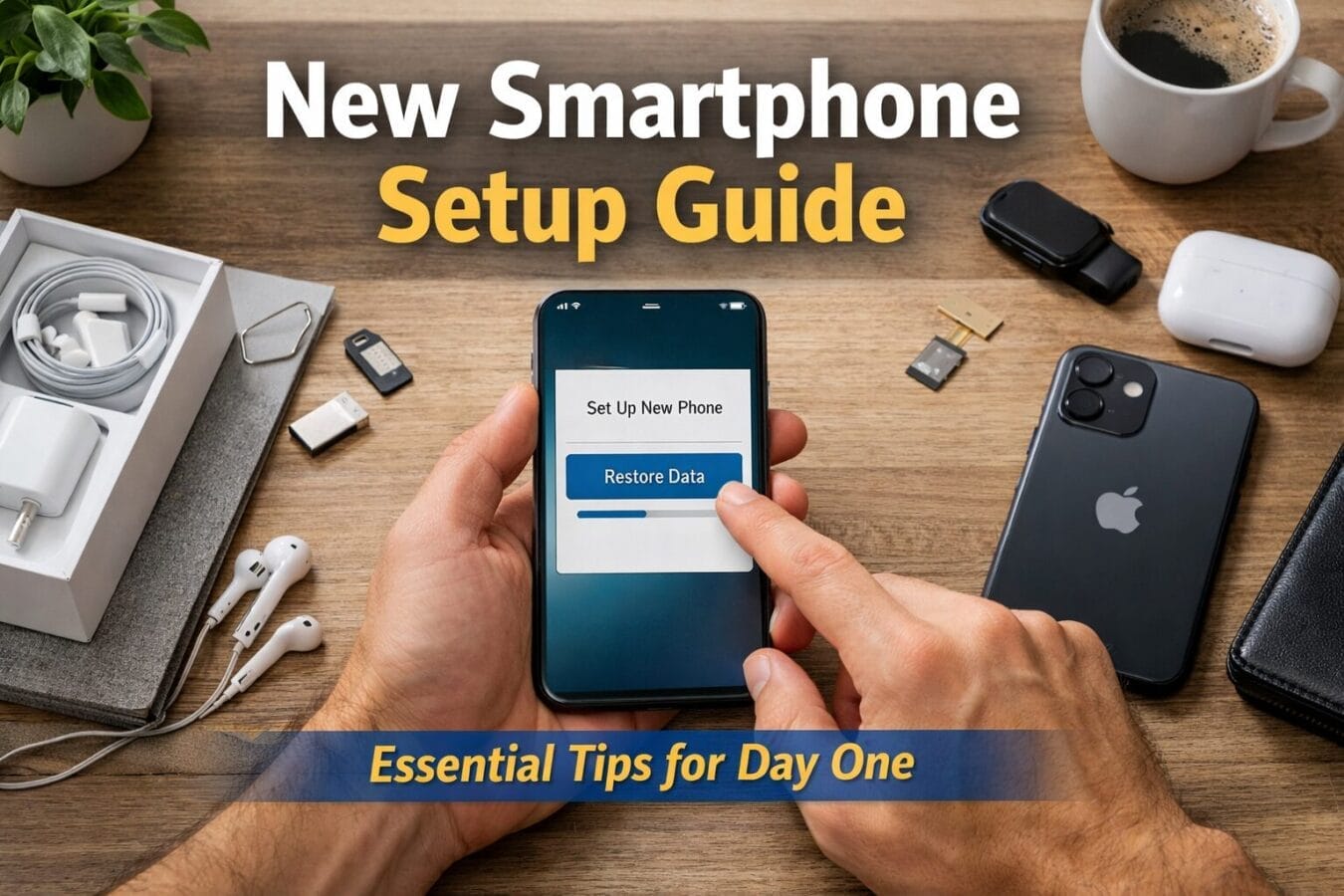
Buying a new smartphone is always exciting. The smooth display, fast performance, better camera, and longer battery life make it tempting to start using the phone immediately. But many users make a common mistake—they rush into installing apps and transferring data without setting up the phone properly.
In today’s smartphone era, where devices store personal photos, bank apps, work data, and private conversations, first-day setup is extremely important. A few smart steps taken on Day One can protect your data, improve performance, save battery life, and prevent common problems later.
This new smartphone setup guide explains how to setup a new smartphone correctly, whether you are switching from an old phone or buying your first one.
Table of Contents
Inspect the Smartphone Before Setup
Before turning on your new phone, do a quick physical check.
Things to verify:
No scratches or cracks on the screen
Buttons working properly
Camera lens clean and undamaged
Charging cable and adapter in good condition
SIM tray opening smoothly
If you notice any defect, report it immediately. It is much easier to replace a device before completing setup.
Start the Initial Setup Carefully
Once you power on the phone, follow the setup wizard slowly. Do not skip screens just to finish faster.
During setup, you will be asked to:
Select language and region
Connect to Wi-Fi
Insert SIM card
Agree to basic terms
Choose data transfer options
Use a stable Wi-Fi connection, as many phones download updates and security components during setup.
Sign In With Your Account Securely
Android phones usually require a Google account, while iPhones need an Apple ID. This account is essential for backups, app downloads, device tracking, and security.
Best practices:
Use a strong password
Enable two-step verification
Make sure recovery email or phone number is correct
Your account becomes the backbone of your smartphone’s security and cloud services.
Transfer Data From Old Phone Carefully
Most smartphones offer data transfer during setup. This may include:
Contacts
Photos and videos
Messages
Apps
Call history
Before starting data transfer:
Ensure your old phone has enough battery
Use the same Google or Apple account
Connect both phones to Wi-Fi
If you prefer a fresh start, you can skip this step—but make sure important data is already backed up.
Important: WhatsApp Backup Before Installing on New Phone
This is one of the most common mistakes users make.
When you install WhatsApp on a new smartphone, the app asks whether you want to restore an existing backup or start fresh. If you have not taken a backup from your old phone, your chats may be permanently lost.
Before uninstalling WhatsApp or resetting your old phone:
Open WhatsApp on the old device
Check that chat backup is enabled
Make sure the latest backup is completed successfully
Confirm the backup is linked to your account
Only after this should you install WhatsApp on the new phone. This simple step can save years of important messages, photos, and documents.
Click here to check how to take backup of your chat history.
Update the Operating System Immediately
Many new smartphones come with older software versions.
Go to:
Settings → Software Update
Install:
System updates
Security patches
Bug fixes
Why this matters:
Improves performance
Fixes security vulnerabilities
Enhances battery optimization
Enables new features
Always restart the phone after updates are installed.
Remove Unnecessary Pre-Installed Apps
Most phones come with pre-installed apps that you may never use.
Uninstall or disable:
Trial apps
Duplicate tools
Promotional apps
Unused manufacturer services
This helps:
Free storage space
Reduce background activity
Improve battery life
Make the phone cleaner and faster
Set Up Screen Lock and Biometric Security
Security should never be skipped.
Enable:
PIN or password
Fingerprint unlock
Face unlock (if available)
Avoid simple patterns or predictable PINs. A secure lock protects your phone if it is lost or stolen.
Review Privacy Permissions Carefully
Many apps request access they don’t actually need.
Check permissions for:
Camera
Microphone
Location
Contacts
Files
Disable:
Background location access for unused apps
Ad personalization
Unnecessary data sharing
These steps protect your privacy and reduce battery drain.
Set Up Cloud Backup Properly
Backing up your phone is critical.
Make sure backups are enabled for:
Photos and videos
Contacts
App data
Device settings
Cloud backups help you:
Restore data if phone is lost
Switch phones easily in the future
Protect memories and important files
Keep Your Photos and Documents Backed Up on the Cloud
Apart from app data and messages, your smartphone stores some of your most valuable information—personal photos, videos, and important documents. To avoid permanent data loss due to accidental deletion, phone damage, or theft, it is always recommended to keep a regular cloud backup using your Google or Apple account.
Cloud backup services automatically sync your data when the phone is connected to the internet, ensuring that your files remain safe even if something happens to the device. Modern cloud platforms use encryption and built-in privacy controls, allowing users to manage what content is backed up and who can access it. By reviewing privacy settings and enabling secure cloud backups, users can protect their personal data without compromising privacy or control.
Configure Battery and Performance Settings
Modern smartphones offer advanced battery management.
Recommended actions:
Enable adaptive battery
Restrict background apps you don’t use
Reduce screen timeout
Adjust display brightness
Avoid installing battery-boosting apps; built-in tools are safer and more effective.
How To create backup of Images & Documents On Android Click Here
How To create backup of Images & Documents On Iphone Click here
Install Only Essential Apps on Day One
Resist the urge to install everything immediately.
Start with:
Messaging apps
Email
Banking or payment apps
Navigation
Work or study tools
Install entertainment and heavy apps gradually. This helps you monitor performance and battery usage.
Secure Your Phone Against Theft
Enable features like:
Find My Device
Remote lock and erase
Location tracking
These tools allow you to:
Locate your phone
Lock it remotely
Erase data if stolen
They are extremely useful and often forgotten.
Customize Without Overloading
Personalization is fun, but don’t overdo it.
Simple customizations:
Wallpaper
Ringtone
Notification preferences
App layout
Avoid heavy launchers or customization apps initially, as they can slow down the phone.
Test All Hardware Features
Before the return window closes, test everything.
Check:
Camera quality
Speaker and microphone
Call clarity
Wi-Fi and mobile data
Bluetooth
Charging speed
If something doesn’t work properly, act quickly.
Common Mistakes to Avoid on Day One
Skipping updates
Forgetting WhatsApp backup
Installing pirated apps
Ignoring privacy permissions
Disabling security features
Overloading the phone with apps
Avoiding these mistakes keeps your phone fast and secure.
Final Thoughts
Setting up a new smartphone correctly on Day One makes a huge difference.
This new smartphone setup guide shows that a little patience and planning can:
Protect your personal data
Improve performance
Extend battery life
Prevent avoidable mistakes
Whether you are switching from an old device or using a smartphone for the first time, following these steps ensures a smooth and stress-free experience.
A well-set-up phone is not just faster—it is safer, smarter, and more reliable for everyday life.
Frequently Asked Questions (FAQs)
1. How to setup a new smartphone for the first time?
To set up a new smartphone for the first time, start by completing the initial setup carefully, signing in with your Google or Apple account, updating the operating system, enabling security features, setting up cloud backup, and installing only essential apps on Day One.
2. What should I do immediately after buying a new smartphone?
After buying a new smartphone, you should check for physical damage, complete system updates, remove unnecessary pre-installed apps, enable screen lock and biometric security, review privacy permissions, and configure cloud backup.
3. Is it necessary to update a new smartphone on the first day?
Yes, updating a new smartphone on the first day is important. Software updates include security patches, bug fixes, and performance improvements that protect your device and improve stability.
4. Should I transfer data from my old phone or start fresh?
Both options are fine. If you want your contacts, photos, and apps, data transfer is convenient. If you prefer a cleaner experience, you can start fresh—but ensure all important data is backed up before skipping the transfer.
5. What should I check before installing WhatsApp on a new phone?
Before installing WhatsApp on a new smartphone, make sure your chats are fully backed up on your old device. During setup, WhatsApp asks whether you want to restore a backup, and skipping this step can result in permanent chat loss.
6. Is it safe to store photos and documents on cloud backup?
Yes, storing photos and documents on cloud backup is generally safe. Cloud services linked to official Google or Apple accounts use encryption and privacy controls, allowing users to manage what data is backed up and who can access it.
7. Do I need to remove pre-installed apps on a new smartphone?
It is recommended to uninstall or disable unnecessary pre-installed apps. These apps can consume storage, run in the background, and reduce battery life without providing real value to most users.
8. Which security features should I enable on a new smartphone?
You should enable a strong screen lock, fingerprint or face unlock, device tracking features, and remote lock or erase options. These features help protect your phone and data if the device is lost or stolen.
9. How can I improve battery life on a new smartphone?
You can improve battery life by enabling adaptive battery features, limiting background app activity, reducing screen timeout, adjusting brightness, and avoiding unnecessary battery optimization apps.
10. Should I install all apps on the first day?
No, it is better to install only essential apps on the first day. Installing too many apps at once can slow down the phone and make it harder to identify which apps consume the most battery or data.
11. What privacy settings should I review on a new smartphone?
You should review app permissions for camera, microphone, location, contacts, and storage. Disable access for apps that do not need it and turn off unnecessary ad personalization or background tracking.
12. Is cloud backup necessary if I already use local storage?
Yes, cloud backup adds an extra layer of protection. Local storage can be lost if the phone is damaged, stolen, or reset, while cloud backups allow easy recovery of data on a new device.
13. How do I protect my data if my phone is lost?
Enable device tracking, remote lock, and remote erase features. These tools help locate your phone or erase data remotely to prevent misuse.
14. When should I test hardware features on a new smartphone?
You should test hardware features like the camera, speaker, microphone, Wi-Fi, Bluetooth, and charging within the first few days, while the replacement or return window is still open.
15. How long does proper smartphone setup take?
A proper first-day smartphone setup usually takes 1–2 hours. This small time investment helps ensure better security, performance, and long-term reliability.
Disclaimer
The information provided in this article is for general informational purposes only. Smartphone features, settings, and setup options may vary depending on the device brand, model, operating system version, and region. Readers are advised to follow official guidelines provided by the device manufacturer or software provider when configuring their smartphones. The publisher is not responsible for any data loss, software issues, or device malfunction that may occur as a result of following this guide.
Trending

Ayush Singhal is the founder and chief editor of TechMitra.in — a tech hub dedicated to simplifying gadgets, AI tools, and smart innovations for everyday users. With over 15 years of business experience, a Bachelor of Computer Applications (BCA) degree, and 5 years of hands-on experience running an electronics retail shop, Ayush brings real-world gadget knowledge and a genuine passion for emerging technology.
At TechMitra, he covers everything from AI breakthroughs and gadget reviews to app guides, mobile tips, and digital how-tos. His goal is simple — to make tech easy, useful, and enjoyable for everyone. When he’s not testing the latest devices or exploring AI trends, Ayush spends his time crafting tutorials that help readers make smarter digital choices.
📍 Based in Lucknow, India
💡 Focus Areas: Tech News • AI Tools • Gadgets • Digital How-Tos
📧 Email: contact@techmitra.in
🔗 Full Bio: https://techmitra.in/about-us/