
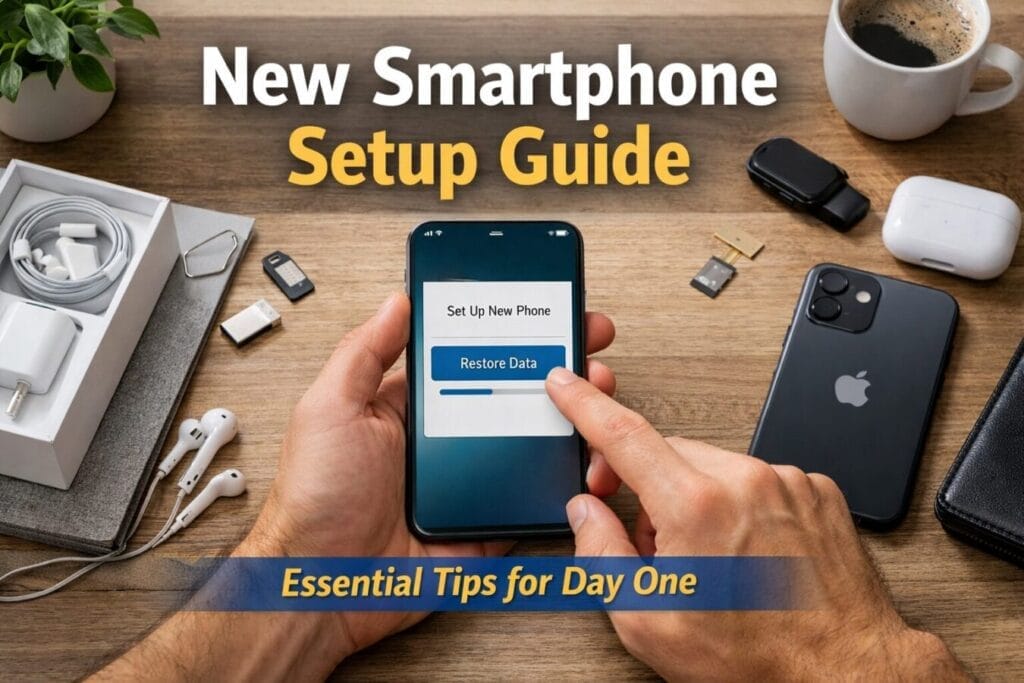
New Smartphone Setup Guide for Beginners: Tips You Shouldn’t Miss
Unboxing a brand-new smartphone is always an exciting experience. Whether you have just treated yourself to the latest flagship or you are helping a family member get started with their very first mobile device, that pristine, scratch-free screen represents a world of possibilities.
However, moving past the initial excitement and into the actual setup process can feel a bit overwhelming. Modern smartphones are no longer just portable phones; they are highly advanced pocket computers powered by sophisticated operating systems, on-device artificial intelligence (AI), and robust security protocols.
If you don’t set up your device correctly on day one, you might experience fast battery drain, missing data, or security gaps later on. This step-by-step guide will walk you through the entire smartphone setup process from scratch, ensuring your new Android device or iPhone is secure, optimized, and ready for daily use.
Table of Contents
Phase 1: Unboxing and Physical Preparation
Before you press the power button, taking a few minutes to prepare your physical environment will prevent interruptions later.
1. Inspect the Box Content
Carefully open your smartphone box on a flat, clean surface. Inside, you will typically find:
- The smartphone itself (usually wrapped in a protective plastic film).
- A USB-C charging cable.
- A SIM ejector tool (a small metal pin).
- Quick-start documentation and warranty cards.
Note: Most modern smartphone manufacturers no longer include a charging brick (wall adapter) or headphones in the box to reduce electronic waste. If you don’t have a compatible fast charger from your previous device, make sure to purchase a high-quality, certified adapter.
2. Charge the Battery
Smartphones usually ship from the factory with a battery charge between 40% and 60%. While this is enough to turn the phone on, the initial setup process is incredibly resource-intensive. Your phone will be downloading operating system updates, syncing cloud data, and initializing background AI models.
To prevent the phone from dying mid-transfer—which can corrupt your data—plug it into a power outlet and let it charge to at least 80% before proceeding.
3. Handle the SIM Card and Network Connectivity
Your Subscriber Identity Module (SIM) card is what connects your phone to your cellular network for calls, texts, and mobile data. Today, this step looks a bit different depending on your phone model:
- Physical SIM Card: If your phone uses a physical nano-SIM, locate the small SIM tray on the outer edge of the device. Insert the SIM ejector tool into the tiny pinhole, push firmly until the tray pops out, place your SIM card into the tray matching the angled corner, and slide it gently back in.
- eSIM (Electronic SIM): Many modern smartphones, especially high-end models, are entirely digital and do not have a physical SIM tray. If you are using an eSIM, leave this step for now. You will activate it over Wi-Fi during the on-screen setup by scanning a QR code provided by your network carrier (such as Jio, Airtel, or Vodafone).
Phase 2: Powering On and Initial Configuration
With a charged battery and your network ready, hold down the power button until the manufacturer’s logo illuminates the screen.
1. Select Language and Region
The first screen you encounter will ask you to select your preferred language and geographic region. This choice is important because it automatically formats your local time, date layout, currency symbols, and default keyboard layout.
2. Connect to a Reliable Wi-Fi Network
Do not attempt to complete the setup over a cellular mobile data connection. The phone will ask you to select a Wi-Fi network. Choose your home or office Wi-Fi and enter the password. A stable, high-speed Wi-Fi connection is absolutely mandatory for transferring old data and downloading essential system software.
3. Log In to Your Core Ecosystem Account
Your smartphone requires a central account to act as its digital identity. This account unlocks app downloads, cloud storage, and location services.
- For Android Devices (Samsung, Google Pixel, OnePlus, Redmi, etc.): You will be prompted to log in with a Google Account (your Gmail address). If you don’t have one, tap “Create Account.”
- For Apple Devices (iPhones): You will be prompted to sign in with an Apple Account (formerly known as Apple ID). If you are new to the Apple ecosystem, you can set up a fresh Apple Account directly on this screen.
Also Read : My Jio Postpaid Experience: Jio 449 Family Plan Details & Review (2026)
Phase 3: Seamless Data Migration
If you are upgrading from an older mobile phone, you don’t have to manually recreate your contact list or re-download all your photos. Modern data migration utilities make the transition incredibly simple.
1. Choose Your Transfer Method
Both major platforms offer excellent built-in migration tools right during the startup sequence:
- Android to Android: Google’s built-in wizard allows you to connect your old and new phones via a USB cable or over a shared Wi-Fi network to copy apps, call logs, contacts, and photos.
- iPhone to iPhone: Apple’s “Quick Start” feature uses a local wireless connection. Simply place your old iPhone next to the new one, scan the animated cloud image, and watch the data transfer automatically.
- Cross-Platform (Switching Sides): If you are moving from Android to iPhone, download the “Move to iOS” app on your Android phone before starting. If you are moving from iPhone to Android, the setup wizard will guide you to connect an adapter cable to pull data directly from iCloud or your physical device.
2. The Critical eSIM Safety Rule
If you are migrating a digital eSIM from your old device to your new one, pay close attention to this golden rule: Do not wipe, reset, or format your old phone until your new phone is fully functional.
Moving an eSIM often requires opening your carrier’s app or receiving a verification SMS code. If you erase your old phone too early, you may lose access to your cellular network entirely, locking you out of the two-factor authentication (2FA) codes needed to log into your bank accounts and email. Ensure your new phone successfully displays network bars and can make a phone call before discarding the old one.
Phase 4: Biometrics, Passkeys, and Device Security
Once your data begins copying over, the phone will ask you to establish security barriers to protect your personal information if the device is ever lost or stolen.
1. Set a Strong PIN or Password
Always choose a memorable but secure security code. Avoid easily guessable combinations like “0000,” “1234,” or your birth year. This PIN acts as your ultimate master key if your biometric scanners ever fail to recognize you.
2. Register Your Biometrics
Follow the on-screen prompts to register your unique biological features:
- Fingerprint Recognition: Repeatedly place your thumb or index finger on the designated power button or under-display sensor at varying angles until the progress circle hits 100%.
- Facial Recognition (Face ID / Face Unlock): Hold the phone at eye level and rotate your head slowly in a circle so the front-facing camera array can map the contours of your face.
3. Activate Passkeys for a Password-Less Future
Modern applications are rapidly phasing out traditional passwords in favor of Passkeys. Passkeys link your favorite apps and websites directly to your phone’s biometric security.
During setup, make sure to agree to turn on your platform’s built-in credential manager (Google Password Manager for Android or iCloud Keychain for iPhone). Once active, logging into apps like WhatsApp, Amazon, or your banking portal won’t require typing long passwords—you will simply scan your fingerprint or face to instantly log in.
Phase 5: Managing the Post-Setup Heavy Lifting
When the initial wizard finishes, your phone will open up to its home screen. However, the setup isn’t completely finished. Behind the scenes, your phone’s processor is working hard on two major tasks.
[Initial Wizard Complete]
       │
       ▼
 ┌───────────┐
 │Home Screen│
 └─────┬─────┘
       │
       ├─────────────────────────────────────┐
       ▼                                     ▼
┌───────────────────────────────┐     ┌──────────────────────────────┐
│  Background Task 1:           │     │  Background Task 2:          │
│  Operating System Updates     │     │  AI Model Background Download│
│  • Installs security patches  │     │  • Pulls down AI data weights│
│  • Requires system reboot     │     │  • Can cause phone warmth    │
└───────────────────────────────┘     └──────────────────────────────┘
1. Install Essential Operating System Updates
Smartphones often spend weeks or months in a shipping warehouse or on a retail shelf before arriving in your hands. During that time, developers release critical software patches.
- On Android: Go to Settings > System > System Update (or Settings > Software Update).
- On iPhone: Go to Settings > General > Software Update.
Download and install any available updates. Your phone will likely restart during this process. Keeping your operating system current patches dangerous security vulnerabilities and fixes day-one bugs.
2. Understanding On-Device AI Initialization
Modern smartphones feature integrated advanced artificial intelligence capabilities (such as Google Gemini Nano or Apple Intelligence). The very first time your device connects to home Wi-Fi, it will begin downloading hundreds of megabytes of localized AI data models and language weights in the background.
Because of this intense background downloading and processing, it is completely normal if your new phone feels quite warm to the touch or if the battery drops quickly during the first 24 hours. Do not panic. Keep the phone connected to your Wi-Fi network and plugged into its charger overnight so it can complete these automated optimizations smoothly.
Phase 6: Customization and Digital Hygiene
Now that the foundational system is completely secure and updated, you can tailor the device to your personal preferences.
1. Audit Your App Drawer
Look through the pre-installed programs on your home screen. Many manufacturers include pre-installed apps, games, or third-party tools you might never use. Take a moment to long-press on these unnecessary apps and select “Uninstall” or “Disable.” This frees up internal storage space and keeps your phone clutter-free.
2. Configure Your Notification Boundaries
To prevent your phone from buzzing constantly and breaking your focus, adjust your app notifications early. Go to Settings > Notifications and intentionally turn off alerts for retail shopping apps, mobile games, and streaming platforms. Leave notifications enabled only for vital communication tools like phone calls, text messages, and email.
3. Establish Automatic Cloud Backups
Protect your smartphone’s data against future accidents by ensuring automated cloud backups are active.
- Android: Navigate to Settings > Google > Backup and verify that “Backup by Google One” is switched on.
- iPhone: Open Settings > [Your Name / Apple Account] > iCloud > iCloud Backup and toggle it to enabled.
With these features turned on, your phone will securely back up your photos, system settings, messages, and contact lists to the cloud every single night while you sleep, as long as the device is charging and connected to Wi-Fi.
Frequently Asked Questions (FAQ)
How long does the entire new smartphone setup process take?
The initial configuration wizard takes less than 15 minutes. However, the entire data migration process—including downloading all your old applications, personal photos, and background AI language models—can take anywhere from 45 minutes to two hours depending on how much data you are transferring and the speed of your Wi-Fi network.
Should I drain my new phone’s battery to 0% before charging it?
No. This is an old battery myth left over from older nickel-cadmium batteries. Modern smartphones utilize Lithium-Ion or Lithium-Polymer batteries, which have no “memory effect.” Draining a modern battery down to 0% actually puts unnecessary stress on the chemical cells. For optimal battery lifespan, try to keep your phone’s battery charge sitting between 20% and 85% whenever possible.
Why does my new smartphone feel hot during setup?
This is completely normal behavior. During setup, your phone’s internal processor is working at maximum capacity to index files, download large operating system patches, install apps, and download background AI weights. Once these initial tasks are complete, your phone’s operating temperature will drop back down to normal.
How do I transfer my WhatsApp chat history to the new phone?
If you are moving between the same platform (Android to Android or iPhone to iPhone), simply perform a manual backup inside your old phone’s WhatsApp settings (Settings > Chats > Chat Backup) to Google Drive or iCloud before signing into WhatsApp on the new phone. If you are changing platforms entirely, you must use the official option integrated within the “Move to iOS” app or a physical USB-C to USB-C cable connection during the primary Android startup wizard to securely move your chat databases across operating systems.
What should I do with my old smartphone once the new one is set up?
Once you have fully verified that all your accounts, photos, authenticator apps, and eSIM cellular profiles are working correctly on your new phone, navigate to your old phone’s system menu and perform a Factory Data Reset. This securely wipes your personal encrypted files, allowing you to safely sell the device, pass it down to a family member, or drop it off at an official electronics recycling center.

Ayush Singhal is the founder and chief editor of TechMitra.in — a tech hub dedicated to simplifying gadgets, AI tools, and smart innovations for everyday users. With over 15 years of business experience, a Bachelor of Computer Applications (BCA) degree, and 5 years of hands-on experience running an electronics retail shop, Ayush brings real-world gadget knowledge and a genuine passion for emerging technology.
At TechMitra, he covers everything from AI breakthroughs and gadget reviews to app guides, mobile tips, and digital how-tos. His goal is simple — to make tech easy, useful, and enjoyable for everyone. When he’s not testing the latest devices or exploring AI trends, Ayush spends his time crafting tutorials that help readers make smarter digital choices.
📍 Based in Lucknow, India
💡 Focus Areas: Tech News • AI Tools • Gadgets • Digital How-Tos
📧 Contact: Get in touch →
🔗 Full Bio: https://techmitra.in/about-us/